Create an Interview Study
Last updated: October 21, 2026
Build an interview study in six steps: Plan, Screener, Scheduling, Messages, Share, and Review. Before you start, see Creating studies in Rally to prepare shared components like consent forms, email templates, and question templates, and for what to do after your study is created.
Start a new study
Go to Studies and select + New Study.
Start from your team's Studies page so that team is preselected.
Select Interview. To start from a template instead, choose one under Start from a template; see Study templates. Study templates can lock some settings, such as the participation limit, incentive, or consent form, so every study made from them stays consistent. If a setting won’t change, ask whoever manages the template to update it.
In the popup, choose the Team the study belongs to. This only appears if you're on more than one team.
Under Recruitment, choose In-house to recruit from your own Rally database, or External Panel to recruit through a paid panel provider. To recruit externally, see External Panel Recruitment Overview.
Select Continue to open the study builder.
Plan
Start by setting up the key details of your study.
Internal study name: The name your team sees. New studies start as "Untitled Study," so rename it.
External study name: The participant-facing name. Use it with personalization tokens to add it to emails.
External study description: A short description for participants, up to 800 characters. Required for external panel studies.
Internal research goal (optional): The objective of your research, to guide your team.
Internal research plan (optional): A link to your research plan.
What type of study are you running?: Shows Interviews. The study type can only be chosen when creating the study.
What's your participation limit?: Choose A specific number of people and enter the number, or Unlimited for continuous research.
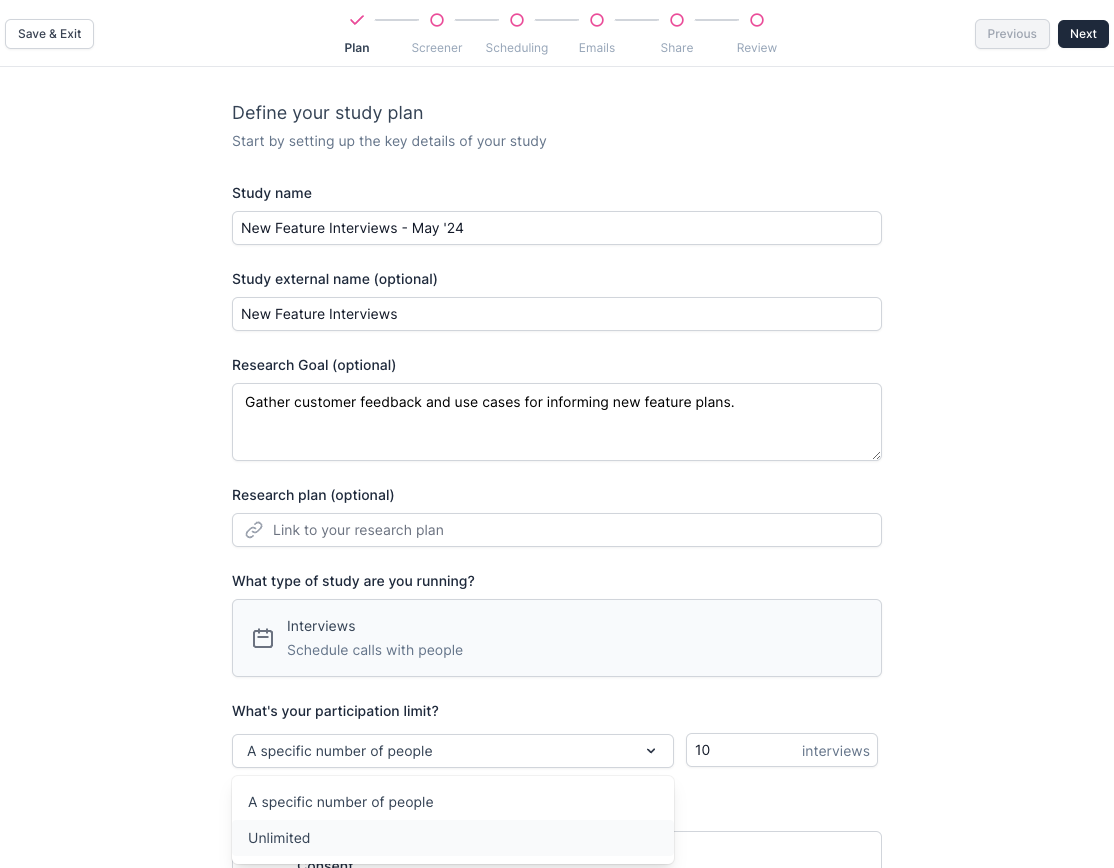
Participant quota (optional): Toggle on to split your participation limit into named groups, each with its own target (for example, 5 designers and 5 researchers).
Select Add quota, name each quota and set its target. You can add up to 6, and their targets can't add up to more than your participation limit.
Turn on Auto-close quota when full to stop participants in a full quota from scheduling. They'll see a "study closed" message instead.
Assign participants to quotas with screener conditional logic.
Quotas need at least one quota group to turn on, and group targets can't add up to more than your participation limit. Quotas aren't available for external panel recruitment.
Multiple sessions (optional): Under "Do you want to invite participants to book more than one interview session?", toggle on to let participants book more than one session in this study, useful for longitudinal research.
Consent (optional): Under "Will you require consent?", toggle on Consent to require participants to sign a consent form.
Select consent form: Choose the consent form from the dropdown. Create consent forms in Consent forms and upload NDAs and other files in Documents.
When to capture consent: Choose where consent appears in the participant flow:
Before participants start the screener
After participants submit the screener
As participants start the scheduler
After participants schedule the interview
Manual - you'll email the consent form
To send consent forms yourself, see manually email consent forms to participants.
The before- and after-screener options are only available once you add a screener in the Screener step. If you use one of them and later send a participant straight to the scheduler or test (skipping the screener), Rally asks for consent before they start.
Incentive (optional): Under "Will you offer incentives?", toggle on Incentive and set the reward participants receive.
Select Add funds to fund the selected budget now, or add funds later before sending incentives. Adding funds may require manager approval.
See Incentives to set up, send, and manage incentives, or use Custom incentives to log promo codes and other rewards.
Branding: Apply a brand to give your study a consistent look and feel. Set up brands in Branding, or select None to exclude branding when running research without bias.
Language: Select the study's language. Web pages and automated emails are translated to it. Each study has one language, so participants won't see an option to switch to English if you choose Spanish. See Translate studies.
Rally translates its own pages, screener endings, and fixed email elements. Content your team writes like questions, question templates, emails, email templates, and consent forms aren't translated automatically, so prepare it in the chosen language.
Screener
Ask the right questions to find the best-fit participants.
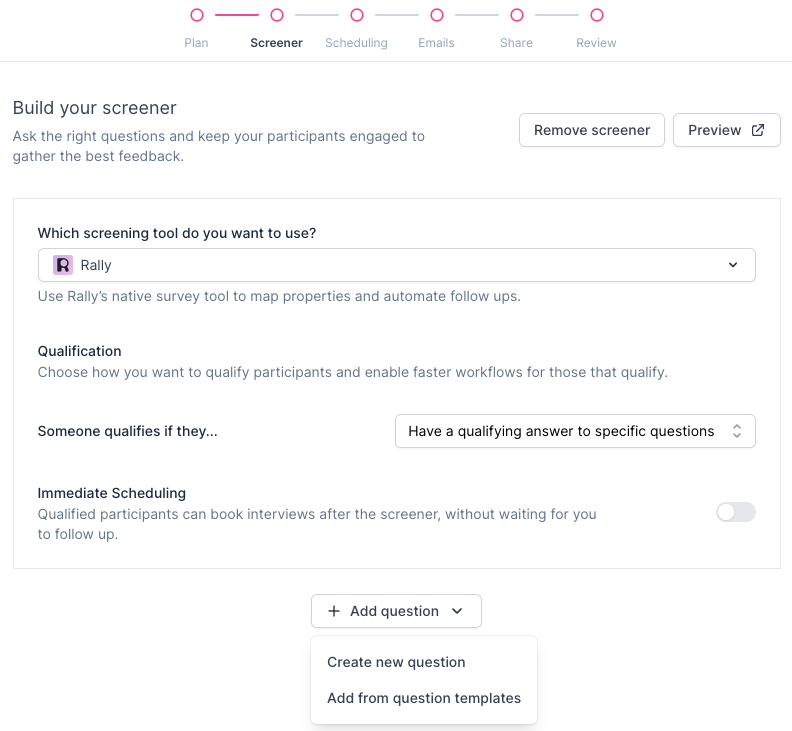
Screener tool: Rally's native screener is recommended for property mapping and automated follow-ups. You can also use a connected Qualtrics, SurveyMonkey, or Typeform survey, or select Link to a custom screener for any other tool. Rally tracks completions for custom links only through a redirect link, which must be enabled on your workspace. Even then, tracking isn't guaranteed, so check completions in your tool and update participant statuses manually if needed. See Create a screener for setup.
Qualification: Choose how participants qualify automatically:
Complete screener without being disqualified: Participants qualify unless they give an auto-disqualifying answer.
Have a qualifying answer to specific questions: Participants qualify only if they give an auto-qualifying answer.
Qualification depends on conditional logic. Without disqualifying rules, everyone who completes the screener qualifies under the first option; without qualifying rules, no one qualifies automatically under the second.
Immediate scheduling (optional): Let qualified participants book an interview right after finishing the screener, without waiting for you to follow up.
Questions: Select + Add question, then Create new question or Add from question templates. See Create a screener for question types, property mapping, and conditional logic.
Build question templates in advance so your team can assemble quality screeners quickly.
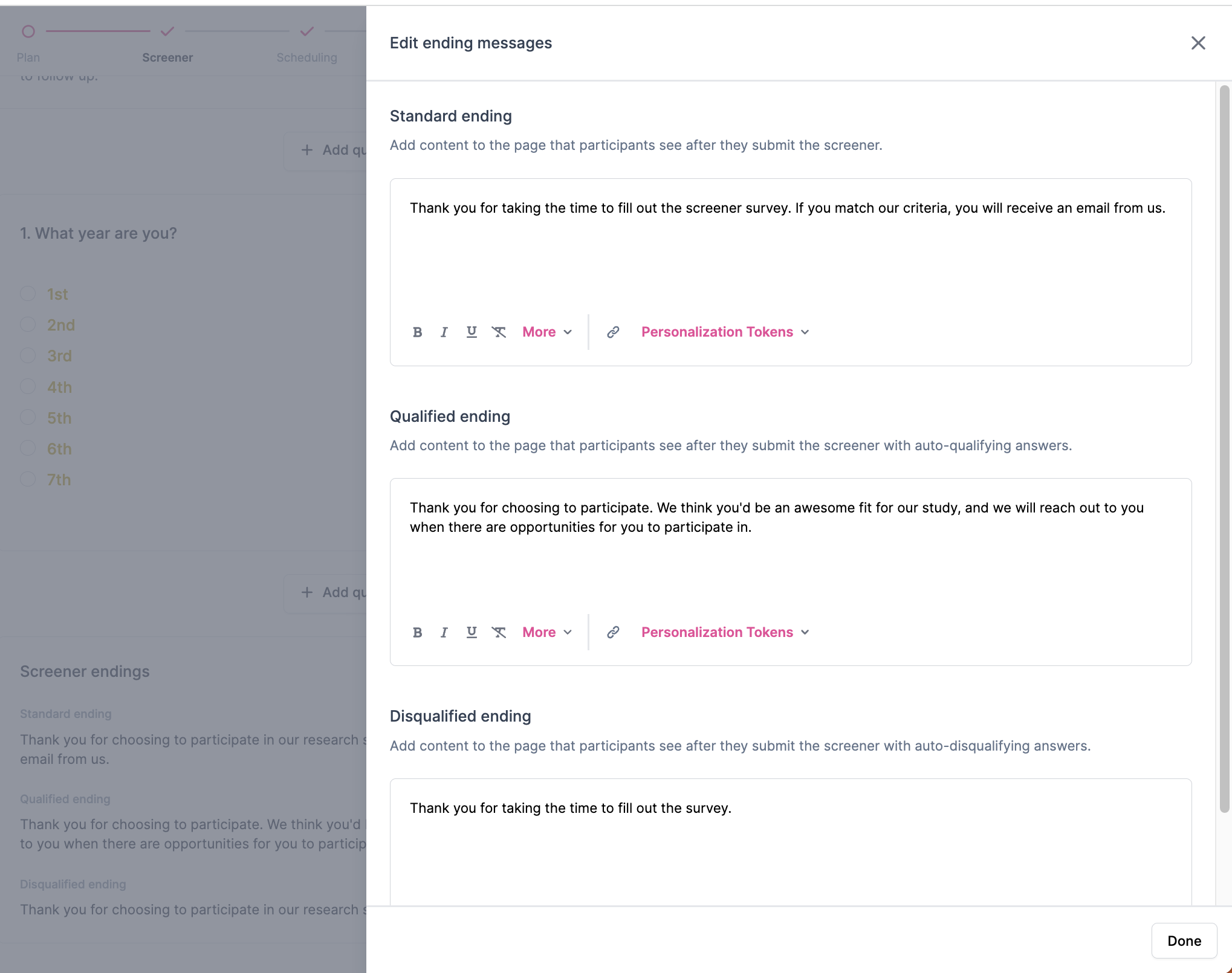
Screener endings: Customize the message participants see after submitting the screener, based on their result:
Standard: Shown to everyone after submitting. Example: "Thank you for taking the time to fill out the screener survey. If you match our criteria, you will receive an email from us."
Qualified: Shown when answers auto-qualify them. Example: "Thank you for choosing to participate. We think you'd be an awesome fit for our study, and we will reach out to you when there are opportunities for you to participate in."
Disqualified: Shown when answers auto-disqualify them. Example: "Thank you for taking the time to fill out the survey."
URL parameters (optional): Add parameters to your screener link, such as
?customer_id=123, to save extra information to people's profiles. Select Add a parameter and choose the person property each value should save to. When a participant submits the screener, Rally saves the value from their link. Only available for Rally native screeners. See URL parameters.
Participants can't submit a screener or survey twice in the same study. This prevents overwritten responses and stops anyone from getting around a disqualification.
Scheduling
Set your calendar event details, add hosts, and choose how participants book: Use working hours to book against each host's working hours, or Set dates and times to set one schedule for this study. See Configure interview scheduling.
Messages
Set up your messages now to save time and keep communication consistent. You can edit them later, or when you send.
Create email templates in advance so your team can reuse approved wording in every study. Select a template when editing any message below.
Core messages (sent by you):
Interview Screener: Invites people to take the screener. Not included when the study has no screener.
Interview Scheduler: Invites participants to book a time. It skips the screener, if there is one.
Interview Request Reschedule: Asks participants to rebook through the scheduler.
Incentive: Thanks participants and sends their incentive via Tremendous. Confirm the amount before saving. Not included when incentives are off or the study uses a custom incentive.
Automated messages (sent by Rally):
Interview Confirmation: Confirms the booking, with links to cancel, reschedule, or confirm attendance.
Interview Reminder: One or more reminders before the interview, with links to cancel or reschedule. New studies include two by default: 24 hours and 3 hours before. Select + Add reminder to add one, or the delete icon to remove one.
Interview Cancellation: Tells participants their interview was canceled.
Interview Reminder (text): If SMS is enabled for your workspace, Rally also texts participants 15 minutes before the interview.
Add a confirm attendance link
Add a confirm attendance link to an Interview Reminder or Interview Confirmation message so participants can confirm they still plan to attend. Confirmed participants show a double blue checkmark on their interview card in the Interviews view and in the activity feed.
Select the pencil icon next to the reminder or confirmation message.
Select Insert > Insert confirm attendance link.
Optionally customize the link text or style it as a button, then select Save.
In multi-session studies, Rally sends confirmation, reminder, and cancellation messages for each session booked.
Edit and preview messages
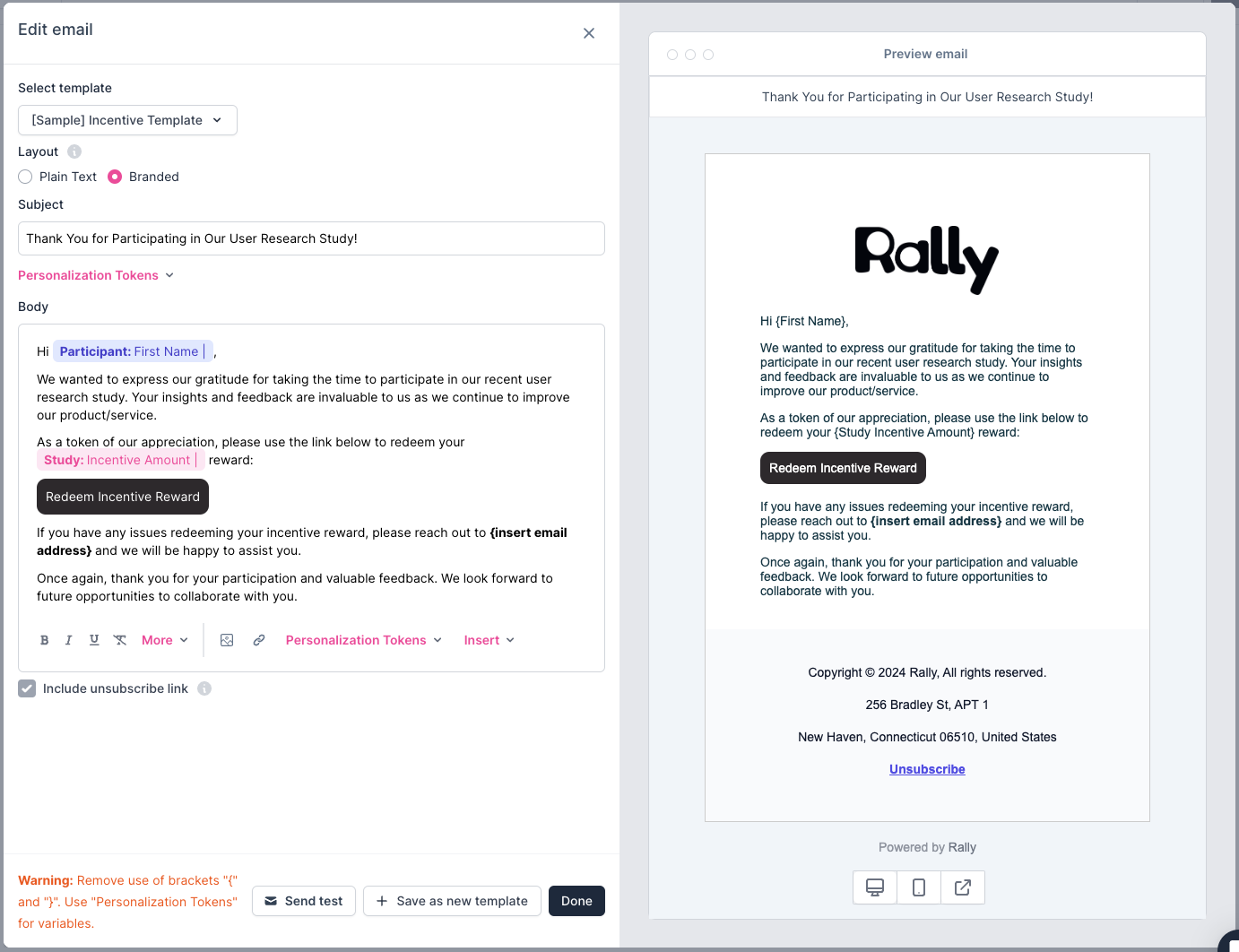
Select the pencil icon next to a message to edit and preview it.
Select template: Start from an email template.
Layout: Choose Plain text or Branded.
Subject: Edit the subject. Optionally add personalization tokens, such as the participant's first name.
Body: Edit the message and add personalization tokens, such as study name or incentive amount.
Include unsubscribe link: Lets recipients unsubscribe, which helps with spam-law compliance and deliverability. Unsubscribe links are required for branded emails.
Send test: Optionally send yourself a test.
+ Save as new template: Save this message as a reusable template.
Done: Close the editor.
Before emailing, see Decrease spam rate and improve email deliverability.
Share
Choose how you'll recruit participants and share your study.
Welcome page: The first screen participants see when they click your recruitment link. It introduces your study before they begin. Select Edit page to customize it.
Send emails (always enabled): You'll add participants and send emails after creating the study. Choose what email invitees see:
Show welcome page: Show the welcome page before they start.
Collect contact information: Ask them to confirm or enter their contact details before continuing, then choose what to collect:
First and last name
Email address: Required to join a study. Choose Personal or work emails (default) or Limit to work emails only.
Phone number: Participants must consent to receive texts. Select Require phone number to make it mandatory; it's required automatically when SMS messaging is on.
Share public link: Toggle on to generate a link anyone can use to sign up. After creating the study, find the link under Share. When it's on:
Under Create new records in…, choose the population where Rally adds people who aren't already in your database.
Check Show welcome page to show the welcome page to people who use the link.
Contact information, including first and last name, is always collected from public link participants.
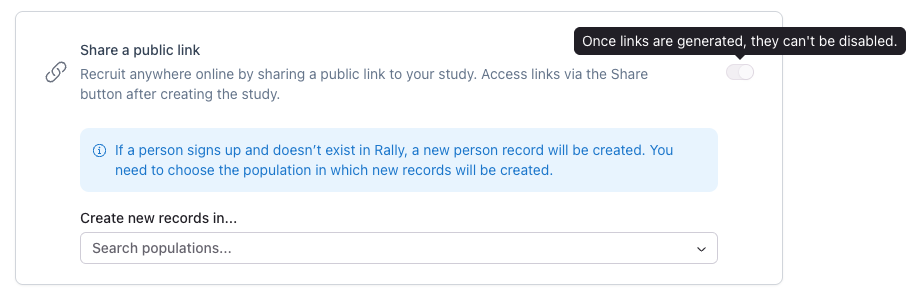
Once public links are turned on for a published study, they can't be turned off. Collect contact information also can't be changed after publishing.
Review
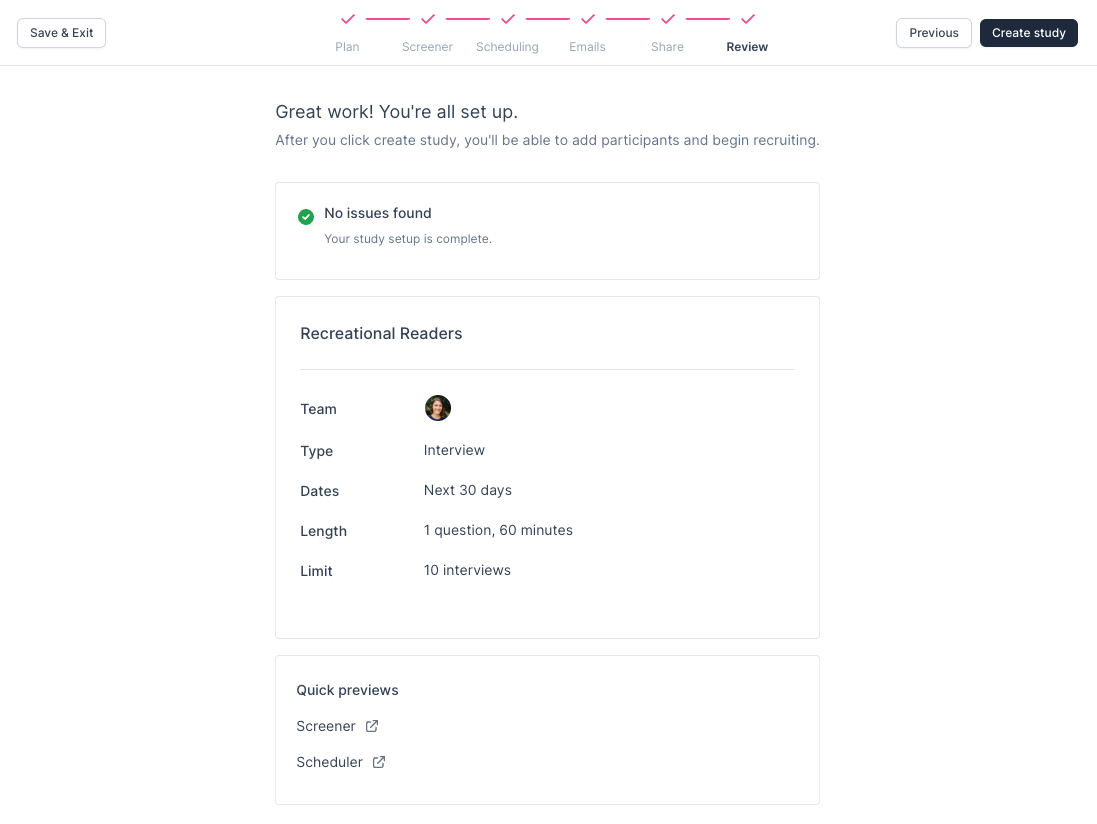
Review your study. Rally flags known errors or missing details so you can fix them. Preview the study as a participant to check the experience.
Select Publish Study to launch it. If you're not ready, select Save & Exit at the top of the builder to keep it as a draft.
Next, add participants to your study before sending invitations or sharing links. To test the study first, add yourself as a participant and send yourself the invitation, so you can go through it the same way your participants will.
Edit a published study
You can keep editing a study after you publish it. Your changes are saved as unpublished edits, and the builder shows how many you've made. Participants don't see them until you select Publish Edits. To back out a change, select Undo edit, or Undo all edits to discard everything since you last published.
Once recruiting starts, some settings lock so participants already in the study aren't affected:
Incentive: locks once invitations are sent.
Interview length: locks once a session is booked (interviews and group interviews).
Consent: locks once anyone submits.
Screener: can't be turned off once anyone responds.
Participation limit: can't go below the number of people already scheduled or completed.