Screener Conditional Logic
Last updated: October 5, 2026
Rally utilizes IF/THEN statements in its conditional logic to determine a participant's outcome. Through screener conditional logic, you can qualify, disqualify, end screener or redirect a participant to a specific question based on their response to screener questions. Auto-assign participants to a quota if Study Quotas are enabled.
Use screener conditional logic
Navigate to the Screener step of a study to add conditional logic to questions.
Screener qualification type settings
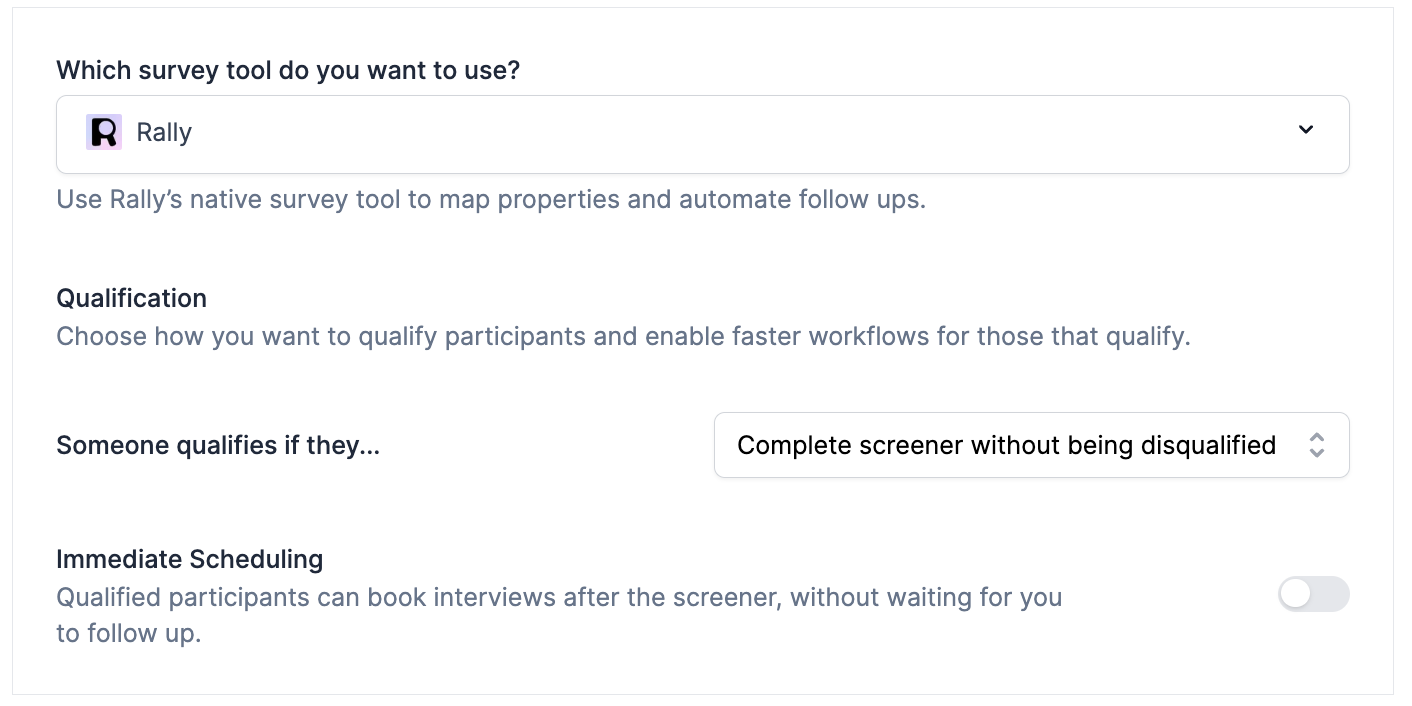
When starting a screener, choose how you want to qualify participants. There are 2 qualification options, and conditional logic must be set up to reflect the selection:
Someone qualifies if they...
Complete screener without being disqualified
Have a qualifying answer to specific questions
Complete screener without being disqualified
Participants who complete the screener without selecting any auto-disqualifying answers will automatically qualify for the study.
Set up conditional logic to disqualify participants based on specific question responses, or participants who complete screeners will auto-qualify unexpectedly.
Have a qualifying answer to specific questions
Participants who complete the screener with any auto-qualifying answers will automatically qualify for the study.
Set up conditional logic to qualify participants based on specific question responses, or participants who complete screeners will not auto-qualify as expected.
Immediate scheduling/Immediate testing (optional)
Allow screener-qualified participants to book interviews or begin the unmoderated test right away, without waiting for you to follow up.
Add conditional logic to screener questions
Next, set up conditional logic rules on relevant qualifying or disqualifying questions.
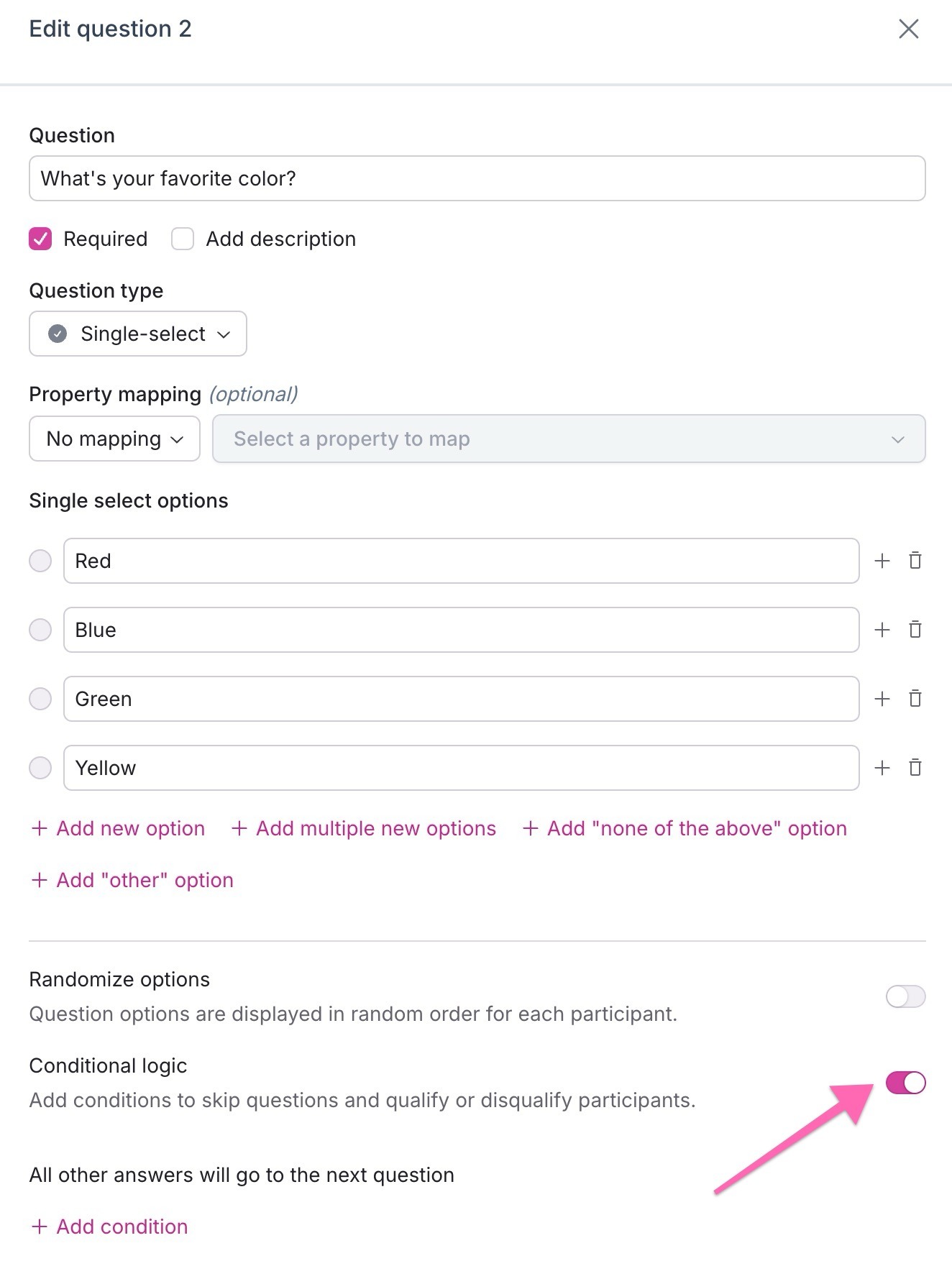
Navigate to a single-select, multi-select, or dropdown question and enable the conditional logic toggle.
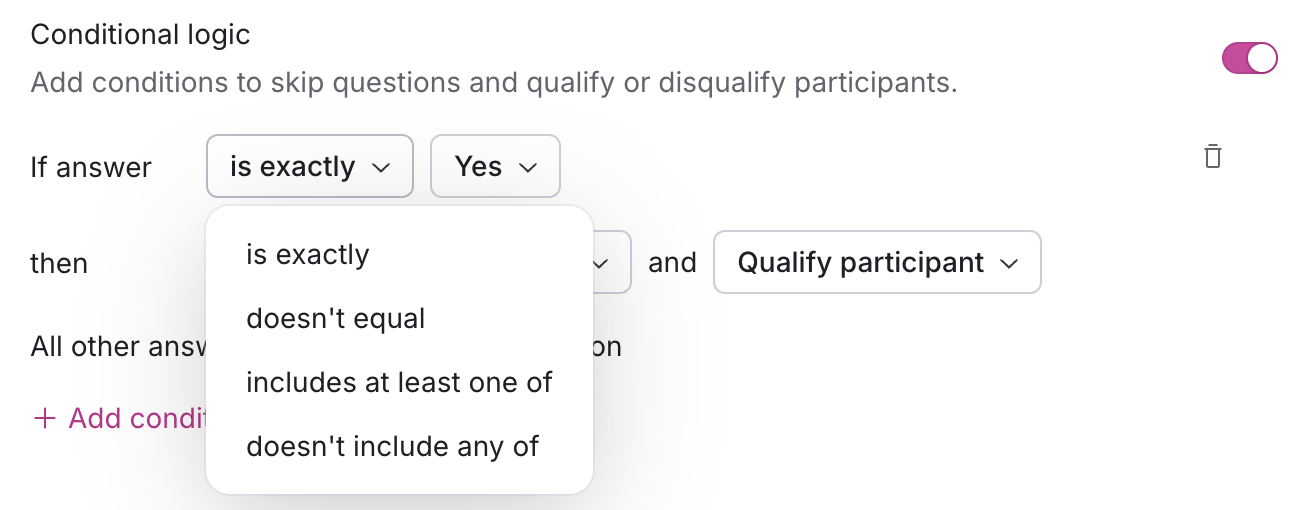
Craft your "IF" statement using the available drop-down statements.
For Single-Select questions, choose between "is exactly", "doesn't equal", "includes at least one of", "doesn't include any of".
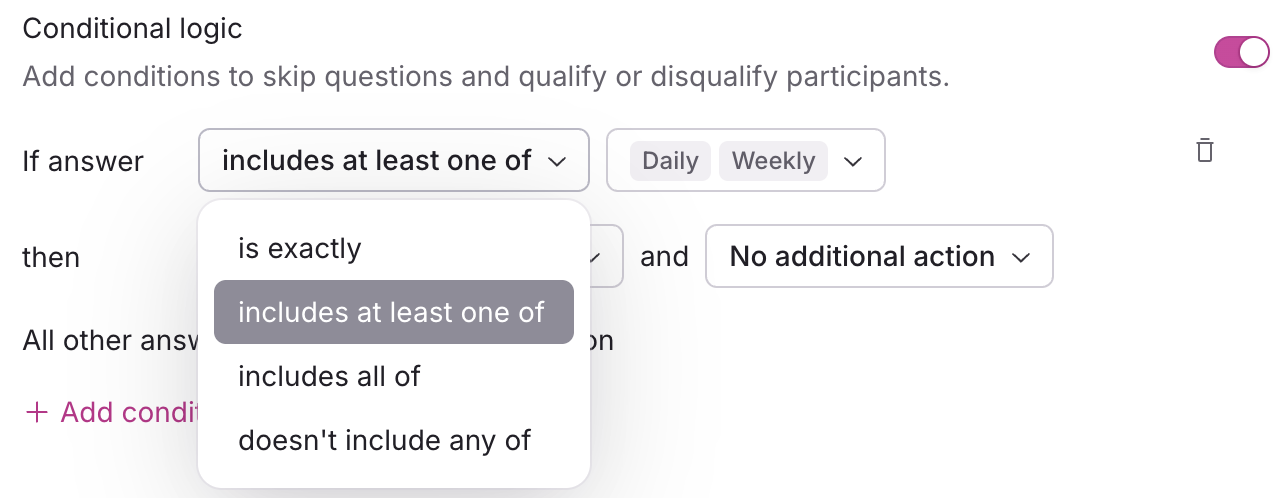
For Multi-Select questions, choose between "is exactly", "includes at least one of", "includes all of", or "doesn't include any of".
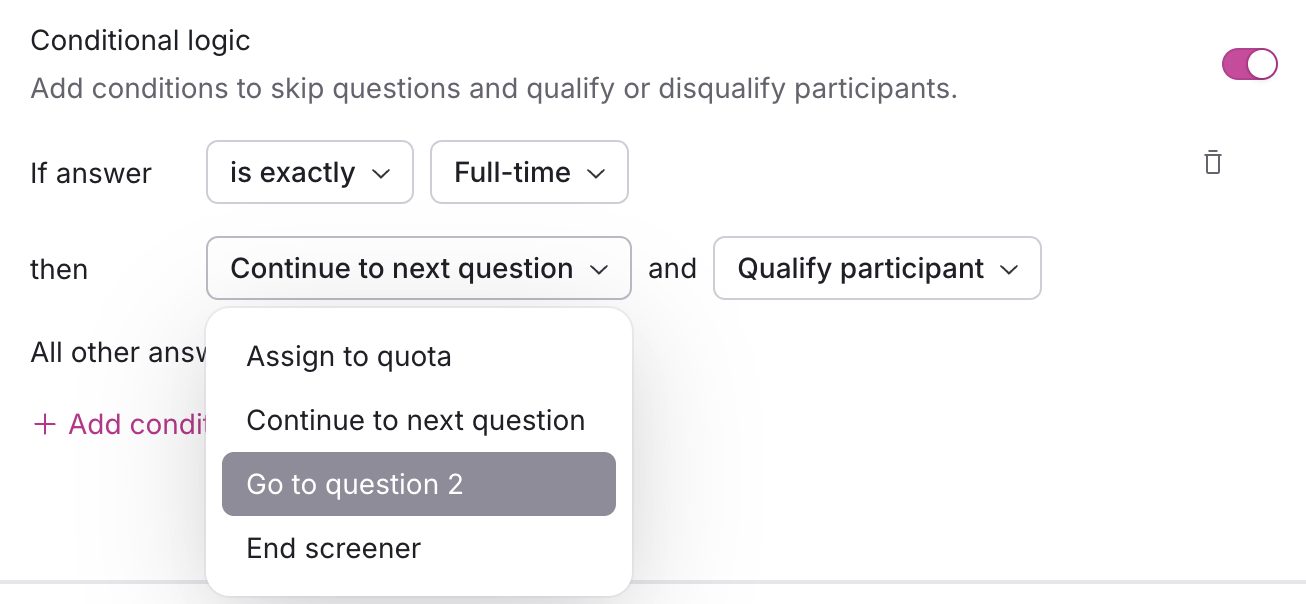
Create your "THEN" statement. You can send the participant to a later question in your survey, end the screener, or assign to a quota group if study quotas are enabled. To skip or route participants to a specific question, you must already have additional questions added to the screener.
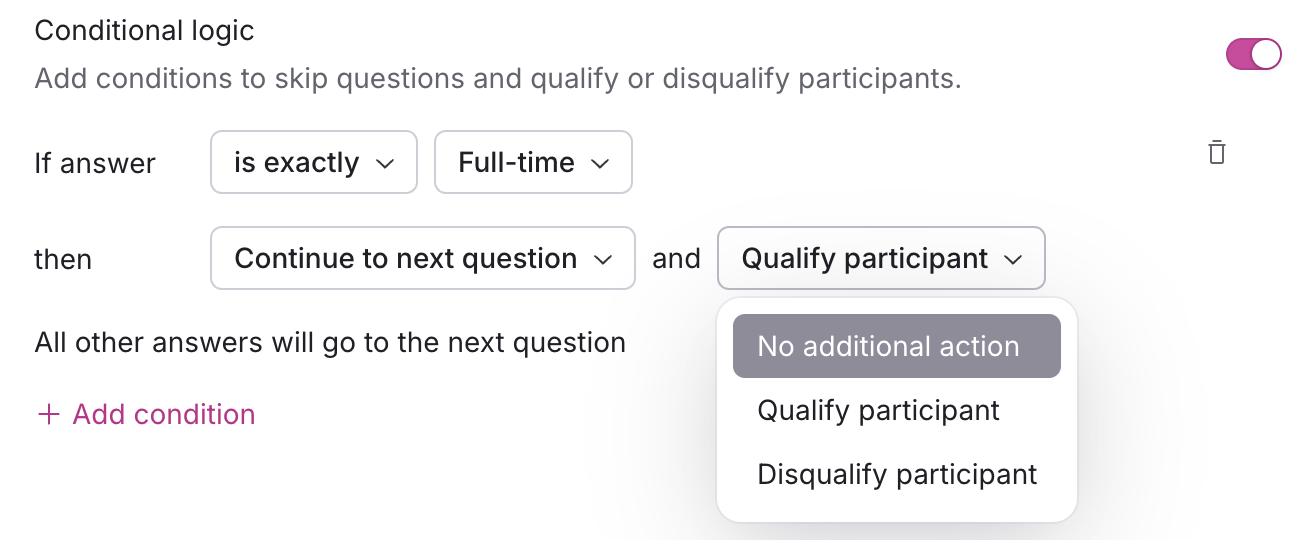
Choose to qualify, disqualify, select the quota group to assign to, or take no additional action based on the response.
Add every additional condition needed for the question. You can include as many as necessary; Rally evaluates all matching conditions on a question, not just the first one that matches, and combines their effects:
If any matching condition says Disqualify participant, that always wins, regardless of what order the conditions are in or what any other matching condition says.
Otherwise, if any matching condition says Qualify participant, the participant qualifies.
If more than one matching condition specifies a question to skip to, the first one (in the order you've listed them) is the one that's used.
Test your screener logic thoroughly via the screener preview by simulating different participant responses to ensure it performs as intended. Verification prevents potential issues like unintended qualification or disqualification outcomes.
Conditional logic FAQ
ℹ How can I ensure disqualified Participants' data is captured correctly?
Even when participants are disqualified through conditional logic, their responses up to the disqualification point are visible unless they drop off. Testing your screener setup can help prevent visibility issues related to disqualified responses.
ℹ Why are participants not being auto-qualified from conditional logic set up on screener or survey questions?
Rally resolves qualification in a fixed order: a matched Disqualify participant condition always wins, no matter what else matched. If nothing disqualifies them, and your screener's "qualify by default" setting is on, they qualify automatically. If that setting is off, a matched Qualify participant condition qualifies them. If none of that applies, they stay in Screener Completed for you to review manually.
The conditional logic set up on screener questions must include the action "Qualify participant" at the end of relevant questions. If you've selected "Disqualify participant" or "No additional action" instead, the question responses will not auto-qualify.
In the qualification settings at the top of the Screener section of Study setup, under Someone qualifies if they..., select "Complete screener without being disqualified" from the dropdown menu. If you've instead selected "Have a qualifying answer to specific questions," you must have conditional logic set up to qualify participants based on answers to relevant questions to auto-qualify.
To auto-disqualify participants, the conditional logic set up on screener questions must include the action "Disqualify participant" at the end of relevant questions. If you've selected "Qualify participant" or "No additional action" instead, the question responses will not auto-disqualify. (You have the option to "End screener" or "Continue to next question" without affecting disqualification.)
ℹ How can I troubleshoot disqualified participants or unexpected results?
To ensure visibility of disqualified participants' data, simulate various scenarios using different responses during your screener setup testing. Recognizing the reasons behind disqualification can assist in aligning data visibility with study needs.
To troubleshoot drop-offs or incomplete responses, test scenarios where disqualified participants might exit the screener prematurely and confirm the remaining questions' visibility settings.
Regularly review and revise conditional logic rules to ensure they reflect the study's requirements and minimize participant drop-off or unexpected results.