Documents
Last updated: November 5, 2026
Upload your own PDF documents, like NDAs or legal-approved consent forms, and attach them to your consent forms. Participants must agree to each attached document before they can submit the consent form, so your team always uses the correct, approved version.
Upload Documents
Uploading and managing documents requires the Create and modify document settings permission. This includes the Rally default roles Admin, Ops Manager, and Researcher. Users with the View documents permission can see documents but not change them. Users only see documents shared with the entire workspace or with one of their teams.
From the navigation sidebar, select Templates, then select the Documents tab.
Select + New in the top right.
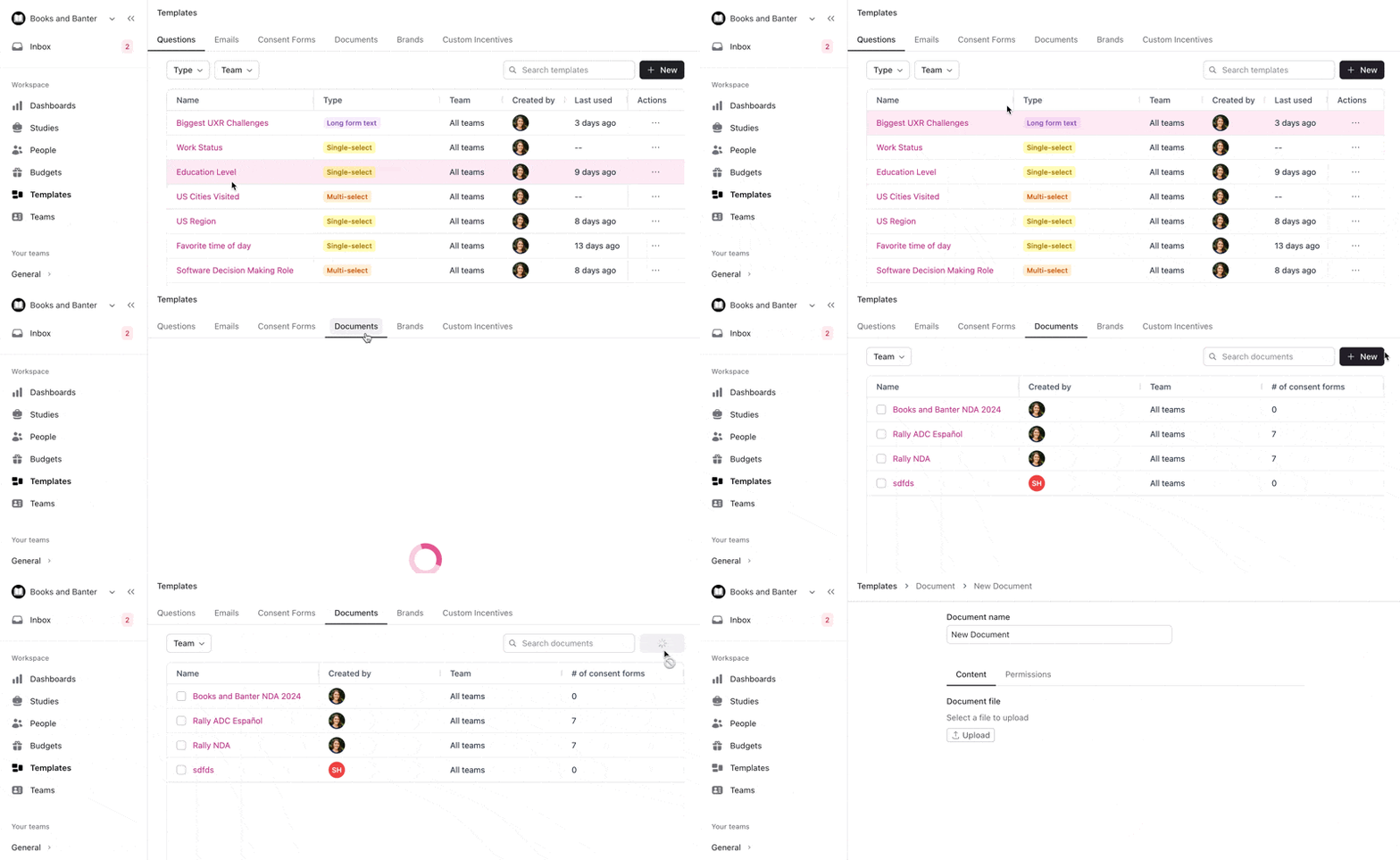
Enter a Document Name. Participants see this name next to the agreement checkbox, so make it clear (for example, "Acme NDA 2026"). You can't change the name after you upload a file.
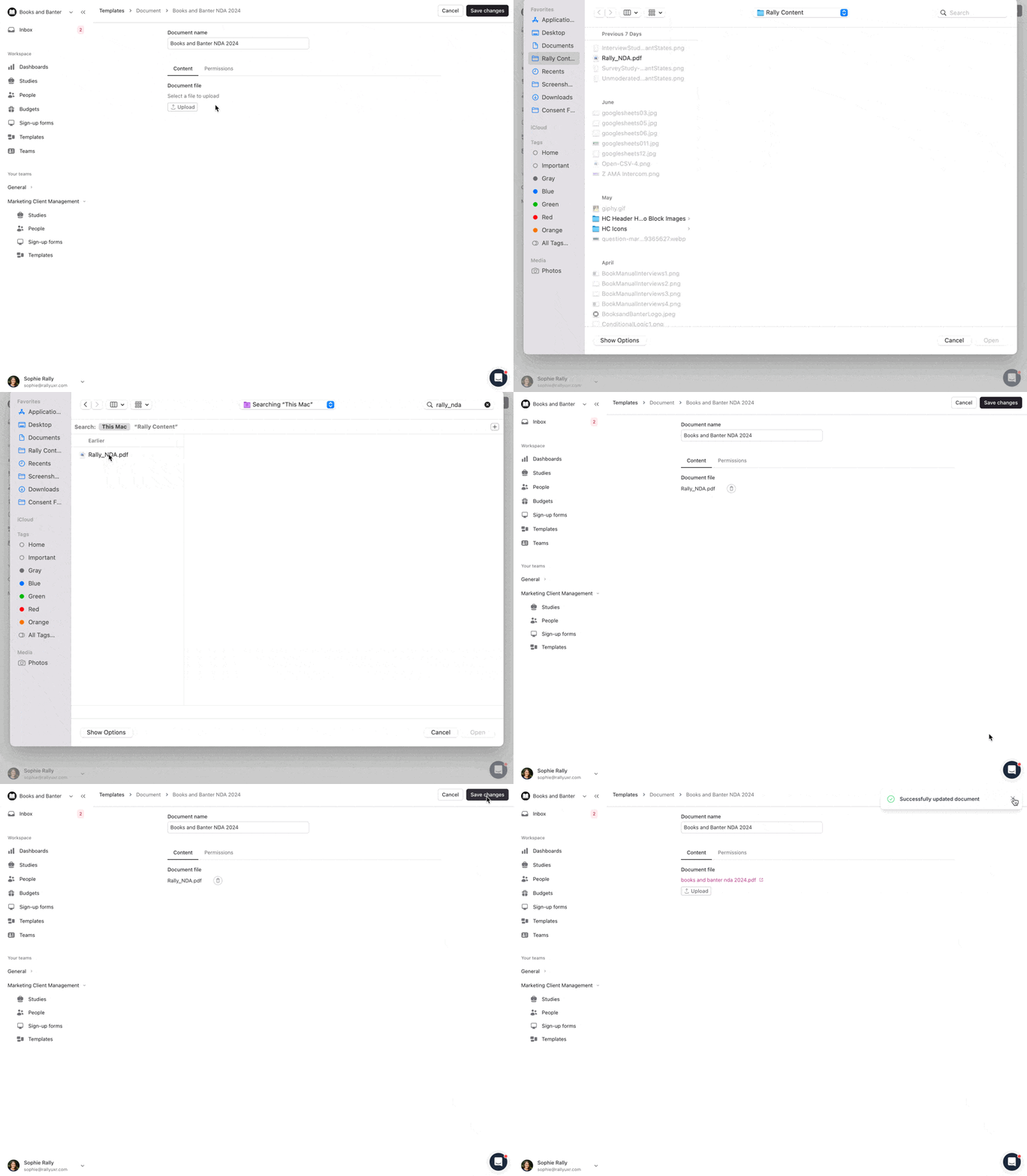
Select Upload, choose a PDF file, then select Open. Only PDF files are supported, and each document holds one file.
Select the Permissions tab to choose which teams can use the document. Documents created from the workspace-level Templates page are available to the Entire workspace. Documents created within a team are limited to that team. To limit access, select Only specific teams have access, then + Add teams, choose one or more teams, and select Add Teams. At least one team is required. Select the x next to a team to remove it.
Select Save changes in the top right.
Attach documents to a consent form
From Templates, select the Consent Forms tab and open a consent form (or create one).
In the Documents section, select add and choose one or more documents.
Select Save changes.
Participants see each attached document as a link next to a checkbox: "I have read and agree to the following document:". They must check every box before they can submit. The document opens as a PDF in a new tab. After a participant signs, Rally emails the participant and the study owner a copy of the signed consent form with each attached document as a separate PDF.
For more on consent forms and when to collect them in a study, see Consent forms.
Manage documents
Find your documents under Templates > Documents.
Edit Documents
Select the name of a document to open it. Upload a new file or select the Permissions tab to change which teams have access to it, then select Save changes.
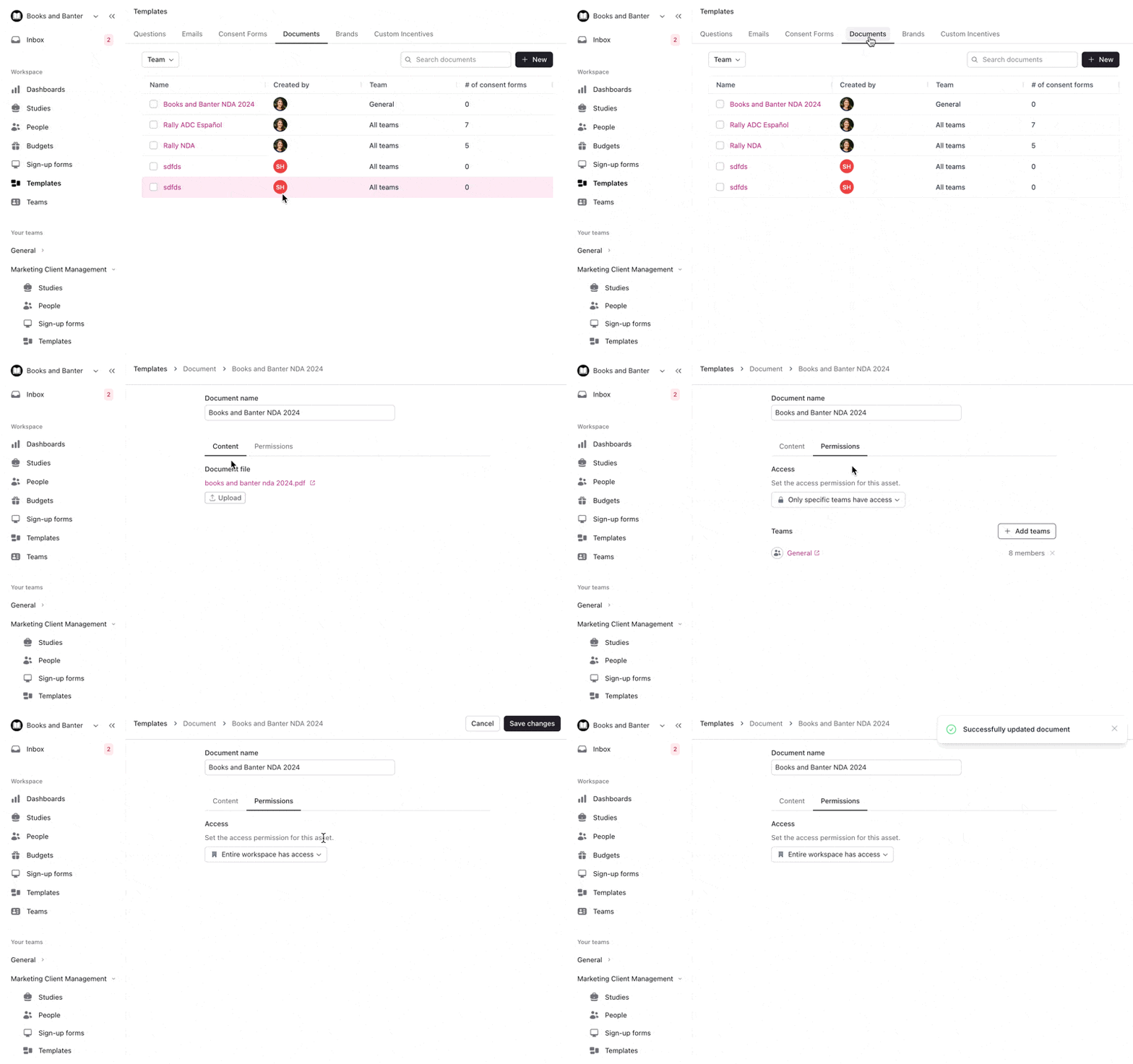
Uploading a new file replaces the existing file everywhere the document is used. Every consent form that includes it shows the new version immediately, including in live studies. Rally doesn't keep the previous file.
Delete Documents
Select the checkboxes next to any documents, select Delete at the top of the table, then confirm Delete in the pop-up. You can only delete documents you have edit access to. If your selection includes one you can't edit, nothing is deleted.
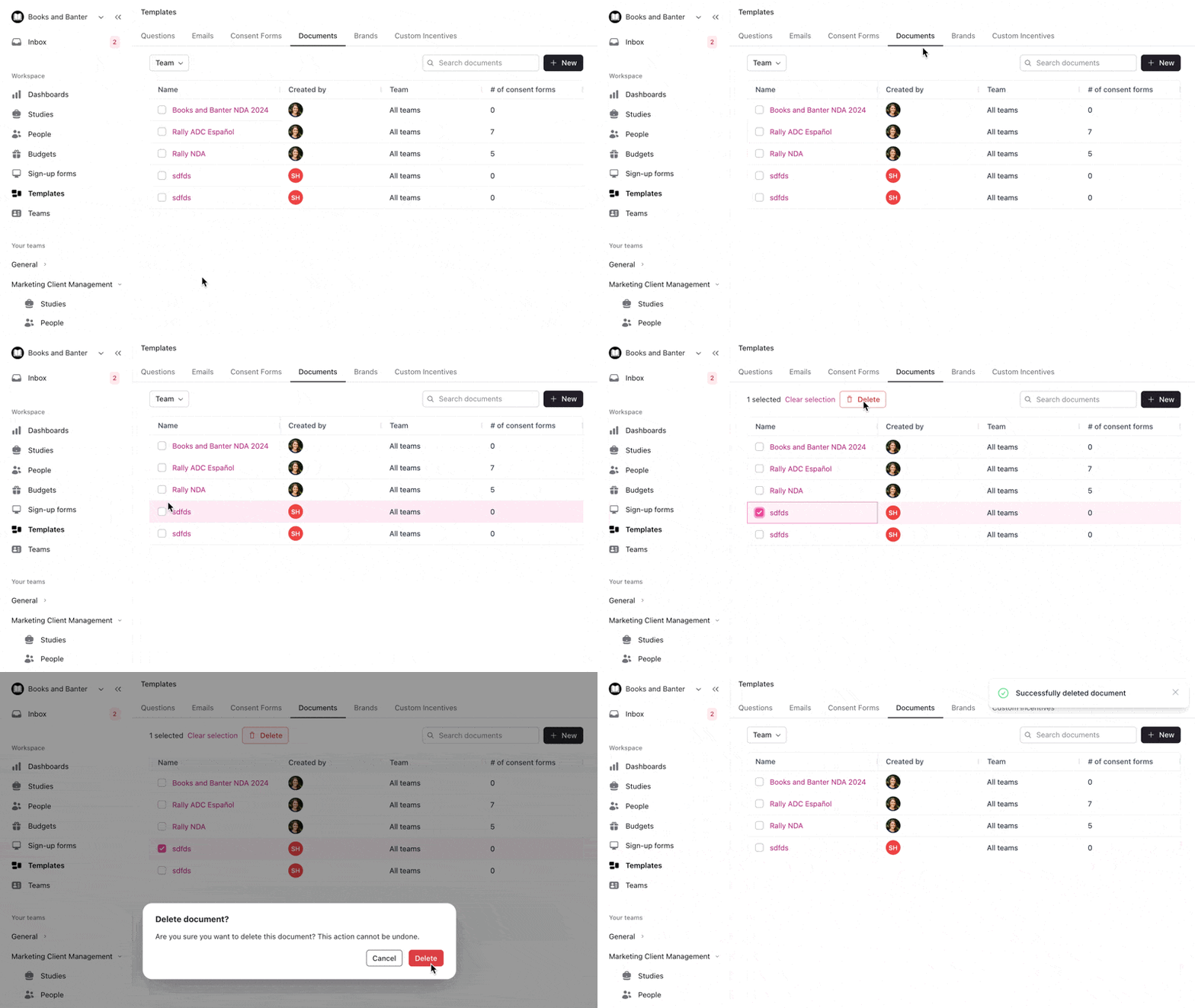
Before deleting a document, check that no active consent forms still use it.