Email Templates
Last updated: June 22, 2026
Rally lets you create custom, reusable email templates that save your team time, improve participation rates, and reduce the chance of emails being marked as spam.
Templates support company branding, pre-approved language, and personalization tokens that automatically populate participant names and study details. Use them for screeners, confirmations, reminders, scheduling, incentives, and more.
Once created, templates are available to select during the Email step of study setup, where you can customize the content further for the specific study.
Create a new email template
Creating email templates requires the "Create and modify email templates settings" permission. The default Rally roles that include this permission are Admin, Ops Manager, and Researcher.
From the navigation sidebar, select Templates, and select the Emails tab at the top.
To start creating a new template, Select +New in the top right of the page.
Fill out the template details
Template name - Enter a name that is descriptive, concise, and easy for teammates to recognize.
Email type - Select the type of template you want to create. This determines where the template will appear during study setup. Available email types are:
Interview Screener
Interview Scheduler
Interview Request Reschedule
Interview Confirmation
Interview Cancellation
Interview Reminder
Unmoderated Test
Unmoderated Test Screener
Survey
Incentive
Signup Confirmation
Consent Request
Cosigner Request
Custom
Layout - Choose Plain Text or Branded.
Branded templates display your company logo and brand colors, giving outreach a more professional look that can improve participation rates.
Plain Text is better for a more personal, conversational tone.
Email subject - Enter the default subject line for emails using this template. Where relevant, include property tokens, such as Participant First Name or Study Name, to improve engagement.
Email body - Enter the email content. Use property tokens to customize the message for each recipient.
Use the toolbar at the bottom of the email body to format your email:
Change font, size, color, and alignment; add bulleted or numbered lists. Select More for all options.
Add images.
Add custom links displayed as text or buttons, with options for display color, brand color, and hidden fields.
Insert property tokens.
Insert relevant study links (screener, survey, scheduler, consent, or unmoderated test).
Scheduler and Unmoderated Test links bypass the screener, allowing participants to schedule or begin the activity directly.
Toggle Unsubscribe link to include an unsubscribe link at the bottom of your emails.
Enabling the unsubscribe link helps you stay compliant with spam laws, such as CAN-SPAM, and improves email deliverability.
Select Preview in the top right to see how the email will appear to participants.
Select Send to myself to send yourself a test email and confirm everything looks correct.
After reviewing, select Save changes.
Set template permissions
By default, templates created from the workspace-level Templates page are accessible to the entire workspace. Templates created within a specific team default to that team only.
To modify the permissions of a given template:
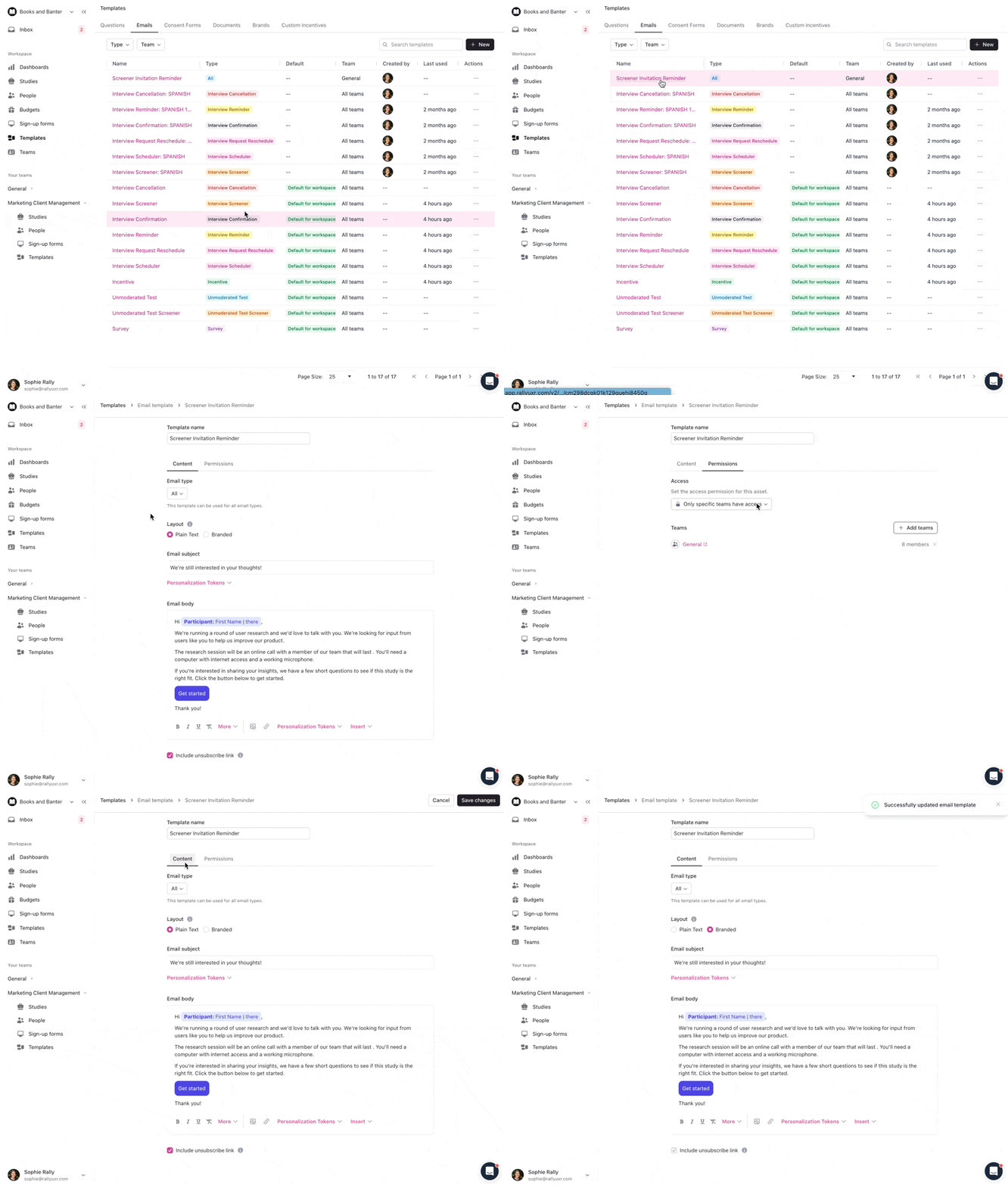
Select the Permissions tab at the top of the template editor.
To restrict access, select Only specific teams have access from the dropdown, then select + Add teams and choose the teams.
To remove a team, select the x next to its name.
Select Save changes to apply.
You can view a team's assigned templates from the sidebar by selecting the team name, then Templates.
Property tokens
Property tokens let you automatically populate emails with participant-specific and study-specific information.
Property tokens can be added to email templates by selecting the Property Tokens button that is located in the bottom-right corner of the email body section of the composer.
Some example tokens that are available in most email types:
First Name, Last Name, Email, Phone
Interview Start Time, Interview Start Date
Study Start Date, Study End Date
Any custom properties created in your workspace
Study property tokens (availability depends on email type):
Email Links
Links can be added to email templates by selecting the Insert button that is located in the bottom-right corner of the email body section of the composer.
Link | When it's available |
|---|---|
Screener link | Any study that includes a screener |
Scheduler link | Scheduler, confirmation, reminder, reschedule, and cancellation emails |
Confirm attendance link | Confirmation and reminder emails |
Survey link | Survey emails |
Unmoderated test link | Unmoderated test emails |
Incentive link | Incentive emails |
Consent link | Any study that includes a consent form |
Some links are required for a template to save. For example, an Interview Scheduler template must include a scheduler link. Rally will show a warning if a required token is missing.
Manage email templates
Access and manage existing templates from Templates > Emails tab.
Edit email templates
Select the name of any template to open it. Make changes to the content, name, email type, layout, or permissions, then select Save changes to apply.
Editing a template does not update existing studies that already use it. Changes apply to future uses only, to prevent unexpected updates to live or in-progress studies.
Delete email templates
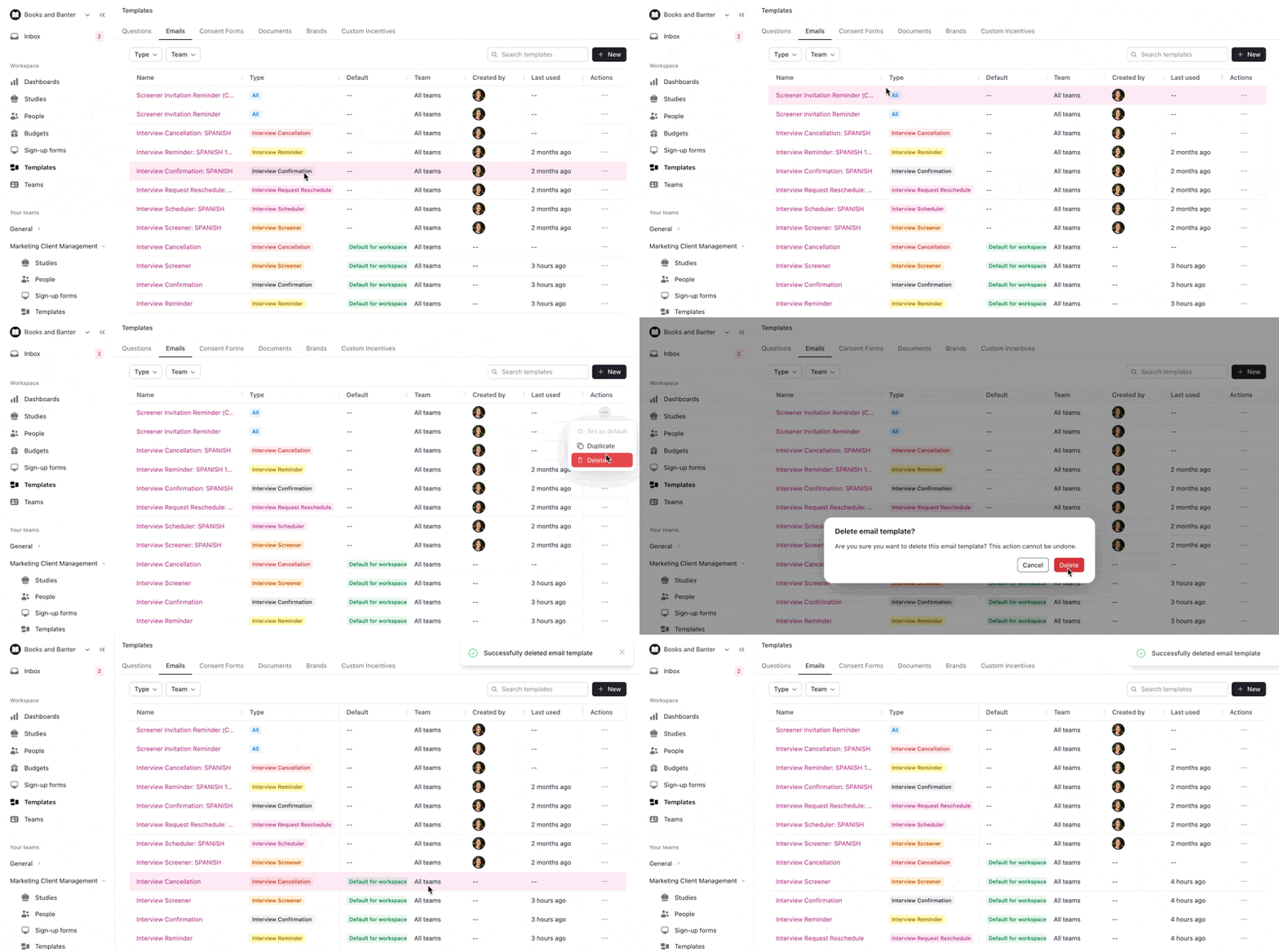
Select the three dots (...) to the right of a template, select Delete, and confirm in the pop-up.
Duplicate email templates
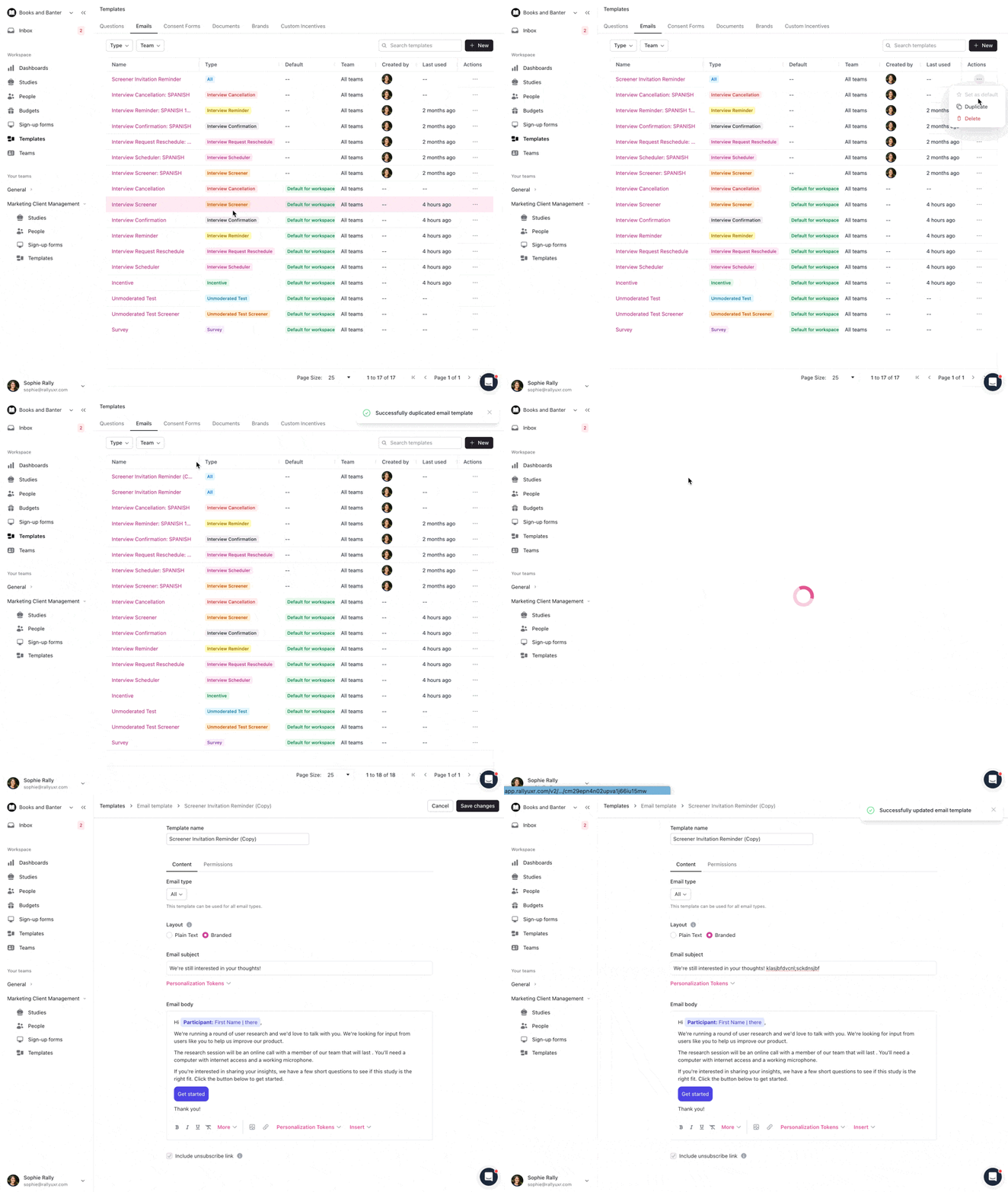
Select the three dots (...) to the right of a template, then select Duplicate. A copy is created with the same name followed by (copy). Select the copy to open and edit it, then select Save changes.
FAQs
Can I use property tokens in the subject line?
Yes. Property tokens, such as First Name or Study Name, can be used in the subject line. Links, such as scheduler links or screener links, cannot appear in the subject line and should only be placed in the email body.
Why is my Save button disabled?
Rally validates templates before saving. Common reasons the save button is blocked:
A required token is missing. For example, an Interview Scheduler template without a scheduler link.
The subject or body is empty
The template contains conflicting primary action links. For example, the template contains both an unmoderated test link and a survey link.
Review any warning messages shown in the editor to identify what needs to be resolved.
Do changes to a template affect studies that are already using it?
No. Editing a template only affects future studies or emails that use it. Existing studies retain the version of the template that was applied when they were created or last edited.