Screener Configuration Guidance
Last updated: November 17, 2026
Tips on how to make the most of Rally's built-in screener capabilities for studies and sign-up forms.
Screener Logic & Behavior
How screener logic and immediate scheduling options work for Rally built-in screeners.
For all screeners you can identify which answers will mark the participant as “Auto qualified,” “Auto disqualified,” or just “Screener completed.”
Someone qualifies if they…
Have a qualifying answer to specific questions
This option helps you specify which response what would qualify someone for the study and is the default option when building a study from scratch.
If you have immediate scheduling turned ON, anyone who provides just one qualifying answer AND NO disqualifying answers will be able to immediately schedule a session.
Participants who complete the screener without any qualifying answer will be marked as “Screener Completed” and will receive the standard screener ending. To invite these folks to schedule, you will need to review their responses and invite them manually.
Participants who complete the screener with a disqualifying answer will be marked as “Auto disqualified” and will be presented with the disqualified screener ending.
What happens if a participant provides both a qualifying and disqualifying answer to the screener?
Someone qualifies if they…
Complete screener without being disqualified
This option helps you qualify more people quickly for immediately scheduling by only focusing on answers that would disqualify someone.
If you have immediate scheduling turned ON, anyone who completes the screener without selecting any disqualifying answer REGARDLESS of whether they’ve selected any “qualifying” answer will be able to immediately schedule a session.
Participants who complete the screener without being disqualified will be marked as “Auto disqualified” and will be presented with the qualified screener ending.
Participants who complete the screener with a disqualifying answer will be marked as “Auto disqualified” and will be presented with the disqualified screener ending.
The “standard screener ending” is not an option for this scenario.
👉 Rally Help Center: Create a Screener
👉 Rally Help Center: Screener Conditional Logic
👉 Rally Help Center: Qualify Participants
👉 Rally Help Center: Screener Status
Auto-Assigning Quotas
Use conditional logic within your screener questions to automatically assign a participant to a quota. This is an additional conditional logic statement outside of any qualify or disqualify logic statements that you may have already set.
👉 Rally Help Center: Study Quotas
Screener Responses
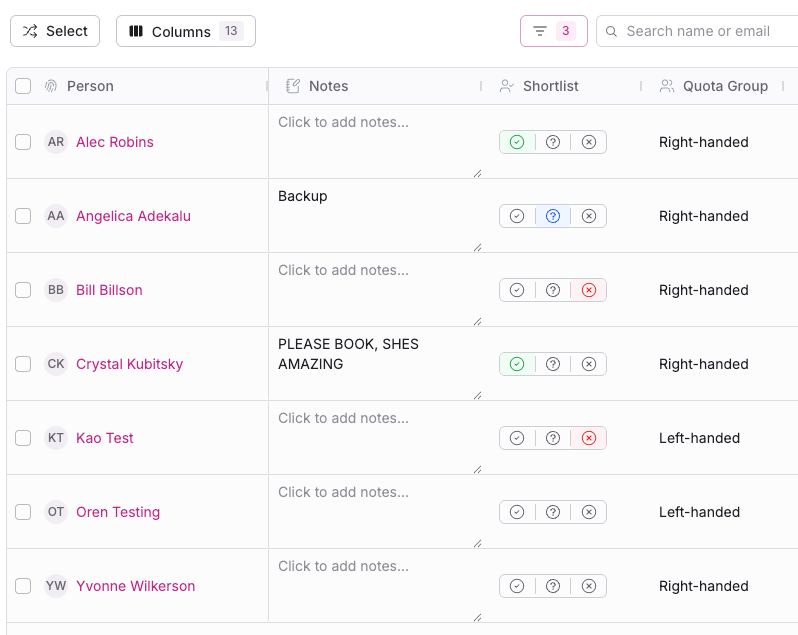
Use the “Screener Responses” section of your live study to review all responses from participants, make notes about their fit for the study, shortlist them to be disqualified or manually invited to participate. This view can be shared with any Rally user who has access to the study.
👉 Rally Help Center: Qualify Participants
Filter Screener Responses
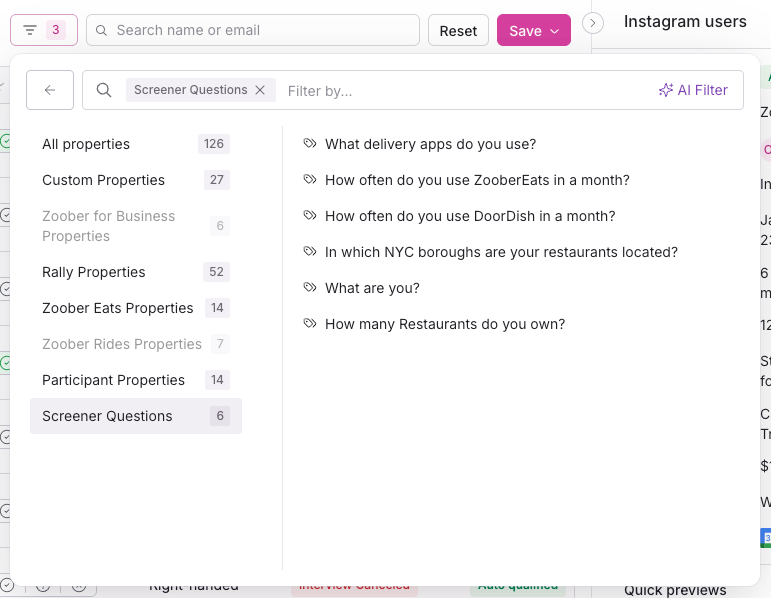
The Screener Responses view can be filtered by any property stored on the participant’s profile AND any response to the screener question. Make sure you add columns of other profile data beyond screener responses if you wish to use that data to filter and review.
Shortlist Participants
Direct researchers or stakeholders that are supporting the recruitment to use the Good Fit, Maybe Fit, Not a Fit short list options to prioritize which participants are invited to participate. The recruiter can mark these in advance and ask a researcher or stakeholder to verify and correct.
Although you cannot filter screener responses by the shortlist selection, you can sort the list by it for easier review.
These can be changed at any time by any Rally User who is added as a Study Owner regardless of their system role.
👉 Rally Help Center: Shortlisting Participants in a Study
Capture Notes on Responses
Direct researchers or stakeholders that are supporting the recruitment process to make notes on the participant. These notes could be to stress the need to schedule or remove a participant, to ask for a double-screening step to clarify responses, etc.
The recruiter may also use the Notes field to ask researchers or stakeholders about the participant’s fit.
👉 Rally Help Center: Participant Notes in Studies