Participant Notes in Studies
Last updated: October 1, 2026
Rally includes a dedicated Notes column in participant tables within studies, so your team can add internal notes, collaborate more effectively, and stay aligned without leaving the table.
Benefits and uses
Promotes better cross-functional collaboration and visibility
Reduces context-switching between Rally and other tools
Makes it easier to manage participants and session-specific updates at scale
How it works
You can:
Add freeform text notes to each participant row in your study table
Collaborate more easily with teammates by centralizing updates or context
Track participant-specific or session-specific insights inline
Keep your study table organized with fewer external tools
Track coordination details or special instructions (e.g., "reschedule for next week" or "waiting on consent")
Add participant notes in a study
Navigate to the Participants tab of a study.
Select Columns and add Notes if the column doesn't show automatically.
Click into any cell in the Notes column to start typing.
Press Enter or simply click away, and the note will automatically save.
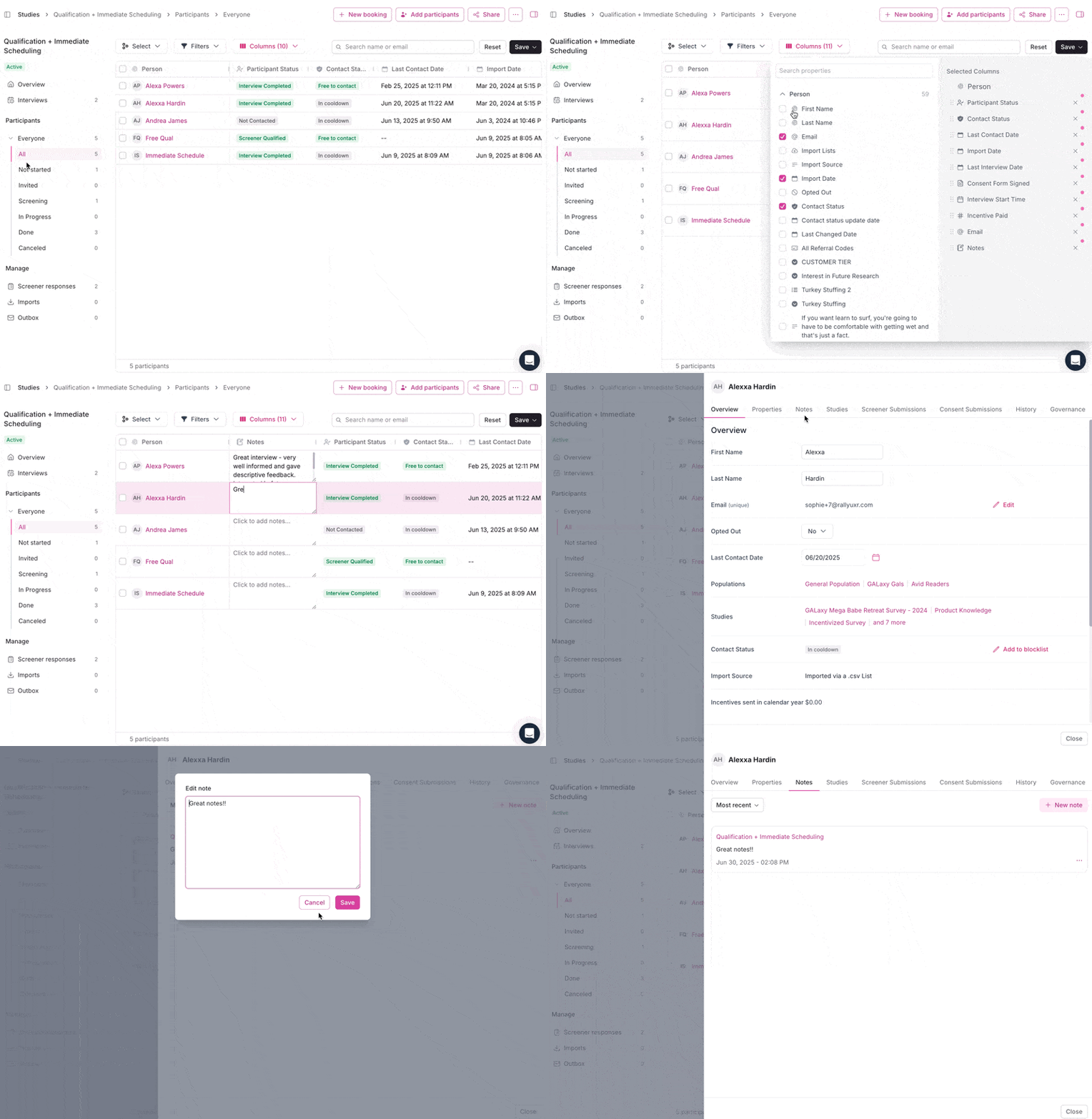
Select a participant's name to open their participant profile and select the Notes tab to view all notes.
Notes are visible to all users with access to the study. Use them to coordinate logistics, tag follow-up needs, or keep context visible across handoffs.