Question Templates
Last updated: November 4, 2026
Question templates let you save and reuse screener and survey questions across studies. Map questions to existing properties or create new ones as needed, and share templates with your team. Any question template used in a study template stays in sync, so updates reach every study template that uses it.
Create a new question template
You can create new question templates from the Templates section, or by saving a question as a template when creating a screener or survey.
Creating question templates requires the Create and modify question templates permission. This includes the Rally default roles Admin, Ops Manager, and Researcher.
From question templates
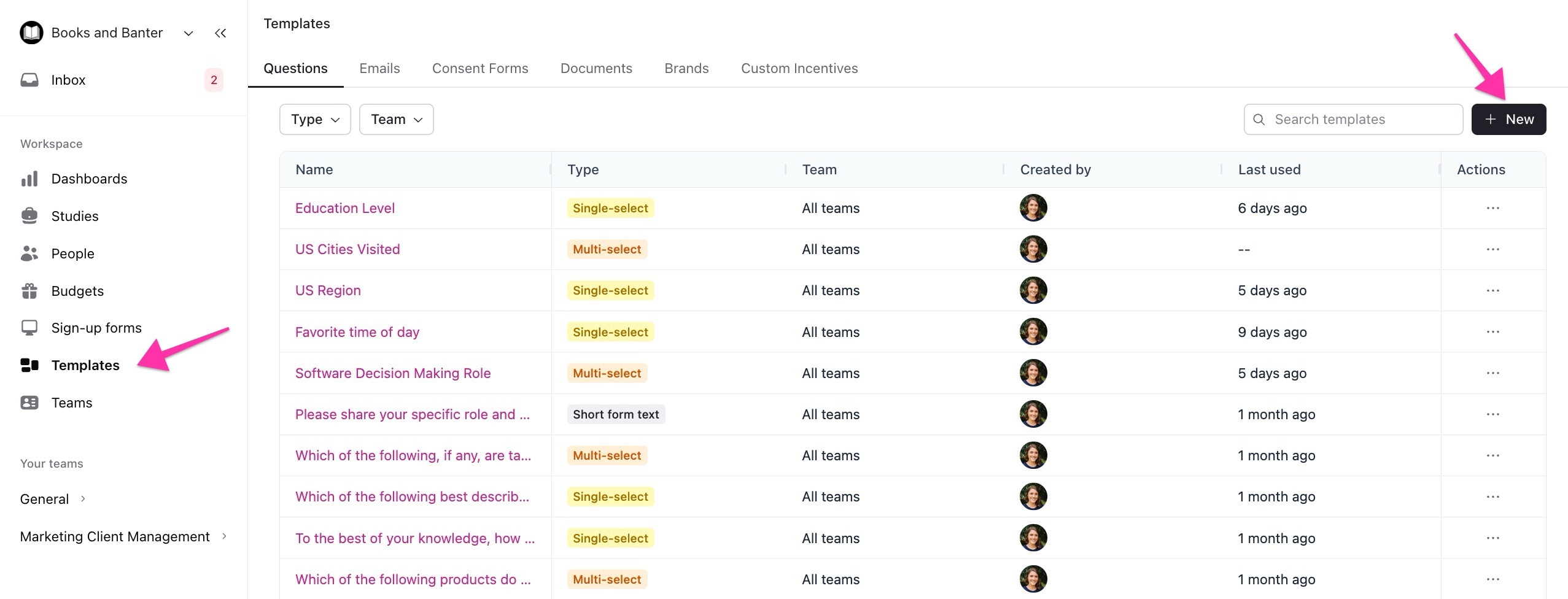
From the navigation sidebar, select Templates, then select the Questions tab.
Select + New in the top right.
Fill out the details:
Template name: A descriptive name your team will recognize.
Question: The question participants see.
Question type: Short form text, Long form text, Date, Number, Single-select, Multi-select, Dropdown, or Matrix.
Turn on Mark question as required to always require a response.
Turn on Show question description to add context for participants. Descriptions support images, formatting, and lists.
Turn on Assign response to property to save answers to a person property. Choose an existing property or select Create property.
For single-select, multi-select, or dropdown questions, add answer options:
Select + Add new option to add one at a time, or + Add multiple new options to paste comma-separated values (or type each and press Enter).
Turn on Randomize options to show options in a random order for each participant.
Single-select and multi-select questions only: select Add "other" option to let participants type their own answer, or Add "None of the above" option, which always stays last, even when randomized. Dropdown questions don't support these.
For Matrix questions, use the Options tab to switch between Rows (statements) and Columns (responses), and the Property Mapping tab to map each row to a property. See Matrix questions.
Select the Permissions tab to choose which teams can use the template. Templates created from the workspace-level Templates page are available to the Entire workspace. Templates created within a team are limited to that team. To limit access, select Only specific teams have access, then + Add teams. Select the x next to a team to remove it.
Select Save changes.
From a screener or survey
Create question templates on the spot while building a screener or survey. After creating a question and selecting Done, select the three dots (...) in the top right of the question, then select Save as question template.
If the question came from a template, the option reads Save as new question template. Questions synced to a template don't show it. Without permission to create question templates, the option is greyed out.
Add a question template to a screener or survey
In the screener or survey builder, select + Add question > Add from question templates, then choose a template. The question shows Added from: [template name] so you can tell where it came from.
Manage question templates
Find your question templates under Templates > Questions.
Edit: Select a template's name, make your changes, then select Save changes. If the template is used in any published study templates, a confirmation shows how many will be updated and reminds you that studies already created from them won't change. Type that number and select Confirm.
Or select the three dots (...) next to a template:
Duplicate: Creates a copy named "[template name] (copy)". Open it to edit, then select Save changes.
Delete: Confirm in the pop-up.
Sync question templates to study templates
When you add a question template to a study template, it stays in sync. Updates to the question template apply to every study template using it automatically. Studies already created from those study templates, including active ones, don't change.
How synced questions work
Questions synced from a question template are locked: you can't edit their content in the study template. A link icon on the question shows it's synced; hover over it for details. You can still change its conditional logic, whether it's required, and its position. See Screener conditional logic.
Synced questions show where they came from, both when editing a study template and when creating a study from it. Questions added before syncing was introduced don't receive updates, and show a callout saying so. To start syncing one, delete it from the study template, then add it again with + Add question > Add from question templates.
Conditional logic is an exception: even on a locked, synced question, you can still add or edit branching rules at the study template level.
Detaching a question from its template
To edit a synced question on its own, select the three dots (...) next to the question and select Detach from source template. The question stops syncing and can be edited freely, but won't receive future updates. Detaching only affects that study template. The question template keeps syncing to every other study template that uses it.