Rally Agent In Action: A Sample Study Walkthrough
Last updated: September 15, 2026
This article walks through one example of what a real conversation with the Rally Agent can look like, from setting up a study through closing it out. It's meant to give you a feel for the back and forth, not a full command reference. For the complete list of what the Agent can do, see [Beta] The Rally Agent.
This walkthrough follows one researcher's example conversation with Rally Agent, prompts and responses included, to show the shape of what a conversation looks like in practice. Your own prompts and the answers you get back will vary based on your workspace, your permissions, and what you ask for, but the flow and capabilities shown here are representative of what to expect.
Before you start
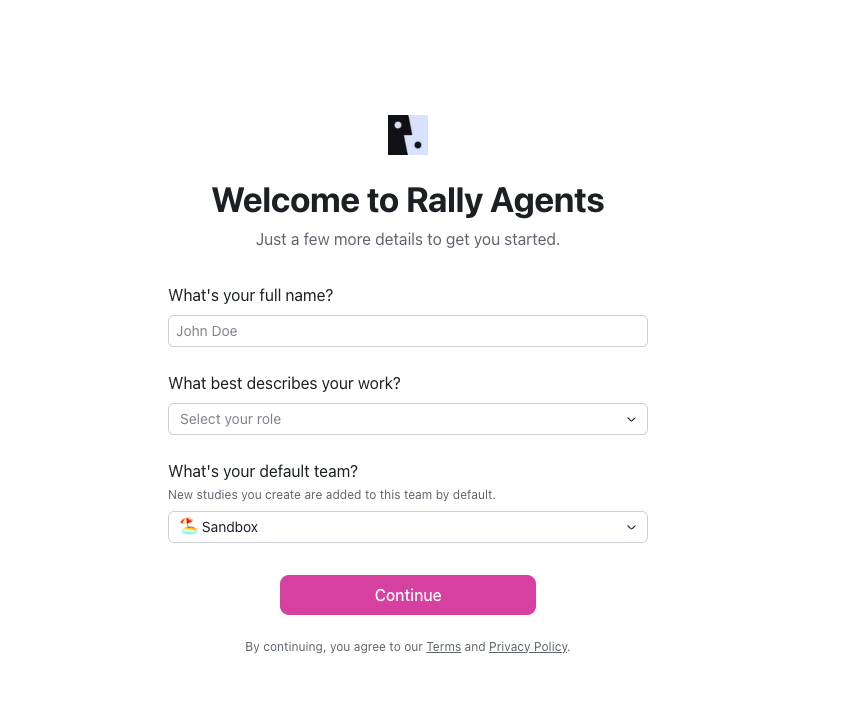
If you haven't logged into an account on Rally Agent yet, you'll be prompted to enter your name and save a default team to proceed.
The agent is accessible from both the Rally app or from Slack. You can start a conversation from either of these entry points and pick it up from another at any time.
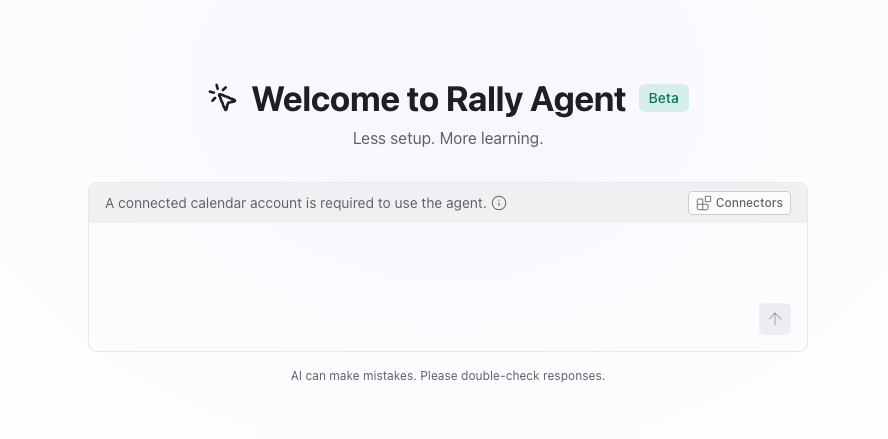
A connected calendar (or Zoom) account is required. The agent's input box is disabled until you've connected one, since scheduling depends on it. If nothing is connected yet, you'll see a prompt directing you to Connectors settings before you can start.
Every response includes feedback options. Look for the thumbs up, thumbs down, copy, and refresh icons below each agent reply. Using them helps our team improve the agent over time.
A note on study types
This walkthrough follows an Interview study, but the same conversational flow works for Unmoderated Test and Survey studies too. A few things do work differently depending on the type:
Screeners are available on Interview and Unmoderated Test studies, but not Survey studies; in Survey studies, the survey itself functions the same way as a screener in other study types.
Quotas are supported across all three study types. They're configured on the study's participant targets directly. You can auto-assign quotas based on screener or survey responses.
Immediate scheduling or immediate testing can be turned on for a study that contains a screener, to allow qualified participants to immediately schedule an interview or begin taking the unmoderated test.
Setting up a study
Once you're set up, you can start a study a few different ways: type a natural language request, click Start research, or upload something like a research brief and ask the agent to build a study from it.
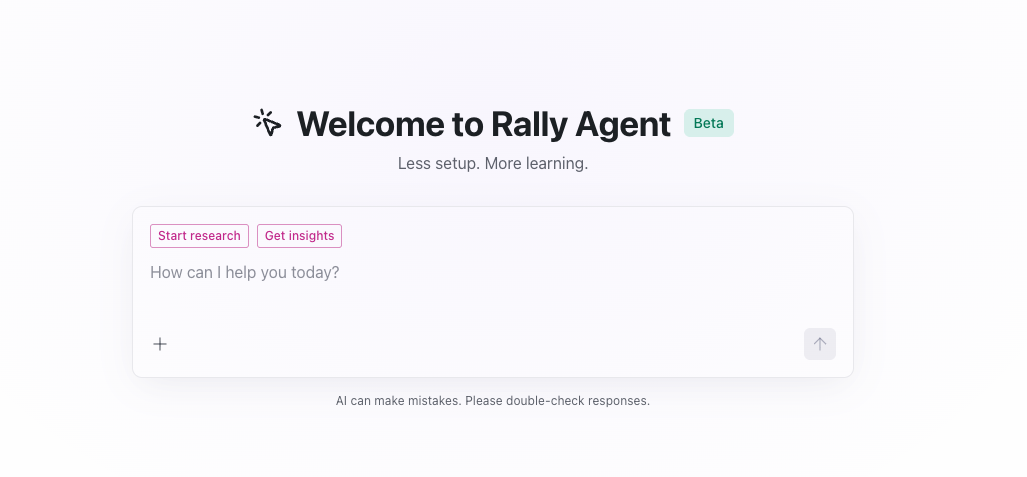
This sample walkthrough uses a mix of natural language prompts and quick-action buttons suggested by the agent.
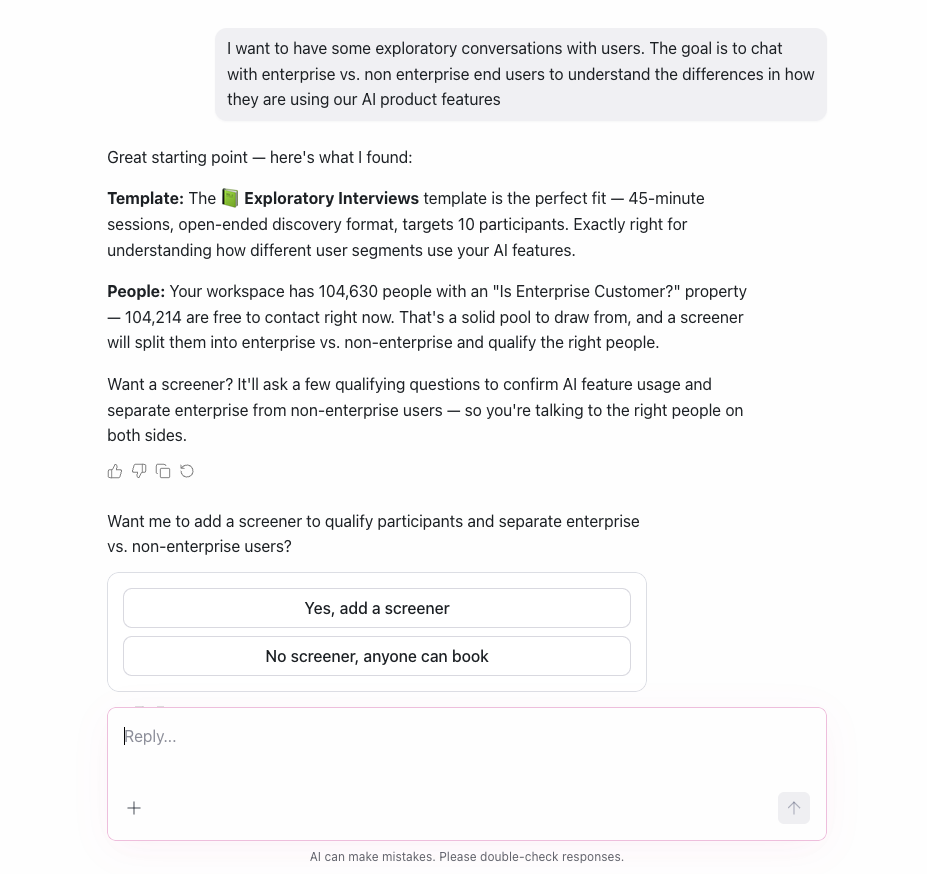
"I want to have some exploratory conversations with users. The goal is to chat with enterprise vs. non-enterprise end users to understand the differences in how they are using our AI product features."
From a single message like this, the agent identifies a matching study template, estimates how many people in the workspace fit the audience, and flags a screener as a logical next step, all in one response.
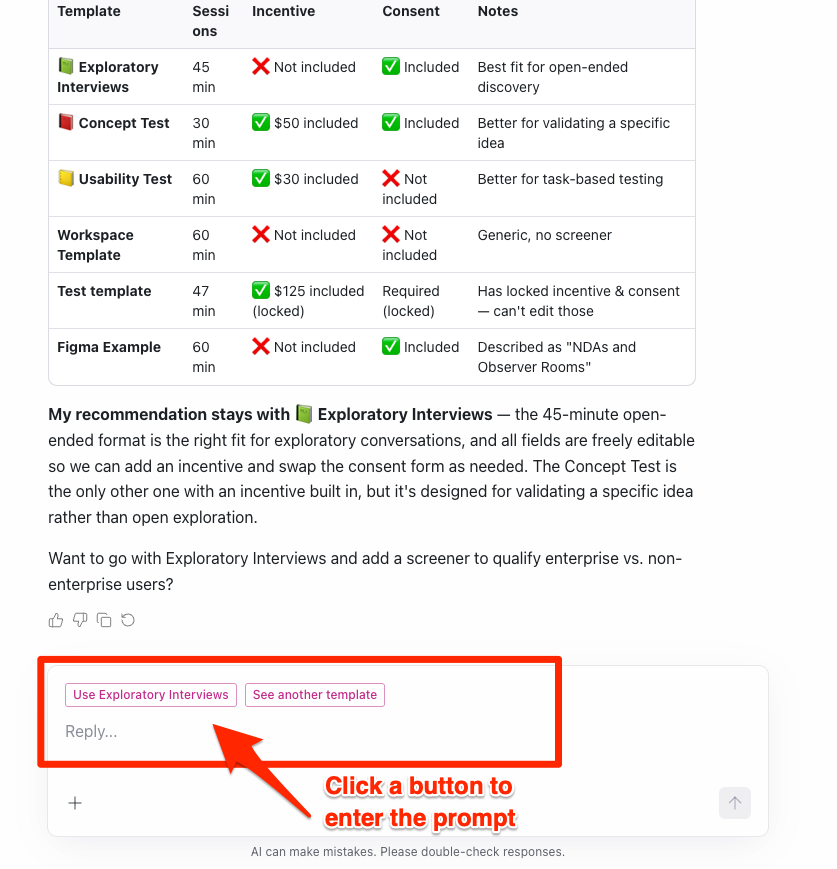
If you're not sure a suggested template is the right fit, just ask. The agent can break down exactly what's included, and compare it against the other templates available in your workspace.
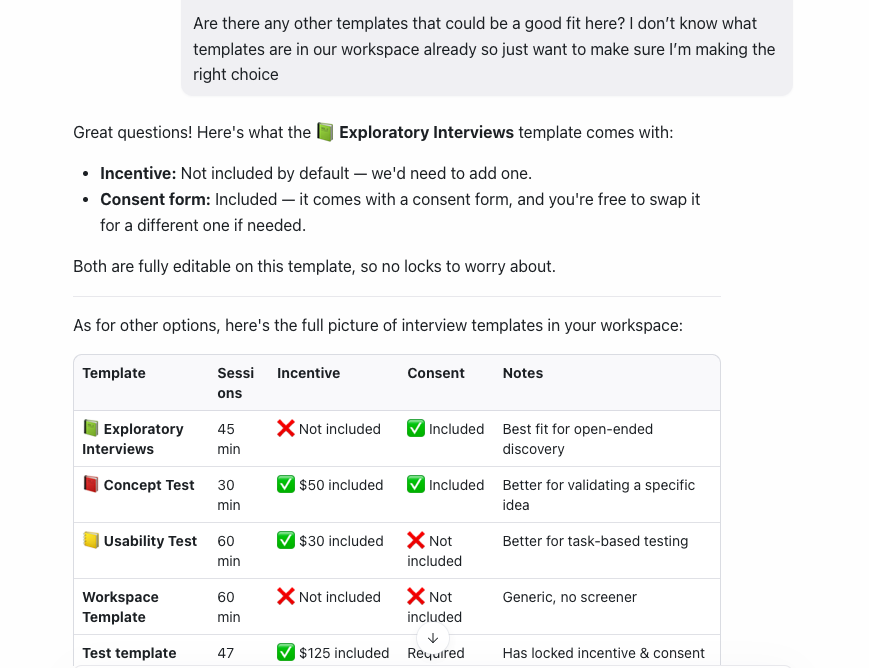
Responses like this often come with quick-action buttons alongside the option to keep typing, so you can confirm a choice with a click instead of writing it out.
Editing the template and study configuration
You can make the same edits to the template using the agent that you could make from within Rally Research. As long as the template hasn't locked these fields, you can edit the internal or external study name, and enable or disable a screener, an incentive, a consent form.
You can also hand the agent several requests at once as you work to edit and finalize your study configuration for your needs: adding or editing a screener with qualifying logic, turning on or off public sign-up links, setting up quota groups, etc., and it will work through them together.
If anything needs a decision from you, the Rally Agent will call that out and wait for your input rather than guessing. The agent will not let you publish the study until all required elements are completed.
Moving across surfaces
As the study takes shape, a details panel appears alongside the conversation, showing the study name, status, type, target, dates, scheduling, observer room, and share link settings at a glance. This updates dynamically as you work, so you always have a current snapshot of what's configured.
At any time, you can click the button to the left of the panel to collapse it (or reopen it).
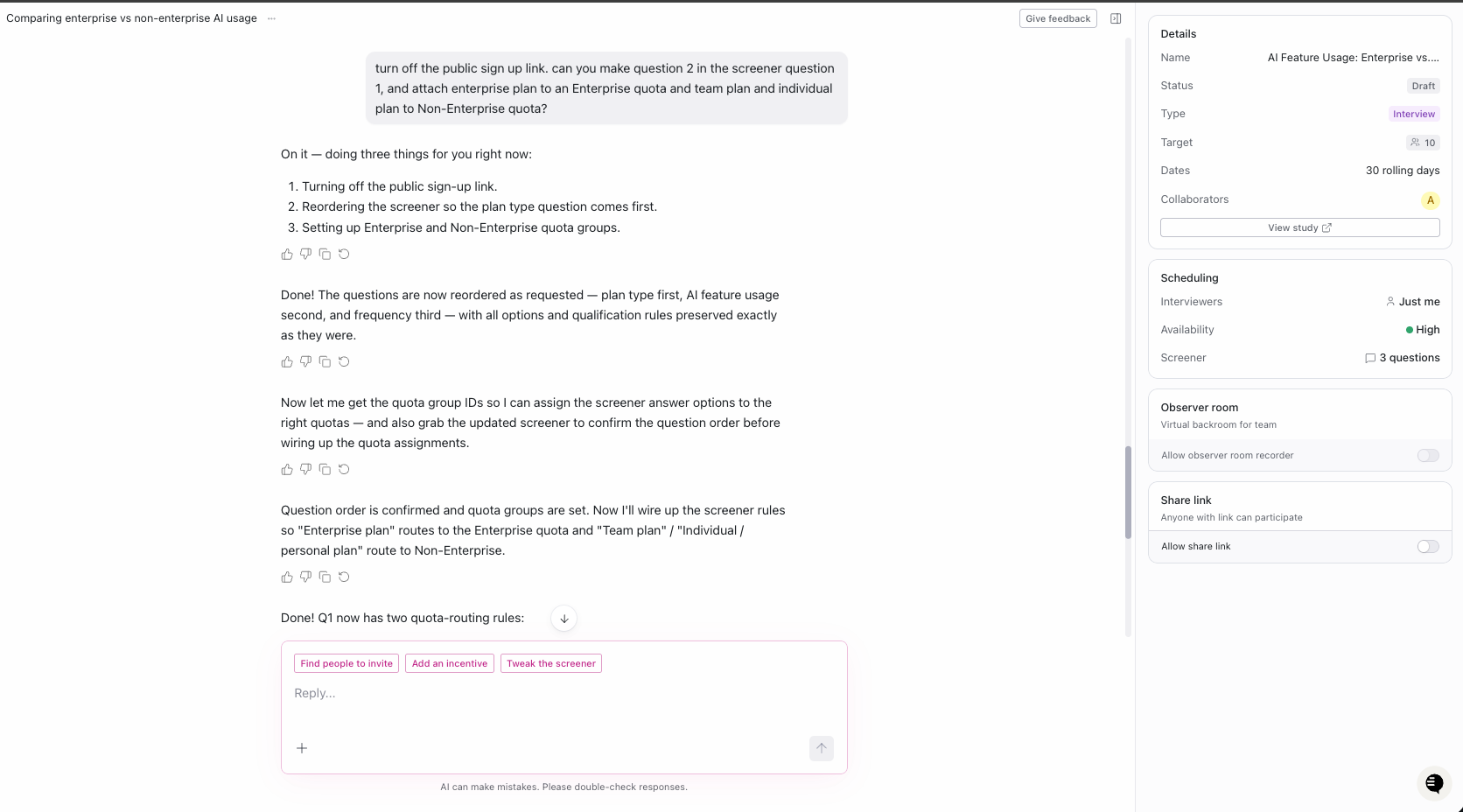
You're not limited to taking actions exclusively through the chat with the agent, either. Anything in that side panel can be adjusted directly, in addition to asking the agent or clicking a suggested button. Use whichever is fastest for what you're doing.
Since Rally Agent is available from both the Rally app and Slack, you can also switch surfaces mid-task. Picking up the same study from Slack works the same way, using natural language prompts. For example:
"What else do I need to do to my enterprise vs. non enterprise study to get it ready for recruiting?"
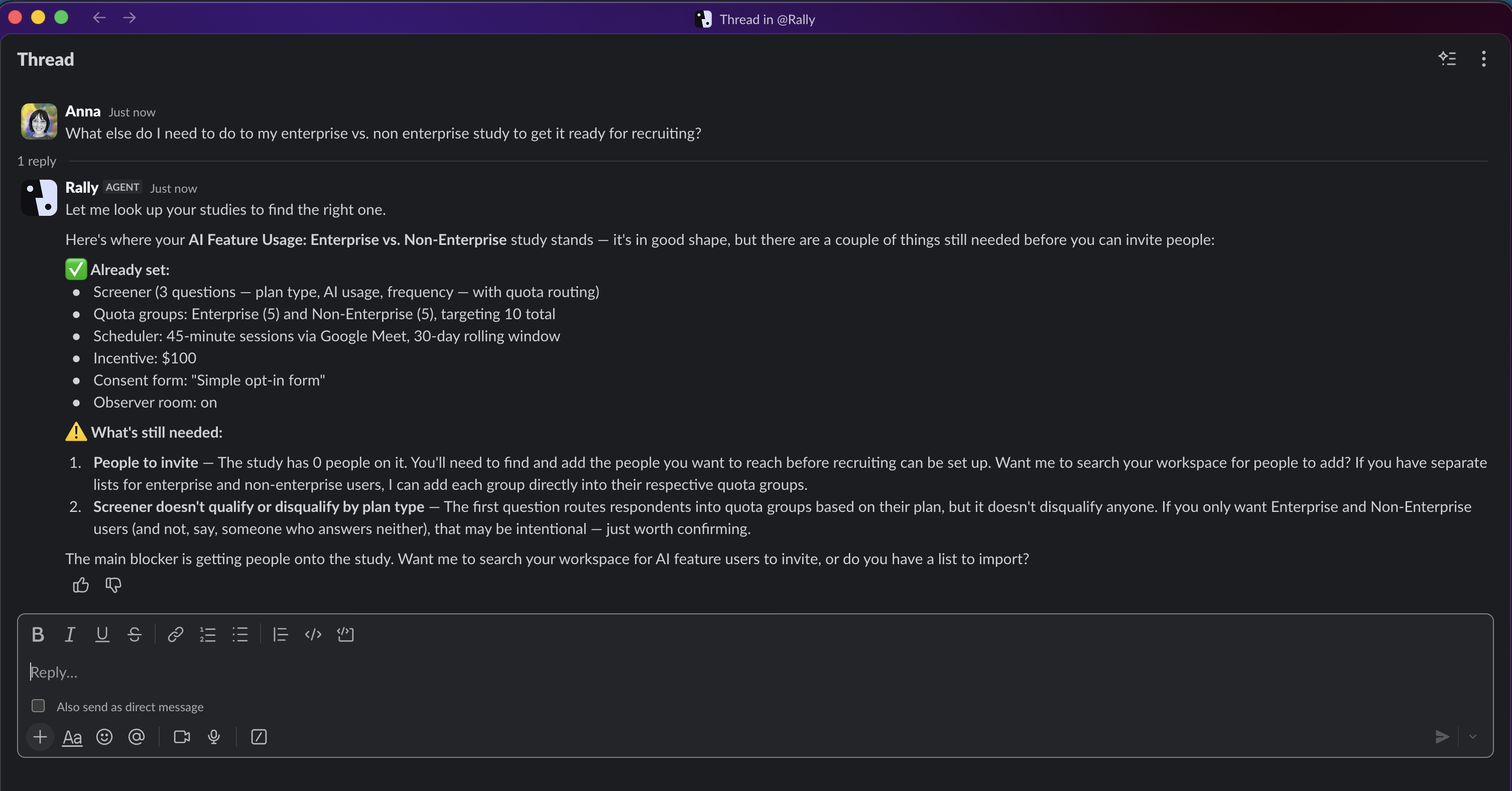
Slack and the Rally app share context, but not always in both directions. Continuing a linked conversation from the app carries the Slack thread's context along with it, while messages sent only in the app aren't automatically reflected back if you return to that Slack thread later.
Setting up and launching recruitment
Once your study's shape is set (plan, screener, scheduling/test/survey), the same conversation can carry you right into recruiting. You can ask who to invite in plain language.
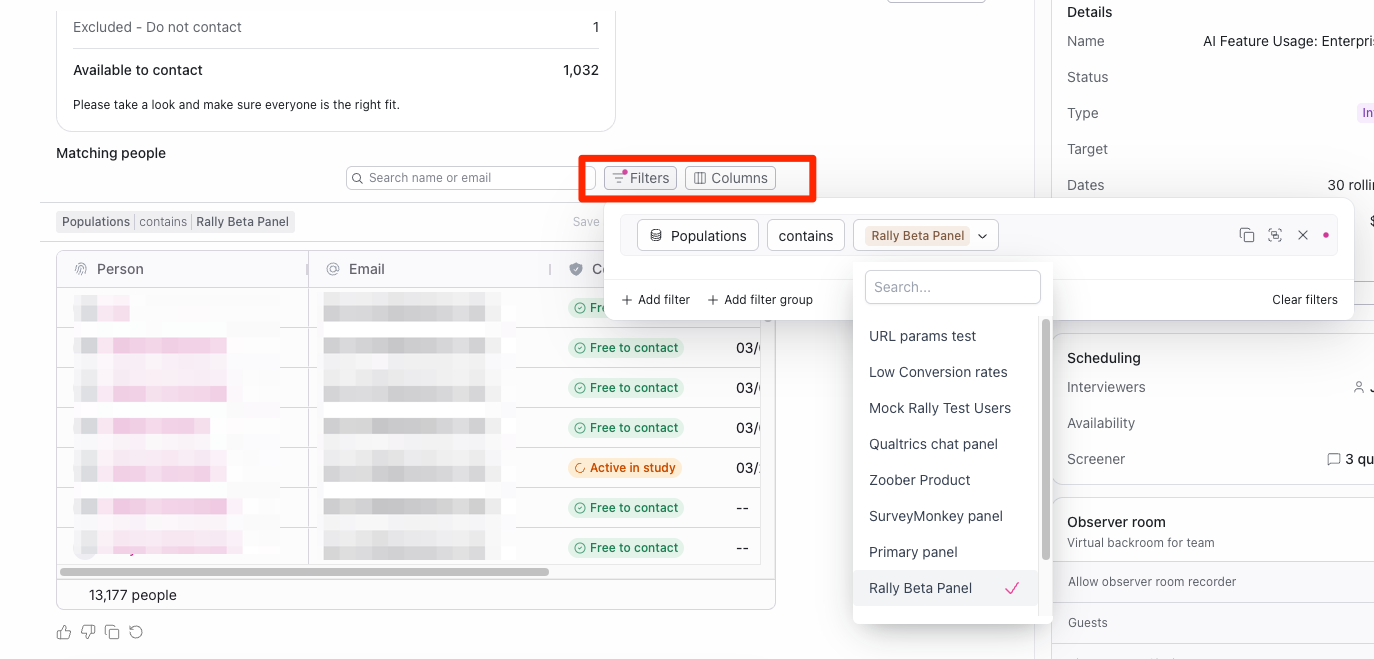
Ask the agent to find people matching your target audience, and it returns an editable table, not just a static list. You can refine the population, filters, or visible columns directly in the table, on top of anything you ask for in the conversation.
You can prompt the agent to edit the invitation email copy as needed:
"Let's edit the email copy to [xxx]" or "Change the button callout to say complete screener instead of click here"
Once you're satisfied with the study audience and the invitation email, you can begin recruitment.
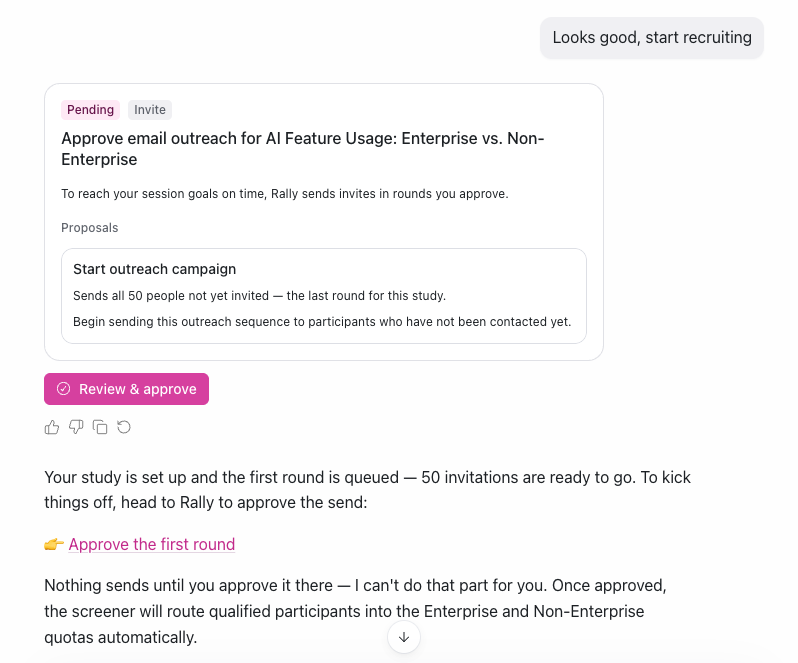
No emails send automatically. Once you approve the plan in the conversation, Rally queues the send for your approval inside the app before it actually goes out. This two-step approval is an intentional safeguard.
As shown in this example, you could either click Review & approve directly under the action the agent is calling out, which opens the email in a pop up modal, or click 👉 Approve the first round, which navigates to the Research tab and opens the email in a pop up modal there. Either flow allows you to review the email, make any final edits needed, and then click send to start recruiting for your study!
Managing your study
Once your study is live, you can manage it from multiple surfaces:
From the Rally Agent
Chat from the original or a new chat conversation with the agent
Click the Research tab in the left hand menu > locate and click on your study to open it > make edits, or click Ask Rally in the upper right hand corner to open an inline chat with the agent
From a Slack thread with the agent
Monitoring recruitment and prepping for interviews
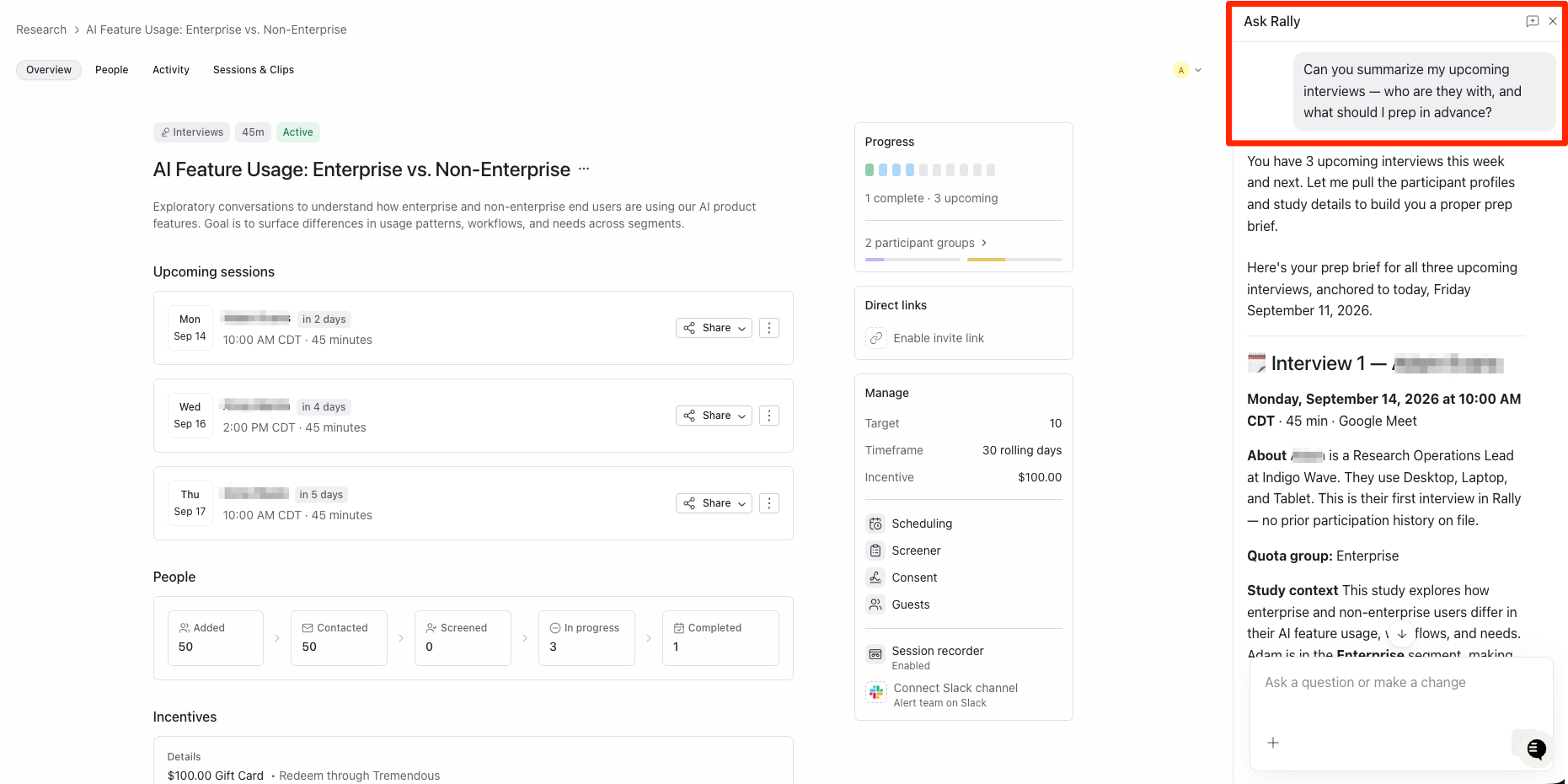
Once a study is live, you can view your upcoming & past interviews by clicking the Interviews tab in the left hand menu. You can also directly ask the agent for updates on study progress and for help prepping for any upcoming sessions using natural language:
"Summarize and help me prep for my upcoming interviews"
Day-to-day scheduling changes work the same way:
"Cancel the 11:00 AM interview and send them the reschedule request email"
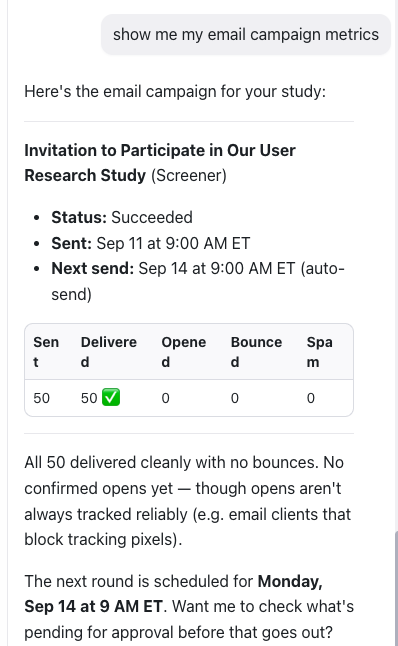
If you want to view or manage email campaigns and performance metrics, just ask the Agent (or navigate to the study in Rally Research):
This is not an exhaustive list of ways to manage a study, just an example of common prompts you might use. Almost any actions you would normally take from Rally Research when managing a study can be taken directly from Rally Agent.
Toggle between Overview to see your main study landing page, People to view all current study participants, Activity for an ongoing feed, and Sessions & Clips to view your interviews and saved clips. Note that clips need to be created from Rally Research at this time.
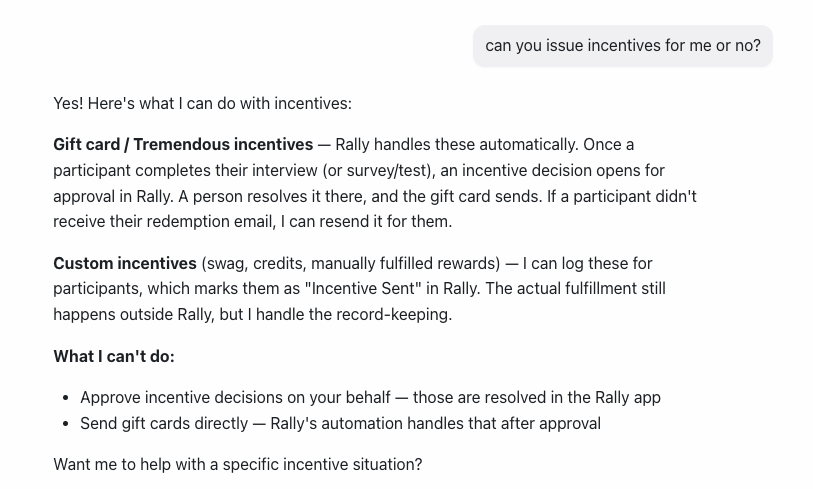
If at any point you need help, just ask the agent directly and it will assist and let you know if there is any action it cannot take on your behalf.
Analyzing and wrapping up research
Ask the assistant to help you manage completed interviews and interpret the results of your interviews or research. You can prompt this through natural language:
"Confirm [participant name] attendance"
"Summarize the key findings from the Engineering quota group"
Or you can click Get insights when in a new chat and provide the information the agent requests to get the insights you're seeking.
The agent can walk through completed sessions, note common themes across them, and surface transcript excerpts to back up its summary.
The agent can confirm participant attendance, but rating participants and paying out incentives are actions that must be taken from within Rally Research at this time.
Closing out the study
Click the three-dot menu next to your study name to pause, mark complete, or archive a study. Archiving is only available once a study has been closed, until then, that option appears grayed out.
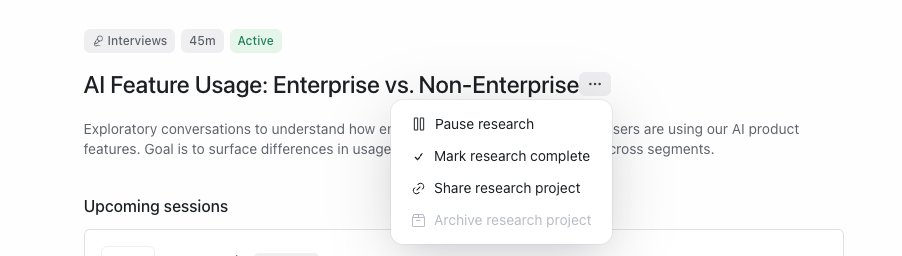
Marking a study complete stops recruiting and cancels active campaigns for good. Participation already underway (booked interviews, in-progress surveys) is unaffected. The agent treats this as final and won't reopen a closed study for you, so if you might want to pick recruiting back up later, pause instead.
Where to go from here
This walkthrough only shows one path through one study. For the full list of what's possible, see [Beta] The Rally Agent.
If you'd rather work through an external AI client like Claude Desktop or Cursor instead of the Rally app or Slack, the same capabilities are available through [Beta] Rally MCP.
FAQs
Does this work for Survey and Unmoderated Test studies too, not just Interviews?
Yes, the same back-and-forth style works for all three study types. Group Interviews are not yet supported, but we plan to support this type in the future.
Will anything actually get sent to participants without me approving it first?
No. The agent can build a full recruiting plan, including a preview of the exact email, but the first round still needs your approval inside Rally before it sends. Nothing goes out based on the conversation alone. The agent will prompt you to approve sends (or other actions) as needed.
Can I still make changes once a study is live?
Yes. You can add more people, message participants, and manage individual interviews (cancel, reschedule, confirm attendance) through the same conversation, from either the Rally app or Slack. Some templates might also lock certain settings so that they cannot be changed. The agent will tell you what it can and cannot edit.
Should I mark a study complete when I'm just pausing recruiting for a bit?
No, pause it instead. Pausing stops recruiting temporarily and can be resumed later. Marking a study complete (closing it) is meant for when you're truly done: within Rally Agent, closing a study is considered final, even though there's a manual way to move a closed study back to active in Rally Research. Treat that as a rare exception, not a routine move.
Can I clip or share observer room recordings through the conversation?
Not yet. Clips are created directly in Rally Research.
Can I recruit externally from the agent?
Yes, when creating a study, you can set it up for external panel recruitment. Only Interview and Unmoderated Test studies are supported for external recruitment via the agent at this time.
What if I have another question?
The good news is that agent will be able to tell you directly what it can and cannot do! If you have a question about expected functionality, you can start by asking it directly in the conversation. If the agent can't correctly address the question, please reach out to the Rally support team for further help!