Rally MCP In Action: A Sample Study Walkthrough
Last updated: September 15, 2026
This article walks through one example of what a real conversation with Rally MCP can look like, from setting up a study through closing it out. It's meant to give you a feel for the back and forth, not a full command reference. For the complete list of what the MCP can do, see [Beta] Rally MCP.
This walkthrough follows one researcher's example conversation with Rally MCP, prompts and responses included, to show the shape of what a conversation looks like in practice. Your own prompts and the answers you get back will vary based on your workspace, your permissions, and what you ask for, but the flow and capabilities shown here are representative of what to expect.
Before you start
This walkthrough assumes Rally MCP is already connected to your AI assistant of choice. If you haven't set that up yet, see the Connecting to the Rally MCP section of [Beta] Rally MCP first.
A note on study types
This walkthrough follows an Interview study, but the same conversational flow works for Unmoderated Test and Survey studies too. A few things do work differently depending on the type:
Screeners are available on Interview and Unmoderated Test studies, but not Survey studies; in Survey studies, the survey itself functions the same way as a screener in other study types.
Quotas are supported across all three study types. They're configured on the study's participant targets directly. You can auto-assign quotas based on screener or survey responses.
Immediate scheduling or immediate testing can be turned on for a study that contains a screener, to allow qualified participants to immediately schedule an interview or begin taking the unmoderated test.
Setting up a study
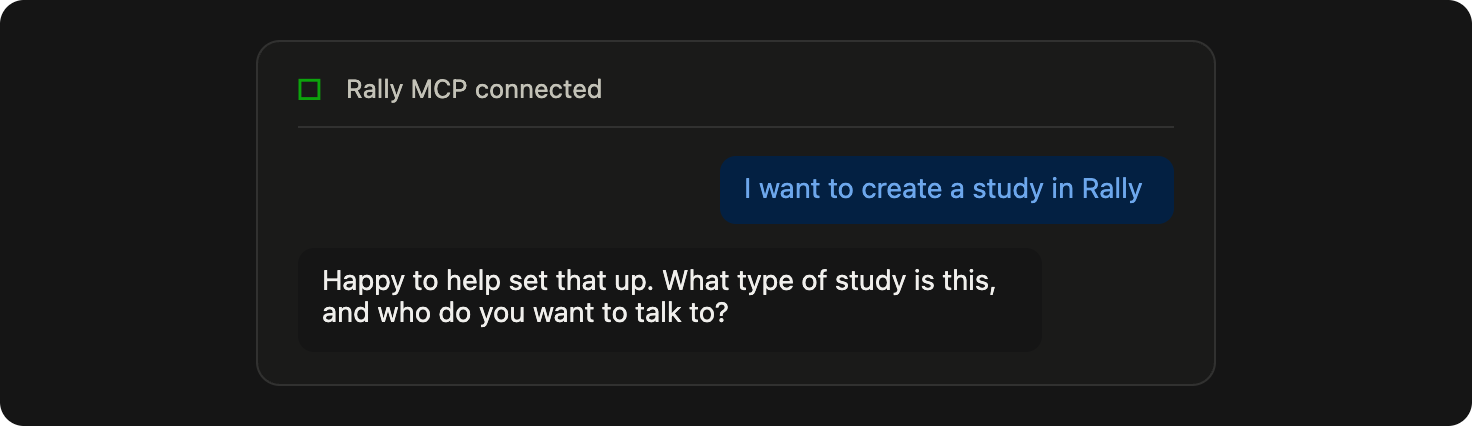
A study conversation usually starts simple. You don't need to know any tool names or exact syntax, just describe what you want:
"I want to create a study in Rally" or "Help me create a study in Rally"
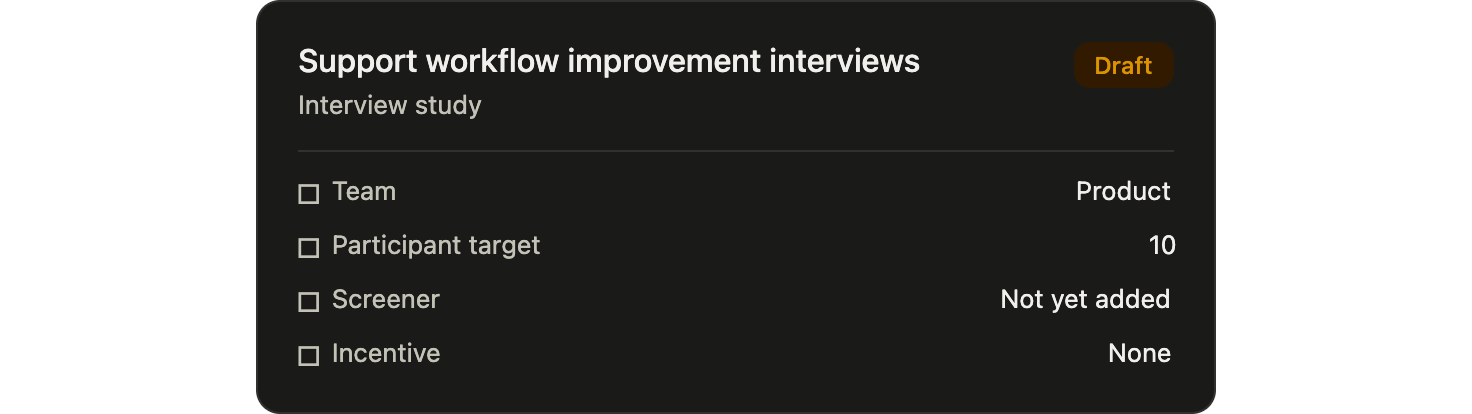
From there, your assistant asks the follow-up questions it needs: what type of study, who you want to talk to, and any specifics about the topic. A few exchanges in, you'll have a draft study with a name, type, and team assigned, built from one of your organization's approved templates.
Editing the template and study configuration
You can make the same edits to the template using the MCP that you could make from within Rally Research. As long as the template hasn't locked these fields, you can edit the internal or external study name, and enable or disable a screener, an incentive, a consent form.
If you want to make sure you're talking to a mix of people (by role, by team, by any property you track), just describe that:
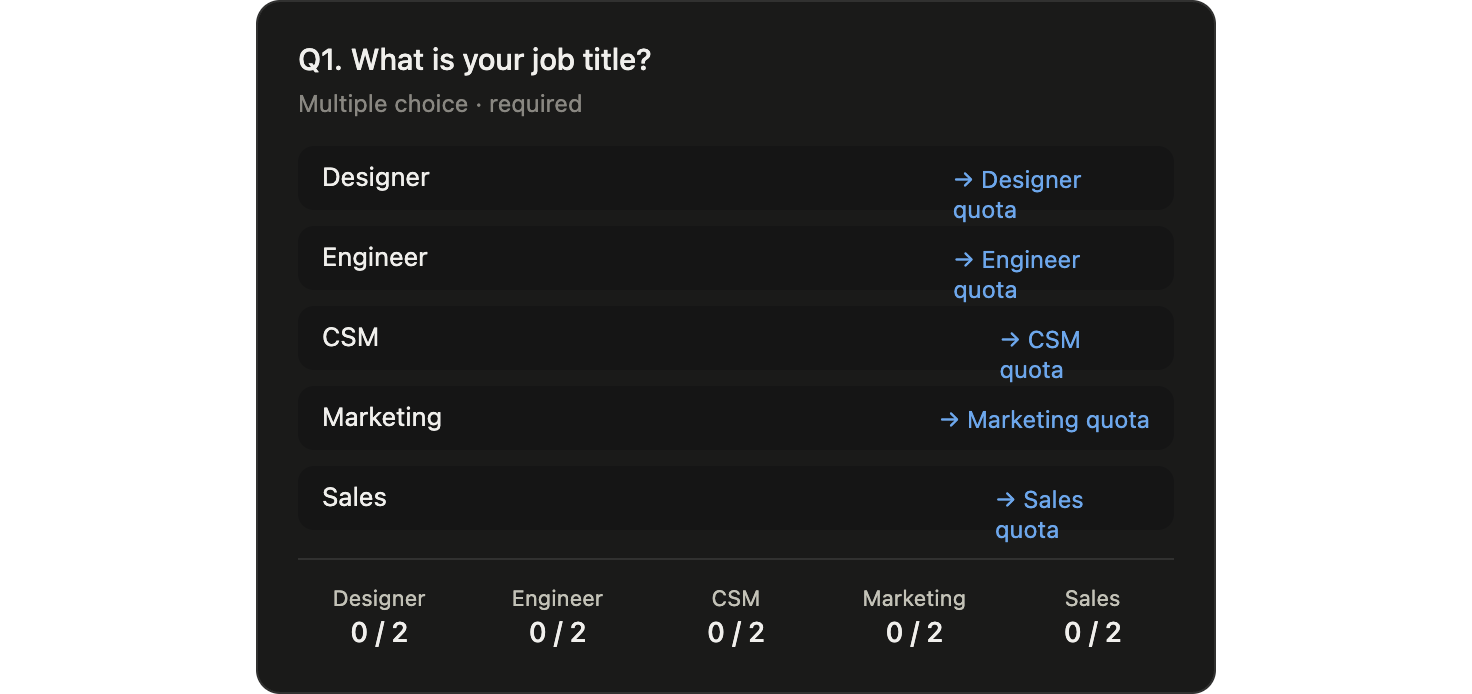
"I want to set up quotas based on job title to ensure I get a mix of people across teams"
Your assistant can turn on quotas, create the groups you describe, and write a screener question that routes each answer to the right group automatically. You can keep refining from there, adding conditional logic like disqualifying anyone who gives a specific answer, adding more questions, or asking your assistant to suggest questions you hadn't thought of.
For more on how screener logic and quotas work together, see the Screeners collection.
Depending on study type and what fields are editable for the study template you are working off, you'll also be able to edit the scheduler (interview studies), survey questions (survey studies), and test link (unmoderated test) by prompting the assistant.
The assistant will not let you publish the study until all required elements are completed.
Setting up and launching recruitment
Once your study's shape is set (plan, screener, scheduling/test/survey), the same conversation can carry you right into recruiting. You can ask who to invite in plain language:
"Let's reach out to anyone who is listed as working at Rally UXR"
Your assistant finds the matching people, adds them to the study, and builds a recruiting plan, showing you exactly how many people will be contacted and a preview of the invitation email before anything goes out.
You can prompt the assistant to edit the invitation email copy as needed:
"Let's edit the email copy to [xxx]" or "Change the button callout to say complete screener instead of click here"
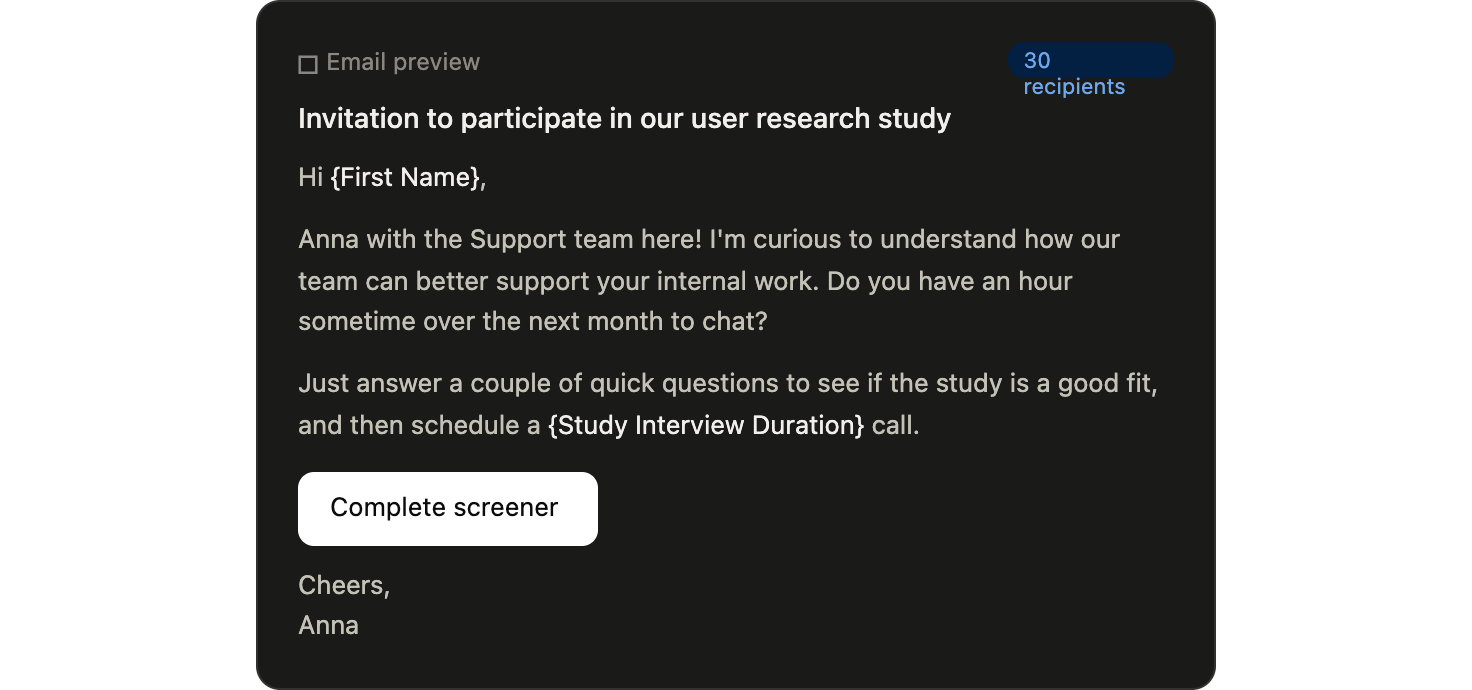
No emails send automatically. Once you approve the plan in the conversation, Rally queues the send for your approval inside the app before it actually goes out. This two-step approval is an intentional safeguard.
Your assistant's response includes a direct link to the review screen, and it automatically opens the right place for you: Rally Research if you don't have Rally Agent access, or the Rally Agent app if that's your default mode. Either way, you don't need Rally Agent access to complete this step.
Enabling observer rooms and Slack notifications
Once recruiting is underway for interview studies, you might want to ensure your team is aware of and able to tune in to upcoming sessions. This works the same conversational way as everything else. For example:
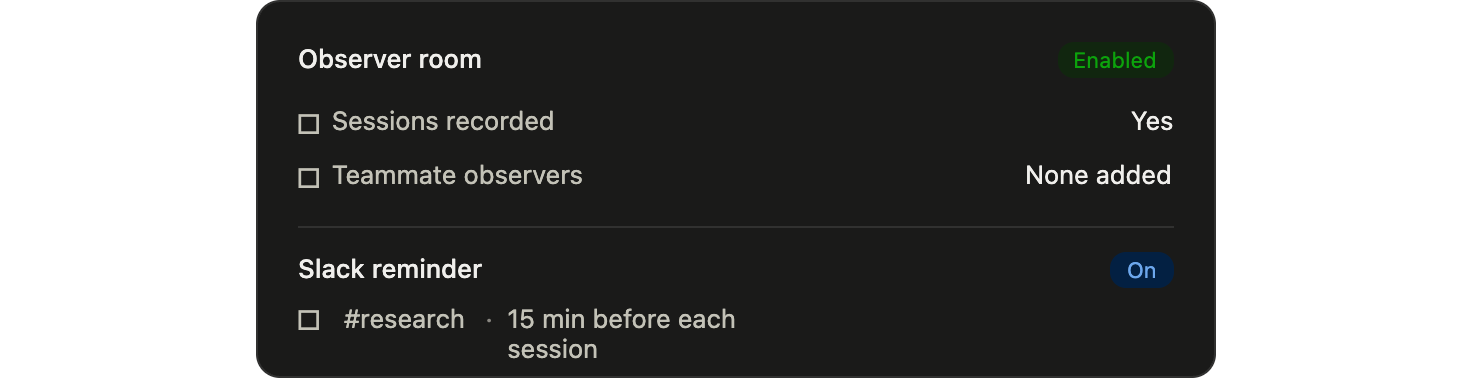
"Now that my study is set up and recruitment has started, can you please ensure that observer rooms are enabled, and send notifications to the #research Slack channel?"
Your assistant can turn on observer rooms for the study (so sessions get recorded and are watchable live) and set up a Slack reminder to a specific channel ahead of each upcoming session.
Monitoring recruitment and prepping for interviews
Once a study is live, you can ask for updates on study progress and get help prepping for any upcoming sessions:
"How many screener responses have come in, and how many were qualified vs. unqualified?"
"Which quotas still have room?"
"Give me a schedule of my upcoming interviews, and help me prep for my first one."
Your assistant can pull screener completion and qualification counts, show your quota group fill against targets, and list upcoming sessions. For interview prep specifically, it can pull a participant's screener answers and turn them into a short briefing, what they said, what's likely relevant to ask about, and anything you should check (like consent status) before the call.
Day-to-day scheduling changes work the same way:
"Cancel the 11:00 AM interview and send them the reschedule request email"
Nudging participants who haven't booked
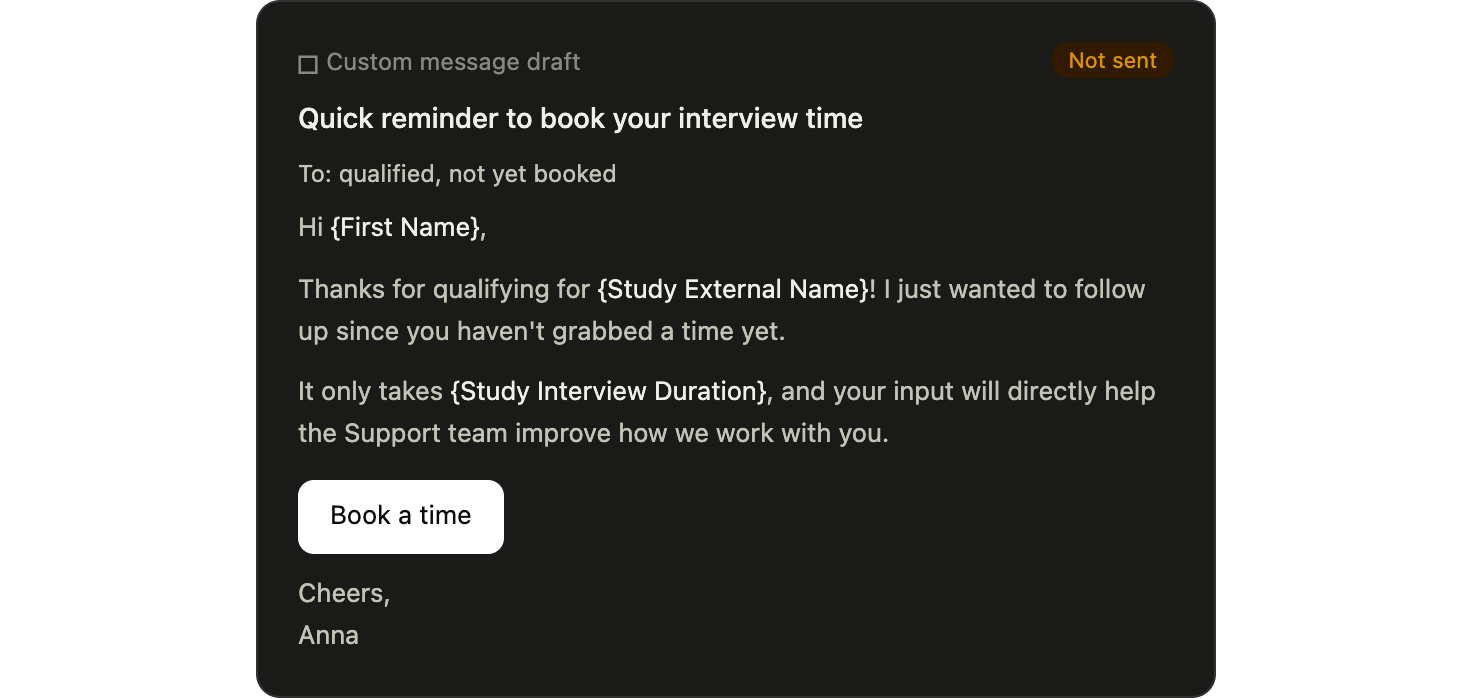
If some qualified participants haven't picked an interview time yet, you can ask your assistant to draft a one-off reminder:
"Send a custom email to the participants who qualified but haven't booked, encouraging them to book a time"
This creates a message draft scoped to just that group, separate from the study's saved templates, so you can review it before it goes out without touching your standard invitation copy.
Checking email campaign performance
If you're wondering whether your invitations are actually landing, or how your email campaigns are performing overall, ask directly:
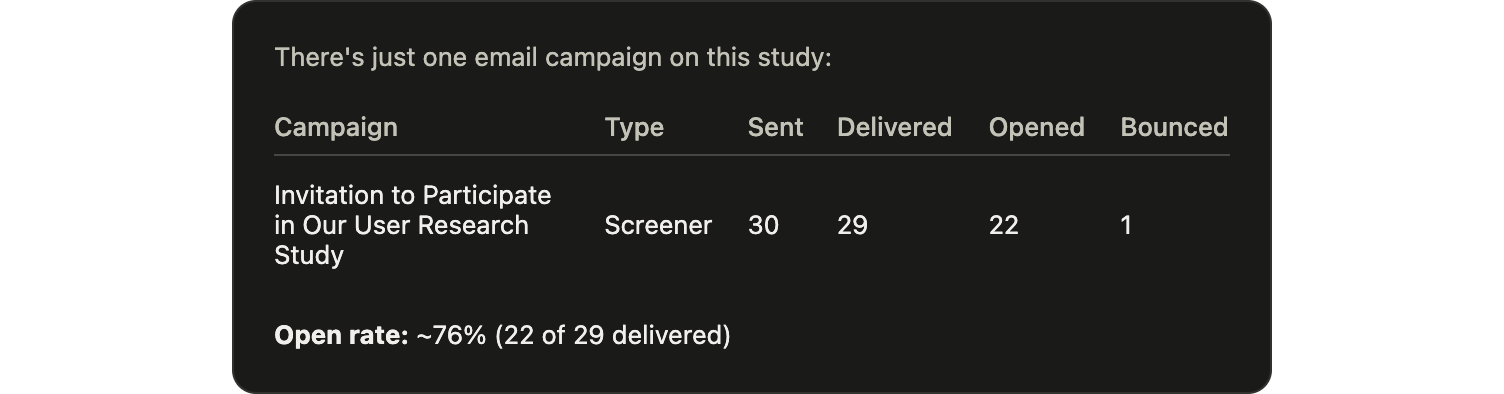
"Can you check the open rates of all campaigns in my study?"
Your assistant can pull sent, delivered, opened, and bounced email counts for any campaign on the study, including a follow-up nudge you've sent separately from the main invitation. This is a quick way to catch a low open rate or a bounce problem before it costs you time in recruiting.
Analyzing and wrapping up research
Ask the assistant to help you manage completed interviews and interpret the results of your interviews or research:
"Confirm [participant name] attendance"
"Summarize the key findings from the Engineering quota group"
Your assistant can walk through completed sessions, note common themes across them, and surface transcript excerpts to back up its summary.
If you recorded sessions in an observer room, clipping and sharing specific moments with your team is done from the observer room itself. Your assistant can point you there, but clipping isn't something it can do on your behalf.
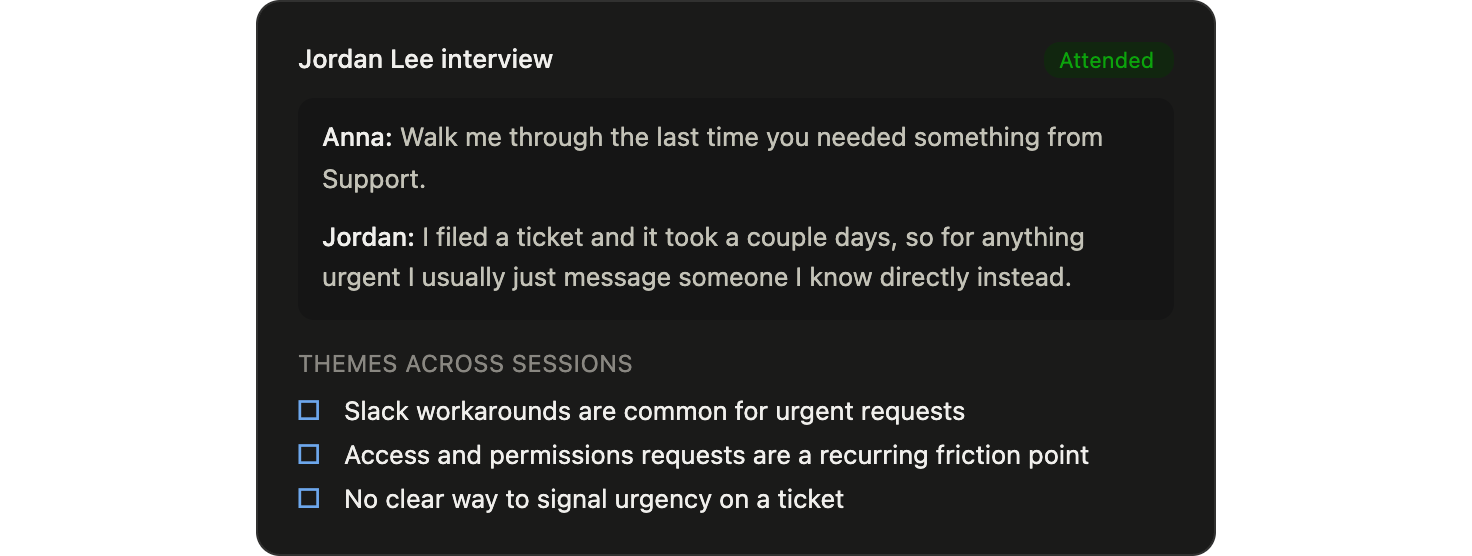
The assistant can confirm participant attendance as prompted. Incentive automation is on by default for studies created through MCP. Nothing is ever paid automatically - when someone completes an interview, survey, or test, Rally raises a request to send the incentive and notifies you.
The MCP can:
show you who has completed the study, but not yet been paid
show you the status of incentives already sent (unclaimed, claimed, cancelled, expired)
resend a gift card a participant says they never received
cancel an incentive that hasn't been claimed yet
log a custom incentive (swag, credits) for participants, once you've confirmed the list
Two steps happen in the Rally UI: approving a pending incentive send, and rating participants. The MCP will link you straight to the right page.
Closing out the study
When your study is ready to be closed, wrapping up is a single request:
"Please close out the study"
Closing a study stops recruiting and cancels active campaigns for good. Participation already underway (booked interviews, in-progress surveys) is unaffected. Your assistant treats this as final and won't reopen a closed study for you, so if you might want to pick recruiting back up later, pause instead.
Where to go from here
This walkthrough only shows one path through one study. For the full list of what's possible, see [Beta] Rally MCP.
If you'd rather work from inside Rally or Slack instead of an external AI client, the same capabilities are available through [Beta] The Rally Agent.
FAQs
Does this work for Survey and Unmoderated Test studies too, not just Interviews?
Yes, the same back-and-forth style works for all three study types. Group Interviews are not yet supported, but we plan to support this type in the future.
Will anything actually get sent to participants without me approving it first?
No. Your assistant can build a full recruiting plan, including a preview of the exact email, but the first round still needs your approval inside Rally before it sends. Nothing goes out based on the conversation alone. The assistant hands you a direct link to that approval screen, and it works whether or not you have Rally Agent access, routing you to Rally Research instead if you don't.
Can I still make changes once a study is live?
Some things, yes. You can add more people to the participant pool, send one-off ad hoc messages to a specific group, and manage individual interviews (cancel, reschedule, mark attendance). What you can't do is rebuild the original recruiting plan itself. That's a draft-only step. Some templates might also lock certain settings so that they cannot be changed. The assistant will tell you what it can and cannot edit.
Should I close a study when I'm just pausing recruiting for a bit?
No, pause it instead. Pausing stops recruiting temporarily and can be resumed later, right from the conversation. Closing is meant for when you're truly done: within an MCP or Agent conversation, your assistant treats it as final and won't offer to undo it, even though there's a manual way to move a closed study back to active in Rally Research. Treat that as a rare exception, not a routine move.
Can I clip or share observer room recordings through the conversation?
Not yet. Your assistant can help you review and summarize completed sessions, but clipping and sharing observer room recordings themselves is done directly in the observer room within Rally.
Can I recruit externally from the MCP?
Yes, when creating a study, you can set it up for external panel recruitment. Only Interview and Unmoderated Test studies are supported for external recruitment via the MCP at this time.
What if I have another question?
The good news is that the assistant that is using the MCP will be able to tell you directly what it can and cannot do! If you have a question about expected functionality, you can start by asking it directly in the conversation. If the AI can't correctly address the question, please reach out to the Rally support team for further help!