Rally Agent
Last updated: September 15, 2026
The Rally Agent helps you run interview studies from start to finish. This includes answering questions about ongoing research, setting up studies, driving recruitment, handling incentives, and closing studies when targets are met.
Everything the Rally Agent can see or do stays inside your workspace and follows the same access the Rally user utilizing the agent already has and every action the Rally Agent takes is surfaced for your approval before it runs.
Before getting started, we recommend reviewing our Setting up your workspace for the Rally Agent help center article to make sure your workspace is configured for success before using the Rally Agent.
How do I access the Rally Agent?
The agent is accessible from the Rally app, Slack, or any supported AI tool with MCP connectors. You can start a conversation from any of these entry points and pick it up from another at any time.
Rally App
To access the in-app, select your name/avatar in the bottom left of the navigation sidebar and click on Rally Agent.
Slack
In order to enable Slack with the Rally Agent, you first need to reconnect your Slack integration via the Settings > Connected accounts page in your Rally workspace.
Once added, simply message @Rally in any Slack channel to perform tasks such as approving decisions and getting study updates. If the Rally Agent hasn't been added to the Slack channel yet, you will be prompted to add it automatically.
What can the Rally Agent do?
Study design and setup
Set up a study — Creates a study from one of your templates and hands back its whole setup, including anything still unfinished. Interview, survey, and unmoderated-test studies are all supported now; group interviews are still coming. Try: "Set up a 30-minute interview study on onboarding"
Change a study you've already set up — Edits a draft or a live study. On a live one the plain details still change (name, description, target, team) while anything recruiting depends on locks as it progresses: the incentive once invitations go out, session length once interviews are booked, consent once submissions exist. Try: "Bump the target to 12 and rename it"
See which templates you can start from — Lists the templates available to you, and whether each belongs to the whole workspace or just a team. Try: "What study templates do we have?"
Write or refine the screener — Builds the qualifying questions for an interview or unmoderated-test study from a description of who should get through, then applies changes one at a time as you describe them. Survey studies don't have screeners; they use their own questions instead. Try: "Screen for frequent cooks who own a dog"
Write or refine the survey — Builds a survey study's own questions (the ones every participant answers) from a description of what to cover, or applies changes you describe. Only for a survey using Rally's own question builder; one handed off to an outside survey tool is edited there instead. Try: "Add a question about monthly grocery spend"
Use an outside survey tool — Finds which external survey tools (like Qualtrics or SurveyMonkey) your workspace has connected, and which of their surveys a study could point to. Try: "Which survey tools can we use?"
Save screener or survey answers to a person's profile — Matches a study's questions to the fields you already track on people, so future answers land there automatically. Only connects to fields that already exist; it doesn't create new ones. Try: "Save these screener answers to people's profiles"
See what you track about people — Lists the fields your workspace keeps on people, with the values each one allows. Try: "What do we track on people?"
See the consent forms available — Lists the workspace's consent forms, so one can be attached to a study. Try: "What consent forms can I use?"
Find a study and see where it stands — Searches everything you can see (active, paused, closed, not yet live) with each one's recruiting progress, then the full picture for whichever you pick: status, quota groups, completed sessions against target. Try: "How's the onboarding study doing?"
Recruitment planning
Check whether you can recruit who you need — Weighs a description of the people you want against the panel you already have, and comes back with an estimated match count, the fields it matched on, and a recommendation: recruit from the panel, import a list, or (when it's available and could help) use a paid outside panel instead. It reads your own panel first. Try: "Can we find 20 enterprise admins?"
Draft the recruiting plan — Turns your selection into a plan to look over before anything moves: how many of those people are actually reachable, the daily send size, and the invitation as participants will see it. A study recruiting by sign-up link has no invitation; there, the plan is the link itself. Try: "Set up recruiting for this study"
Take the study live — Goes live against the plan you approved: adds the people you reviewed and queues the first round, or switches the sign-up link on. Nothing sends yet on the invitation path; that first round waits for your approval in Rally. Try: "Let's go live"
Target who a paid outside panel should recruit — Sets the audience and participant time for a study recruiting through a paid panel, using the exact targeting options that panel supports, and returns a running cost estimate. Locks once recruiting starts. One panel gives you a reach estimate before you launch; the other doesn't. Try: "Target designers in the US"
Review the cost before launching a paid panel — The final check before a paid-panel study goes live: whether it's ready, what's blocking it, and the full itemized cost. This doesn't launch anything by itself; you still confirm on Rally's cost sheet to reserve the funds and start it. Try: "How much will this panel cost?"
People and participants
Find people in your workspace — Searches the pool from a plain description and returns the match count, the fields it filtered on, and a sample with each person's values, plus the full profile of anyone you want a closer look at. Ask while recruiting for a study and the count narrows to who can actually be added. The sample is the first few matches, never the whole set. Try: "Designers in Chicago who speak Spanish"
See who's on a study — Lists a study's participants and the stage each has reached, and for any one of them the full picture: screener answers, consent, quota group, latest booking. Try: "Who hasn't been contacted yet?"
Add people to a study — Puts people on a study, draft or live, from a saved selection or one by one. Sends nothing and starts no campaign (they arrive not started, waiting on outreach) and anyone already there is skipped. Try: "Add these 20 to the study"
Take someone off a study — Removes a participant from a study's list, after you confirm. Only works for someone who hasn't engaged yet, or whose involvement ended without a result; anyone further along stays, since removing them would take their research record with them. Not undone by adding them back. Try: "Take her off this study"
Import people — Imports a pasted list or a CSV into a population, and reports the import as it runs. It's a background job, not instant; a search run right after can miss some of the people who just came in. Try: "Import these 40 people"
Create a new population — Sets up a new named group of people to import into, or as the destination for a public sign-up link. Try: "Create a population for our beta testers"
Find a population by name — Resolves a named panel or population when you refer to one rather than describing a filter. Try: "Add from the Enterprise panel"
Note something about a participant — Appends to a participant's notes, always on top of what's there and never over it, after you confirm the exact wording. Rewriting or clearing a note is done in Rally. Try: "Note that she asked to reschedule"
Move someone between quota groups — Reassigns a participant to a different quota group on a live study, or takes them out of one, and reports the group's new fill. Applies right away, no approval needed. Try: "Move these three into the Enterprise quota"
Email and outreach
Send a one-off message to a group — Drafts a message for a chosen group without touching the study's saved emails, shows you exactly what a real recipient would see, and proposes the send (or proposes the study's own invitation to a group, which moves those people along once it goes). It never sends by itself: the send becomes a decision you approve in Rally, and nothing leaves until you do. Live studies only, and not for studies recruited through an outside panel, where the provider owns the messages. Try: "Thank everyone who finished"
Edit the study's saved emails — Rewrites the invitation, screener invite, booking email, or any other saved email, and returns it rendered as participants will get it, keeping names, dates, incentives, and links as tokens rather than fixed text. It can also list what a study currently sends. Saved emails lock once the study is live. Try: "Make the invitation warmer"
Choose which address it comes from — Lists the personal and team sender addresses you're able to use. Try: "Send it from the team address"
Check how outreach is landing — Delivery for a whole study, campaign by campaign, or for one person: sent, delivered, opened, bounced. No opens recorded means none were confirmed, not that nobody opened it. Try: "Did anyone open yesterday's invites?"
Pause, resume, or cancel a campaign — Stops one campaign's remaining invitations or picks it back up where it left off, leaving the study itself alone. Cancelling is the exception: it drops those pending invitations for good, can't be undone, and asks you to confirm first. Try: "Pause the invites"
Screening and qualification
Qualify or disqualify participants — Marks people screener-qualified or not, including overriding what the screener decided, and reports what changed for each. Immediate and easily undone, so it doesn't stop to ask. Qualification only: nobody is notified, and no session or incentive changes. Try: "Qualify these three anyway"
Approve or reject paid-panel applicants — Decides who gets into a study recruiting through a paid outside panel: approving invites them at the panel; rejecting declines them. Always shows you what each decision will do before you confirm it. Try: "Approve these applicants"
Scheduling and interviews
Find sessions and open one up — Sessions across your team, one person's day, or a single study's whole schedule, then the detail for any of them: who came, the observer room, recordings and summaries. A day's worth includes cancelled and no-showed sessions, so "how many did we run" means counting the completed ones. Try: "What interviews do I have today?"
Find open times — A study's open slots, and which hosts are free in each. Try: "When could she book this week?"
Book a session — Books someone already on the study at a time you name, with you as host, confirming the participant, time, and study with you first. It books rather than browses, so find an open slot before asking. Try: "Book Dana Thursday at 2"
Move a session — Shows you the current time and what's open, then moves it once you confirm, keeping the host and notifying the participant. Try: "Move Dana to Friday morning"
Cancel a session — Cancels once you confirm, notifying the participant and host and clearing the calendar invite. Try: "Cancel Dana's session"
Record attendance — Marks whether someone turned up or no-showed, after checking with you. Try: "Dana no-showed"
Change who hosts a session — Swaps the host and leaves the time and participant untouched, once you confirm. The new host has to be set up on that study already. One session per change. Try: "Have Sam host this one"
Add a guest or an observer — Brings someone else onto a booked session, once you confirm, either taking part or just watching. Watching silently needs the study to have observer rooms. Try: "Add Sam as an observer"
Your interview hours and limits — Your weekly hours, one-off exceptions, timezone, and daily and weekly caps (or a teammate's, to see when they take sessions). Changes are yours alone, get confirmed first, and reach every study you host rather than one. Try: "Stop booking me after 3pm"
Get ready for an upcoming interview — Pulls together what's useful before a session (the participant's background, their screener answers, and the study's context) into one prep brief. Try: "Prep me for my interview with Dana"
Incentives
Log a custom incentive — Records the study's custom reward (swag, credits, anything fulfilled by hand) against participants and marks them paid, once you confirm. Recording isn't delivery; that part happens outside Rally. Anyone already covered is skipped. Try: "Log the swag for everyone who finished"
Resend a redemption email — Sends the redemption link again when someone never got it or lost it. Immediate, no confirmation needed. Custom rewards have no redemption email, so they can't be resent. Try: "She never got her gift card"
Cancel an incentive — Stops an unclaimed incentive from reaching someone, once you confirm. Not available past the cancellation window, or when an outside panel is doing the paying. Try: "Cancel that incentive"
Reading results
Read a session transcript — The full spoken transcript, with who said what and when, for quoting or working through what came up. Summaries come with the session itself. Try: "What did she say about pricing?"
See what people answered — Screener or survey answers for a study, matched to the question each one belongs to, person by person. Try: "Show me what people said about pricing"
Managing a study's life
Pause or resume a study — Pausing stops invitations and new bookings and pauses the study's campaigns, leaving booked sessions standing; resuming picks all of it back up. Both check with you first. Try: "Pause this study for now"
Close a study — Ends recruiting and new bookings for good and cancels the active campaigns, while booked sessions still stand. A one-way door, so it confirms with you: a closed study can't be reopened. Try: "We're done recruiting"
Across your workspace
These aren't part of any single study's lifecycle; they work at the workspace level, across studies.
See what's waiting on your decision — Everything outstanding on a study (a send, an incentive, whatever else is pending) with the link where you approve, edit, or decline. Ask more broadly and it sweeps your active studies to answer what needs you anywhere. Nothing here decides on your behalf. Try: "What needs my input?"
Your teams — The teams you belong to, for when a study or a template needs one. Try: "Which teams am I on?"
Find a teammate — Looks up someone on your team by name, to assign them as a host, guest, or observer. Try: "Who's Sam on our team?"
Rally Agent settings
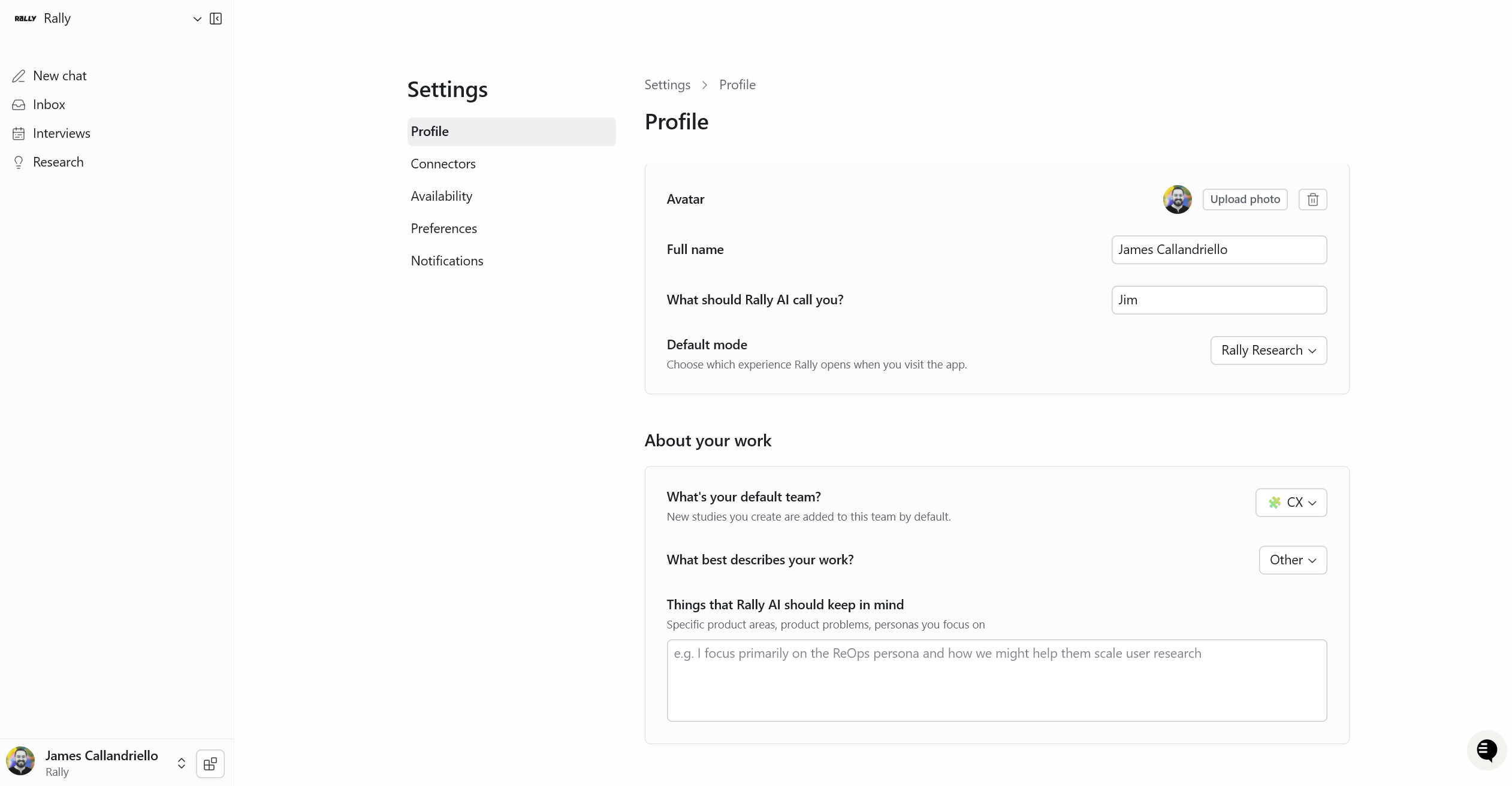
Profile
Basic information
Avatar
Full name & What should Rally AI call you?
Default mode: Choose which experience Rally opens when you visit the app. If you have access to both Agentic mode and Rally Research, you'll see this option. If you only have access to one mode, this setting isn't shown and Rally opens directly into the mode you have.
About your work
Default team: The team your studies and interviews are associated with unless you choose otherwise.
Work type: Select the option that best describes your role. Choices are: Leadership, User Research, ReOps Management, Product Management, Engineering, Design, Marketing, Sales, and Other.
Agent notes: A free-text field where you can give your Rally Agent extra context about how you work. Anything you add here informs how the agent assists you.
Availability
Working hours
Set open windows for each day of the week, Monday through Sunday. Leave a day with no windows to mark it closed.
Use the timezone selector at the top of this section to set the timezone your hours are interpreted in.
Date overrides
Add one-off exceptions to your regular working hours for specific dates. For example, blocking out a vacation or opening extra hours around a deadline.
Click Add to create an override, then set the date range and whether it's open, with specific hours, or closed.
You can also describe your override in plain language. For example, "I'm out next Thursday and Friday", and Rally will parse it into the right dates and hours for you.
Booking conflict behavior
This section only appears if you've connected a calendar. It controls how your agent treats existing events on your calendar when booking interviews:
Don't book over Busy events (default): your agent avoids any calendar event marked Busy, but can book over events marked Free.
Don't book over any event: your agent avoids all calendar events, whether they're marked Free or Busy.
Events may be booked over: your agent can book interviews over any existing calendar event.
Your working hours still set the outer bounds of your availability even with a calendar connected. Your calendar's busy/free status is layered on top, governed by whichever booking conflict option you've selected.
Choosing Events may be booked over means your agent won't protect any time on your calendar, including meetings you've already scheduled. Use this option carefully.
Preferences
Maximum interviews per day: the most interviews your agent will book you for in a single day, across every study you're running.
Maximum interviews per week: the most interviews your agent will book you for in a week, across every study.
Leave either field blank for no limit. If you do set a limit, it must be 1 or higher.
Notifications
For each notification below, choose to receive it in Slack, email, or both:
Screener completed
Interview updates
Study limit reached
Decision incentive
Decision completion incentive
Decision invite
Slack notifications are only available once you've connected Slack. Until then, the Slack option is disabled.
Where Rally Agent works
The Rally Agent is designed to be available across the tools your team already uses, including:
Rally - Chat with the agent and manage approvals from the main chat interface
Slack - Message @Rally in any Slack channel to perform tasks such as approving decisions and getting study updates
If the Rally Agent hasn't been added to the Slack channel yet, you will be prompted to add it automatically
Email - Receive decisions and notifications so nothing slips when you're away from your tools
Security and privacy
Permission-bound access
The Rally Agent operates entirely within the permission boundaries of the authenticated Rally user. It does not have, and cannot obtain, access to any data that the user itself cannot access through the Rally platform directly. If a piece of data is restricted from your Rally account, it is equally restricted when accessed through the Rally Agent.
FAQs
Can the agent work with external panel recruitment?
Currently, external panel recruitment is not available when creating a study via the Rally Agent.
Can the agent create a study without a template?
Not currently. The Rally Agent creates studies from your organization's existing templates only. If you don't see the right template, ask a workspace admin to create one before starting.