Teams
Last updated: October 22, 2026
Teams let you organize your workspace around how your organization actually works, grouping users, studies, templates, and participants so each team only sees what's relevant to them.
Each team has its own scoped view of studies, people, templates, and signup forms, while resources assigned to the entire workspace remain accessible to everyone.
What are teams?
Teams provide access control and participant segmentation within a single workspace. When users are assigned to a team, they only see studies, templates, and participants belonging to that team (plus any workspace-level resources).
This structure is useful when different internal groups manage distinct user segments. For example, a delivery app might have separate internal teams for businesses, drivers, and advertising partners with each having their own participants and studies that shouldn't overlap.
A few things to know about how teams work:
Users can belong to multiple teams. We recommend assigning every user to at least one team so they can see team studies and participants.
Admins can view all teams, even ones they aren't a member of.
Each study can only be assigned to one team at a time.
If your workspace only has one team, you still get the full benefit, just assign all users, templates, and participants to that single team.
Creating a team
Creating a team requires the "Create teams" permission. This is included in the default Admin role.
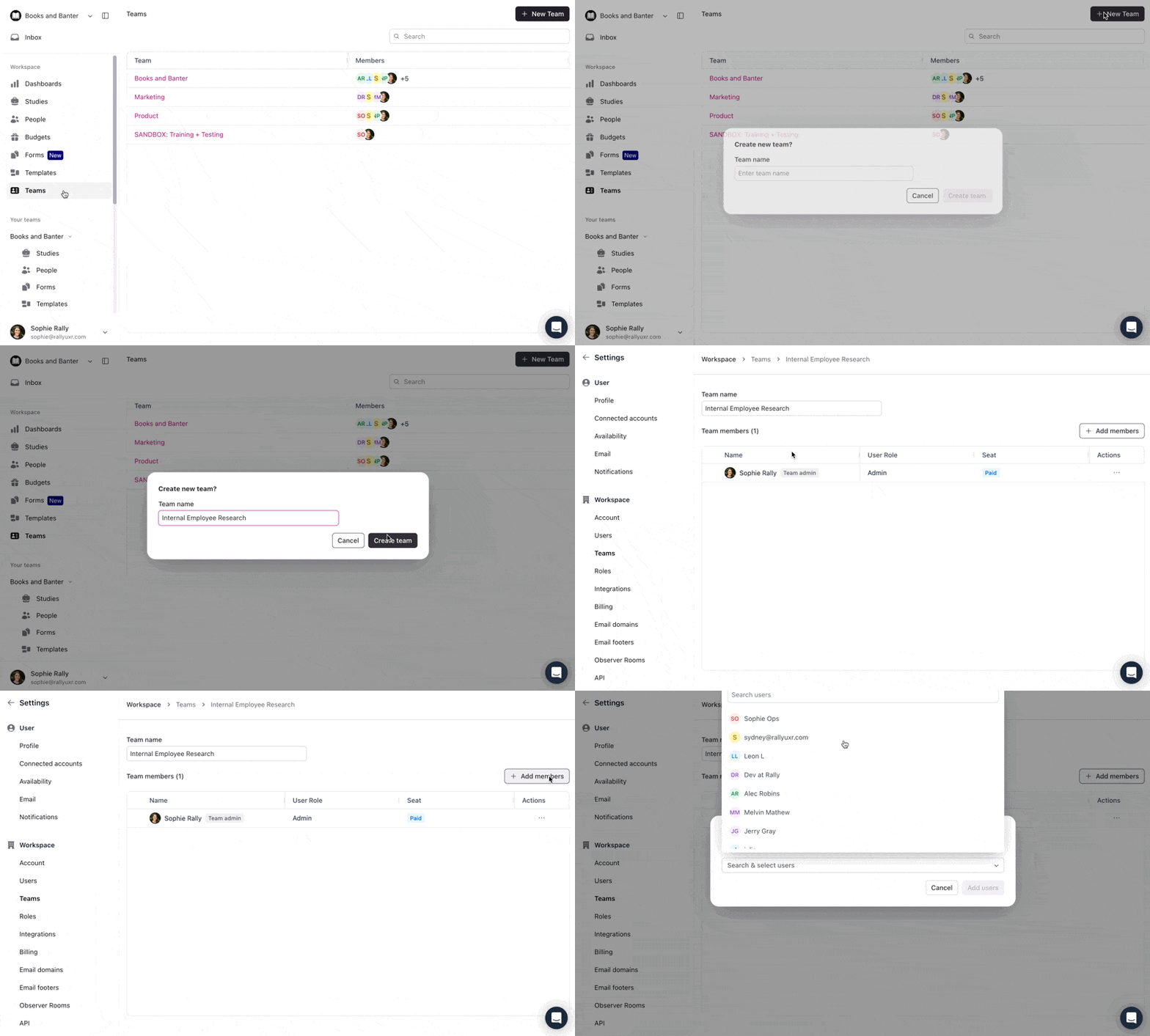
Select Teams from the side navigation or navigate to Settings > Teams.
Select + New team.
Enter a name for the team and select Save Changes.
The Admin who creates the team is automatically added as a Team Admin and cannot be removed unless another Team Admin is assigned first.
Renaming a team
Open the team and select Edit.
Update the Name field. The team name can't be blank.
Select Save Changes.
Managing team members
Adding members to a team
You can add members directly from the team settings or in bulk from the Users settings table.
From team settings
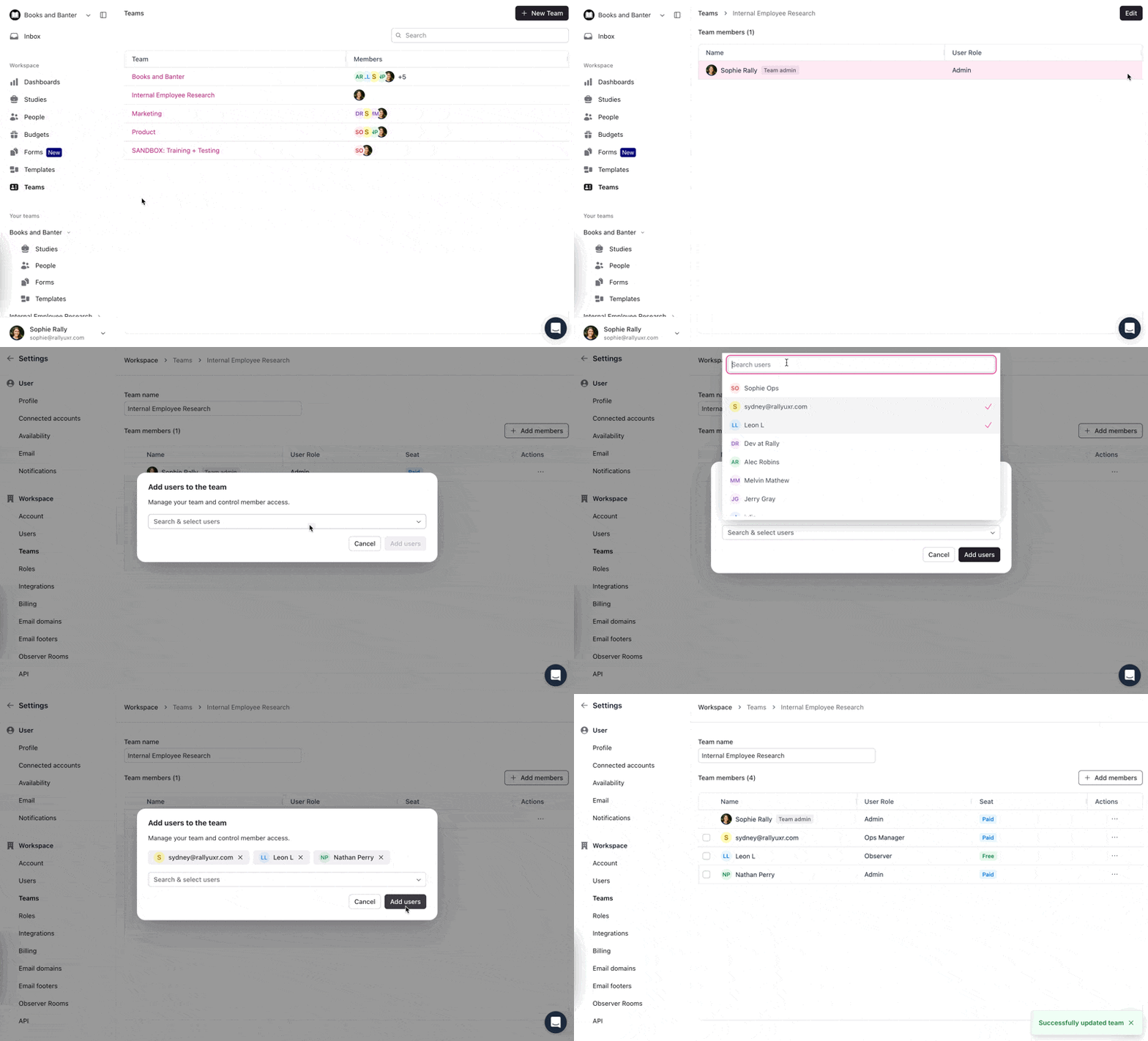
Select Teams from the side navigation or from the Settings page, then select the team name to open it.
Select Edit, then select + Add members.
Search and select users to add.
Select Add Users, then Save Changes.
From the Users settings table (bulk assignment)
Bulk assignment requires permission to manage users. To add a single user, select the three dots (...) on their row and select Add to team.
Go to Settings > Users.
Select the checkboxes for one or more users.
Select Add to team at the top of the table.
Search and select one or more teams.
Select Add # users to complete.
User permissions within a team are determined by their assigned user role. See Users, Roles, and Permissions for details.
Assigning team admins
Team Admins can rename the team, manage members, assign other Team Admins, and fully edit studies within the team, even without a workspace Admin role. Workspace Admins have Team Admin access on every team. Only users with paid seats can be assigned as Team Admins and users with free seats can be members only.
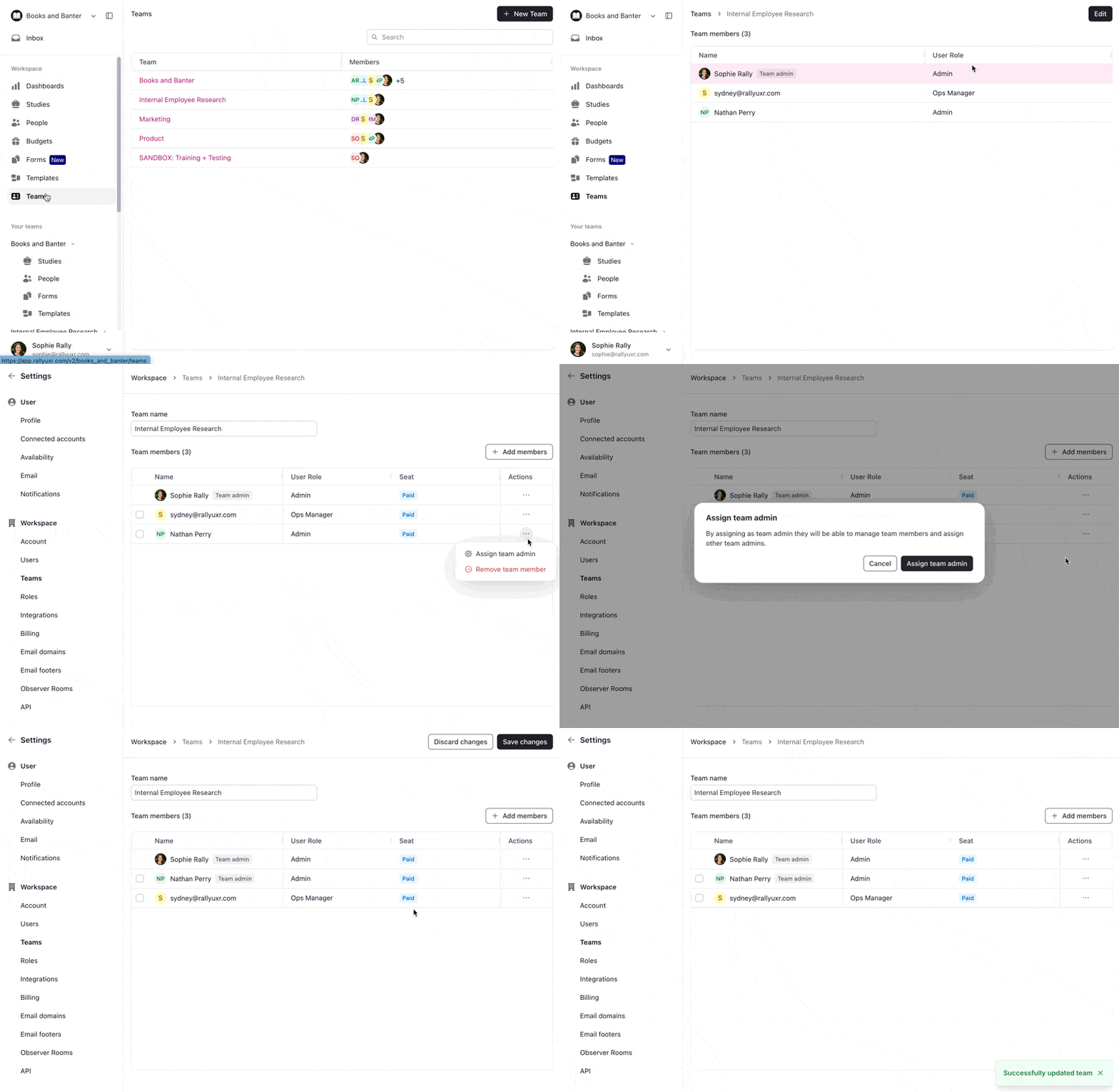
Select Teams from the side navigation, then select the team name to open it.
Select Edit, under Actions, select the three dots (...) next to any user.
Select Assign team admin and review the confirmation message.
Select Assign team admin to confirm & select Save Changes to apply.
To remove a team admin, follow the same steps above and select Remove team admin instead.
Removing members from a team
Removing a team member revokes their access to all studies, forms, and templates within that team. Use caution if they are actively working on a study.
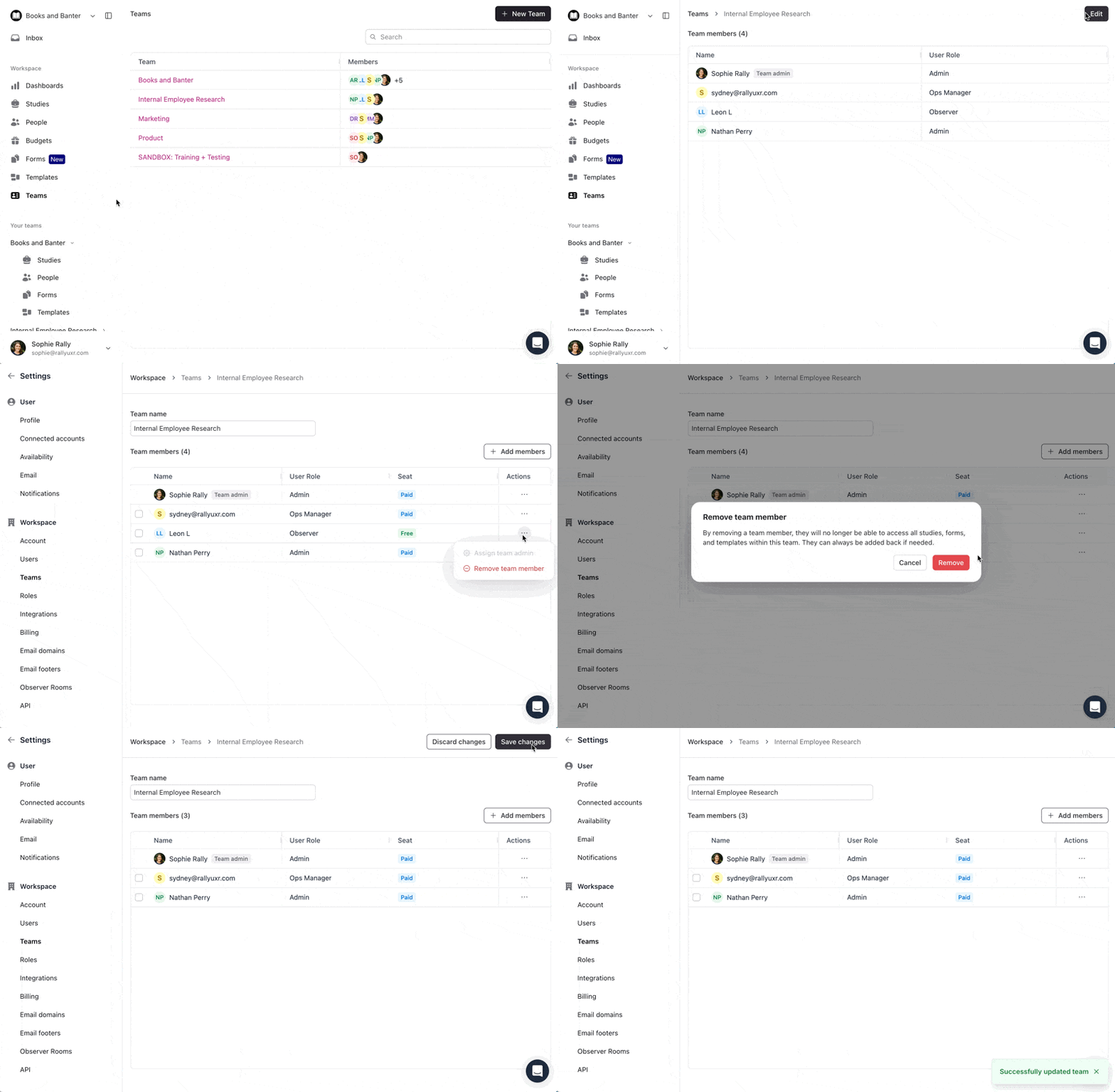
Select Teams from the side navigation, then select the team name to open it.
Select Edit, under Actions, select the three dots (...) next to the user.
Select Remove team member and review the confirmation message.
Select Remove to confirm, then Save Changes to apply.
Deleting a team
Deleting a team permanently deletes the studies, populations, templates, consent forms, documents, brands, custom incentives, and sign-up forms that belong only to that team. Resources shared with other teams are kept.
Go to Settings > Teams.
Select the three dots (...) next to the team, then select Delete.
Confirm the deletion.
Moving studies between teams
Admins can move studies between teams directly from the studies table. This applies to all studies, including any not currently assigned to a team.
Before moving a study, confirm that all users who need access are members of the destination team, and that the destination team has access to any email templates or budgets the study uses.
If you move a study to a team that a user working on it is not a member of, they will immediately lose access to that study.
Navigate to the Studies page.
Select one or more studies using the checkboxes.
Select Move to team at the top of the table.
Select the destination team.
Select Move # studies to team to complete.
Auto-assigning new users to a default team and role
When your workspace allows users with the same email domain to join automatically, you can configure a default team and role so new users are set up without manual intervention.
This setting only applies when the "Allow users with the same domain to automatically join the workspace" setting is enabled. New users who join without this setting will not be auto-assigned. If no default is configured, new users receive the Observer role by default.
Go to Settings > Account.
In the Workspace section, select which team(s) new domain users should be added to by default.
Select a role to auto-assign to new domain users.
Select Save changes to apply.
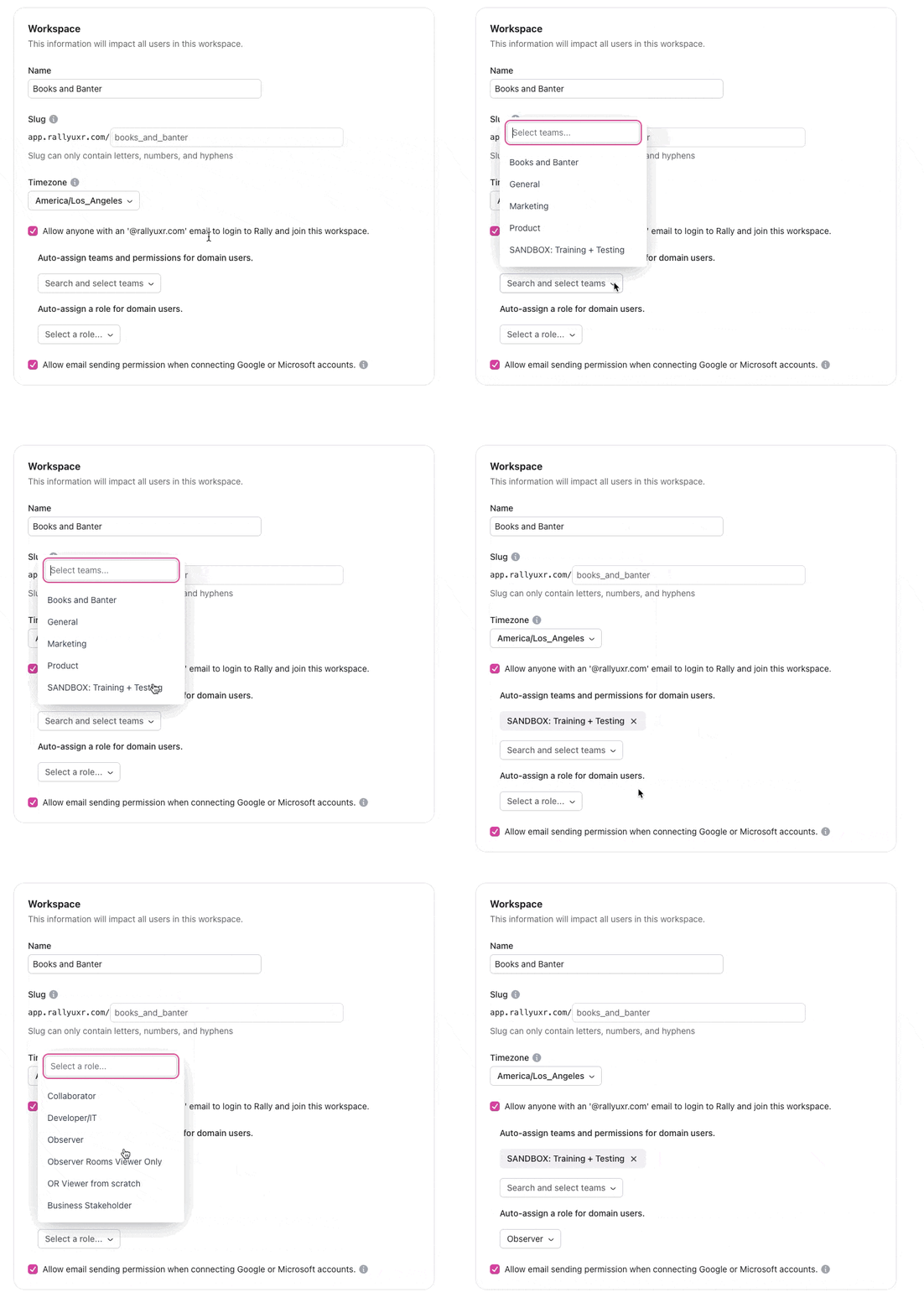
Some teams create a "Sandbox" team with no real participants so that new users can explore the interface before being added to a live team.