Lists
Last updated: May 5, 2026
Lists are static groups of people. They're typically created for specific purposes and don't automatically update, except when people that submit a signup form are added to the associated population's dedicated list.
Organize and manage participants to prepare for research
Improve speed and quality of specific study recruitment
View and manage participants recruited with signup Forms
List examples may include "2024 Conference Attendees" or "Research Program Panel" or as specific as an in-app intercept for users within their first 90 days.
To view lists, navigate to People > select a Population > select the Lists tab. Select the name of any list to explore the people within.
Creating and managing lists requires the "Create and modify population lists" permission.
Admins can also view and manage all workspace Lists from People > All People.
Create and add people to lists
Create a new list
Navigate to People, select a Population to open, select the "+" button in the population header, and select List in the dropdown.
Enter a Name and Description to help your team easily identify the people that will be included in the list.
Select Create to be automatically rerouted to the new list to add people.
Add people to lists
Once you're in any list, you can select Add People in the top right corner and select one of the following options:
Find people in Rally: Add people that already exist in your Rally workspace into your list. This option will provide the ability to quickly access your panel of people that exist in other populations, lists, and views.
Use filters to refine your search with any custom properties or Rally properties, or use the search box to quickly search by name or email.
Create new person: Add a brand new person record into Rally and your list by manually entering in the person's data. Email, Phone, First or Last Name are required to create a new person.
Import from a CSV: Quickly add many new people and their property data to your list via CSV import.
Edit lists
Change the name and description for a list.
Navigate to People, select a Population to open, and select the Overview button in the population header.
Navigate to the Lists section of the population overview page
Select the three dots (...) next to the list you want to change. From here you can:
Edit: Modify the name and description
Remove people from lists
Navigate to your Population via the People page and select the Lists dropdown at in the population header.
Select a list's name to open it.
Remove an individual:
Select the three dots (...) next to a person to select Remove from list. To confirm removal, select Remove person from list.
Remove in bulk:
Select the checkbox next to a person in order to see and select the More actions button at the top of the table.
From the More actions dropdown, select Remove from list. To confirm removal, select Remove # people from list to confirm.
Removing people from lists does not remove them from the population. If they were added to a list from a signup form, they will remain within the form.
Filter and search by list
Lists can be used to filter and search for participants, such as to:
Add to a study using the "add from existing" participants action
Add to another population
Search participants within a study
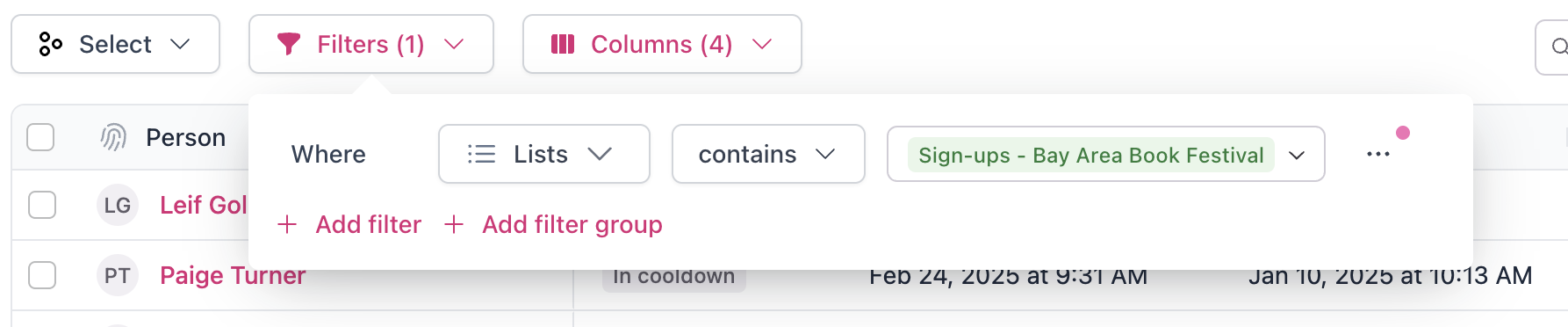
Select the Filters button > + Add Filter or + Add Filter Group > search and select Lists > select from available lists to include or exclude from your results.