Add People to your Population
Last updated: October 7, 2026
After creating a population, decide how you want to add people into Rally before inviting these people into your studies. To remove people or move them between populations later, see Managing People in Populations.
There are several different options for adding people to your Rally workspace:
Find people in Rally
Create new person
Data syncs (Salesforce, Snowflake, or BigQuery)
Import from CSV
See below for details as to how to add people to your populations using each of the above methods.
Adding people to a population requires the "Add person to population" permission.
Find people in Rally
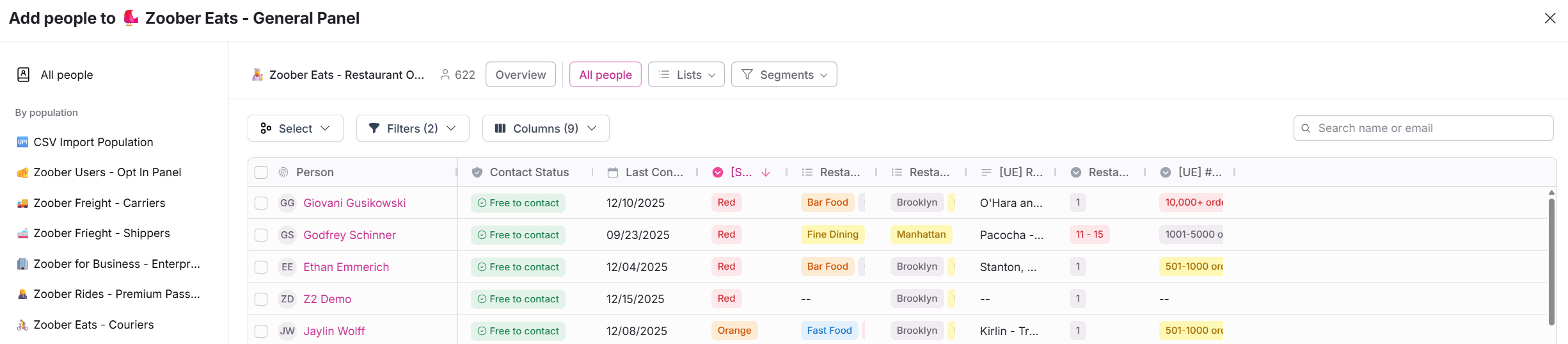
From within your population, select the Add people button in the top right corner of the page.
In the dropdown, select Find people in Rally to open the Add people to this population window.
Select which population you would like to add people from via the left side population navigation in the window. You'll be able to see any population your assigned team(s) have access to.
You'll also be able to use the Lists and Views you created in those populations. Navigate directly to one of your lists or views via the dropdowns at the top of the window or from the Overview tab.
If you've applied any additional filters, you can always go back to the default view using the Reset button on the top right of the window.
Review the filtered list of people to ensure they match who you would like to add to your population. This step is essential to make sure your populations are organized.
Next, select the people you want to add to the population. You can do this by checking the corresponding checkboxes next to their names, or by selecting the checkbox at the top of the table to select all people in the filtered view.
If you want to add a specific number of people randomly, you can use the Select option and input the desired sample size.
Once you have made your selections, select the Add Selected (#) button to add them to your population.
Create a new person
From within your population, select the Add people button in the top right corner of the page.
In the dropdown, select Create new person to open the Add person side panel.
Fill out information for any additional properties you desire. At least one of the following is required: email, phone, first name, or last name.
Once you are done, save the person's information by selecting Add person, or save and add another person by selecting Create and add another.
Salesforce, Snowflake, or BigQuery sync
Highly recommended: Seamlessly import your existing contacts or users with Rally's Salesforce, Snowflake, or BigQuery integrations. Map data fields directly to properties in Rally during setup to enrich person profiles in Rally and ensure data stays fresh.
By default, data syncs automatically every 24 hours, which reduces manual effort and keeps your data consistent. Snowflake connections can also be set to sync every 8 or 12 hours if that option is enabled for your workspace. By configuring sync settings and property mappings, you can tailor the integration to meet your specific needs.
To add synced people to a population, turn on the option to create new people in Rally during the sync, then choose the population they should be added to. People who already exist in Rally stay in the populations they're already in.
Learn more about what these powerful, easily configured integrations can unlock in the following Help Center articles:
Import from CSV
Upload a .csv spreadsheet to add many new people at once. From within your population, select Add people and Import from CSV, then upload your file, map its columns to properties in Rally, review any rows with issues, and select Import. You can download a template with prefilled headers for all the properties in your workspace to see how to organize your data.
Before you upload, see Import from CSV for how to prepare your file and how existing people are matched and updated.