Invite Your Colleagues
Last updated: October 22, 2026
Review Users, Roles, and Permissions to understand what access each role grants before inviting new team members. You can also create custom roles for more tailored permissions.
Adding new users requires the "Create and modify users role settings" permission. This includes the Rally default role Admin.
Add a new user to Rally
In the top left corner of Rally, select your workspace name and select Settings.
From the sidebar, select Users.
Select + Add User.
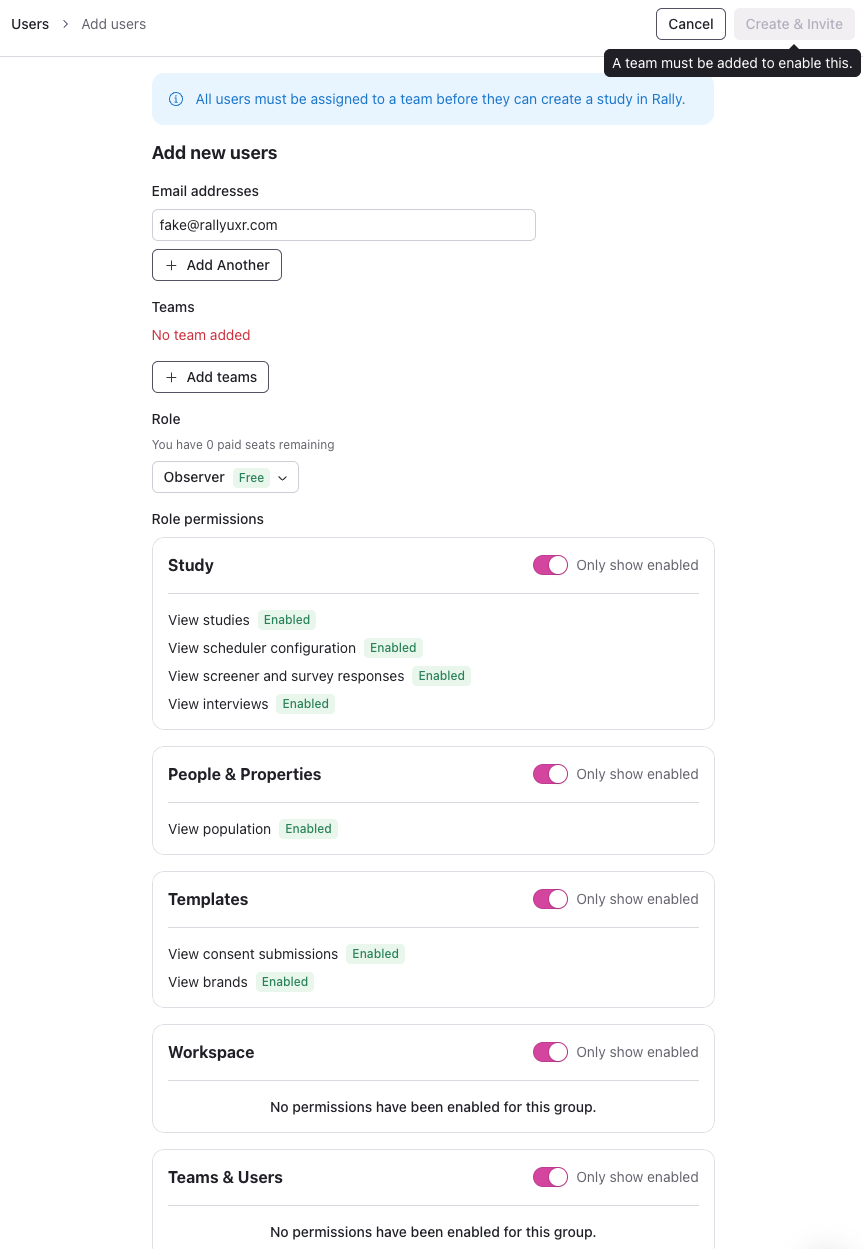
Enter their email address.
You can invite up to 10 users at once, or paste a list of email addresses into the email field. Rally flags duplicates and addresses that already belong to workspace users.
Select + Add teams to select at least 1 team to assign the new user(s) (required). For each team you select, choose the user's team access level.
Select the Role to assign, each role indicating whether it's a Free or Paid seat type based on permission.
Below, see the complete list of possible permissions. To review what the selected role allows, turn on Only show enabled to see only that role's permissions.
Create and assign custom roles to better manage research and permissions access within Rally.
After confirming everything is correct, select Create & Invite. The button stays disabled until at least one team is selected.
What happens next
The new user will receive an invite email to join Rally and set up their profile and preferences.
Invitations are valid for 30 days. After that, the user's status shows Invitation expired. To send a new invite, go to Settings > Users, open the user's three dots (...) menu, and select Resend invitation. A resent invite is valid for another 30 days.
If someone opens an expired invite link, Rally shows an Invitation expired message asking them to contact their workspace admin.
Invitees whose email domain uses your SSO (or Google sign-in) are sent to SSO when they log in. See Set up SSO.
Inviting someone with a different email domain than your primary SSO domain like a freelancer, for example? They can still log in via passwordless access: Rally emails them a temporary sign-in link instead of routing through SSO.
Once your colleagues have joined, head to Manage Users to view, edit, or remove existing users at any time.
User permissions by role type
When adding or inviting a new user to Rally, review the available permissions for each role type to provide the correct access level. Each different Rally default role type includes a different set of available permissions that determines which actions they can take and what they can view or access in Rally.
Admins and Ops Managers can explore each default role and its granular permissions scope in Rally for Teams by navigating to Settings > Roles.
Default Role | Description | Seat Type |
Admin | Able to do anything within Rally. | Paid |
Ops Manager | For users looking to manage workspace/user settings along with conduct research. | Paid |
Researcher | For users planning to conduct research. | Paid |
Observer | For users to stay engaged in research activities without actively managing studies or workspace settings within Rally. Default role for users who join through domain auto-join, unless an admin picks a different free-seat default role in Workspace Account Settings. | Free |
Developer/IT | For developers/IT team to be able to configure data syncing + API key access. | Free |
Collaborator | For users to collaborate on research activities without actively managing studies or Workspace settings within Rally. | Free |
Rally doesn't support automatic user provisioning through SCIM or SAML attributes. Add users by inviting them here or through domain auto-join.
Ready to set up a custom role? Head to Roles to get started.