Workspace Account Settings
Last updated: October 22, 2026
Configure and manage various aspects of your Workspace in the Account section of Settings. This information will impact all users in your Workspace.
Viewing the Account page requires permission to view workspace settings, and changing it requires the Create and modify workspace settings permission. Among Rally's default roles, Admin and Ops Manager have both. Researchers can't see this page.
In the top left corner of Rally, select your workspace name and select Settings.
From the sidebar, under Workspace, select Account.
Review the settings and instructions described below.
Once you make a change, Save changes and Discard changes appear in the top right. If you try to leave with unsaved changes, Rally asks you to confirm.
Account
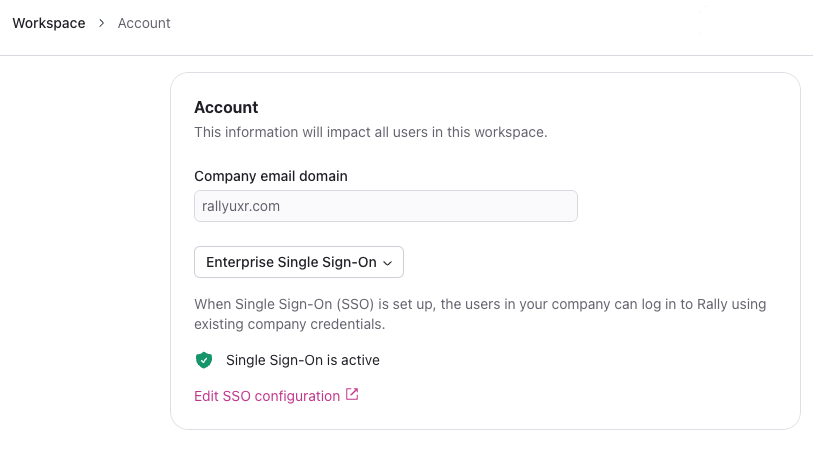
Company email domain
Shows the email domain associated with your workspace (e.g., company.com). This domain controls who can join automatically and which users are sent through SSO. To change it, contact Rally Support.
Single Sign-On
Choose how people with your company domain log in (See Set up SSO):
Single Sign-On (Enterprise): connect your identity provider (Okta, Azure AD, etc.) through WorkOS. Status shows Active, Draft, or Inactive.
Google SSO: users sign in with their Google account.
No Single Sign-On: users sign in with an emailed login link.
Workspace
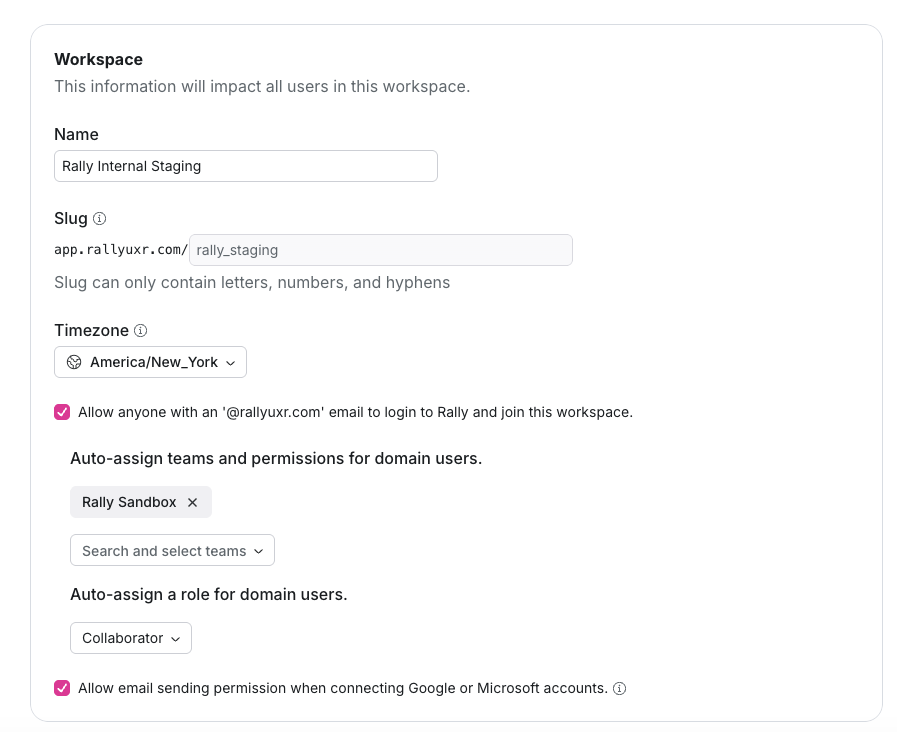
Customize workspace name:
Modify the name of your workspace to make it more distinctive and relevant to your organization or project. We recommend using your company name, as this may be visible to your research participants.
Workspace slug:
Your workspace's unique URL (
app.rallyuxr.com/your-workspace). It's read-only because it's used in every workspace and study URL. Contact Rally Support if it needs to change.
Set timezone for the workspace:
Establish the default timezone for your entire Workspace. The workspace timezone is used for date filters, date properties, daily governance checks (run at midnight in this timezone), and interview times shown inside a study. Your Home page shows times in your own device's timezone.
Allow anyone with an '@yourdomain.com' email to login to Rally and join this workspace:
When this is on, anyone with a verified email at your company domain can join this workspace without an invite. This option only appears once your workspace has a company email domain. Turning it on reveals the team and role defaults below.
Auto-assign teams and permissions for domain users:
Select one or more teams that new users who join this way are added to. If you don't select a team, they join without one, and an Admin can add them later.
Auto-assign a role for domain users:
Select which role new domain users joining Rally will receive to predetermine available permissions. All users joining this way initially receive the Observer role by default if not changed. Only roles with a free seat type can be selected. If no role is selected, new users get the Observer role.
Allow email sending permission when connecting Google or Microsoft accounts:
When this is on, users are asked for send-only permission (Google
gmail.send, MicrosoftMail.Send) when they connect an account. Rally can't read their mail.
We do not ask for email sending permission for the Observer role.