Billing
Last updated: October 22, 2026
Add credit card(s) to fund research budgets, or request an invoice to skip the 3% fee required for credit cards.
Adding and removing cards requires the Create and modify billing settings permission. Adding funds to a budget with a saved card, or requesting an invoice, requires the Create and modify incentives permission.
Add credit card(s) to fund research budgets
In the top left corner of Rally, select your workspace name and select Settings.
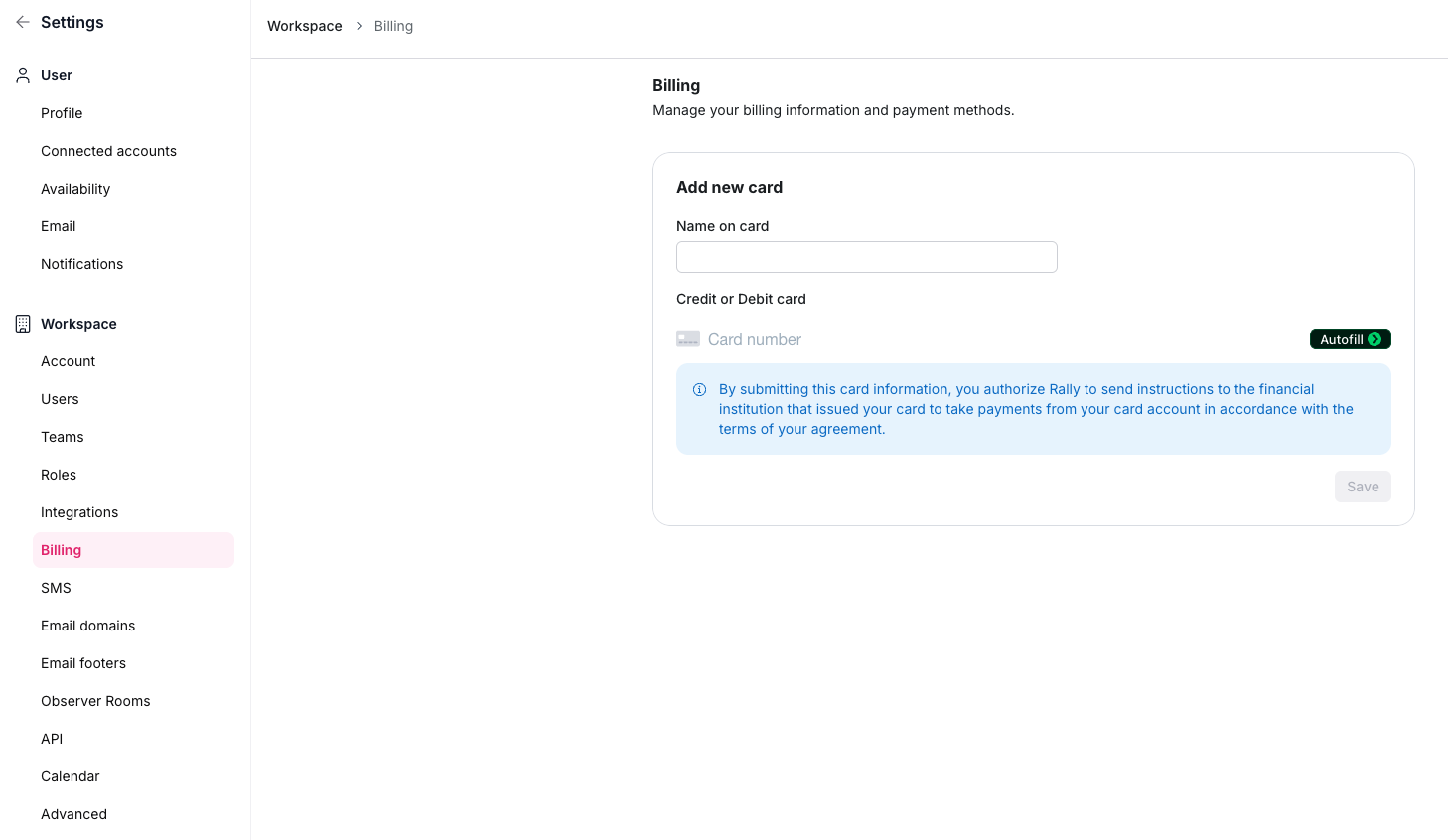
From the sidebar, select Billing.
In Add New Card, enter all required details for the credit card(s) you'd like to use to add money to your budget(s):
Full name of the cardholder
Credit card number
Expiration date (MM/YY)
CVC
Confirm all details are correct and select Save.
Funding your budgets with a credit card adds a 3% processing fee. To avoid the fee, request an invoice instead.
Add funds with a saved card
From the Add Funds dialog, choose to pay by credit card, select a budget and a saved card, enter the amount and an optional description, and review Total with fees before confirming. The budget receives the amount you enter; the 3% fee is added on top. If the card you want isn't listed, select Add card to open Billing in a new tab. For full steps, see Set Up and Fund Budgets.
Receipts for credit card charges will be emailed from Stripe to the person who added the funds to Rally. If you need an additional copy of these receipts, please contact us. Card payments don't generate an invoice. If your finance team needs an invoice, use Invoices for Budget Funds instead.
Many customers avoid the 3% fee by requesting an invoice for budget funds, often adding enough to cover a quarter or more at a time.
Remove credit card
Easily delete a credit card from Rally to ensure that no further charges are processed on it, or to replace it with an updated credit card.
In the top left corner of Rally, select your workspace name and select Settings.
From the sidebar, select Billing.
In Saved Cards, find the card by cardholder name and last four digits, then select the trash icon.
The card is removed immediately, with no confirmation step. Funds already added stay in your budgets. To replace a card, add the new card first, then remove the old one.