Set Up and Fund Budgets
Last updated: November 11, 2026
Budgets hold the money you use to pay participant incentives and external panel recruitment. To get set up, create your budgets, choose how you'll pay, then add funds. Do this ahead of time so funds are ready when your next study needs them.
Each part of this setup needs a specific permission. The default Admin role has all of them:
Create budgets: Create and modify incentive budget settings
Add a credit card: Create and modify billing settings
Add funds or request an invoice: Create and modify incentives, plus edit access to the budget
Learn more in Users, Roles, and Permissions.
Set up budgets
Get started with incentives or external panel recruitment by setting up budgets in your Rally workspace.
Every Rally workspace includes a default budget named Workspace Budget, which can't be renamed or archived. If different teams or initiatives have their own budgets, create additional budgets to keep funds separate and make tracking easier.
From the sidebar, select Budgets.
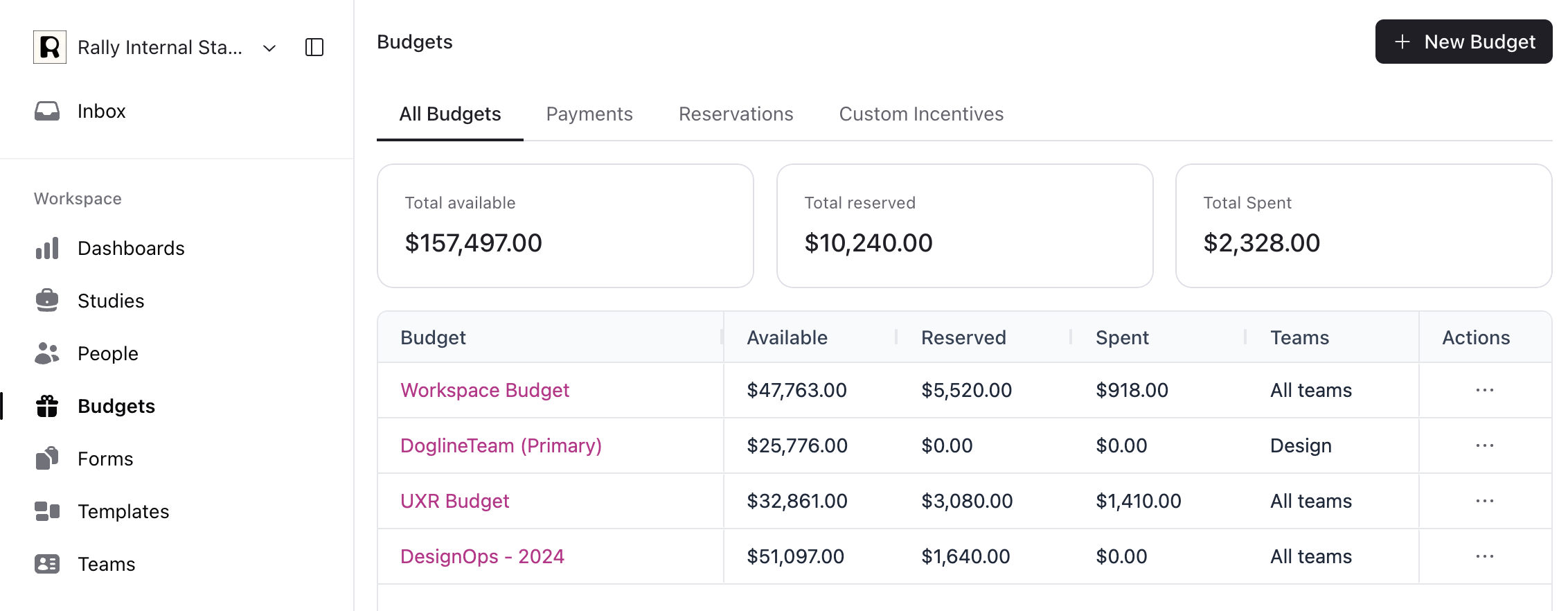
Select New Budget
Enter a unique name for the budget and select Create.
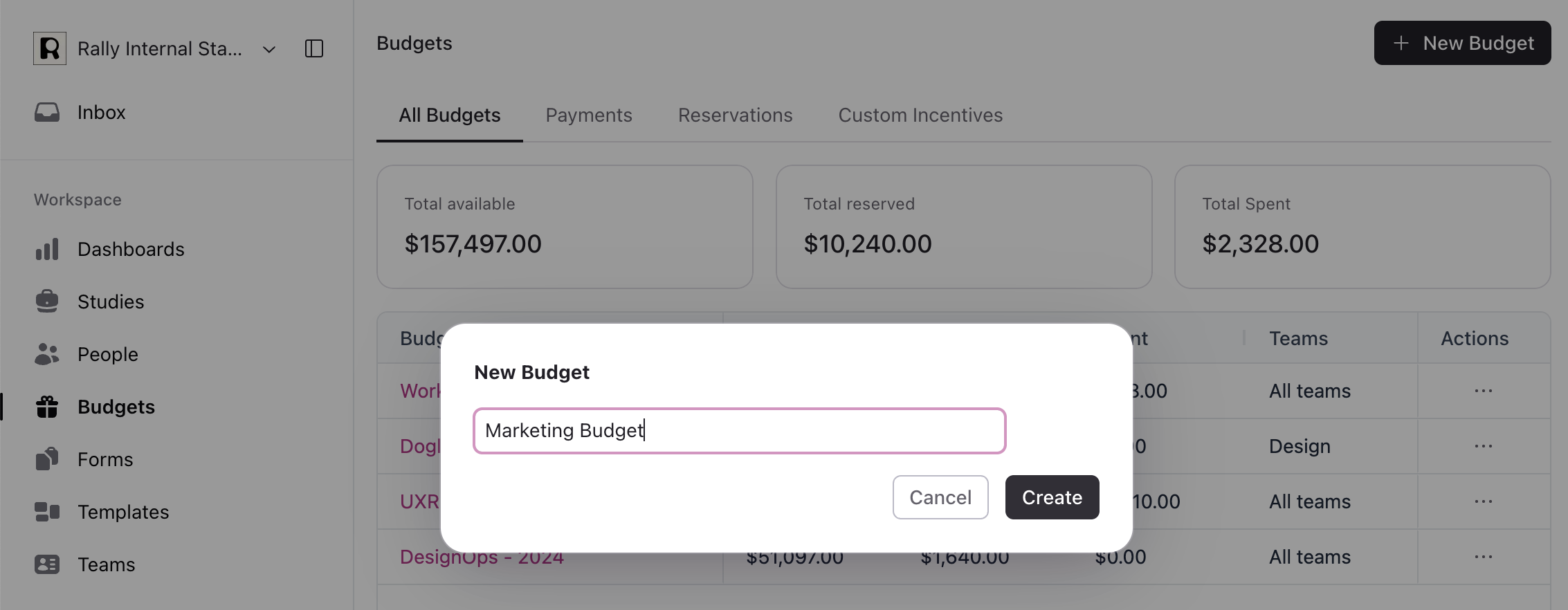
Rally opens the budget's settings. Choose who can use the budget: your entire workspace, or specific teams. Then save.
To rename a budget, change its access, transfer funds, or archive it later, see Manage Budgets.
Choose how to pay
You can add funds in two ways:
Credit card: Funds are added immediately, with a 3% processing fee. You'll need to add a credit card first.
Invoice: Rally emails your finance team an invoice to pay by bank or wire transfer. Funds are added once payment is received.
To avoid the credit card fee and cut down on approvals, most customers request an invoice once a quarter, adding $5,000–$15,000 or more at a time. Get budget amounts approved ahead of time so research isn't held up.
Add a credit card
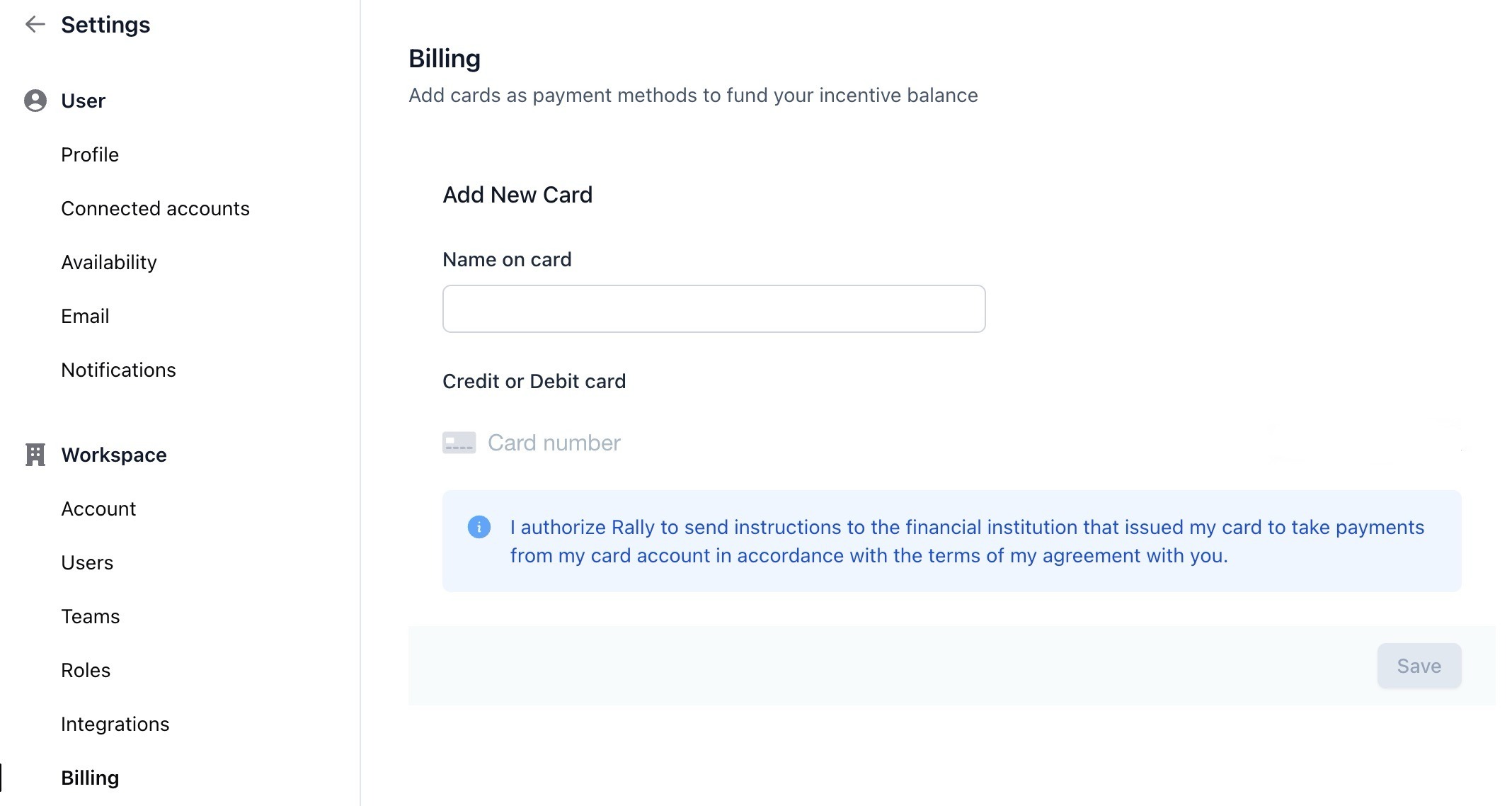
If you start adding funds before you've saved a card, select Add card in the Add funds window. It opens Billing in a new tab, and your new card appears in the window once you return.
In the top left corner of Rally, select your workspace name, then Settings.
From the sidebar, select Billing.
Under Add new card, enter the card details:
Name on card
Credit or Debit card: The card number, expiration date (MM/YY), and CVC.
Select Save.
Add funds to budgets
Add funds in advance so they're ready when you need them.
Add funds by credit card
Select Budgets from the sidebar.
Select Add funds at the top of the page, or select three dots (...) next to a budget and select Add funds.
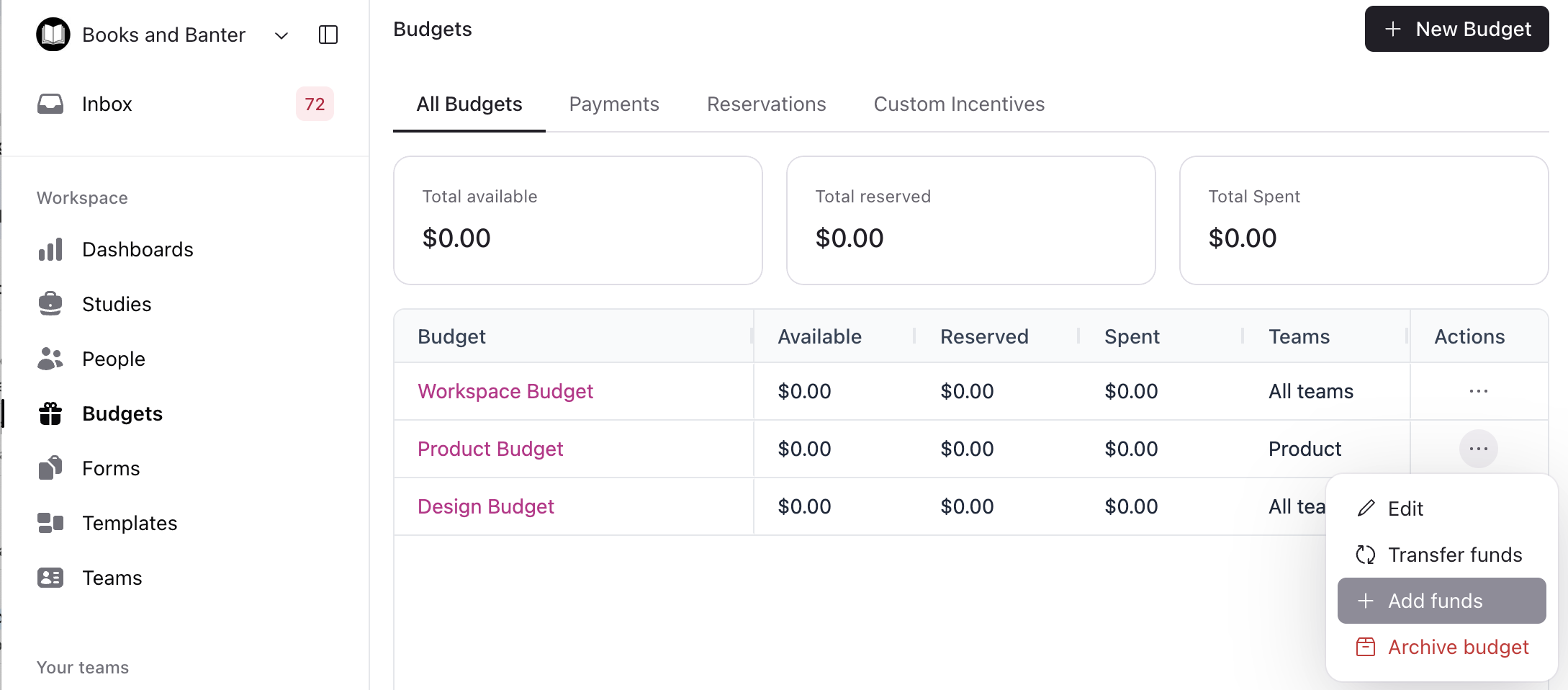
Select Pay by Credit Card.
Select the budget, choose a saved card, and enter the amount to add in USD. You can also add an optional description.
Check the Total with fees, then select Confirm and Add Funds.
Stripe emails a receipt to the person who added the funds. For another copy, contact Rally support.
Add funds by invoice
Request an invoice in Rally, send it to your finance team, and track its status. For steps, see Invoices for Budget Funds.
Rally adds funds only after your invoice payment clears. A budget is money you control and spend at your discretion, not payment for a Rally service, so funds can't be added ahead of payment. Once the payment clears, Rally adds the funds to the budget automatically and emails the person who requested the invoice.