Resend or Cancel Unclaimed Incentives
Last updated: October 7, 2026
Send a reminder email to participants who haven't claimed their incentives, or cancel unclaimed incentives.
Take individual actions or in bulk for multiple participants at once.
Take action from Budgets > Payments, or from a study's Incentives page.
Incentives sent through Rally follow Tremendous' standard 7-day cancellation window. You can cancel a sent incentive that hasn't been claimed for up to 7 days; after that, it can't be canceled and the funds are considered spent. Participants can still claim it, so you can still resend a reminder.
Incentives sent before February 1, 2026 aren't subject to the window and can be canceled at any time.
These steps apply to Tremendous incentives. Custom incentives can be canceled but can't be resent. See Custom incentives.
Resend unclaimed incentives
Send a reminder email and link to participants who haven't claimed their incentives yet. Resending an incentive does not create a new incentive or deduct additional funds; it simply re-issues the same unique redemption link from the original incentive.
Open the incentives table: select Budgets > Payments, or open a study and select Incentives from the side nav bar.
Search or filter for participants with the Unclaimed payment status. See View and export incentive activity for more on this table and its filters.
Resend unclaimed incentives individually or in bulk:
Individually: Hover over a person's name, select the three dots (...), and select Resend Incentive.
In bulk: Select the checkboxes next to each person, then select the Resend Incentives button at the top of the table.
In the popup, select Resend Incentive(s) again to confirm.
Participants will receive a new email with their unique incentive redemption link.
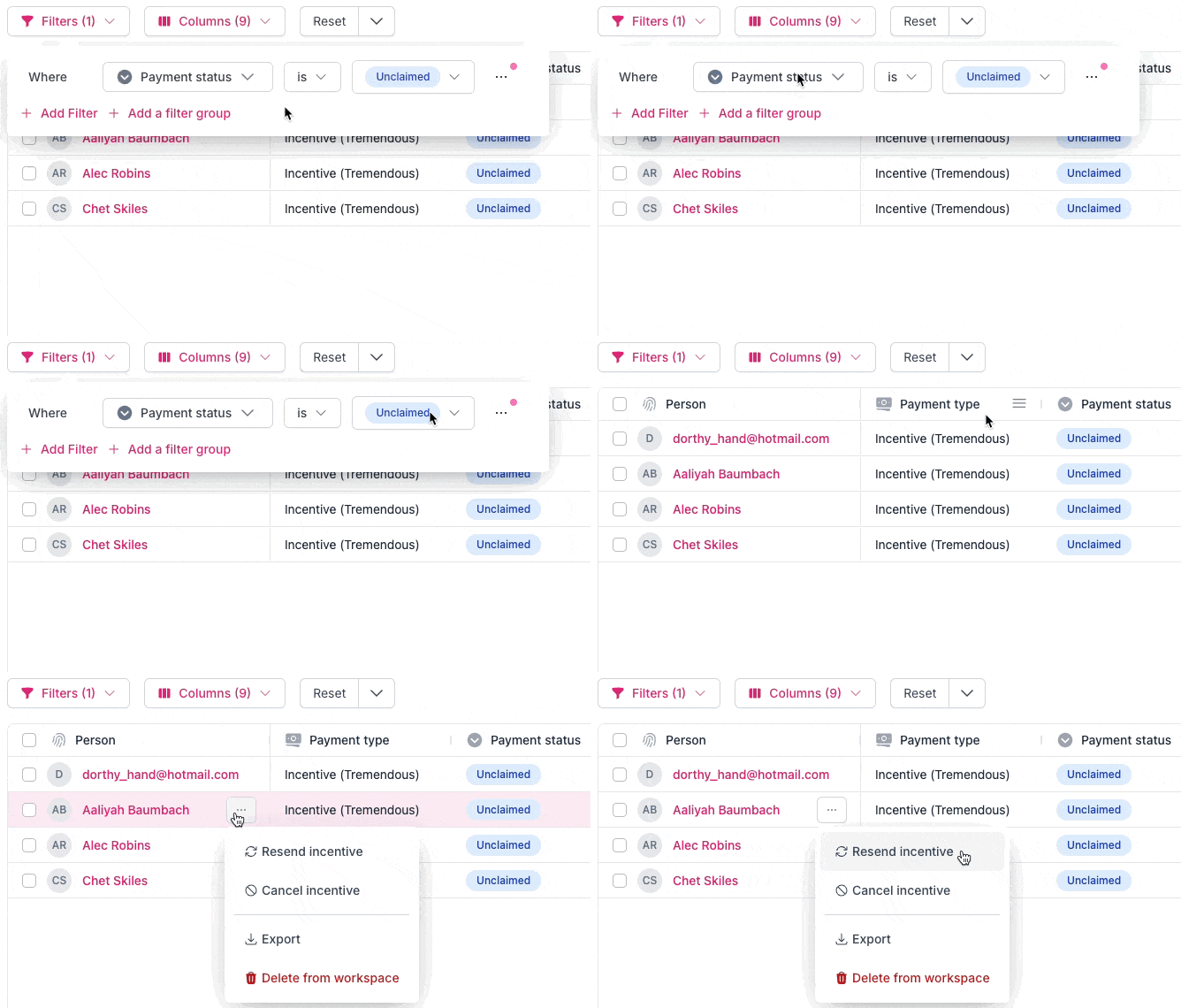
Canceled and expired incentives can't be resent, and neither can external panel recruitment payments.
Copy an incentive link
If you want to copy a participant's unique incentive link to send to them directly, find it on the Payments tab in Budgets or on a study's Incentives page. Locate the participant in the table, select the three dots (...) to the right of their name, and select Copy Incentive Link.
Cancel unclaimed incentives
If you've sent reminder emails and participants still haven't claimed their incentives, you can cancel them within the 7-day window, and the funds will be returned to your budget. You can also cancel an incentive that was sent by mistake, or cancel one to send a new incentive or a different amount. An incentive that a participant has already claimed can't be canceled.
Incentives within the window have the payment status Unclaimed (Refundable). Hover over the payment status to see the date the incentive is refundable until.
Incentives past the window have the payment status Unclaimed (Non-Refundable) and can't be canceled.
Incentives still unclaimed after a year expire, and also can't be canceled.
Filtering by Unclaimed includes both Refundable and Non-Refundable incentives, so check each one's status before you cancel — only Refundable incentives can be canceled.
If a Participant has already claimed their incentive, it cannot be canceled.
Open the incentives table: select Budgets > Payments, or open a study and select Incentives from the side nav bar.
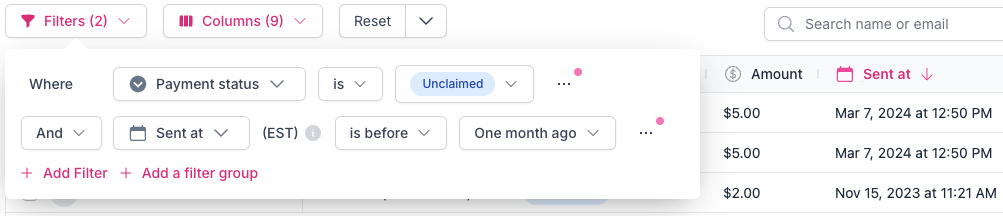
Search or filter for participants with the Unclaimed payment status.
Optionally, from Budgets > Payments, add more filters, such as the date the incentive was sent. For example:
Sent At is before One year ago
Sent At is before Custom, then use the calendar to set a past date
These filters are mainly useful for finding incentives sent before February 1, 2026, which can still be canceled at any time.
Cancel unclaimed incentives individually or in bulk:
Individually: Hover over a person's name, select the three dots (...), and select Cancel Incentive.
In bulk: Select the checkboxes next to each person, then select the Cancel Incentives button at the top of the table.
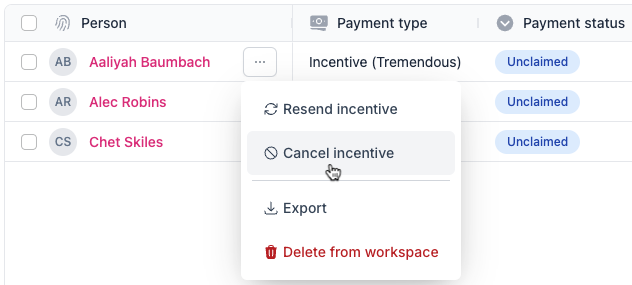
In the popup, select Cancel Incentive(s) again to confirm. The canceled funds will be immediately returned to your budget.