Invoices for Budget Funds
Last updated: November 11, 2026
Request an invoice when you add funds to a budget. You get a clear paper trail and billing details that are easy to share with your finance team.
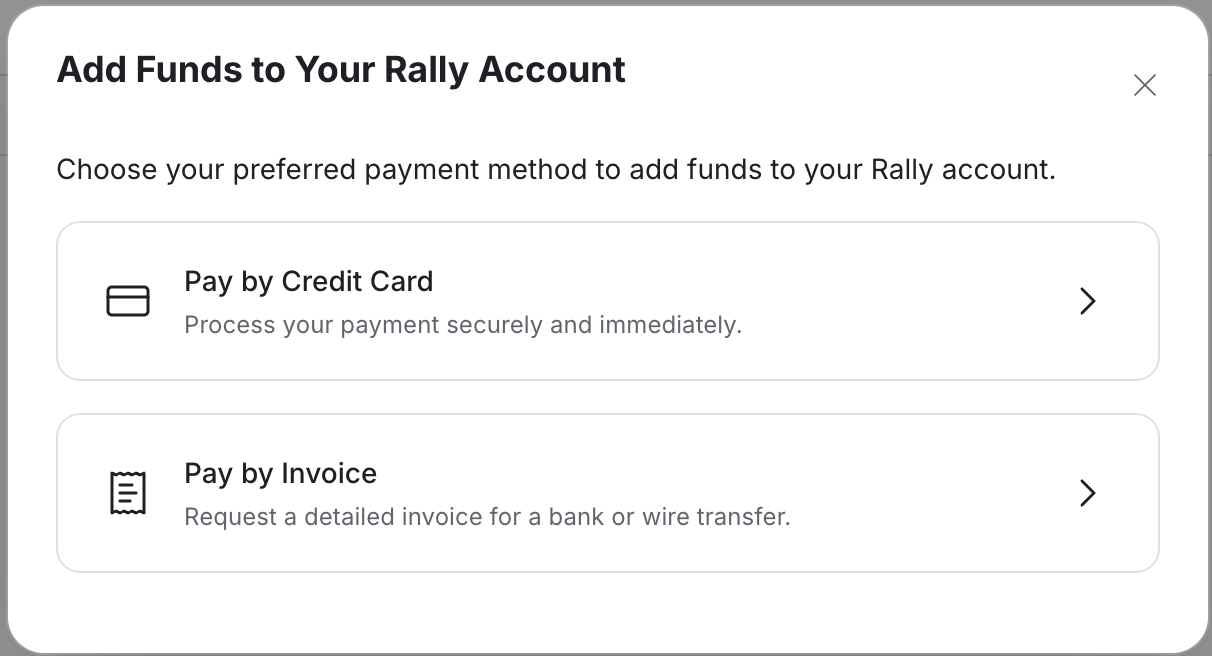
When you select Add funds, choose a payment method:
Pay by Invoice: Rally creates an official invoice and emails it to the address you enter, plus anyone you cc or bcc. Your finance team pays it from the invoice, by bank or wire transfer.
Pay by Credit Card: Charges a saved card right away. A 3% processing fee is added, and you need a card saved under Settings > Billing first. Learn more in Set Up and Fund Budgets.
Request an invoice to add funds
To add funds, you need the Create and modify incentives permission and edit access to the budget you're funding. Only budgets you can edit appear in the Select Budget dropdown.
Go to Budgets, select Add funds, then choose Pay by Invoice.
Open a specific budget before selecting Add funds, and that budget is pre-selected for you. Invoices are issued in USD only.
Fill in the invoice details:
Select Budget: The budget to add funds to.
Description (optional): Add a PO number or internal reference your finance team needs.
Amount: The amount in USD (minimum $5).
Bill To: The company or person the invoice is addressed to.
Email: The main address the invoice is sent to. Select cc or bcc to add more recipients.
Billing Address: Street address, plus Address Line 2, City, State, Postal Code, and Country.
Select Request Invoice.
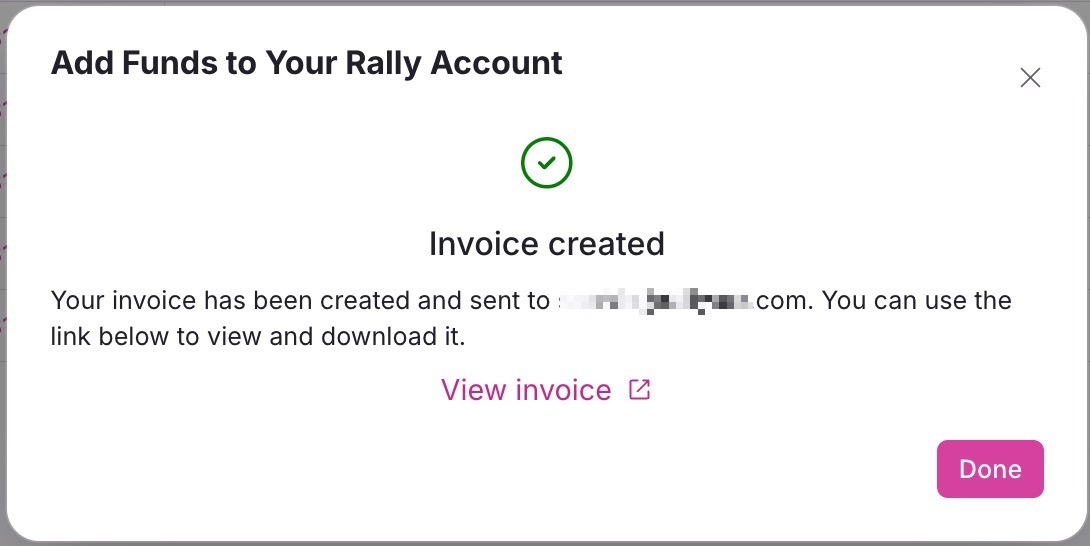
Rally creates the invoice and emails it to the addresses you entered. Select View invoice to open and download it.
When the invoice is paid, Rally automatically adds the funds to the budget, marks the invoice Paid, and emails the person who requested it.
Bank and wire transfers can take a few business days to reach Rally. If an invoice still shows Pending after your finance team has confirmed payment, contact Rally support.
View and manage invoices
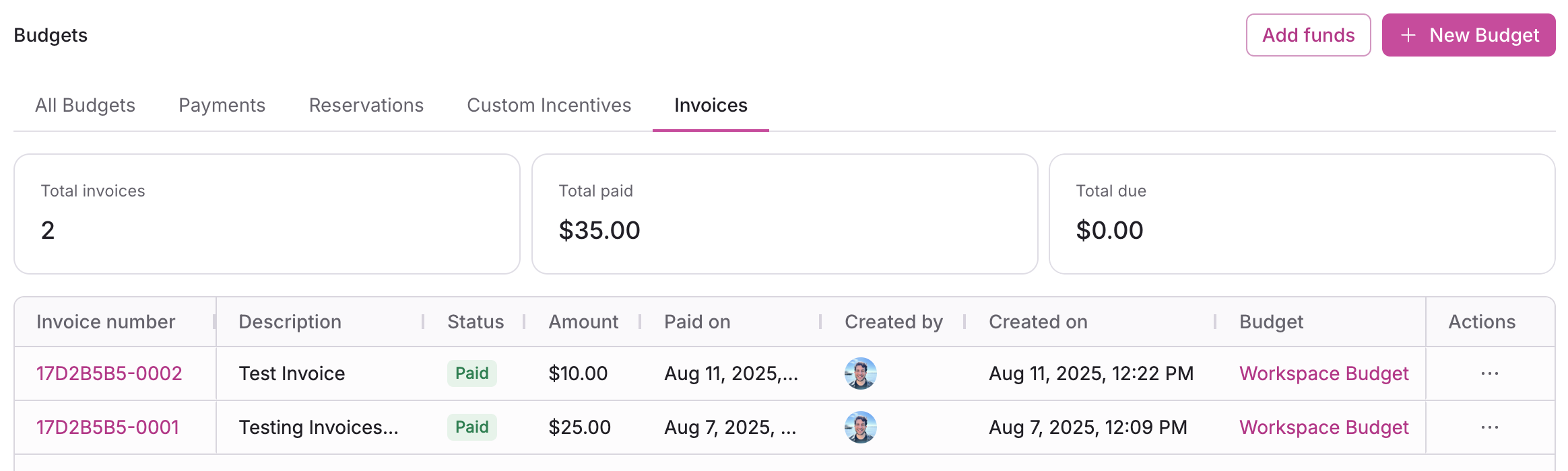
Go to Budgets and select the Invoices tab to see every invoice requested in Rally, across all budgets. The tab shows total invoices, total paid, and total due. Each row lists the invoice number, description, status, amount, payment date, who requested it, and the budget. To see invoices for one budget only, open that budget and select its Invoices tab.
Select an invoice number to open the invoice, where you can download it, plus the receipt once it's paid.
Each invoice has one of these statuses:
Pending: Sent and waiting for payment.
Paid: Payment received and funds added to the budget.
Voided: Canceled and can no longer be paid.
The Invoices tab shows only invoices requested in Rally. Invoices arranged with Rally outside the app don't appear here.