Send Incentives
Last updated: November 16, 2026
After research where participants were offered an incentive, close the loop by sending their incentives individually or in bulk.
Before you can send incentives, enable incentives on the study. Sending incentives also requires permission to send incentives (admins always have it), and you'll only see budgets shared with your team. Learn more about roles and permissions.
Send incentives to participants
When a participant completes the study activity, their participant status updates automatically to Interview Completed, Test Completed, or Survey Completed, and they appear under Pending incentive.
From the study overview, select Pending incentive under participants in the sidebar.
Use the checkboxes to select one or more participants.
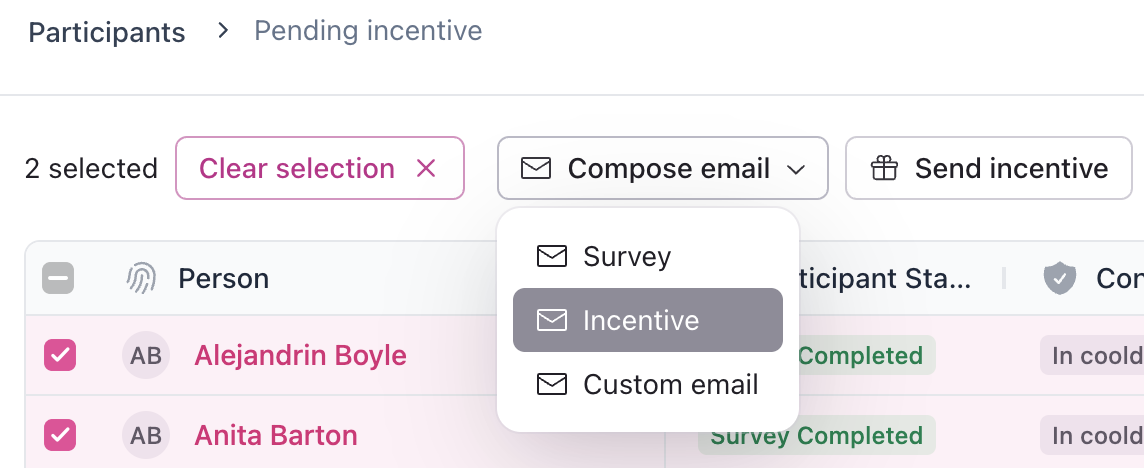
At the top of the table, select Compose incentive, or select Compose email > Incentive. To send to one participant, select the three dots (...) next to their name, then Compose incentive.
In Configure Incentive, check the details:
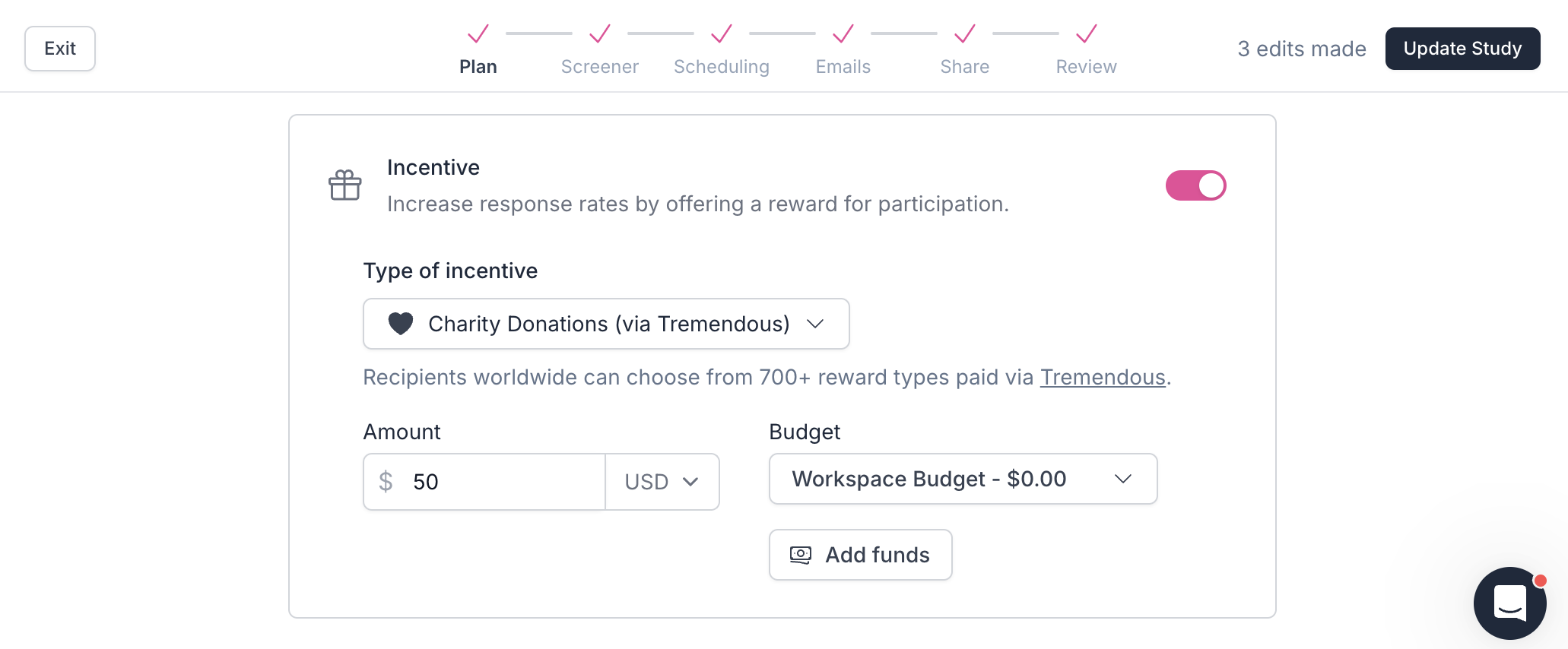
Type of Incentive: defaults to the study's incentive type. Switch to Charity Donations (via Tremendous) if needed (see below).
Select an incentive budget: choose the budget to pay from.
Incentive Amount: prefilled from the study. Change it if you agreed on a different amount.
Review the Available Balance, Estimated cost, and the amount remaining after sending. If the budget is short, select Add more funds to pay by credit card. If you don't see this option, ask your workspace admin to add funds.
Select Next: compose email.
Edit the incentive email as needed. It thanks participants and includes the amount and a button with their unique claim link. You can change the sender, subject, and body. To reuse your edits, select Save as new template.
Select Next: review email, and check the number of participants, Study link, Incentive amount, Incentive type, and Incentive budget.
Select Send now to # participants.
Their status updates to Incentive Sent. If a participant won't receive an incentive through Rally (for example, you paid them another way), change their status to Incentive Skipped.
Charity donation incentives
Send charity donation incentives to participants who can't accept cash because of company policies or other rules. They can only redeem the incentive as a donation to a charity.
You can switch any send between Cash or Gift Card (via Tremendous) and Charity Donations (via Tremendous), whatever the study's default. In step 4, change the Type of Incentive.
Related tasks
Set up and fund budgets to pay for incentives, and track every payment in Budgets. If a participant hasn't claimed their incentive, you can resend or cancel it. To log rewards you send outside Rally, such as in-app credits or discount codes, use custom incentives. For studies recruited through an external panel, the panel provider pays participants, so don't send them Rally incentives.
Frequently asked questions
Can I cancel an incentive after it’s been sent?
Any incentive sent through Rally follows Tremendous' standard 7-day cancellation window: you have up to 7 days to cancel a sent incentive that hasn't been claimed. After 7 days, it can't be canceled and the funds are considered spent. Incentives past the cancellation window show a payment status of Unclaimed (Non-Refundable). Participants can still claim them. Unclaimed incentives expire after one year and show Expired.
Can participants claim incentives after a study is closed?
Yes. If you sent the incentive email before the study status changed to Closed (or Archived), participants can still claim it from their email. You can also resend or cancel unclaimed incentives.
A participant didn't get their incentive email. Was it sent?
In the study, open Messages from the sidebar and select the All Messages tab. Search for the participant and check the status of their incentive email:
Sent: ask them to check their spam folder.
Error: resend it.
To send the link another way, copy it with Copy incentive link (see below) and email it to them directly.
Where can I find a participant's incentive link?
Open the study's Incentives page, or the Payments tab in Budgets. Find the participant, select the three dots (...) next to their name, then Copy incentive link. This requires permission to send incentives.
Why don't I see the option to send incentives?
You can only send incentives from within a study, and only if:
The study has incentives turned on in the Plan step.
You have permission to send incentives. To use Compose email > Incentive, you also need permission to send emails.
The study isn't recruited through an external panel.