Import from CSV
Last updated: October 6, 2026
Uploading a .csv spreadsheet is the preferred method when adding people in bulk, whether directly into your workspace All People database, into a population, or into a specific study. For other ways to add people, see Add People to your Population.
Prepare your spreadsheet for import
To ensure a successful .csv file upload, follow these best practices:
New properties: If you have new columns that you want to import as new properties, we recommend creating those properties first in Settings > Properties before uploading the .csv.
Include an email address or ID column: Your .csv needs a way of identifying people. This can be an email address, a phone number, or an ID column containing unique values per person. If you're using an ID column, create it in Rally first as a property with the Unique characteristic turned on.
Check for duplicate email addresses: Rows with duplicate email addresses will be marked as an error during the import process.
Separate first and last names: If you have names as one column in your .csv, split them into two before importing. This ensures smoother study operations, as personalization tokens can be used in email templates (e.g., "Hello {First Name}").
Format dates as MM/DD/YYYY: Rally supports dates in MM/DD/YYYY format but does not support date-time formats (e.g., 09/22/2023 is supported, but 09/22/2023 09:25:15 is not).
Use a semicolon to separate multi-select values: When importing multi-select values, separate multiple values with a semicolon (
;). For example: Laptop;Desktop Computer;Mobile PhoneMulti-select values in a Rally export are formatted differently (for example, "Type1","Type2"). If you export, edit, and re-import, convert those cells to semicolon-separated values first, otherwise the whole cell is imported as one new option.
Add people via CSV
Uploads typically process instantly or within a few minutes. Depending on the amount of data you upload, initial bulk imports can take up to an hour. Rally keeps processing in the background, so once you see that Rally has begun processing your upload, you can safely close the final Importing People window without affecting your upload.
Select the People page from your Rally workspace level or team level.
Select the Population where new people will be added to view the table.
Select Add People and select Import from CSV — new people will be added directly to the population you're currently viewing.
If you're importing people directly into a study, select Add Participants and Import from CSV. Select the appropriate Population to add new people to and select Continue. See Add Participants to a Study for the full study flow.
After reviewing the requirements and best practices, select Continue to upload.
First time? Optionally download our example template for a look at how to organize your data.
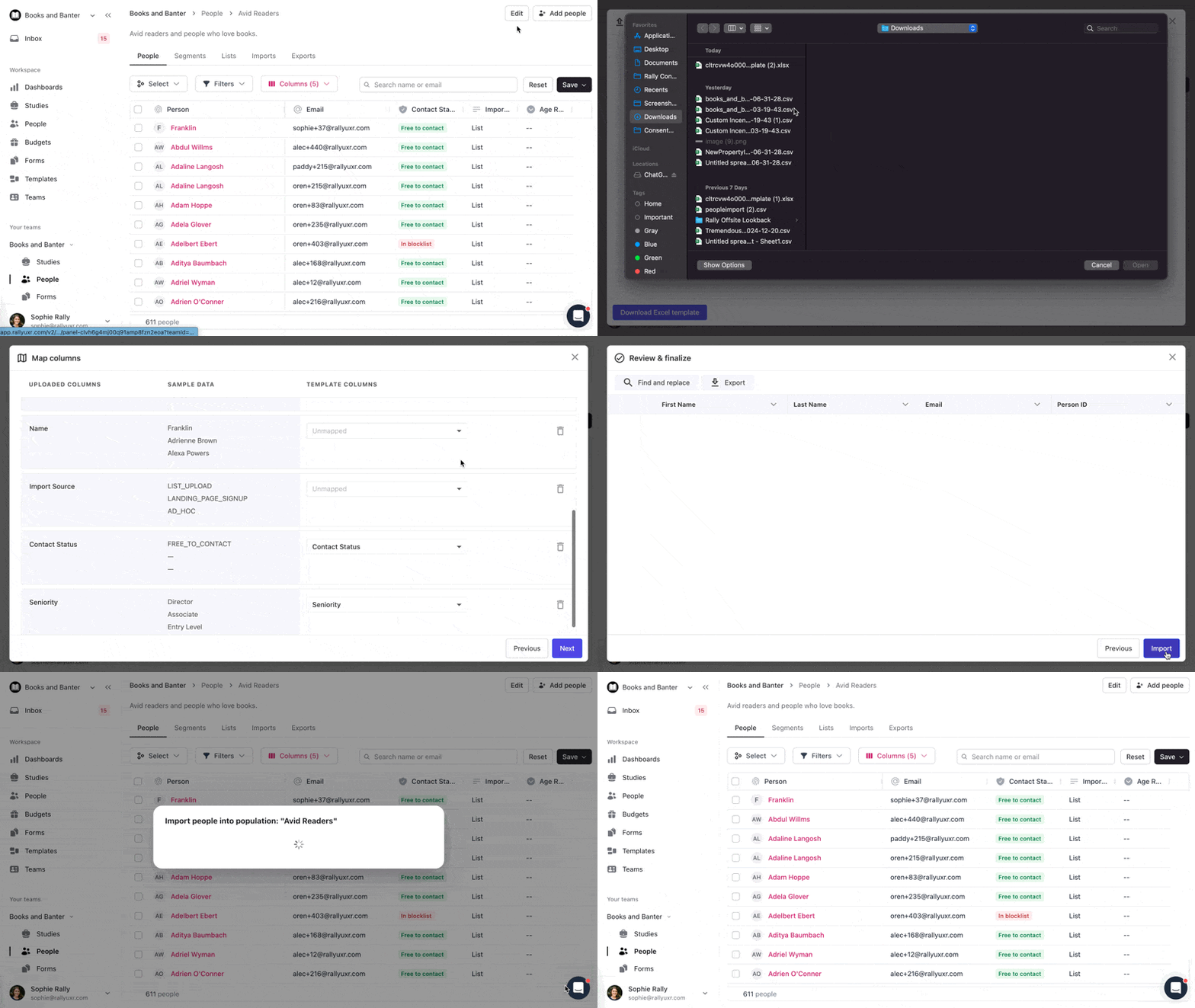
Select the + to choose the .csv file to upload.
Select Download Excel template to download a template with prefilled headers of all available properties from your Rally workspace.
Select the header row (it defaults to the first row), then select Next.
Map the columns from the CSV to the corresponding properties in Rally. If a property hasn't been created yet, you can create it now.
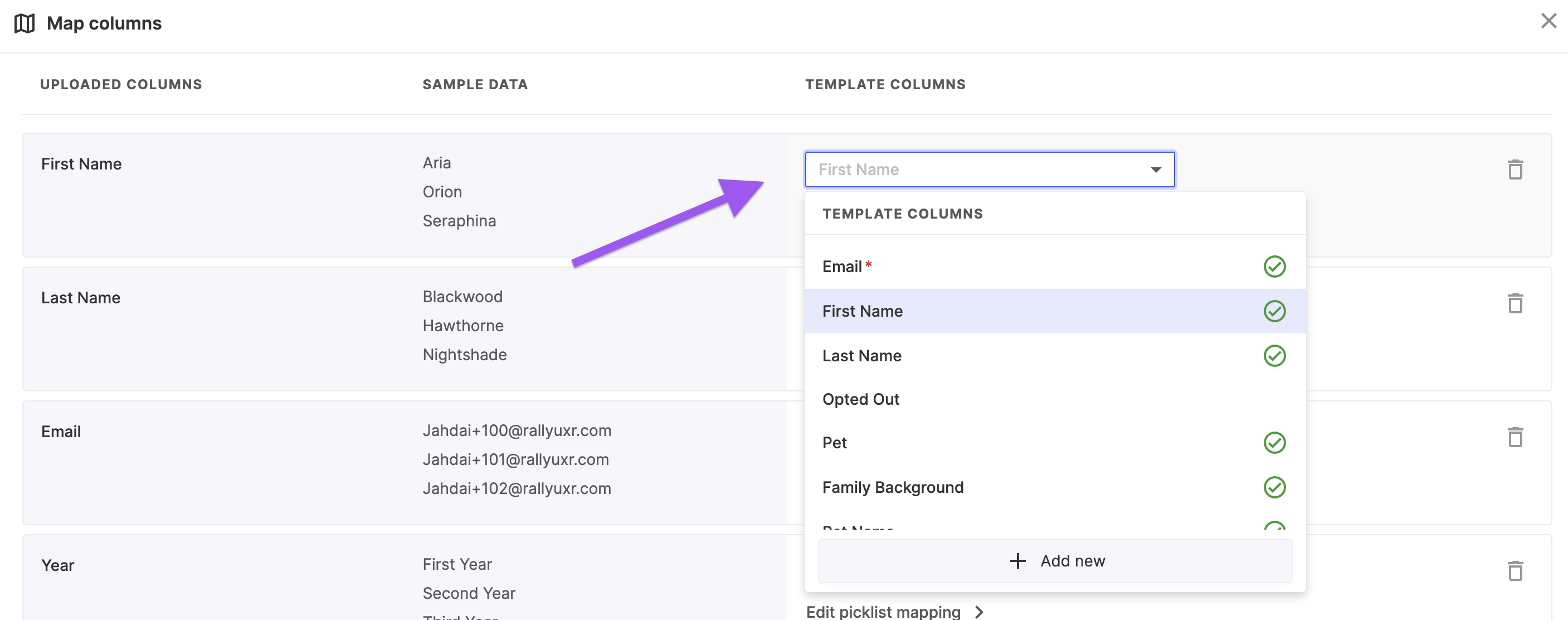
Delete any data columns you don't wish to upload.
Review any rows with issues to remove or edit data, to ensure a clean, accurate import.
Review and finalize your upload, then select Import.
View CSV imports
View all historical .csv file imports for a population or your All People database, including file name, upload status, number of people included, source, owner (who uploaded it), and imported-at date and time. This is also where you can check on a .csv you've begun importing — in the occasional case of a very large upload that needs extra processing time — to see whether it's Completed or still Processing.
Navigate to People from the navigation sidebar and select a population.
Navigate to the Overview page for the population via the population header and select the Imports tab.
Select the name of any import to open it and view all data included in it.
Existing people
Rally prevents duplicate contacts during imports. If an email address, phone number, or ID column matches an existing person in Rally, that person's properties are updated. Only the properties you map are updated. Properties that aren't mapped are not affected.
All unique identifiers within the same row (for example, email and phone) must match the same person in Rally. If two unique properties in the same row match different people, the import for that row will fail validation.