Manage Users
Last updated: October 22, 2026
View, edit, deactivate, or delete any user in your workspace, and manage their team assignments and invitations all from one place. Review Understanding Users, Roles, and Permissions to learn more about how role-based access works in Rally.
Inviting, viewing, and managing users requires the "Create and modify users role settings" permission. This includes the Rally default role Admin.
View and manage users
As an Admin, easily invite, view, and manage all Rally users. View all Rally users by name and email, including the following details:
Status: Active, Invitation Pending, Invitation Expired, or Deactivated.
Seat: Free or Paid.
Role: The role type assigned to them, which determines their permissions.
Connected Accounts: Which accounts they have connected and their status.
Teams: Teams they are assigned to.
Last Active: The last date they logged into Rally.
Date Added: The date they were added to Rally.
In the top left corner of Rally, select your workspace name and select Settings.
From the sidebar, select Users.
Hover over a user's name and select Actions for the following options:
Edit: Change user seat type between Free or Paid and, depending on their seat type, change their Role type between Observer, Developer, Researcher, Collaborator, and Ops Manager. Assign the Admin role to allow them to manage billing, workspaces, and users.
Add to team: Add a user to a team.
Resend Invitation: Option shown only for new users who have not yet accepted their invitation email and joined Rally.
Deactivate User: Deactivated users will no longer be able to log in to Rally. Participants will not be able to schedule any new interviews with this user. Outreach history and Study data tied to this user will be preserved.
Reactivate: Shown only for deactivated users. Restores their access to Rally.
Delete User: Deleting a user will remove them from any Studies they are Study owners of. Participants will not be able to schedule any new interviews with this user. Outreach history, like sent emails, will be preserved but not tied to this user anymore. Deleted users will no longer be able to log in to Rally.
Edit users
Review a user's permissions and edit their seat type and/or role as needed.
In the top left corner of Rally, select your workspace name and select Settings.
From the sidebar, select Users.
Select the user's name, or select the three dots (...) > Edit. The user's profile page opens.
Update their details, then select Save changes.
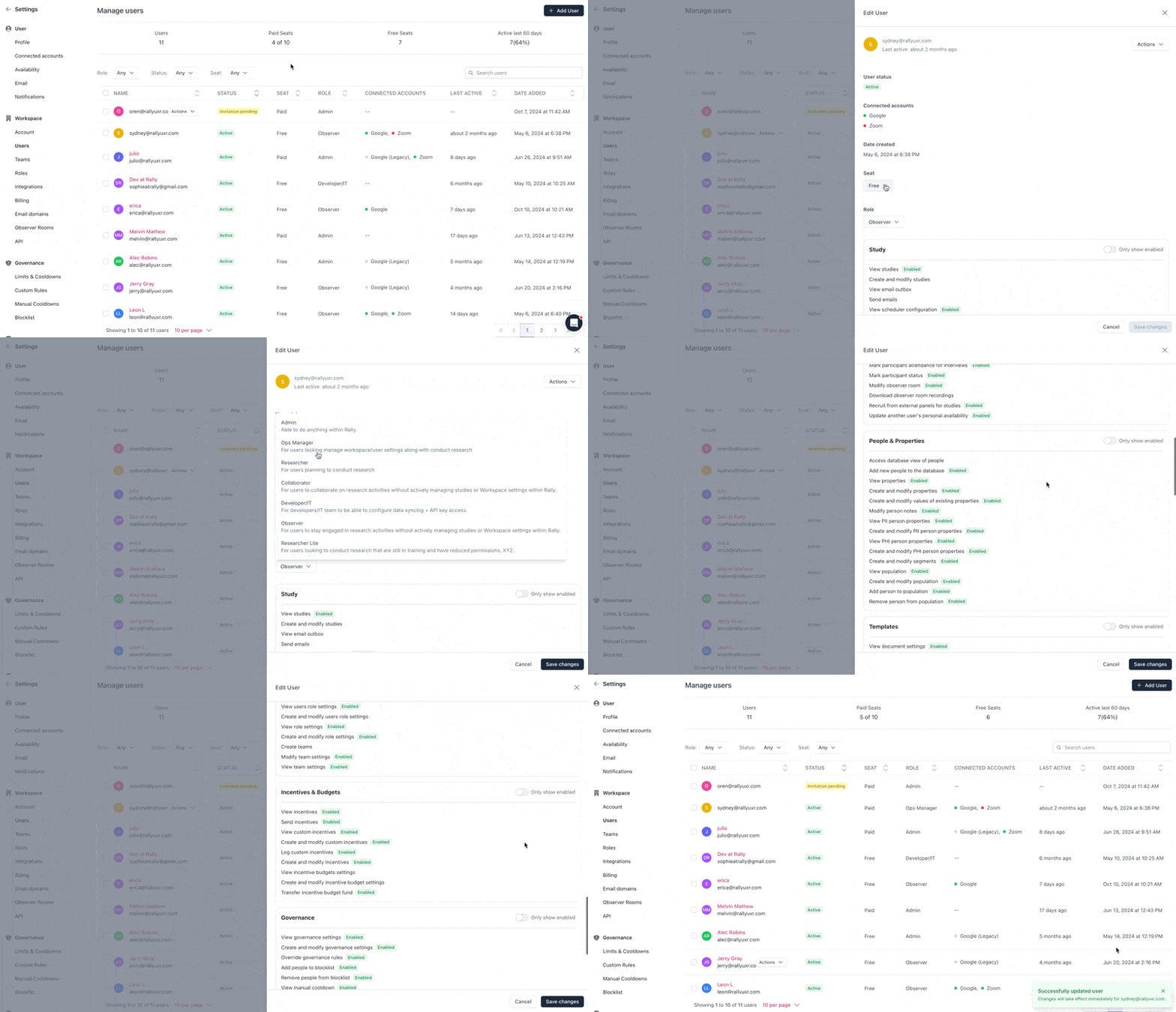
You can't change your own role.
Add to a team
Assign users to teams, individually or in bulk.
Individually:
Hover over a person's name, select the three dots (...), and select Add to team.
Select the desired teams from the dropdown and select Add user.
In bulk:
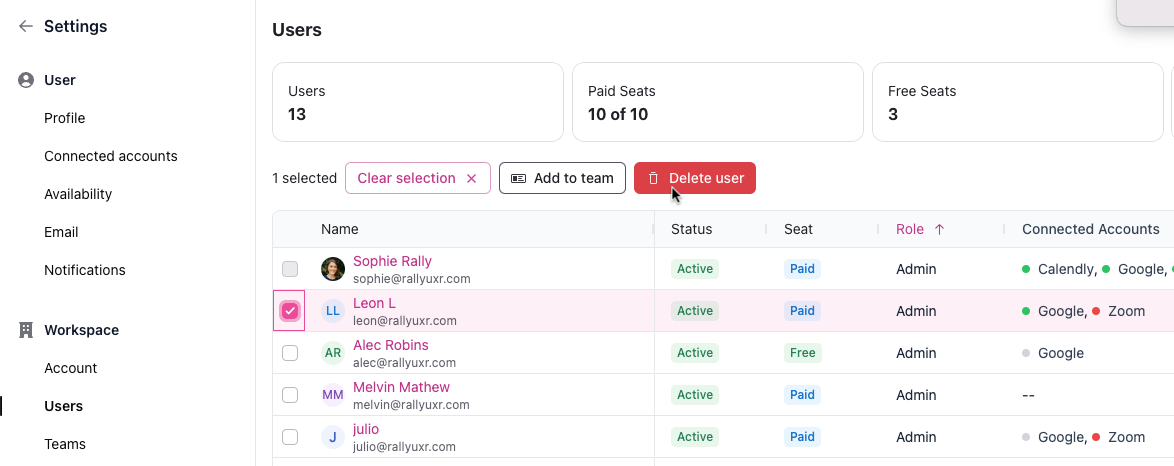
Select the users to add to a team by selecting the checkboxes next to each name.
Select Add to team from the buttons that appear above the table.
Select the desired teams from the dropdown and select Add users.
When adding users, choose their team access level (Edit access is the default). You can only add users to teams whose members you can edit.
Deactivate users
Deactivated users will no longer be able to log in to Rally. Participants will not be able to schedule any new interviews with this user. Outreach history and study data tied to this user will be preserved. In the top left corner of Rally, select your workspace name and select Settings.
From the sidebar, select Users.
Hover over a user's name and select the three dots (...) to select Deactivate user.
Review the warning on the impact this will have.
Select Deactivate in the popup to confirm.
Delete users
Deleting a user will remove them from any studies they are study owners of. Participants will not be able to schedule any new interviews with this user. Outreach history, like sent emails, will be preserved but not tied to this user anymore.
Deleted users are immediately removed from Rally and cannot log back in. Their records are fully and permanently purged after a retention period, so treat this action as final.
Individually:
In the top left corner of Rally, select your workspace name and select Settings.
From the sidebar, select Users.
Hover over a user's name and select the three dots (...) to select Delete user.
Review the warning on the impact this will have.
Select Delete in the popup to confirm.
In bulk:
Select the checkboxes next to multiple users' names.
Select Delete above the table.
Review the warning on the impact this will have.
Select Delete to confirm.
Resend a Rally invite to new users
New users will receive an invite email to join Rally and set up their profile and preferences. In the Users page, the Status column will show whether your invitees are "Invitation Pending" meaning they still need to accept the invite, or "Active" meaning they have already accepted the invite.
New user email invitations to Rally are valid for 30 days, and then their status will update to "Invitation Expired." If the user has not accepted and joined Rally within that time and is having trouble or is unable to log into or access Rally, resend the invite from Users.
In the top left corner of Rally, select your workspace name and select Settings.
From the sidebar, select Users.
Hover over a user's name and select the three dots (...) to select Resend Invitation.
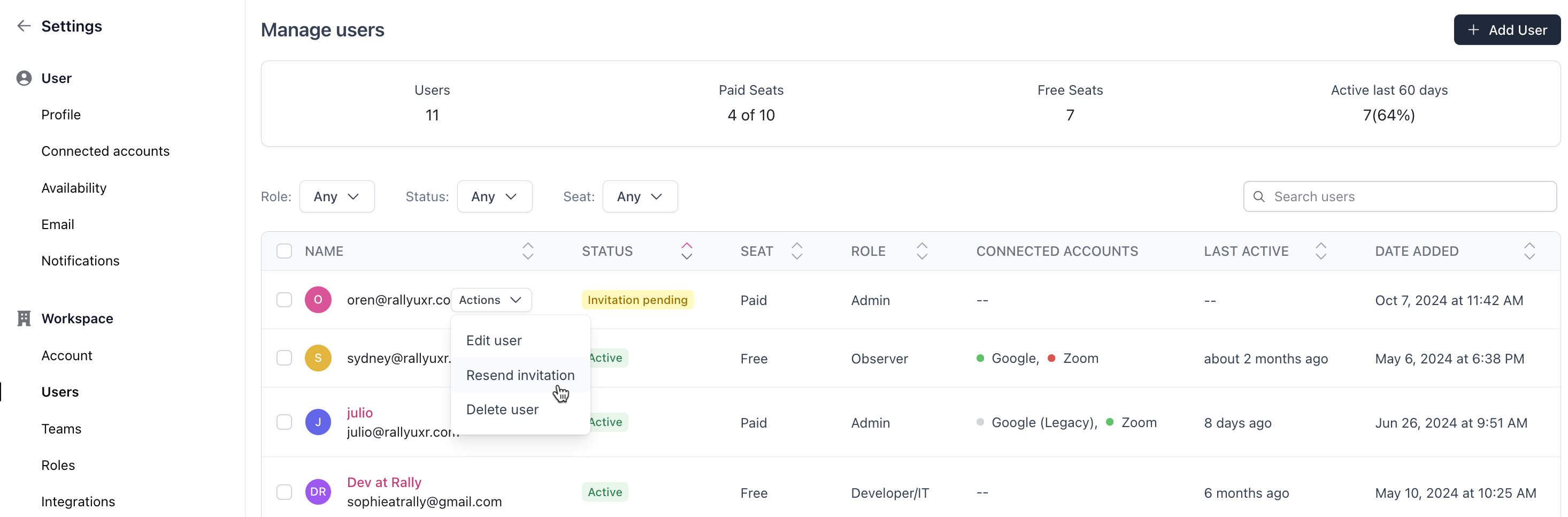
They will receive a new invite email and should use the link in the email to join.