Consent Forms
Last updated: October 8, 2026
Rally provides standard consent forms to get you started right away, and allows you the flexibility to create custom consent and opt-in forms in Rally. Additionally, add custom Documents you've uploaded, such as NDAs, into any consent forms you create.
Create custom consent forms
Creating and managing consent forms requires the "Create and modify consent forms" permission. This includes the Rally default roles Admin, Ops Manager, or Researcher.
Before creating custom consent forms, you can upload documents and NDAs to include.
From the navigation sidebar, select Templates.
Select Consent from the tabs at the top to switch between template types.
Select + New in the top right to create a new consent form.
Enter the Consent Form Name.
Enter the Consent Form Title.
Use the Content Section to enter the terms that participants must agree to in order to participate in studies.
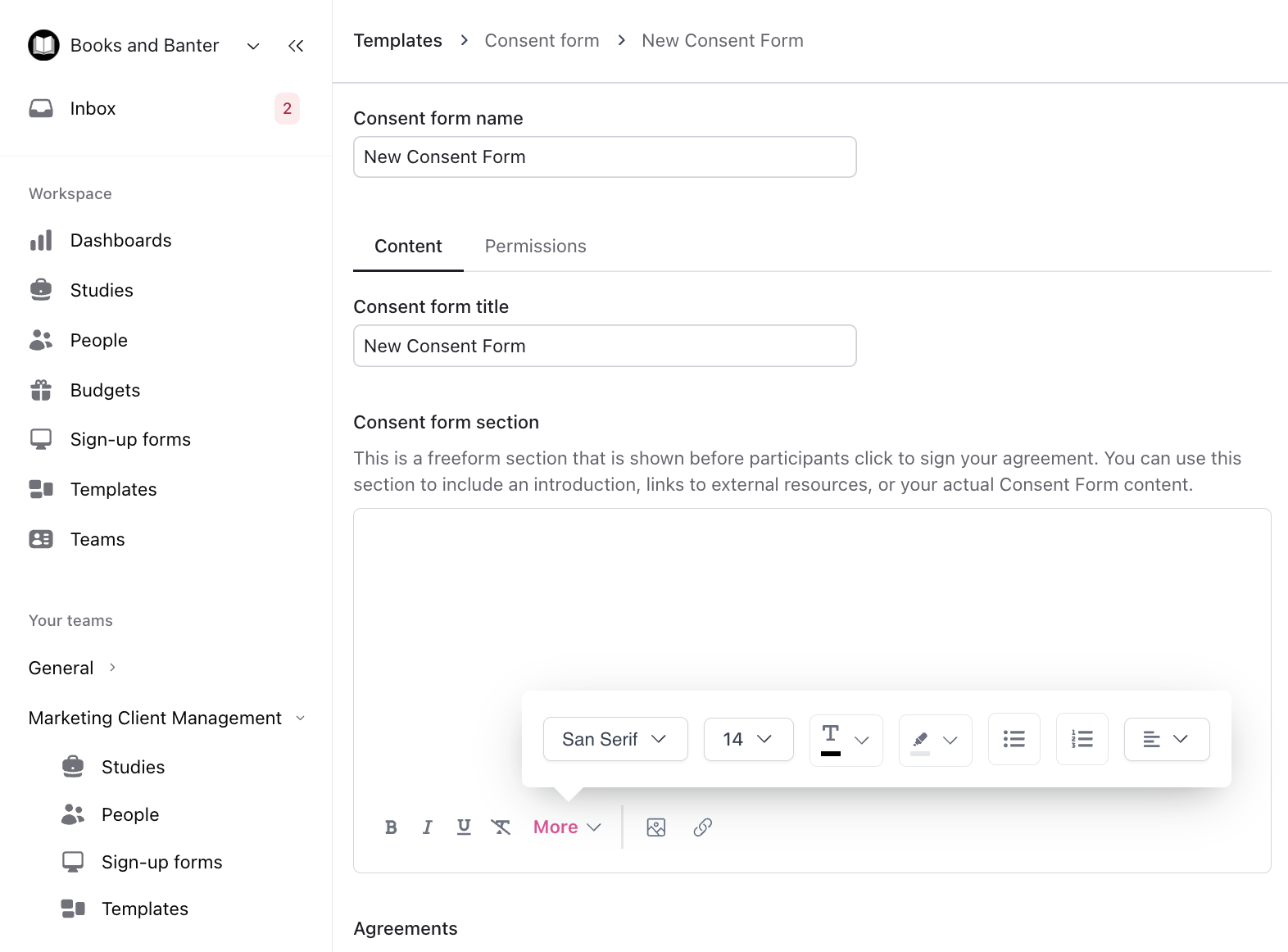
Optionally, use the formatting options at the bottom of the Content Section to edit the look and style of your text or add pictures or links.
Agreements: Include a list of required statements that participants must agree to by checking a box.
Select + Add Statement for additional agreements.
Select the trash icon to remove an agreement.
Documents: Add custom documents you've uploaded to Rally into the consent form for participants to electronically sign. Participants must click to sign these documents before taking part in your study.
Select + Add document(s) and select the checkboxes for each document to include, then select Add # documents.
Advanced Settings: Select Require repeat signing for this consent form. If this option is enabled, participants who have already signed this consent form in prior studies will be required to sign this form again in new studies that use it.
Select Save changes to save.
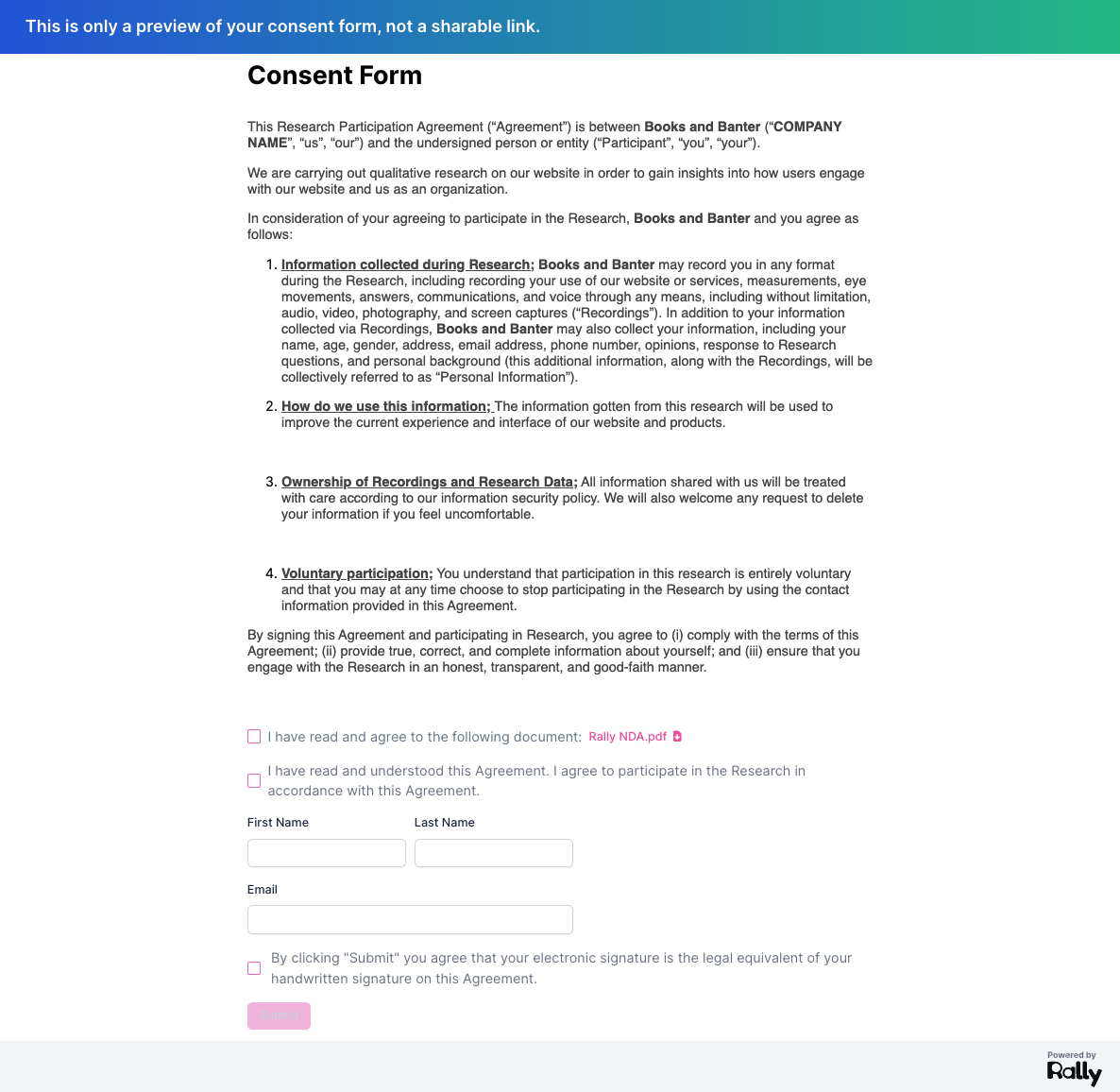
Select the Preview button in the top right to see how this consent form will look to participants and ensure everything is correct.
Set team access
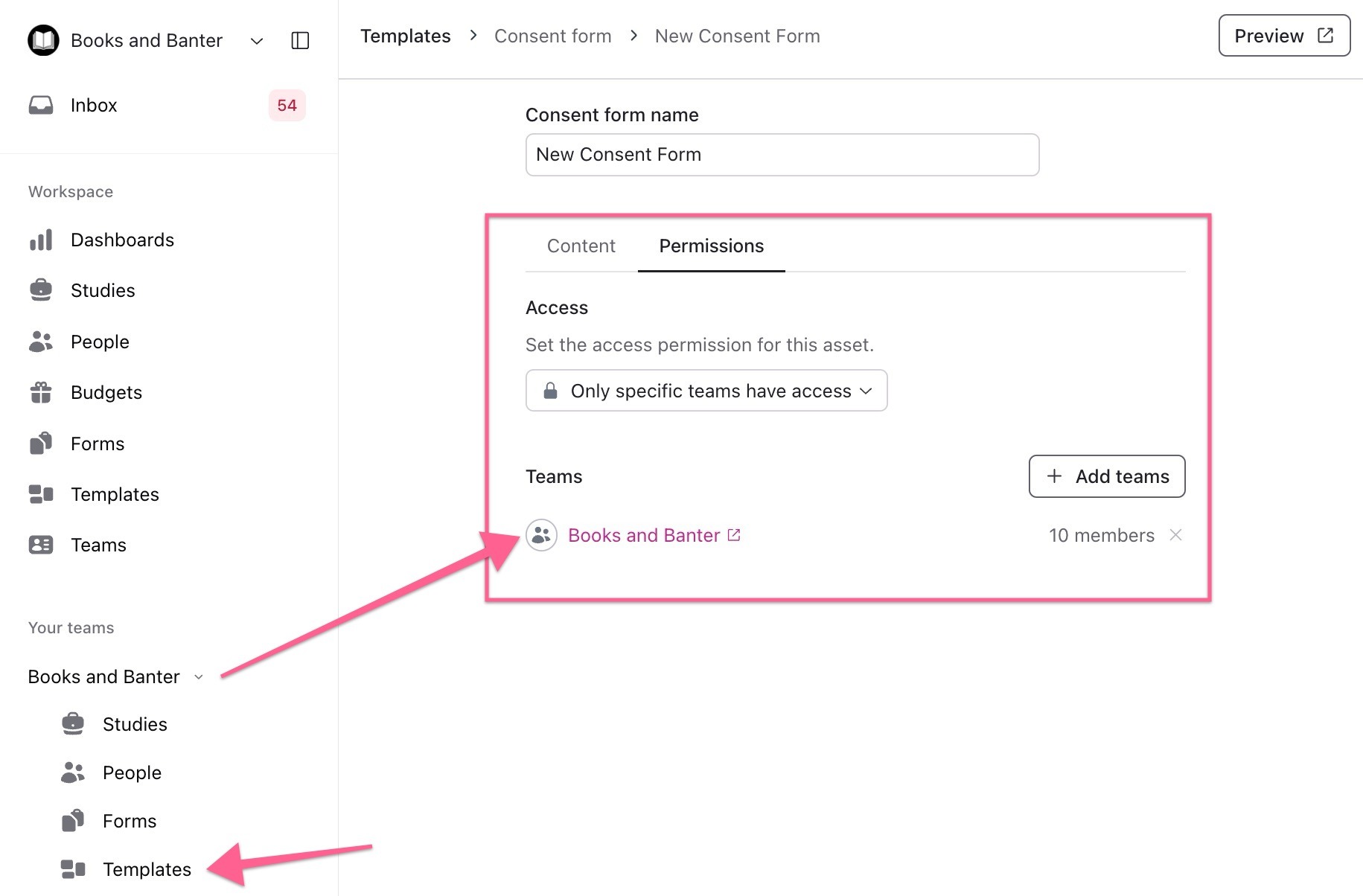
A new consent form starts with Entire workspace has access if you create it from the workspace-level Templates page, or with access limited to that team if you create it from within a team. To change who has access:
Select the Permissions tab at the top to choose which teams can view or use this consent form, or keep it set to Entire workspace has access.
To limit access, open the dropdown and select Only specific teams have access. At least one team is required with this setting.
Select + Add teams, then use the Team dropdown to search for and select existing teams. Select more than one to add multiple teams at once.
Select Add Teams to confirm.
To remove a team's access, select the x icon to the right of the team.
Select Save changes in the top right corner to apply your edits.
Manage consent forms
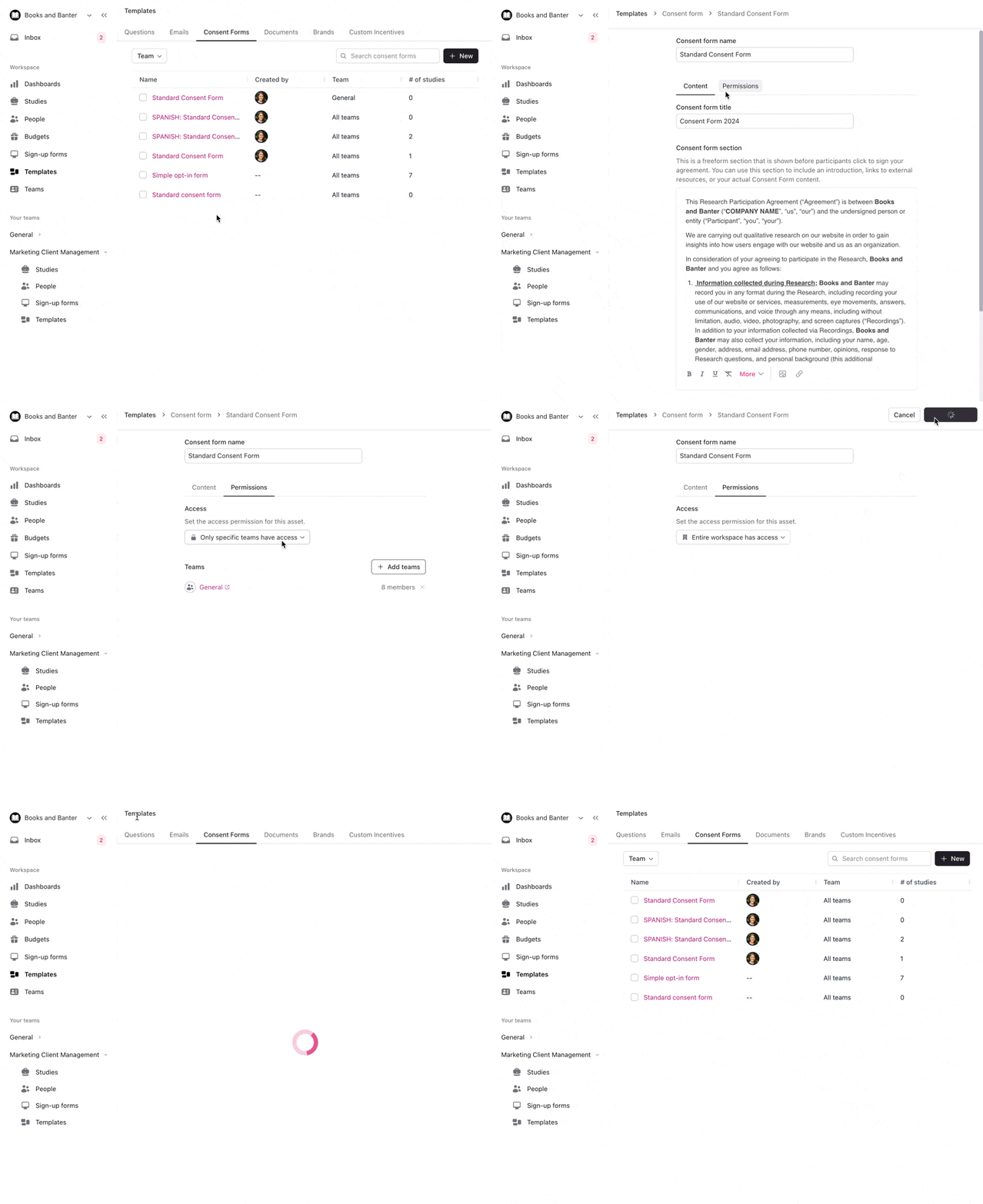
Manage existing consent forms easily from Templates > select the Consent tab.
Edit consent forms
Select the name of a consent form to open it and begin editing. Make changes to the name, body, and more, or select the Permissions tab to change which teams have access to it. Select Save changes to apply.
Delete consent forms
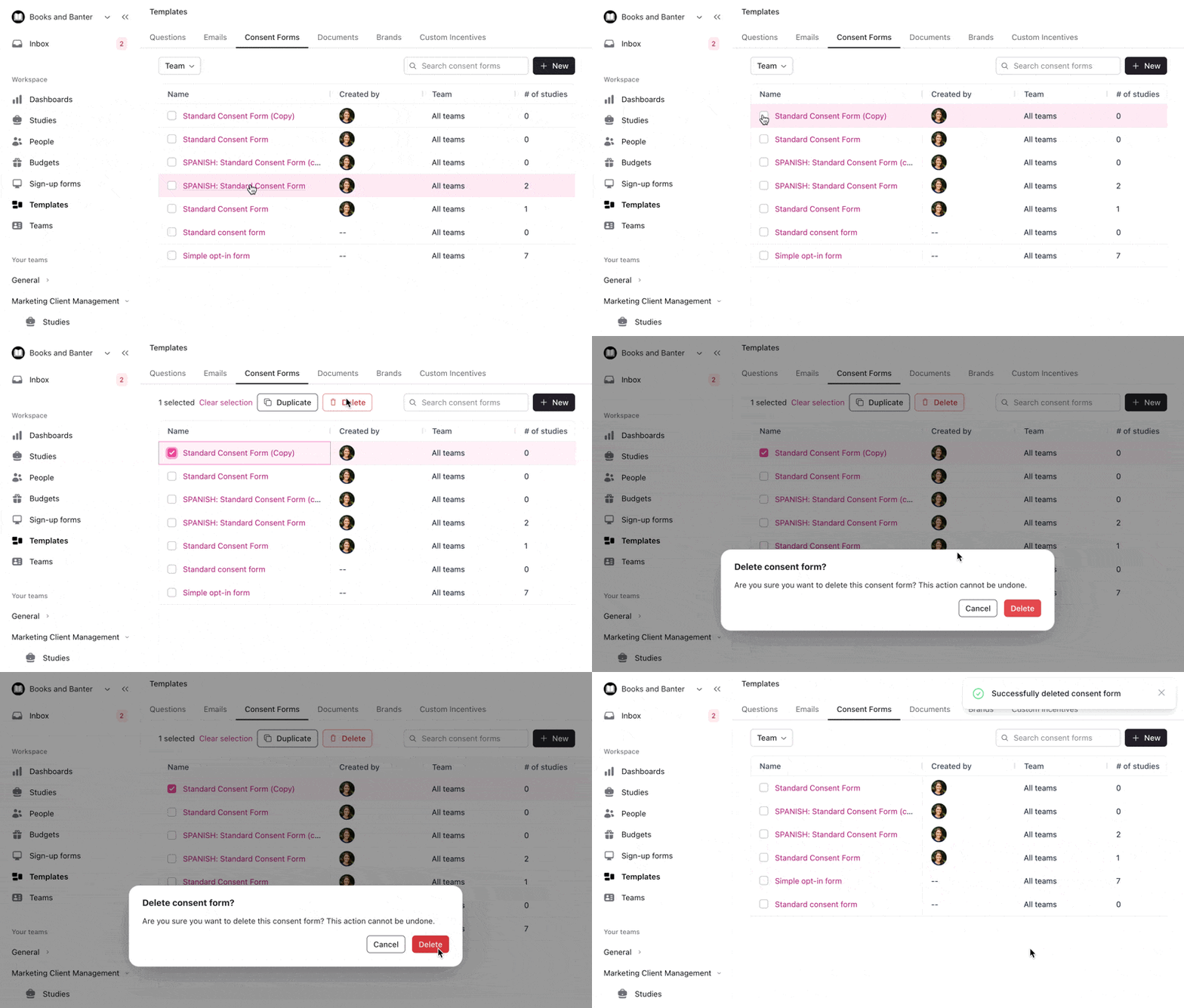
Select the checkboxes next to any consent form and select the Delete button at the top of the table, then confirm you would like to Delete in the pop-up. Deleted consent forms can no longer be used in studies, but will maintain any historical records of signed forms in person profiles.
Duplicate consent forms
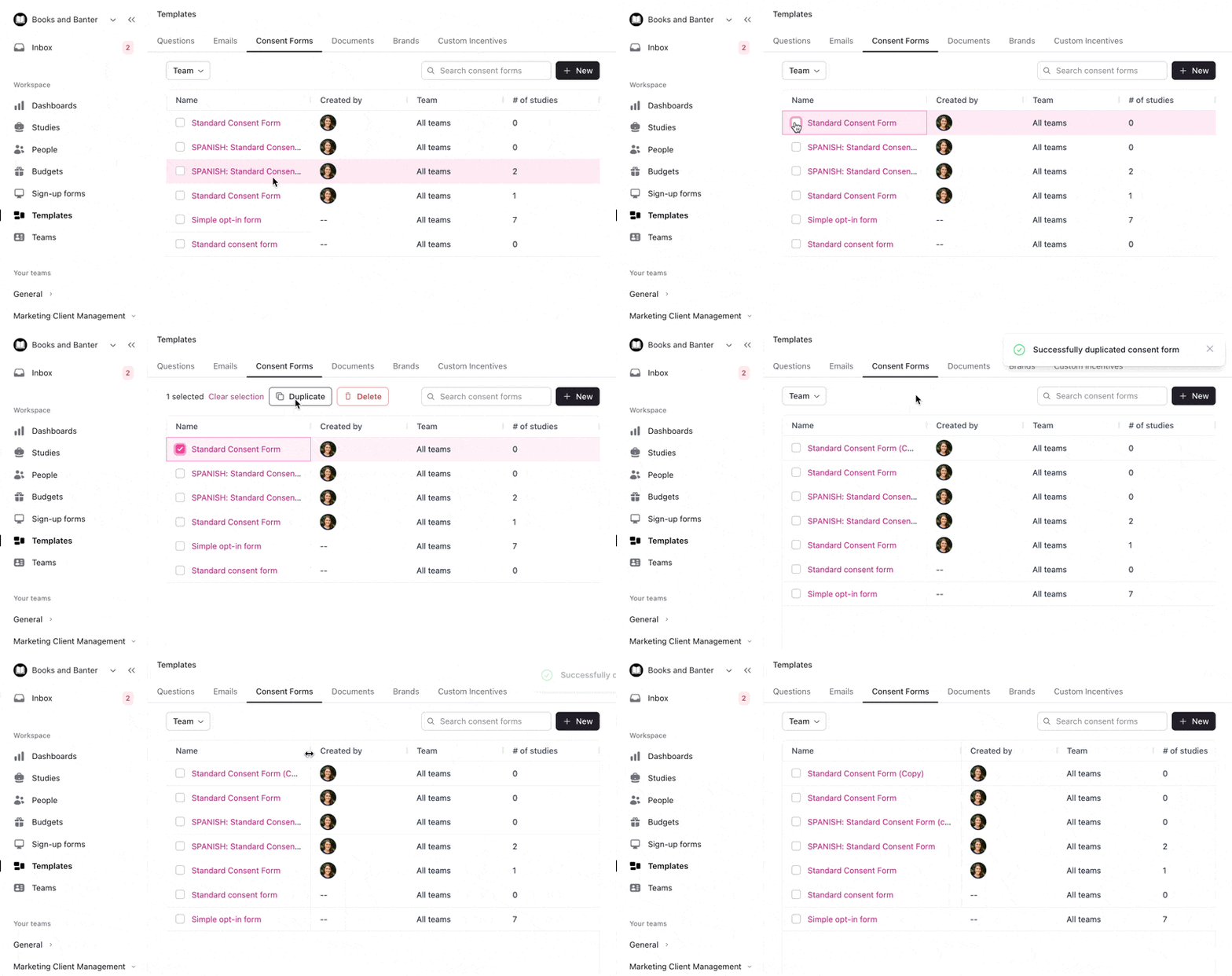
Select the checkboxes next to any consent form and select the Duplicate button at the top of the table to create a copy. Select the name to open and begin editing. Select Save changes to apply.
Download signed consent forms
Every time a participant signs a consent form, the signed form is stored in their person profile. Easily download any signed consent form from there.
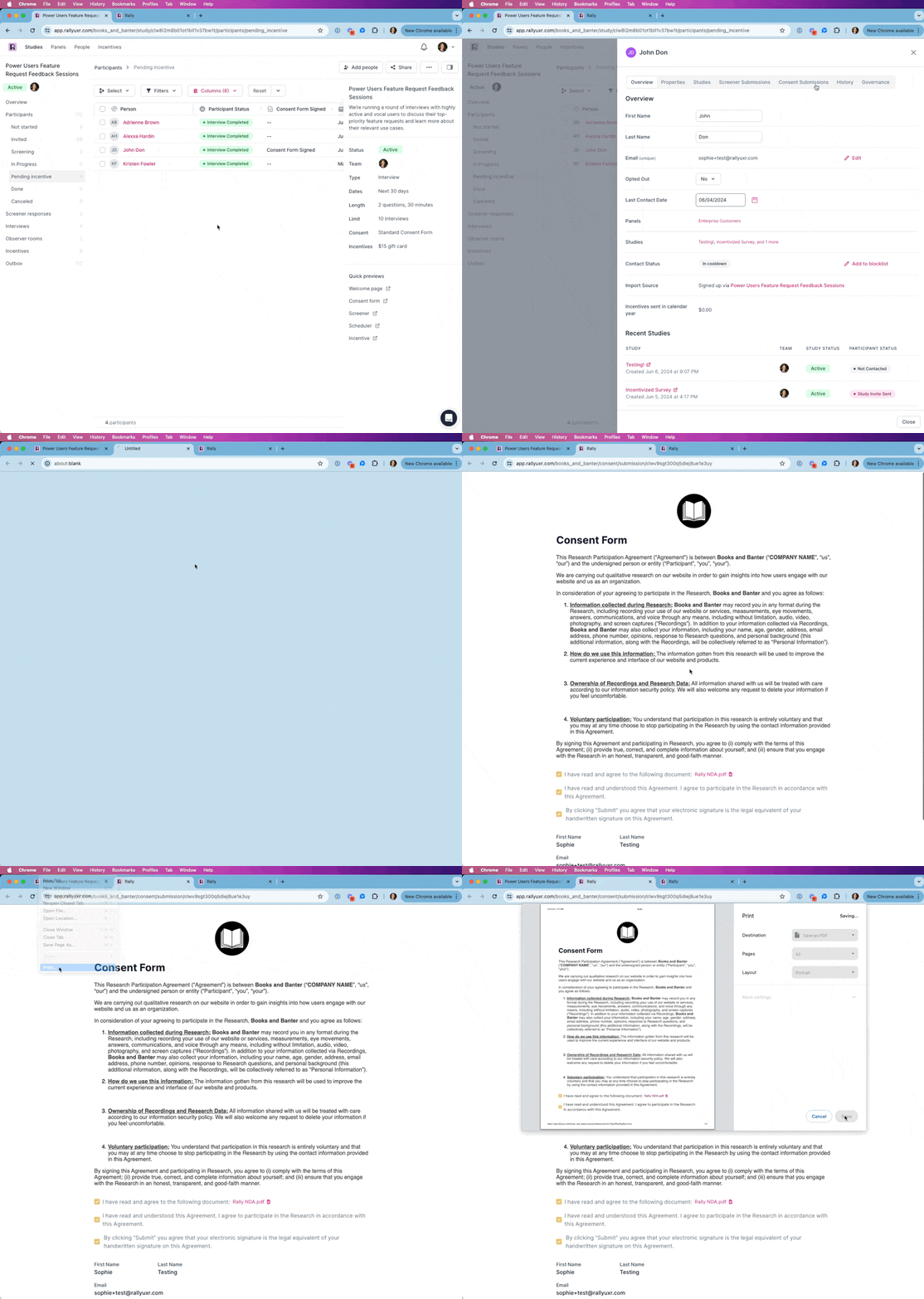
Navigate to the relevant person within the People database, a study, or a population.
Select the person's name to open their person profile.
Select the Consent Submissions tab from the top.
Select the name of the relevant consent form from the relevant study or population to open it in a new tab.
In your browser's toolbar, select File > Print, or press Command+P if you're on a Mac.
In the popup, set the Destination to Save as PDF and select Save to save the file to your desktop.
In your computer's popup window, edit the file name as desired before saving.In your computer's popup window, edit the file name as desired before saving.
Need signed consent forms for multiple people? Developers can retrieve them with the Rally API, which returns a download link for a person's signed consent forms. The links expire after 15 minutes.
Consent placement in studies
Rally allows you the flexibility to decide when to capture consent from study participants during the different stages of research invitations and activities. These options vary depending on the type of study being created.
For studies that recruit through an external panel, only the options before and after the activity itself (scheduling, survey, or test) are available; the screener and manual options aren't offered. If you build studies from templates, template builders can also lock consent settings with Template Controls.
Consent in interview studies
Before participants start the screener
After participants submit the screener
As participants start the scheduler
After participants schedule the interview
Manual — you'll email the consent form
Consent in survey studies
Before participants start the survey
After participants complete the survey
Manual — you'll email the consent form
Consent in unmoderated test studies
Before participants start the screener
After participants submit the screener
Before the test starts
After the test is completed
Manual — you'll email the consent form
Capture consent before or after the screener
To capture consent before or after the screener, add a screener to the study first, then return to the Plan step to enable these options.
For studies set to capture consent before or after the screener, links sent for scheduling or unmoderated tests will request consent before the activity if the participant hasn't yet provided consent in this study. For example, inviting participants to a study with direct links to schedule (without first sending the consent and screener link) will require consent before they can schedule.
Manually email consent forms to participants
Some customers don't want the consent form automatically popping up in the flow and/or prefer a more manual process, such as capturing consent only after personally confirming the meeting is scheduled, or when using a Rally study to collect consent for an interview scheduled outside of Rally before speaking to the participant.

If you've selected Manual — you'll email the consent form for when to capture consent during study setup, follow these steps to request consent from participants.
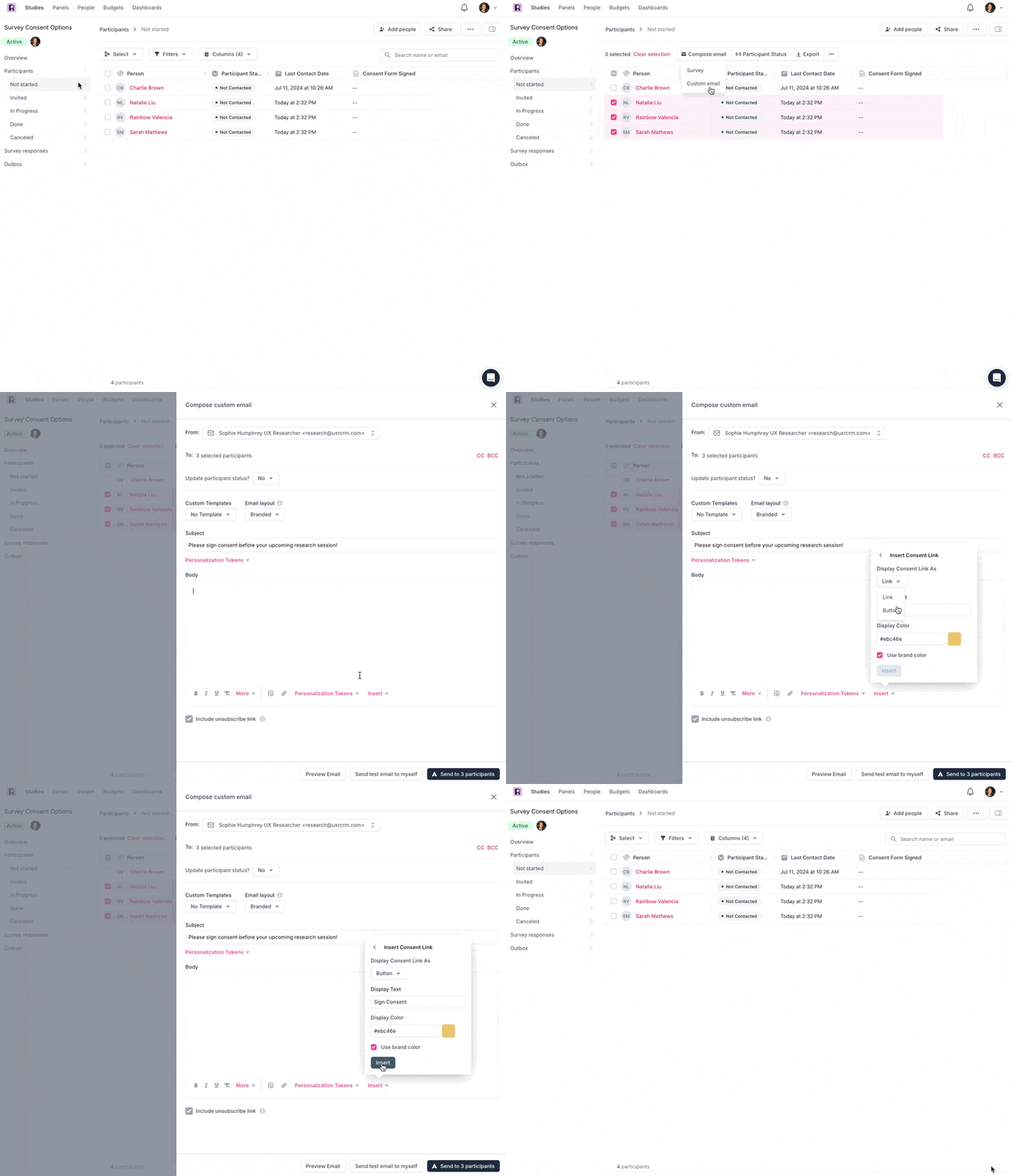
Open the relevant study and navigate to the Participants section.
Select the checkboxes next to each participant you wish to include in the email.
Select the Compose email button and select Custom email from the dropdown.
Compose the appropriate email, including email subject, body, and any personalization tokens.
Include the consent form link:
Insert: Below the email body text field, select Insert and select Consent Link.
Display Consent Link As: Choose to display consent as a link or a button.
Display Text: Enter the display text to show in place of the link or button.
Display Color: Select a display color for the link or button, or use brand color.
Select Insert to add this to the email body.
When you've finished composing your email (and optionally previewed it or sent a test email to yourself), select Send to # participants to complete the process.
Consent forms FAQ
ℹ Why is the consent form not showing up/appearing/being shown for myself or a Participant?
If you've signed a consent form before when testing in your workspace, or a participant has signed it before, Rally detects that and doesn't show the consent form again. Rally will only show the consent form again if Require repeat signing for this consent form is checked for it. Navigate to Templates > Consent and locate the relevant consent form to review or edit it.
ℹ I made a custom consent form for all Studies. Why is the wrong consent form being added to my new Studies?
If you've created a consent form that should be the standard go-to for all studies, you'll need to set it as the default consent form from Templates > Consent. Rally will then preselect it whenever a new study includes a consent form.