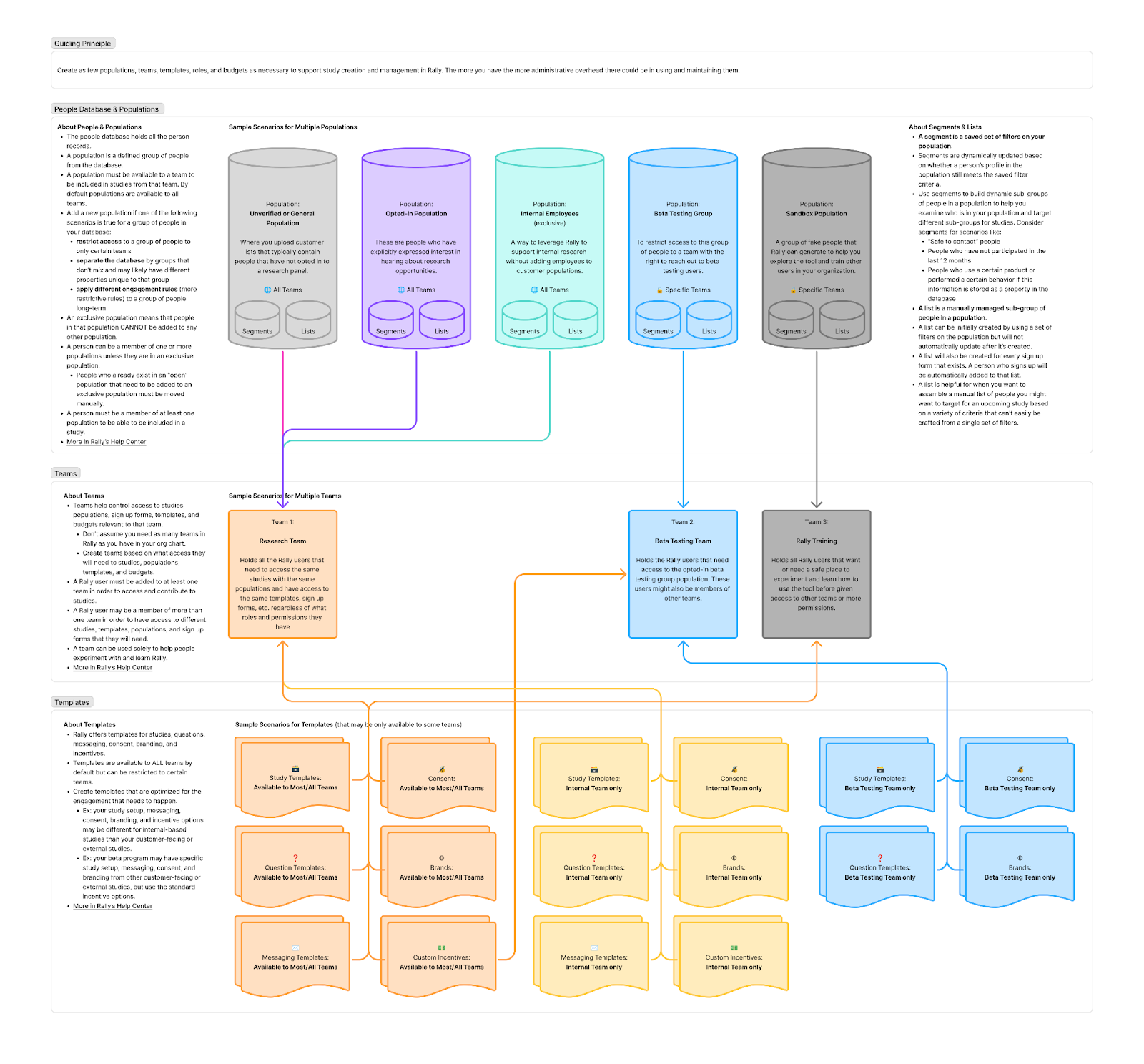
Populations
Last updated: April 24, 2026
When to create a new population versus use Views/Smart Lists or Lists to organize participants in your Rally People Database.
About Populations In Rally
Populations are like “Buildings” (where people live and who has the keys), Views are “Rooms” (dynamic groups based on what they are doing), and Lists are “Photographs” (a static snapshot of people at a specific moment in time).
Every population should have a clear purpose, usage guidance, management strategy, and ownership.
Participants can live in more than one population (unless the population is exclusive).
Core Principles
Create as few populations as necessary to support recruitment and participant management in Rally. The more you have the more administrative overhead there could be in using and maintaining them.
Organize by access and rules over attributes first.
Focus on Governance: Populations are for structural boundaries—like who can see the data and what the cooldown rules are.
Prevent Over-separation: Avoid creating a new population for every user type, which can be confusing for users to remember where someone should “live.”
Thoughtful Separation: Separate populations by attributes only if they are often not combined together in the same study.
When to Create a New Population
Create a new population ONLY if one of these three structural requirements is true:
Team Access Control: If a specific group of people should only be seen or contacted by certain teams, then a separate population is required.
Ex: Only the HR Research team should see the Internal Employees population
Distinct Data Properties: If groups have different data attributes you want to track for Group A with minimal to no overlap with Group B, then separating them prevents your database from becoming cluttered with irrelevant fields and helps researchers clearly understand who and what to expect in that population.
Ex: Patients vs. Doctors
Different Engagement Rules: If a specific group needs stricter communication limits than the rest of the database or other engagement restrictions, they need their own population.
Ex: VIP customers can only be contacted once every 90 days, while others are once every 30 days
Open vs Exclusive Populations
Choose the right "type" of population based on your lifecycle:
Open Populations (Standard & Common): Use this for most scenarios and if you anticipate people might qualify for more than one population.
Adding people to another open population is easy through all the standard ways participants are added to Rally (e.g., import, sign up form, study public link, or manual add to population)
Moving someone from one population is a manual action in Rally.
Exclusive Populations (Seldom & Siloed): Use this for groups that must never overlap. If a person is in an exclusive population, they cannot be added to any other.
Ex: Internal employees who participate in research that you don’t want showing up in a customer population
Ex: Highly restricted group of participants where you may have to restrict access to them and/or leverage a different engagement model. This can be a highly protected beta program, highly valuable participants (like executives) that should be handled with extra sensitivity and not appear in other populations.
Using Exclusive Populations
Setting up the population
Populations can only be made exclusive if the population has no members (is empty).
Craft a description for the populations that outlines the purpose, any restrictions on access or engagement to this audience, who is responsible for managing the audience, and the duration this audience is expected to remain. This will be helpful for you and other admins to understand the context for this population.
Decide which team/teams will get access to this population or leave as “Entire workspace”
To add people to an exclusive population
Only people who do not already exist in other populations can be added to an exclusive population.
To add people that live in other populations to an exclusive population you must use the “Move to population” action on those participants.
When adding via import, you might not know who in your CSV already exists in other populations.
The import flow will identify any person that cannot be added because they exist in other populations. You can export that subset of people to handle manually.
Population vs. View vs. List
Three ways to organize people. Use this comparison to guide them on the "level" of organization you need:
Feature | Population | View | List |
Purpose | Database Governance | Dynamic Filtering | Static Grouping |
Behavior | Structural and permission-based | Updates automatically based on saved filters | People can only be manually added or removed |
Primary Use | Restricting access or setting global population-level cooldown and contact rules | Organizing people within a population for common recruiting scenarios or monitoring the health and participation level of the population | One-time outreach or temporarily collecting a specific group of people for a set of studies |
Considerations |
|
|
|
Use Cases for Views
Views are a saved set of filters on a population. Any participant that meets the filter criteria will dynamically be included in that view.
For common recruitment starting points
Build views that your researchers can use as starting points for their recruiting efforts
Consider broad views that can be further refined for specific studies, since additional filtering can be applied to a view to further narrow candidates
Examples
Registered in the last 30 days
Used product or feature xyz
Large enterprise customers
Small business customers
Admin users
For participant management health checks
Build views to review common compliance and health check scenarios across your population
Examples
People who have opted out
People who have not participated in the last 12 months
People who are in countries we have restrictions on
People who are near the incentive limit for the calendar year
People who have been marked as a no-show at least 3 times
Use Cases for Lists
A list is helpful for when you want to assemble a manual list of people you might want to target for an upcoming study based on a variety of criteria that can’t easily be crafted from a single set of filters.
Priming a list to support a series of studies
You have a series of studies coming up that will need to draw from the same pool of candidates. You can create a list that assembles pre-qualified people from a variety of sources including:
Past participation in specific studies
Import file with recent behavioral data
Recommended participants from internal stakeholder connections
Fixed groups that don't change
Lists are ideal when you have a static group of participants that shouldn't update automatically. For example, beta testers for a specific program where you have a set group of people and don't want the list to change unless you manually modify it.
Guiding Questions for Populations
As these four questions to determine if you should create a new population:
Access Control: Who needs to see these people?
If the answer is "Everyone," keep them in an existing population.
If the answer is only certain people, create a new population and limit access to that population to a specific team or teams of authorized researchers in Rally.
Distinct Data: Do they have distinctly different properties?
If they use the same data fields as your current users, add them to the same population and use a View based on stored property data to provide access to each “group.”
Different Engagement Rules: Are the engagement rules and contact limits different?
If they follow your standard cooldown rules, don't create a new population.
If they need different engagement rules, like stricter contact rules, then create a new population for them and update your custom governance rules for your workspace.
Permanence: Is this group long-term or temporary?
If temporary, use a List.
If long-term and dynamic, use a View.
How populations relate to views, lists, teams, and templates