Opt-in programs
Last updated: July 7, 2026
Opt-in programs give participants control over their own panel membership. When a population is configured as an opt-in program, it appears on the participant-facing subscription page, where members can unsubscribe from it individually without affecting their overall subscription status or membership in other populations.
Enabling opt-in on a population
You can configure a population as an opt-in program when creating a new one or by editing an existing one.
Navigate to People.
Create a new population or select (...) on an existing one and choose Edit.
Under Admission Settings, toggle on Opt-in program.
Fill in the External name (required). This is the participant-facing name shown on the subscription page.
Optionally fill in the External description shown beneath the name to give participants more context about the program.
Select Create or Save.
Things to keep in mind:
The External name doesn't need to match the internal population name. Use something clear and recognizable to participants.
Opt-in program and Exclusive access are independent settings and can be enabled together.
The Opt-in program toggle can be turned on or off at any time, even if the population already has people in it. Disabling it will clear the External name and External description.
What participants see
When a participant opens their subscription page (linked from research emails), they'll see a Manage your subscriptions page. Only populations with Opt-in program enabled are visible to participants on this page; regular and exclusive populations are not shown.
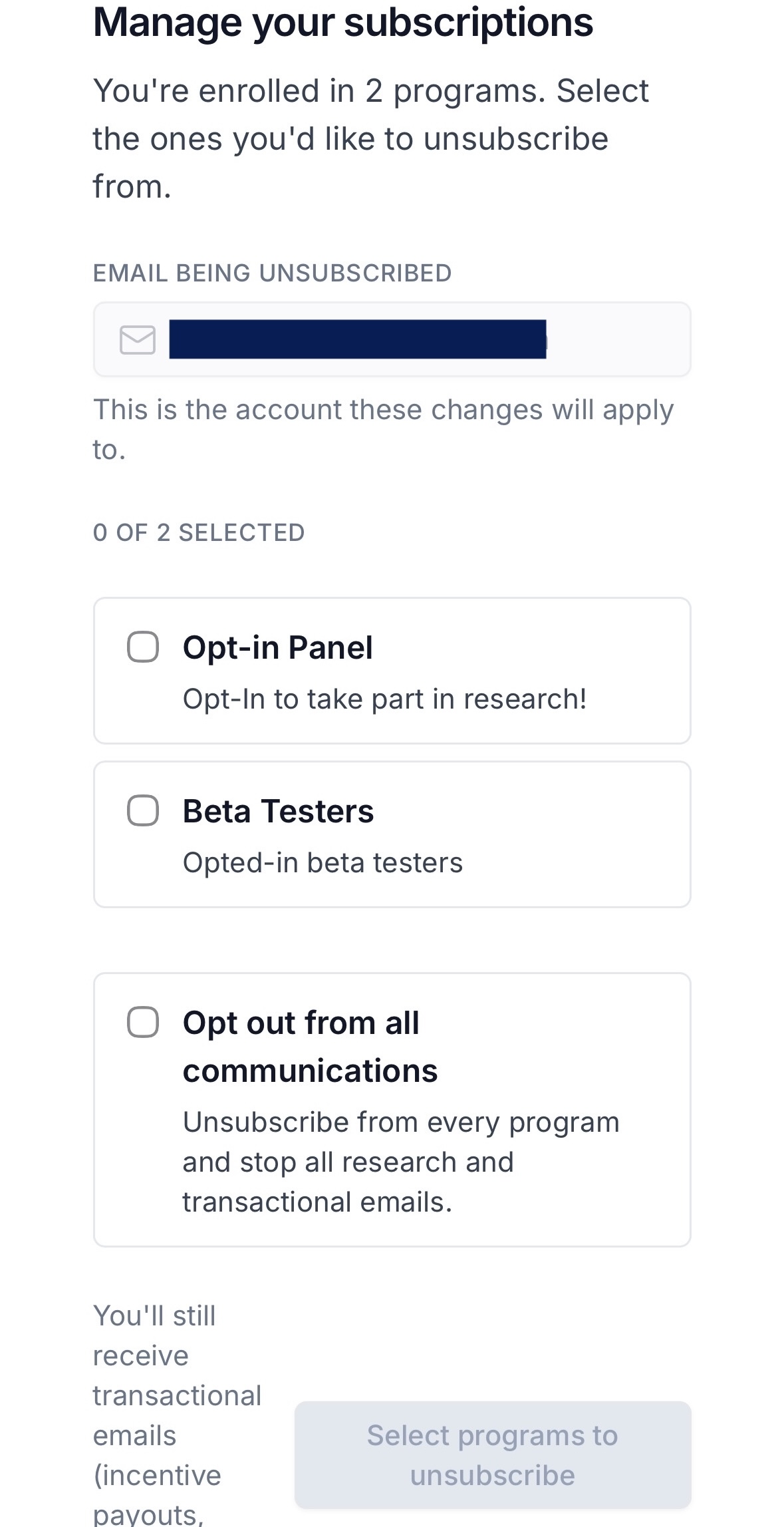
The page displays:
The email address the changes will apply to, under Email being unsubscribed
A list of opt-in programs they're currently enrolled in, each shown as a selectable card with the External name and External description (if provided)
An Opt out from all communications option, which unsubscribes them from every program and stops all research and transactional emails
Participants select one or more programs and confirm by selecting Select programs to unsubscribe. Unsubscribed programs disappear from the list immediately and participants receive a confirmation message on the page.
Unsubscribing from a program only removes the participant from that specific population; their overall contact status and membership in other populations are unaffected. Opt out from all communications is a separate, broader action that will update their contact status to Opted Out across your entire workspace.
Participants cannot re-subscribe to an opt-in program on their own; a team member would need to manually re-add them to the population.
Tracking unsubscribes
When a participant self-unsubscribes from an opt-in program, a Population Unsubscribe event is logged on their activity timeline in Rally, giving your team visibility into when the change occurred.