Views
Last updated: April 15, 2026
Save filters and column configurations together as a reusable view that your whole team can access.
Views replaces and improves on Segments. Watch the video below for a demo of how to use the Views feature across your workspace!
What are Views?
Views allow you to save a set of filters and column configurations on a population as one unit, and share that configuration across your workspace. Any teammate with access to the population can see and use a view you've created.
If you've been using Segments, Views are the evolution of that concept. With Views enabled, all of your existing segments are automatically converted into views, with no data changes. Views build on what Segments offered with some key improvements:
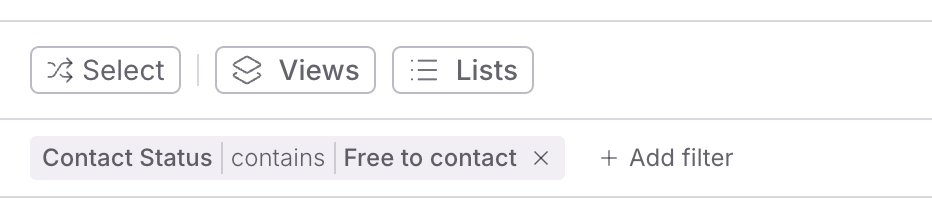
Active filters are visible on the table. Rather than opening the filter menu to see what's applied, filter chips display directly on the table surface. You can remove individual filters without going into the menu.
Filter state no longer bleeds across contexts. In the previous system, filters could persist or reset unexpectedly when switching between tabs within a study. Views adds context-awareness, so each tab loads its own view state independently.
Lists remain a separate concept from views. Lists are static groups of people that are manually managed, while views are dynamic and driven by filters. Learn more about the differences between lists and views.
Permissions
Creating and managing views requires the "Create and modify population segments" permission. This includes the Rally default roles Admin, Ops Manager, or Researcher.
Sharing permissions remain the same as they were for segments — a view is accessible to anyone who has access to the population it belongs to. Views are not currently accessible across populations.
Using views in your workspace
Create a view
Navigate to People > select a Population to open.
Apply the filters and columns you want to save.
Select the Save view button in the top bar.
Select Save to new view.
Enter a Name and Description for your team to identify it easily.
Select Save to apply.
Your view is now available in the views dropdown for anyone with access to the population.
You can also create a view with only a column configuration and no filters, or with filters that currently return 0 results.

Use AI filtering when building a view
When adding filters to a view, you can use the AI Filter to generate filters automatically based on a natural language description. Any filter results will appear below the AI text input field for you to review and apply.
AI features are on by default for all workspaces. Admins can turn them off at any time in Settings > Advanced.
Apply a view to a population
Navigate to People > select a Population to open.
Select the Views dropdown at the top of the table.
Select the name of any view to apply it.
The table will update to reflect that view's saved filters and column layout.
Edit a view
Open the population and apply the view you want to edit.
Make changes to the filters or columns.
A pink dot on the filters and/or columns button indicates changes have been made, but not yet saved.
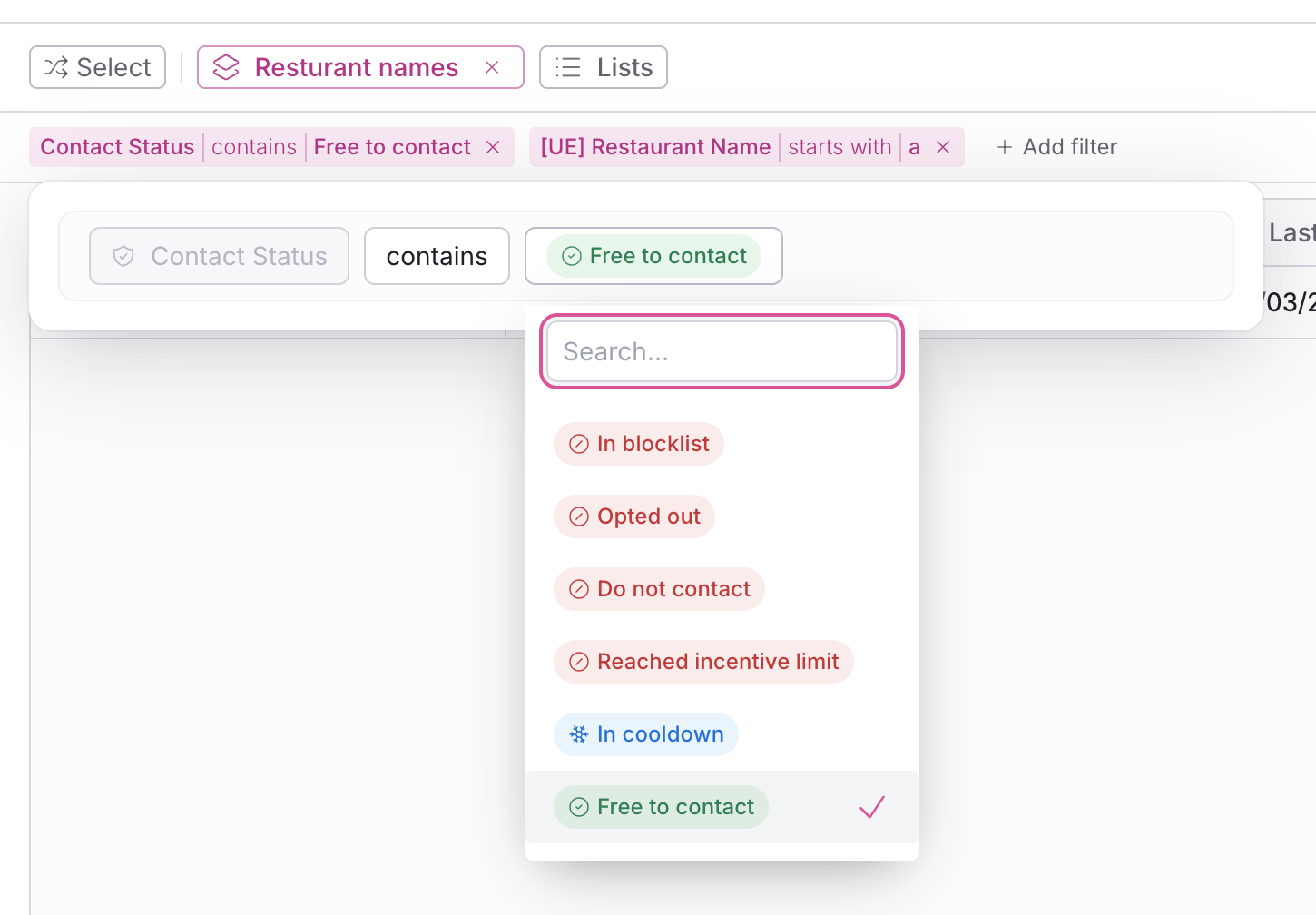
You can also interact with the filter chips directly in order to change the operator or the value of an existing filter
Select the Save button > Save changes to update the existing view.
If you'd like to keep the original view intact and save your changes as a separate view, select Save to new view instead.
If you make changes and decide you don't want to keep them, select Reset in the top right of the filter bar to revert to the last saved state.
Switch between views
Use the Views dropdown at the top of the table to move between saved views. When you switch views, the filters and columns fully update to match the selected view — no filters carry over from the previous view.
If you have unsaved changes when you switch to a different view, those changes will be discarded.
Delete a view
Open the population and open the Views dropdown.
Select the three dots to the right of the view.
Select Delete.
Confirm you want to delete the view. This action cannot be reverted.
Filter chips
When filters are active on a table — whether from a saved view or applied manually — each filter displays as a chip directly on the table surface, below the utility bar.
Select the x on any chip to remove that individual filter without opening the filter menu.
When a saved view is applied, a view chip shows up as pink, to indicate it is a part of the active view. Filters that are part of the view are displayed alongside any additional filters you've applied on top.
If you edit a filter within a view, it will turn grey, indicating it needs to be saved in order to be a part of the view.
This makes it easy to see at a glance what criteria are actively filtering your table and to make quick adjustments.
Use views when adding participants to a study
When adding participants to a study from an existing population, you can apply a view within the Add Participants modal to quickly filter down to the right group of people without rebuilding filters from scratch.
Open a study and select Add Participants > + Add from existing.
In the modal, select the population that contains the view, then use the Views dropdown to apply a saved view.
The table will filter to show people matching that view's criteria.
Select the participants you want to add and confirm.
FAQs
What happened to my Segments?
All existing segments have been automatically migrated to views. You'll find them in the Views dropdown with the same names, filters, and sharing settings they had before.
No action is required on your part — your data, filter configurations, and access permissions have all carried over.
Can I create a view that only I can see?
Views are shared with anyone who has access to the population. There is not currently an option to create a private view visible only to you.
Do views work in studies?
Views are currently available in populations. When adding participants to a study, you can apply a population view in the Add Participants modal to filter people.
What happens if I delete a property that's used in a view's filters?
The view will still exist, but the filter referencing the deleted property may no longer return expected results. We recommend reviewing your views if you remove properties from your workspace.
Is there a limit to how many views I can create?
There is no hard limit on the number of views per population. Keep in mind that a large number of views will appear in the dropdown, so clear naming and descriptions help keep things organized for your team.