Property Groups
Last updated: February 3, 2026
Property Groups allow for organizing properties into logical groups and control which teams can access them. This helps teams work more efficiently while ensuring data is only visible to the right people.
Using Property Groups, you can:
Restrict access to sensitive or population-specific data
Reduce visual clutter in filters and property selectors
Ensure teams only see fields that are relevant to their research
Property Groups respect population-based access controls.
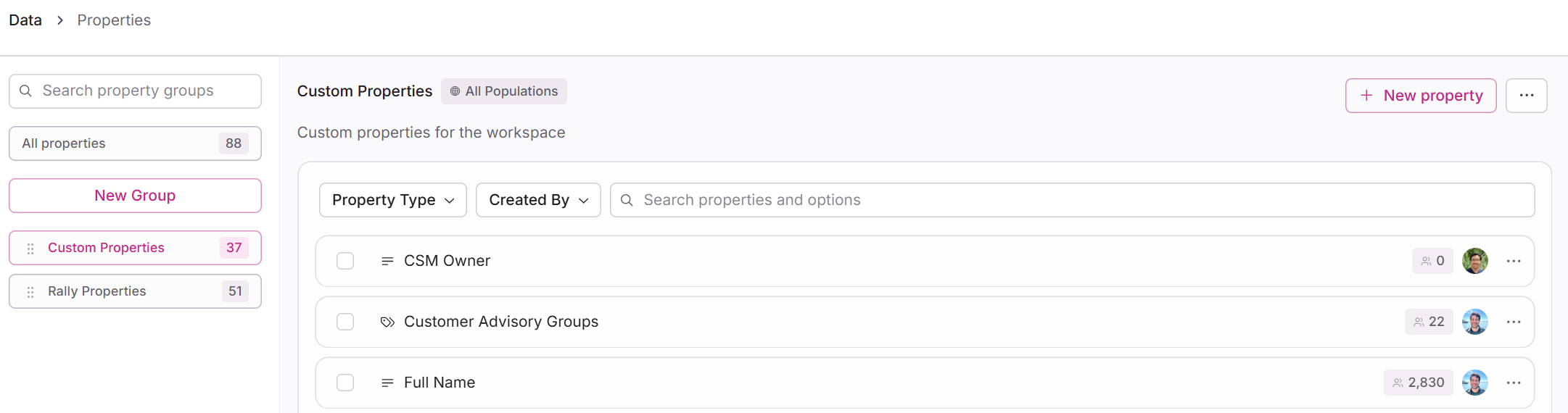
Managing Property Groups
Property Groups are managed from Settings > Data > Properties. Simply click New Group on this page to begin creating a new property group.
Creating and managing property groups requires the "Create and modify property groups" permission.
Create a new property group
From the Settings > Properties page, click New Group to begin creating a new property group.
When creating or editing a Property Group, you can define the following:
Name: A clear, descriptive name for the group
Description: Optional context explaining how the group should be used
Population Visibility: Controls which populations can see properties in this group
Any properties within a group that are restricted to specific populations will only be visible to team members who have access to those populations.
Editing existing property groups
From the Settings > Properties page, first select the property group you would like to edit and then select the three dots (...) on the top right of the page to edit your property group.
For any custom property groups, the Name, Description, and Population Visibility settings can be changed at any time.
The Rally Properties group, which contains Rally's default out-the-box properties cannot be modified
Property Groups in Practice
Here is an example use case of how Property Groups may be used:
A Research Operations team manages a shared research CRM used by multiple teams across the organization. They group related properties, such as banking-specific customer attributes, into a Property Group and restrict it to the Banking Customer population.
When a Banking Product Manager views participant profiles or applies filters, they can see and use those properties along with clear descriptions that explain what each field represents.
Teams without access to that population will not see the group or its properties, ensuring everyone only works with data that is relevant to their research.