Filters
Last updated: October 8, 2026
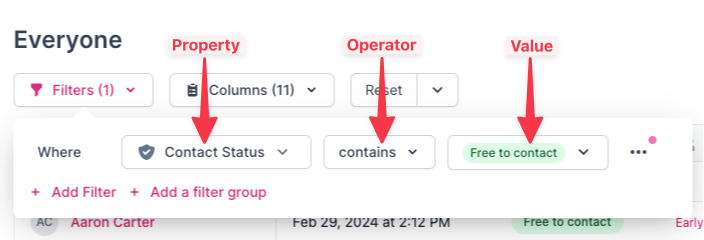
Use filters on Rally tables to narrow down and display specific participants. This allows you to find the most relevant participants for your research, or locate participants in various stages of an ongoing study. Each filter you configure will consist of a property + an operator + a value.
Use AI filtering
Use natural language descriptions to generate filters automatically and find participants faster.
Select the Filters button at the top of a table.
Select AI Filter.
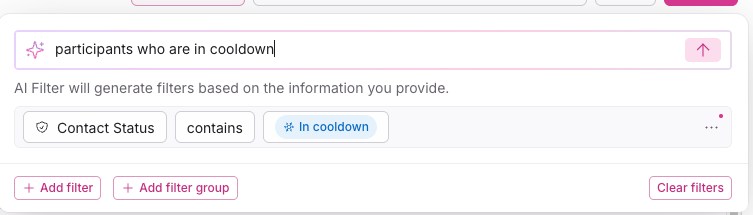
Enter a description of the participants you're looking for in the text input field. The more specific your description, the more precise the generated filters will be.
Review the filter results that appear below the input field.
Some examples to try:
Participants who are in cooldown
Participants in the North America region who are enterprise customers
Participants who completed a survey in the last 90 days but have not been contacted in the last 60 days
AI features are on by default for most workspaces. Admins can turn them off at any time in Settings > Advanced.
Add a filter manually
Select the Filters button at the top of a table (such as the People table, a study's Participants tab, a population, or Incentives > Recipients).
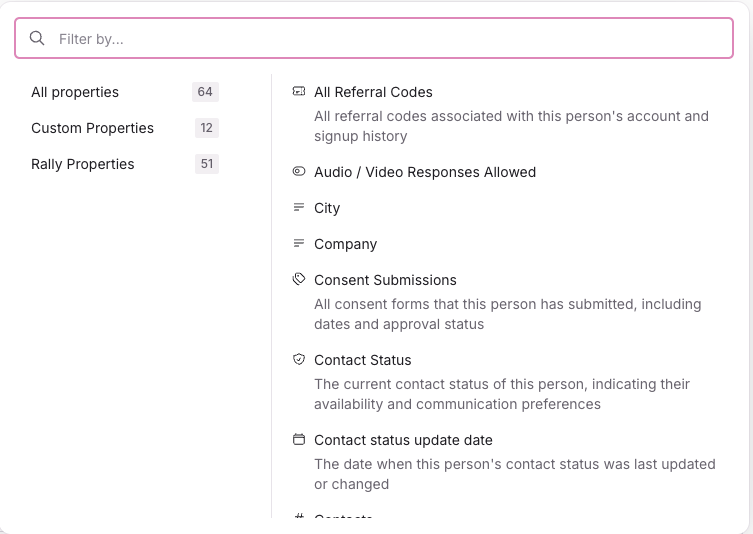
Use the Filter by... search field to find a property, or browse by All properties, Custom Properties, or Rally Properties.
Select an operator. The options available depend on the data type of the property and update automatically based on the property selected. See the table below for the operators available for each type.
Property type
Operators
Text
contains, does not contain, ends with, starts with, is, is not, is empty, is not empty
Number
is equal to, is not equal to, is greater than, is greater than or equal to, is less than, is less than or equal to, is empty, is not empty
Date
is, is not, is after, is before, is within, is on or after, is on or before, is empty, is not empty
Boolean
is, is not
Single-select
is, is not, is any of, is none of, is empty, is not empty
Multi-select
contains, does not contain, is empty, is not empty
Select a value. If provided with a text field, enter a value (e.g. first name, last name).
Select + Add Filter to add another filter, or select + Add a Filter Group to apply multiple conditions using AND / OR logic.
Within a filter group, select + Add Filter to add another filter.
On the left side of each filter within the group, select AND to require both conditions to be met, or OR to require either condition to be met.
To turn an existing filter into a filter group, select the three dots (...) menu to the right of a filter and select Turn into Filter Group.
Filter groups combine conditions with AND or OR. To exclude people, use a negative operator on a filter instead, such as does not contain, is not, or is not empty.
Manage filters
Remove a filter
Select the Filters button to view all currently applied filters.
Select the three dots (...) to the right of a filter and select Remove.
Duplicate a filter
Select the Filters button to view all currently applied filters.
Select the three dots (...) to the right of a filter and select Duplicate.
Edit the new duplicated filter as needed. This feature is especially useful when adding multiple filters using the same property.