Email Domains
Last updated: October 22, 2026
Connecting a custom email domain allows you to send bulk emails and set up custom personal and team sender email addresses with personalized From Name, From Email, and Reply to Email. With a custom domain like "research@rallyuxr.com" using your company domain, you can establish a professional and branded presence in your email communications. This also improves your Participant experience and decreases the rate of emails marked as spam.
Your company's IT support is required to assist in configuring the Domain. Create a new Rally user with a Developer role type to allow IT limited setup access. Follow the steps below to set up the custom domain.
Custom domains
Domain authentication is necessary to send emails from your own company email address instead of a generic Rally email address. This process is applicable only to domains and subdomains owned by your team or company (e.g., "example.com" and "mail.example.com"). Personal addresses like Gmail, Yahoo, or AOL cannot be authenticated are limited to 700 emails in a 24-hour period. Senders on a verified custom domain can send up to 50,000 emails per day.
Set up custom domains
In the top left corner of Rally, select your workspace name and select Settings.
From the sidebar, select Email domains and stay on the Domains tab. Select Add domain.
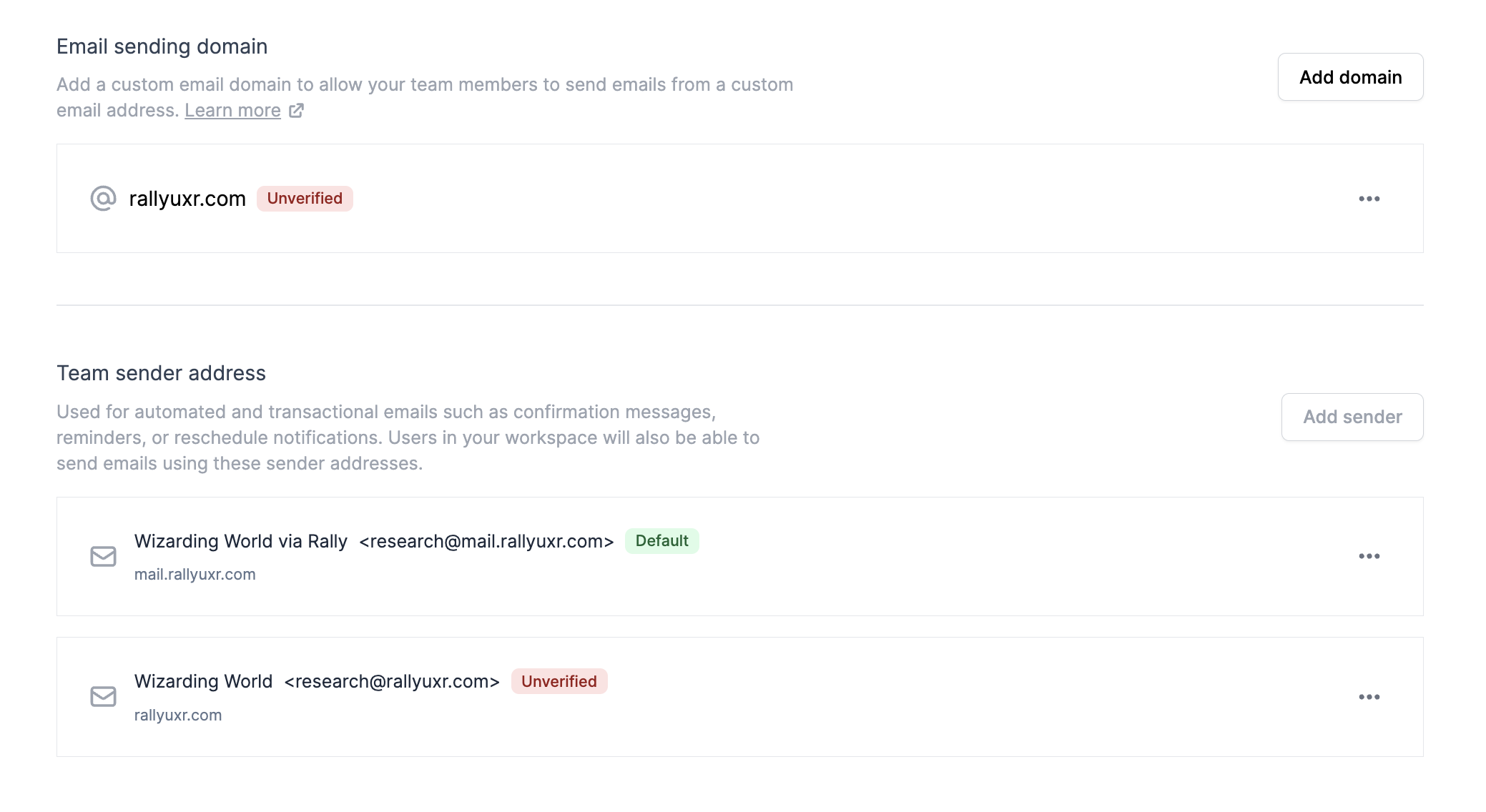
In the panel that opens, enter your domain. For most customers, this will be your company name as listed at the end of your work email, such as "rallyuxr.com" or "company.com".
Confirm accuracy and then select Add domain to continue.
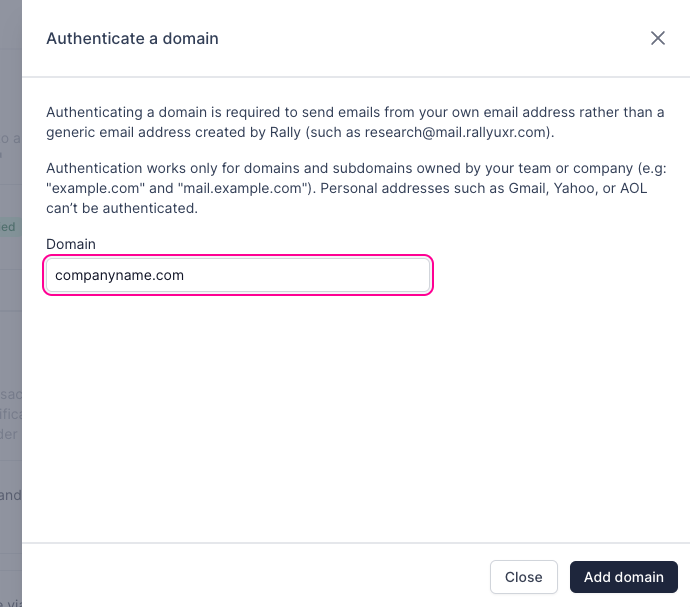
During the next step, share the provided information with IT to verify the domain.
To authenticate your domain ownership, your IT support will need to add the DKIM (DomainKeys Identified Mail) and Return-Path records your DNS (Domain Name System) records. Copy the Hostname and Value of each record provided by Rally and add them to your DNS configuration.
DKIM records are added as a TXT record, and Return-Path records are added as CNAME records to your DNS configuration. If your DNS is managed by a hosting provider, add these records there. However, if you use a DNS provider like DNSimple, add the DKIM and Return-Path records there. We recommend sharing a screenshot of the DKIM and return path, and this support doc, with your IT department.
Depending on your domain's email provider, Rally may also show an SPF record (added as a TXT record) and optional MX records. Add every record shown in the verification panel. The domain won't connect until all required records are verified.
If you choose to use a subdomain (for example, mail.example.com rather than example.com), you'll want to ensure that this subdomain has MX records configured, as some email providers and spam filters view the absence of MX records as a potential risk signal, which can impact deliverability.
If you already have MX records on your subdomain, do not change or add new MX records. This will interrupt receiving email on that domain.
If the subdomain you're using doesn't have MX records, add the MX records shown in Rally's verification panel (typically mxa.mailgun.org and mxb.mailgun.org, priority 10). MX records are optional.
Value | Priority |
mxa.mailgun.org | 10 |
mxb.mailgun.org | 10 |
Below are some links to instructions provided by our email providers on how to add DNS records for common hosts and DNS providers.
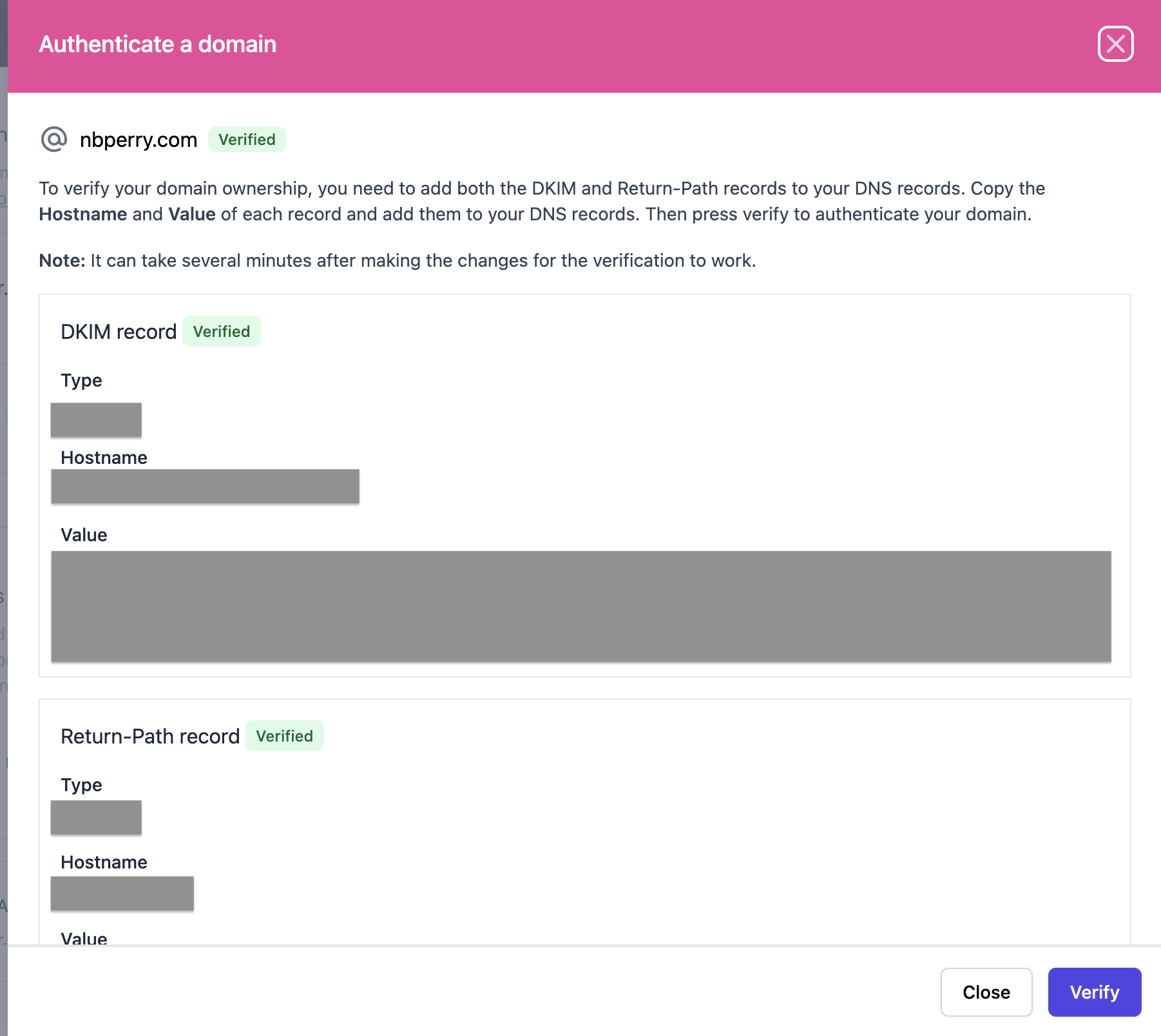
Once the DNS records are added and have had time to propagate, return to Rally and select Verify to authenticate your domain. It may take a few minutes for the verification process to complete.
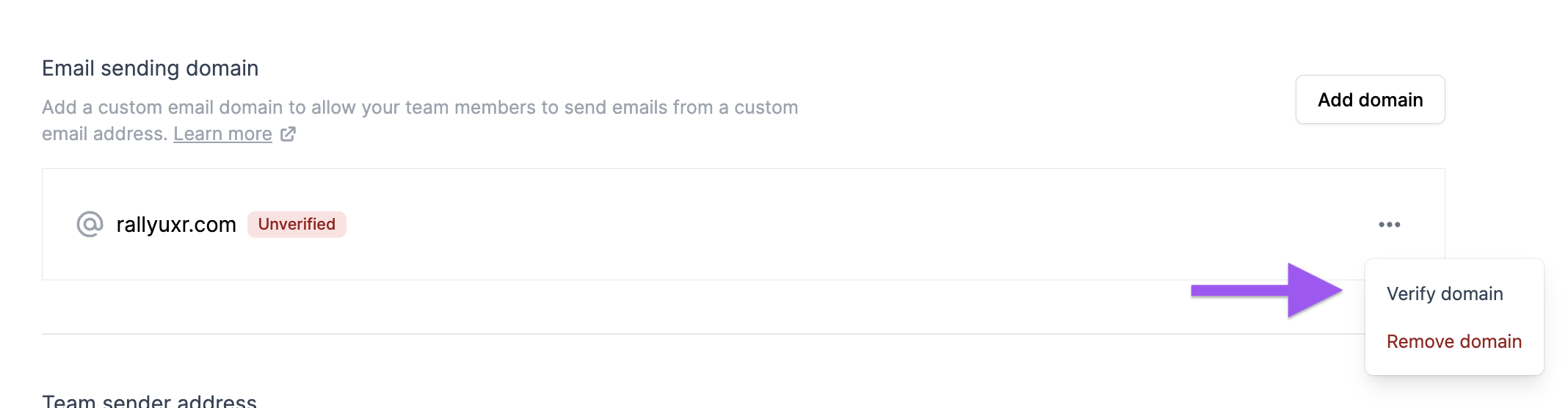
If you are waiting on your IT support, you can click Close and return to these steps later by selecting the three dots next to the domain and choosing Verify domain. Once the domain is verified, this option changes to View authentication.
Domain statuses and removing a domain
Unverified: the DNS records haven't been confirmed yet.
Verified: the domain is connected and can send email.
Degraded: the domain was verified, but one or more DNS records (DKIM, Return-Path, or SPF) are no longer active. Sending continues, but deliverability may suffer. Ask IT to check the records, then select Verify domain again.
To remove a domain that hasn't been verified yet, select the three dots and Remove domain. Verified domains can't be removed from the app.
Team sender address
Once you have set up a custom domain, you can create team sender addresses. Automated messages send from the default email set on each brand (Templates > Brands). Choose a team sender address there to use it for automated emails.
If you set up a shared inbox alias that your team can all use, you can set the Reply To address for any custom domain email sender to that (ie. research@company.com). As there’s not an "Inbox" experience in Rally, any incoming emails/replies will be sent to the Reply To email set up in your personal or team sender address.
Set up team sender addresses
In the top left corner of Rally, select your workspace name and select Settings.
From the sidebar, select Email Domains.
Select Add sender. In the Add team sender address panel, complete:
From Name (can't contain < > , ; :)
Customize the name shown to Participants receiving your emails. Most customers prefer to use their company name or research team name, such as "Rally", "Rally Research", or "Rally User Research".
From Address: enter the part before the @ and select your verified domain. Each address must be unique.
Most customers prefer to show this is coming from their research team, such as "research@rallyuxr.com" by entering "research" in the text field.
Reply To
Customize the reply to address to receive any responses in a specific inbox. Most customers prefer to use a shared research email here to improve visibility and collaboration.
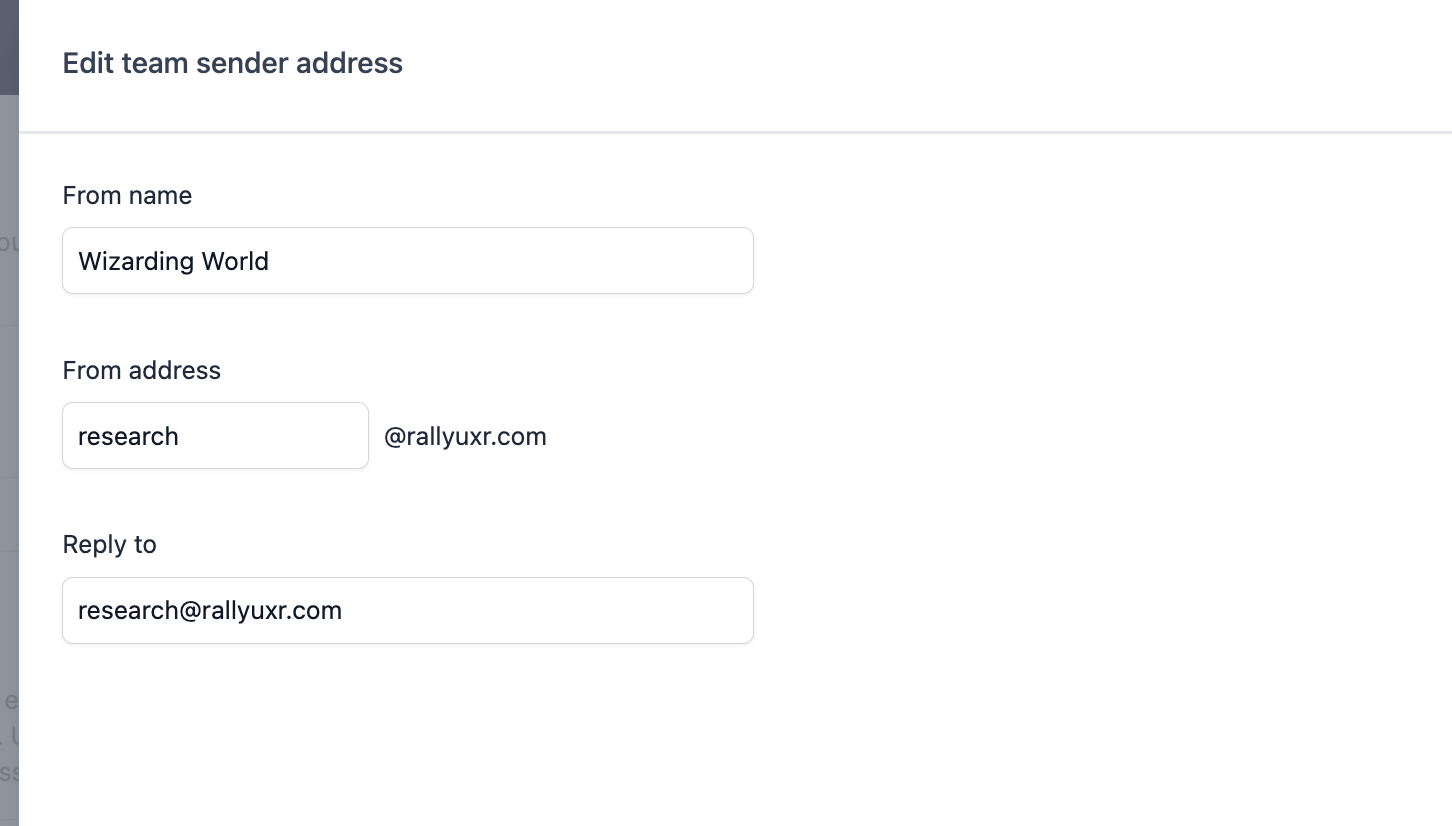
Select Save.
Manage team sender addresses
Select the three dots on a sender to edit it, set it as the default, or select Remove sender. The default sender is marked Default. Rally's default sender address can't be removed. If no default sender is set, Rally shows a warning banner.
Default sender for manual messages
On the Default sender tab, choose the default From address for manual messages: Brand default email or Personal sender. Automated messages always use the brand default email. Each user can manage their own custom-domain sender under their personal Settings > Email.