Form Signups and Screener Responses
Last updated: October 8, 2026
Forms are designed to seamlessly bring your customers (or prospects, and beyond!) into Rally as opted-in participants for future research - recruited anywhere!
After sharing digital signup forms anywhere to easily grow your audience, manage your new signups to review their details and responses.
How signup management works
When a new form is created, a list is created for it within the associated Population.
How you manage new signups depends on approval type set during form creation. Views and options vary based on whether Manual Approval is enabled or disabled.
If Manual Approval is enabled, each signup requires review before being added to the population and the form's dedicated list within it, and receiving the welcome email on approval.
If Manual Approval is disabled, signups are automatically added to the population and the form's dedicated list within it, and receive the welcome email.
Learn more about the expected behavior for new form signups.
The Manual Approval setting cannot be changed for forms once published.
Forms signup management pages consist of up to 5 views, depending on setup:
Signups
Needs Review
Approved
Rejected
Screener Responses
Consent Submissions
Forms without a screener or a consent form will not have those specific views.
Only forms with Manual Approval have Needs Review, Approved, or Rejected views.
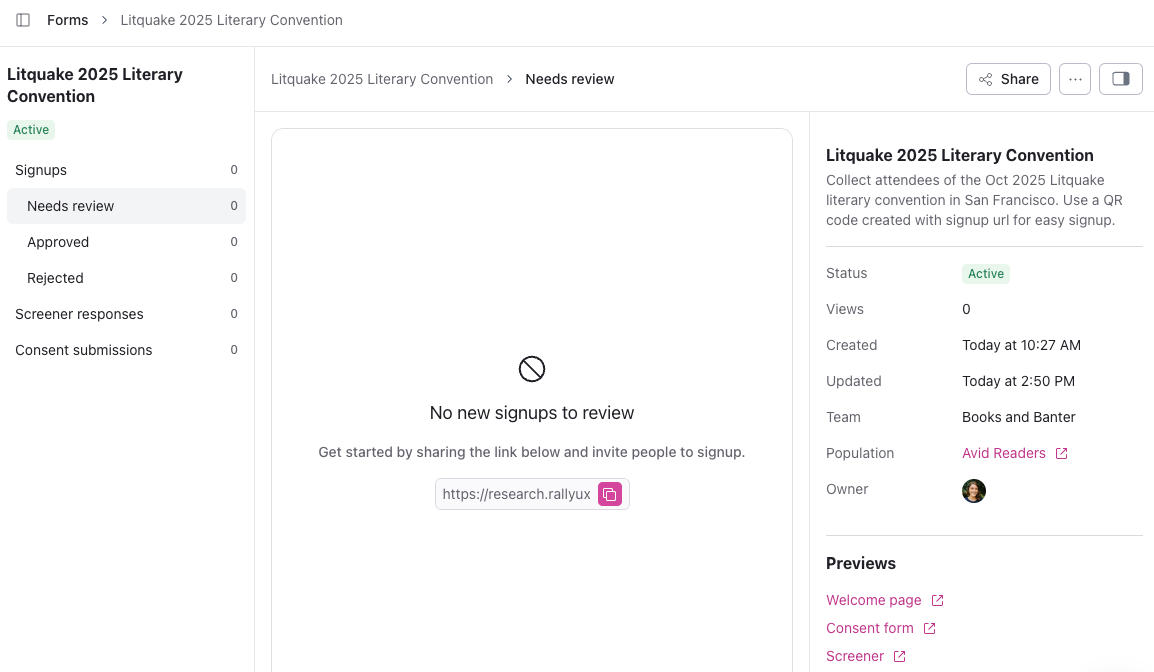
The Signups view shows anyone that has ever submitted a response to the form. New signups can come with just email address, and first & last name if required in form setup. Additional views help track those that submit screener & consent.
The Screener Responses view only shows people who submitted the screener, if enabled at the time of their signup, and includes screener questions and responses columns.
The Consent Submissions view only show people who completed the consent form, if enabled at the time of their signup.
The sections below outline the steps for managing signups based on approval type.
Form signups with manual approval
In forms with Manual Approval enabled, each signup requires review before being added to a population.
Navigate to the Forms page from your Rally Workspace level or Team level.
Select a Form to open.
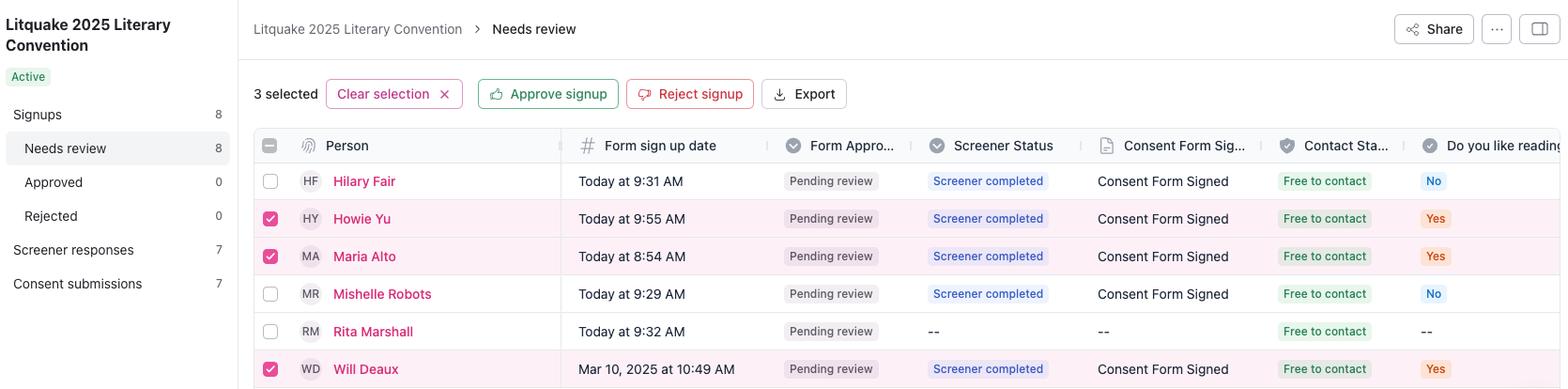
Select Needs Review to review new signups to Approve or Reject for your panel.
Name and email are the only fields required to apply, but you can also see their form sign-up date, whether they completed the screener and signed consent, and all screener question responses to inform your decision.
Select the checkboxes next to each person and use the Approve Signup or Reject Signup buttons to decide who gets added to the population and auto-sent the welcome email, or select the three dots (...) next to a person to approve or reject individually.
Needs Review shows new signups still waiting on a decision.
Approved shows only signups you've manually approved.
Rejected shows only signups you've manually rejected.
Add any additional columns to view all relevant data — for example, add a referral code property to see which channel or person brought in each signup (see Track signups with referral codes).
Approved signups are added to the Population associated with the form and are added to the dedicated List within the Population. Navigate there by selecting the linked Population name in the form details panel on the right side of the screen.
Form signups without manual approval
In forms with Manual Approval disabled, new signups are added to the population without review and immediately receive the welcome email on submission.
Navigate to the Forms page from your Rally Workspace level or Team level.
Select a Form to open.
Review all new participants. Name and email are the only fields required to apply.
Add any additional columns to view all relevant data. For example, add a referral code property to see which channel or person brought in each signup (see Track signups with referral codes).
New signups are added to the Population associated with the form and are added to the dedicated List within the Population. Navigate there by selecting the linked Population name in the form details panel on the right side of the screen.
Expected behavior for new form signups
Whether your form has manual approval on or off and whether or not it has a screener will determine when new signups are added to the population & list and receive the welcome email, and when form owners receive a new signup notification.
Manual Approval ON (With Screener)
Person added to population and list after owner has approved person
Welcome email after owner has approved person
Owner notification after screener is submitted to review
No notification on signup
Manual Approval ON (No Screener)
Person added to population and list after owner has approved person
Welcome email after owner has approved person
Owner notification on signup to review
Manual approval OFF (With Screener)
Person added to population and list on signup
Welcome email after screener is submitted
Owner notification after screener is submitted
No notification on signup
Manual Approval OFF (No Screener)
Person added to population and list on signup
Welcome email on signup
Owner notification on signup
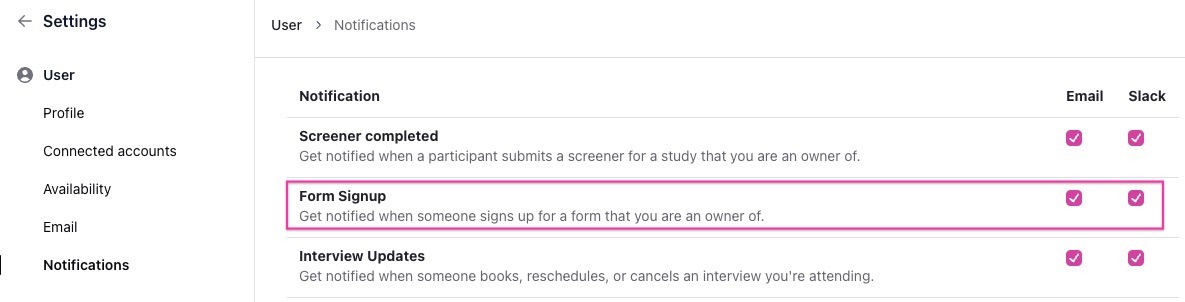
Set form signup notification preferences
Each user can configure notifications for forms they own by navigating to Settings > Notifications and selecting the checkboxes for Slack or Email for Form Signup.