Properties
Last updated: October 8, 2026
What are properties?
Properties are fields that store important data associated with a person and their research activity. This data contributes to each person's person profile.
Rally offers a variety of out-the-box properties, but you also have the flexibility to create custom properties according to your needs.
Where does property data come from?
Property data can originate from various sources, such as:
Screener or survey question responses
Participation history in studies, signup forms, and research activities
Data sync integrations (Salesforce, Snowflake, and BigQuery)
CSV file imports
Manual data entry
How can I leverage properties?
Filter and sort for a specific target audience when adding participants to a study.
Create views that dynamically update groups of people in a population to easily and repeatedly target specific demographics of participants for research.
Apply custom governance rules to automatically update participants' contact status, ensure compliance, and prevent users from over-contacting participants.
Auto-sync property data from Rally back into Snowflake to collaborate with CX.
Property types
Rally supports the following property types to decide what type of data you'll collect:
Text | Open-ended responses, company names, addresses, job titles, or any free-form text |
Number | Numeric data like age, years of experience, usage counts, or any quantitative metrics. Max 16 characters. |
Date | Birth dates, signup dates, last login dates, or any time-based information |
Boolean | Yes/no questions, true/false statements, or binary choices |
Single-select | When participants should choose only one option from a predefined list (Ex: job role, primary product used, geographic region) |
Multi-select | When participants can choose multiple options from a list (Ex: "Select all products you use," interests, skills) |
Property type is fixed after creation and cannot be changed into a different type.
Property characteristics
Property characteristics let you mark data as a unique identifier or mask protected information.
Unique
When the Unique characteristic is enabled, the content of the property can appear only once. This is useful for usernames or custom identifiers, and for companies where participant emails are unavailable or not the preferred unique user identifier.
The Unique characteristic can only be set during property creation, and cannot be removed after property creation.
Rally only allows Text property types to be unique.
You can have up to 10 unique properties in one workspace.
Email outreach in Rally is only possible if you track or store email addresses.
Learn more about the benefits of using unique properties.
PII and PHI
When the PII (Personally Identifiable Information) or PHI (Protected Health Information) characteristic is enabled, the property's content is masked for users who don't have permission to view PII or PHI properties (by default, Observers and Developers). These users can still see the property name, but can't read, filter, or sort by it.
PHI is a subset of PII that specifically pertains to any health information linked to an individual's medical history, diagnosis, treatment, or payment for healthcare services. This could include medical records, lab results, insurance information, and even conversations about health conditions.
Rally is in compliance with the HIPAA Security Rule for properties marked as PHI, and keeps audit logs for when these properties are read, updated, or deleted. Rally has signed BAAs with all third-party integrations and vendors that process PHI.
Contact Rally to unlock PHI masking for your workspace.
Property groups
Property groups let you organize related properties and control which teams can see and use them. They're especially helpful in shared workspaces where different teams work with different populations or types of data.
By grouping properties and applying population-based access, you can reduce clutter in filters and ensure teams only see fields that are relevant to their research.
To learn how to create and manage property groups, see our Property Groups article.
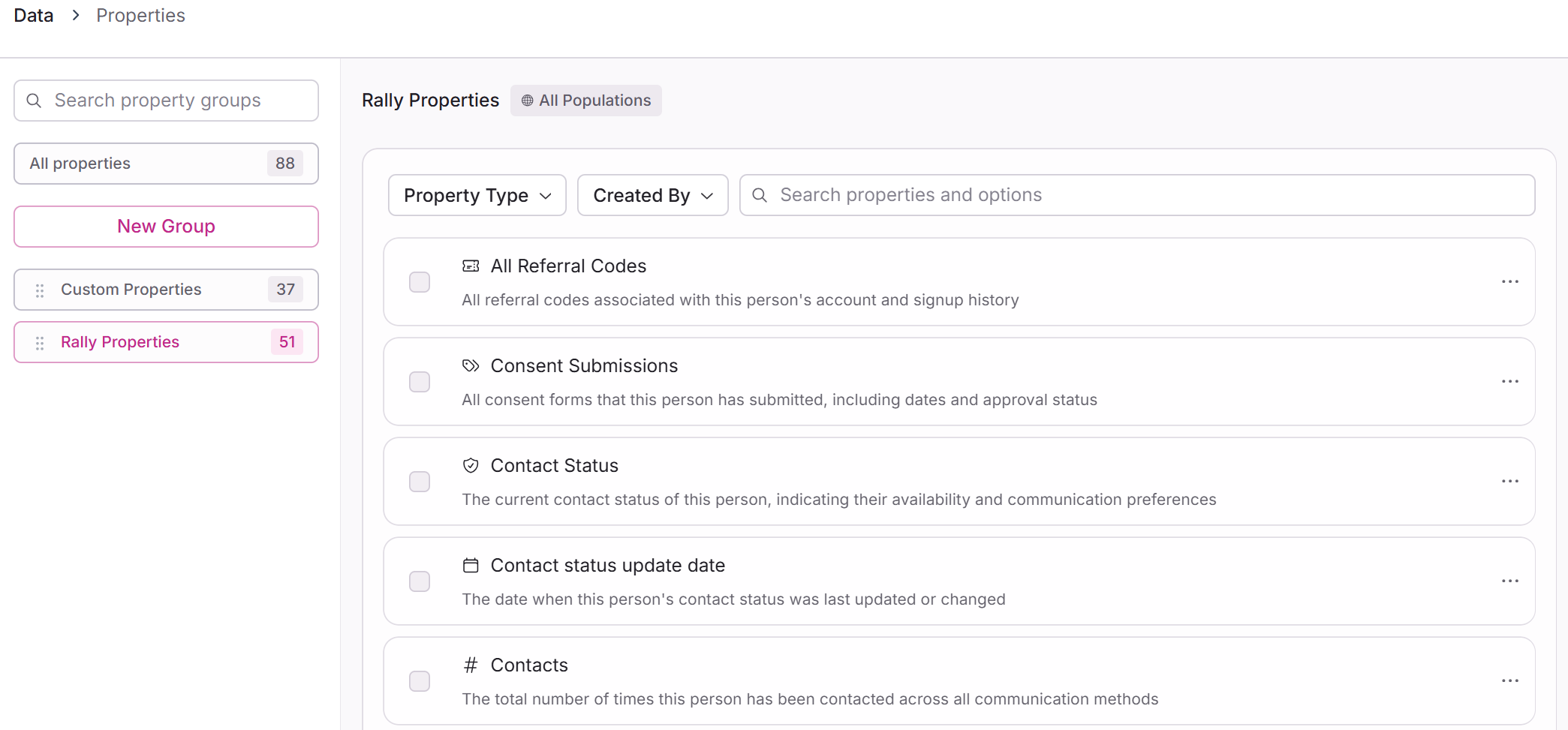
Create and edit properties
Creating and editing existing properties can both be done from the Settings > Properties page:
In the top left corner of Rally, select your workspace name and select Settings.
From the sidebar, scroll to the bottom to select Properties.
Creating and managing properties requires the "Create and modify properties" permission. This includes the Rally default roles Admin and Ops Manager.
Viewing properties requires the "View properties" permission. This includes all Rally default roles except for Observer.
Creating new properties
On the Settings > Properties page, select the property group you want to add the property to and click the + New property button on the top-right of the page.
Select the appropriate property Type.
Enter the desired property Name. Keep it clear and concise for easy recognition.
Enter a property Description to help provide additional context about the use of the property.
Select any required property Characteristics (Unique, PII, or PHI) — see Property characteristics above for what each one does.
Depending on the property type you select, there may be additional options to set.
Text: Optionally, set a Default Value. Records without a value for this property will receive the default value.
Number: Choose a Display as option (Number, Percentage, Money). Optionally, set a Default Value. Records without a value for this property will receive the default value.
Date: Choose a Display as option to display your date as a date (MM/DD/YYYY) or Relative.
Boolean: Optionally, set a Default Value of "Checked" or "Unchecked." Records without a value for this property will receive the default value.
Single-select and Multi-select:
Provide options for participants to select from.
Select the three dots (...) to the right of an option to select a Color to display for each option in Rally or to Remove an option.
Select + Add new option to add more options.
Select + Bulk add new options to create multiple options simultaneously by pasting comma-separated values or by typing and pressing enter.
After entering all the necessary information and confirming everything is correct, select New Property to save.
Editing existing properties
Existing properties can be modified on the Settings > Properties page by clicking the three dots (...) next to any existing property and selecting Edit.
This will open the Update Property side panel where you can edit the following fields:
Name
Description
Property group
Characteristics: Enable or disable PII or PHI masking. (Unique can't be changed after creation.)
Options: For Single-select or Multi-select property types, optionally edit the included options, or select the three dots (...) next to an option to Remove or update the associated color coding.
Once you've made your changes, select Update Property.
When editing properties, note that out-the-box properties are core, pre-defined properties that cannot have their default configuration edited. They contribute to building comprehensive person profiles with values that are automatically updated by research engagement.
Deleting properties
Custom properties can be deleted from the same menu used to edit them. Out-the-box properties can't be deleted. Deleting properties requires the same "Create and modify properties" permission as creating and editing them.
On the Settings > Properties page, select the three dots (...) next to the property you want to delete.
Select Delete.
Confirm the deletion. If the property is in use, you'll be asked to type the number of times it's in use before you can delete it.
Updating property data
A person's property data can be updated in multiple ways.
Learn more about each method and leveraging them in Import and Update Property Data for Participants.
Frequently asked questions
I'm adding new properties to Rally and am not sure which property type to use. Are some more easily searchable when we're looking for specific participants?
Multi-select and single-select type properties are easier to search, using pre-defined options to view and select from when filtering, and are shown as color-coded pills. Filtering by multi- or single-select properties allows you to easily select multiple options from the dropdown.
Text type properties are more flexible and open ended, and allow participants to provide more varied responses, such as their company name or favorite book. Filtering on text properties requires you to type in the specific response you're searching for, rather than showing you the complete set of options for easy selection, and requires you to know and type in each option manually