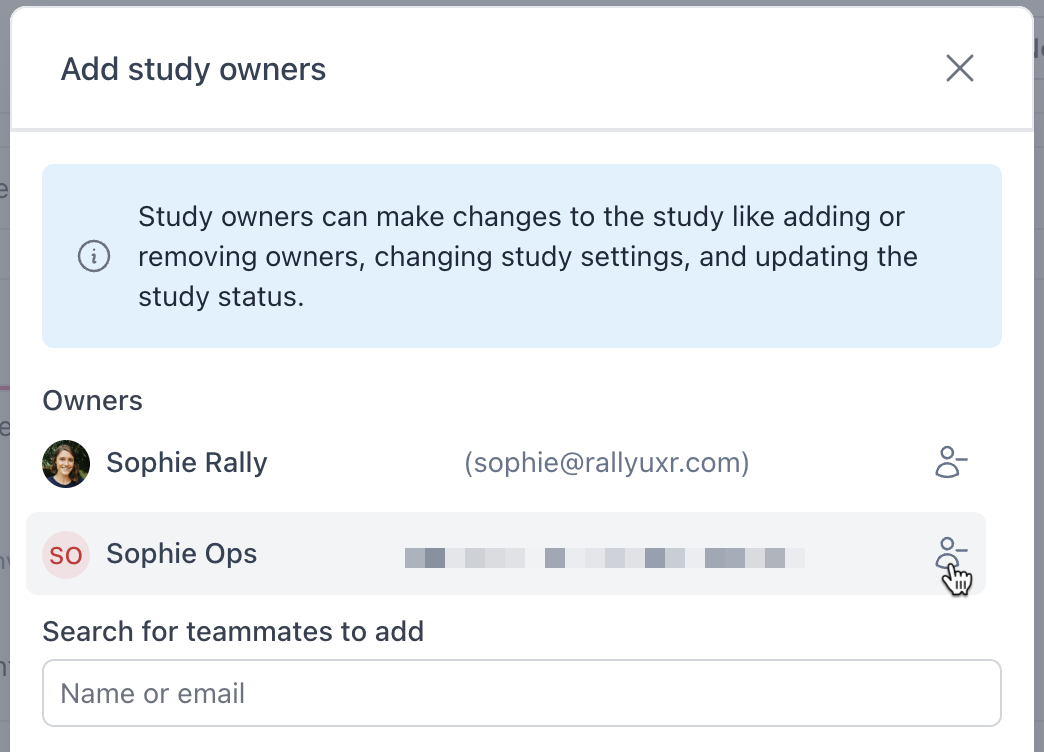
Manage Study Owners
Last updated: September 30, 2026
A user must be added to a study as an owner to take action on it. Only owners can add or remove other owners, change study settings, send emails or incentives, or update the study's status. These permissions come from a user's user role, except for Admins, who can add themselves or others as an owner to any study.
If someone's role should let them take an action but they can't, like editing a study or sending incentives, they likely just need to be added as an owner.
Add owners to a study
Owners can be added from within any specific study overview.
Navigate to the Studies page.
Locate the relevant study and select its name to open the Study Overview.
In the top right, select the three dots (...) and Add Owners.
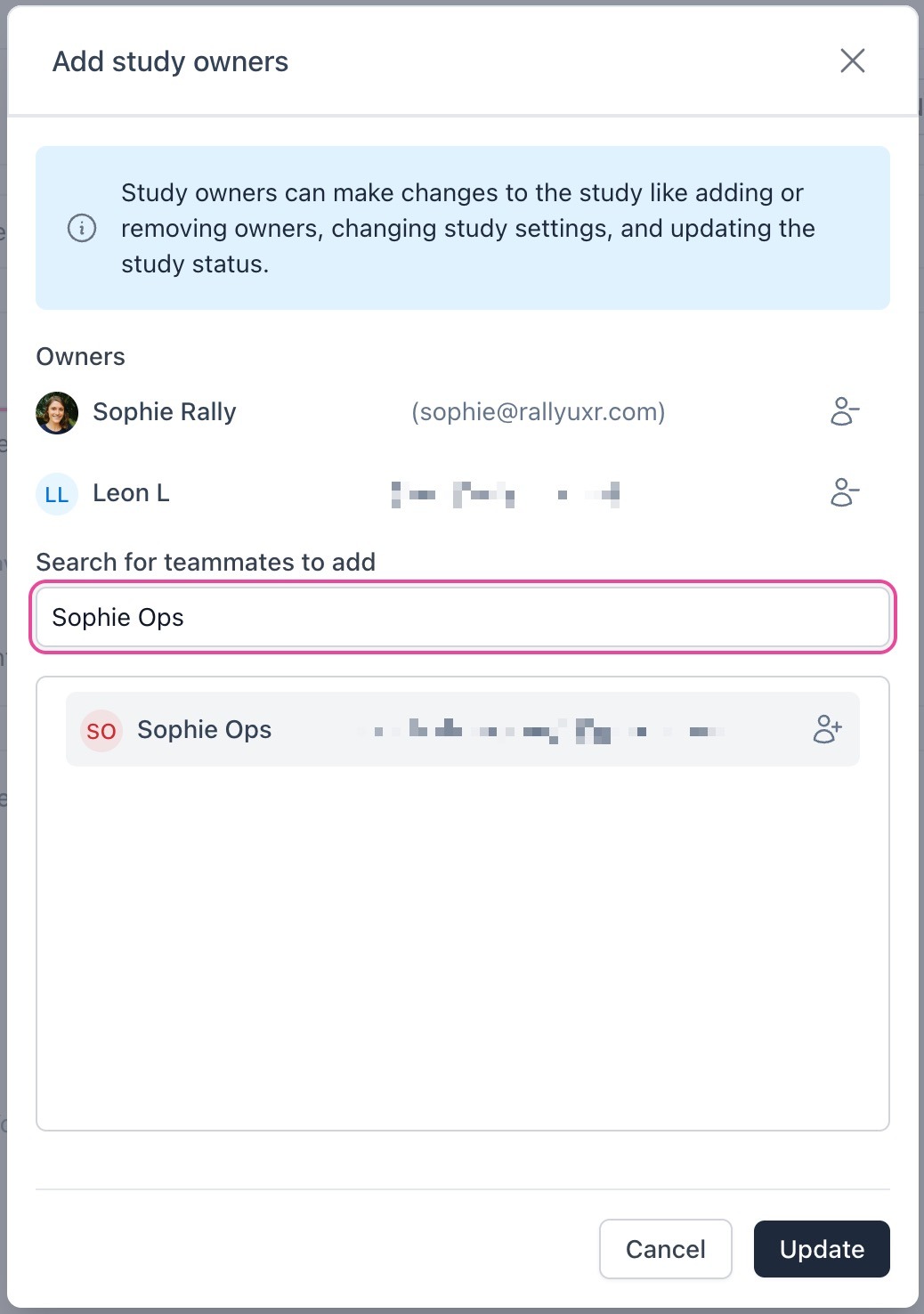
Type the user's name or email to narrow your results, or select from the list.
Select the add person icon to add them.
Select Update to apply your changes.
Remove owners from a study
Follow the Add Owners to a Study steps above, but instead of selecting the add person icon, select the remove person icon next to the relevant user to remove. Select Update to apply your changes.