Configure Interview Scheduling
Last updated: October 15, 2026
Rally's native scheduler lets you configure interview scheduling directly within your study. Manage the scheduling settings for an Interview or Group Interview study from the Scheduling tab in the study builder.
You can pre-configure scheduling settings in study templates, or duplicate an existing study to reuse the same scheduling configuration.
Event setup
Select your Calendar app from the options connected to your account (Google or Microsoft 365).
Add an Event Name and Event Description for the interview calendar event. We recommend using personalization tokens to customize outreach, such as First Name or Interview Length (minutes).
Set the interview Duration in minutes or hours.
Specify the Location:
Select Zoom, Google Meet, or Microsoft Teams for online interviews. One of these is required for observer rooms.
Select Custom Location for in-person interviews or another video conferencing tool. Add the link or address in the field that appears.
Select No Location to leave the location off the invite. Round Robin isn't available with No Location.
Assignment for interview studies
Choose your Scheduling type:
Standard 1:1: The participant meets with one interviewer.
Collective: The participant meets with all interviewers at once. Rally only shows times when every interviewer is available, which may reduce the number of available slots.
Round Robin: The participant meets with one interviewer from a rotating pool. Rally shows a slot as available as long as at least one interviewer is free, then randomly assigns an available interviewer. This maximizes available slots. Requires a meeting location (not No Location).
Add Interviewers:
The study creator is added as the first interviewer by default. Admins and managers can assign another Rally user as the interviewer on someone's behalf.
For Collective and Round Robin studies, select + Add teammate to add additional interviewers.
Interviewers need a connected calendar, since Rally uses it to check their availability. Users with the Observer role can be interviewers. Developers can't, because they can't connect a calendar, but they can be added as guests.
To include attendees without affecting availability, add them as Guests. Guests are included in all interview invites regardless of their availability and don't need a connected calendar. Select + Add teammate to search Rally users, or + Add email address to add someone not on Rally.
Meeting account: Choose whose connected Zoom, Meet, or Teams account creates and hosts the interview.
Defaults to each interviewer's own account for Standard 1:1 and Round Robin.
For Collective, you can choose which interviewer's account generates the join links.
If observer rooms are on, the owner of the meeting account is the person who admits the observer room bot to the session.
Availability for interview studies
Set how participants can book, your available dates and hours, and preview the booking calendar that participants will see.
Interview length and dates
Adjust the interview length if needed. It starts as the Duration from Event setup.
Set how far ahead participants can book:
Fixed date range: Choose a start and end date. Participants who open the scheduler after the range has passed see a fully booked page. You can extend the dates at any time by editing the study.
Rolling date range: Choose how many days ahead participants can book: 7, 14, 21, 30, 60, or 90.
Choose how participants book
Select one of two options:
Use working hours (Recommended): Uses each host's working hours, kept up to date from their availability settings, along with their connected calendar.
Each host appears as a card showing their working hours and timezone.
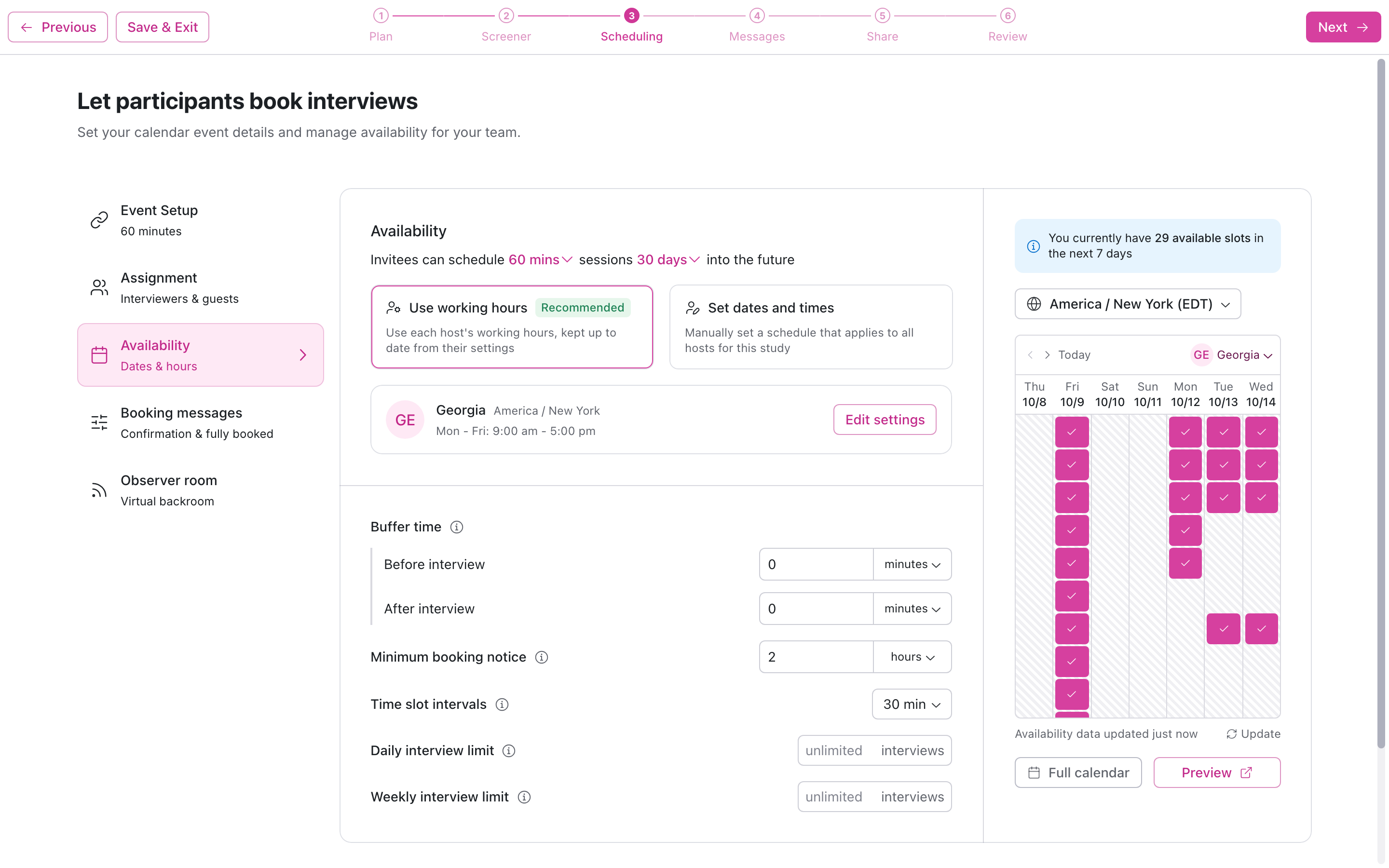
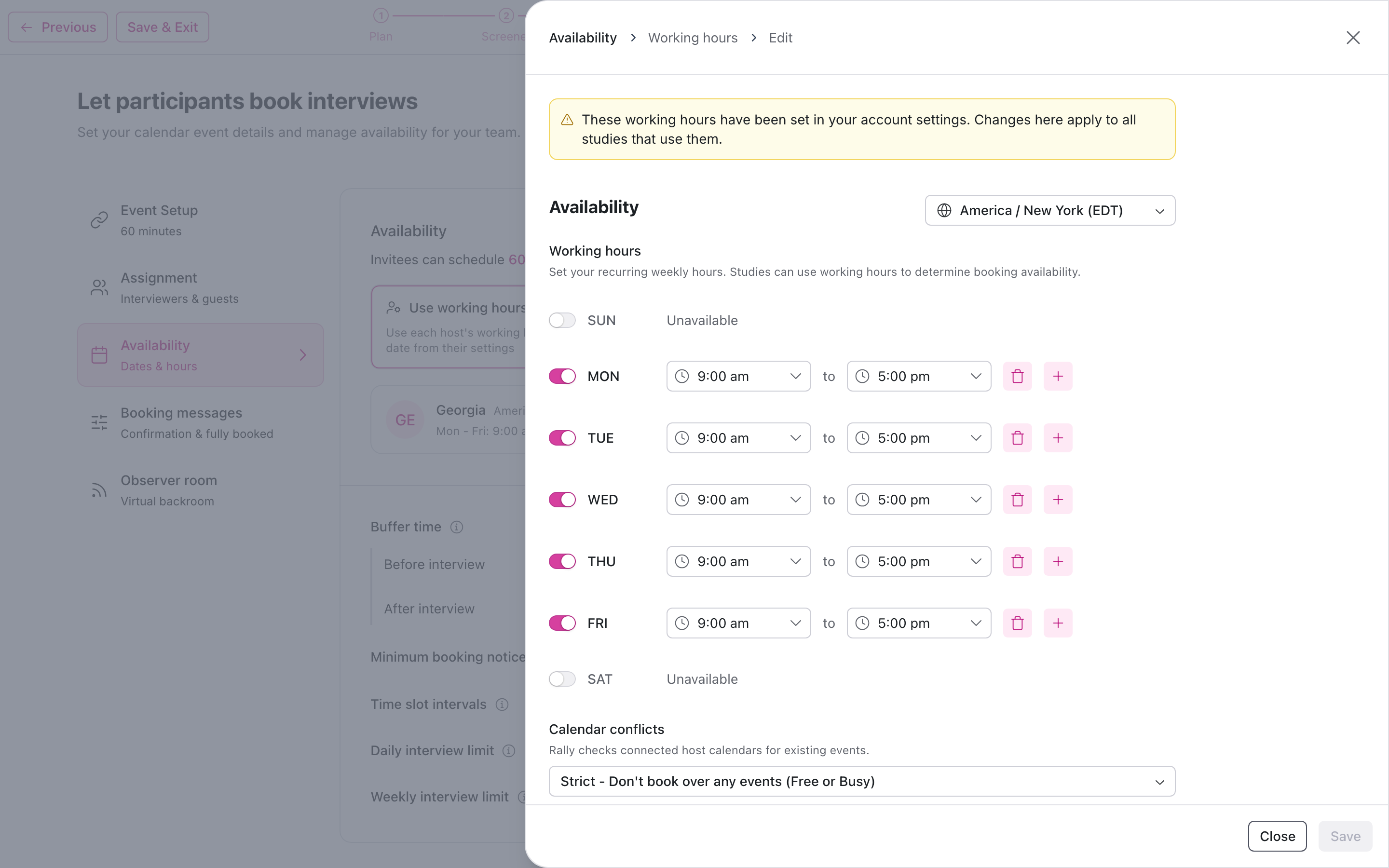
Select Edit settings on a host card to open that host's working hours in a side panel, including their weekly schedule and overrides. Changes apply to every study that uses that host's working hours, not just this one.
If a host has no calendar connected, their card shows No calendar connected. Ask them to connect one in Settings > Connected Accounts.
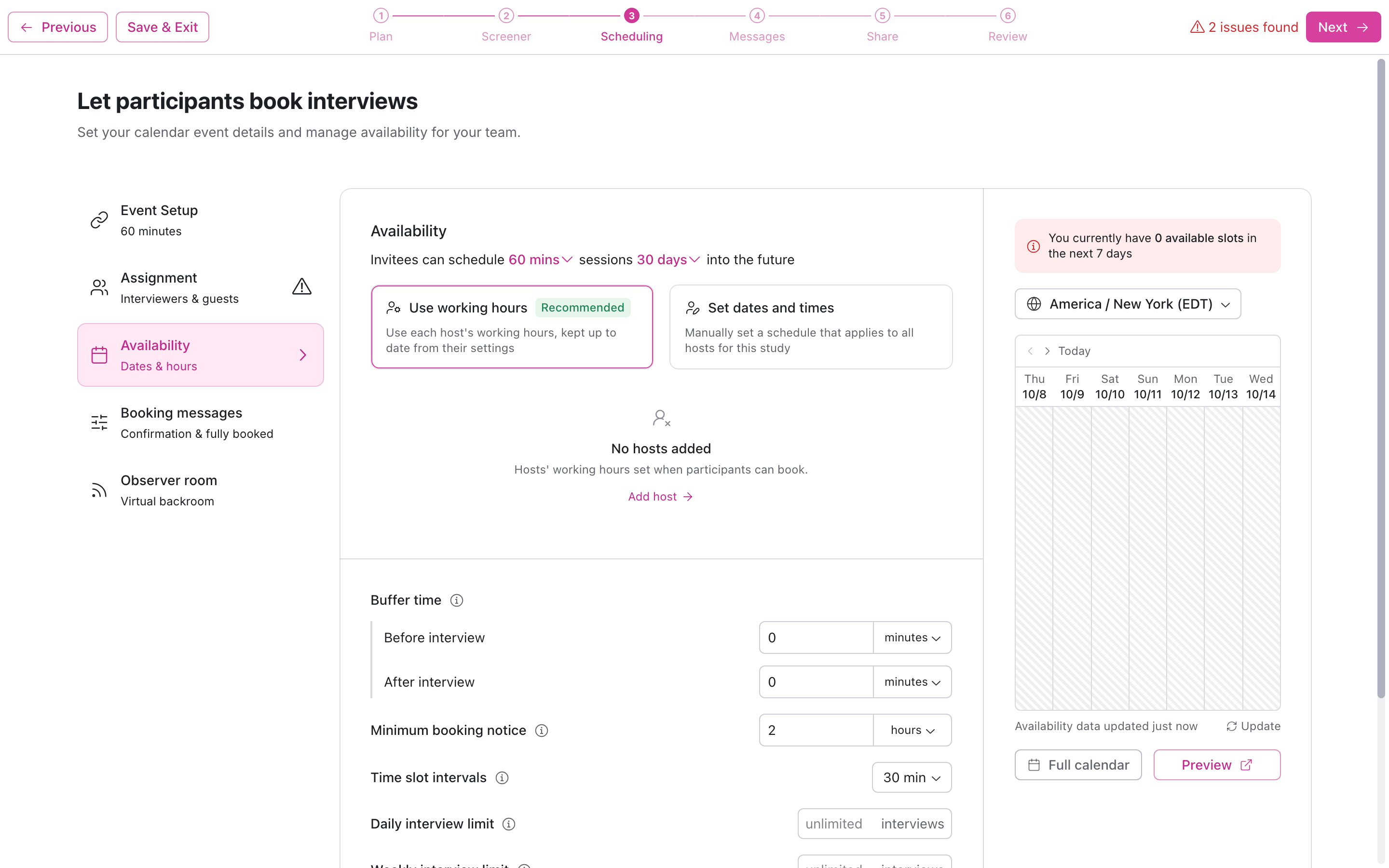
If no hosts are added yet, you'll see No hosts added. Select Add host to go to Assignment and add one.
Set dates and times: Manually set one schedule that applies to all hosts for this study.
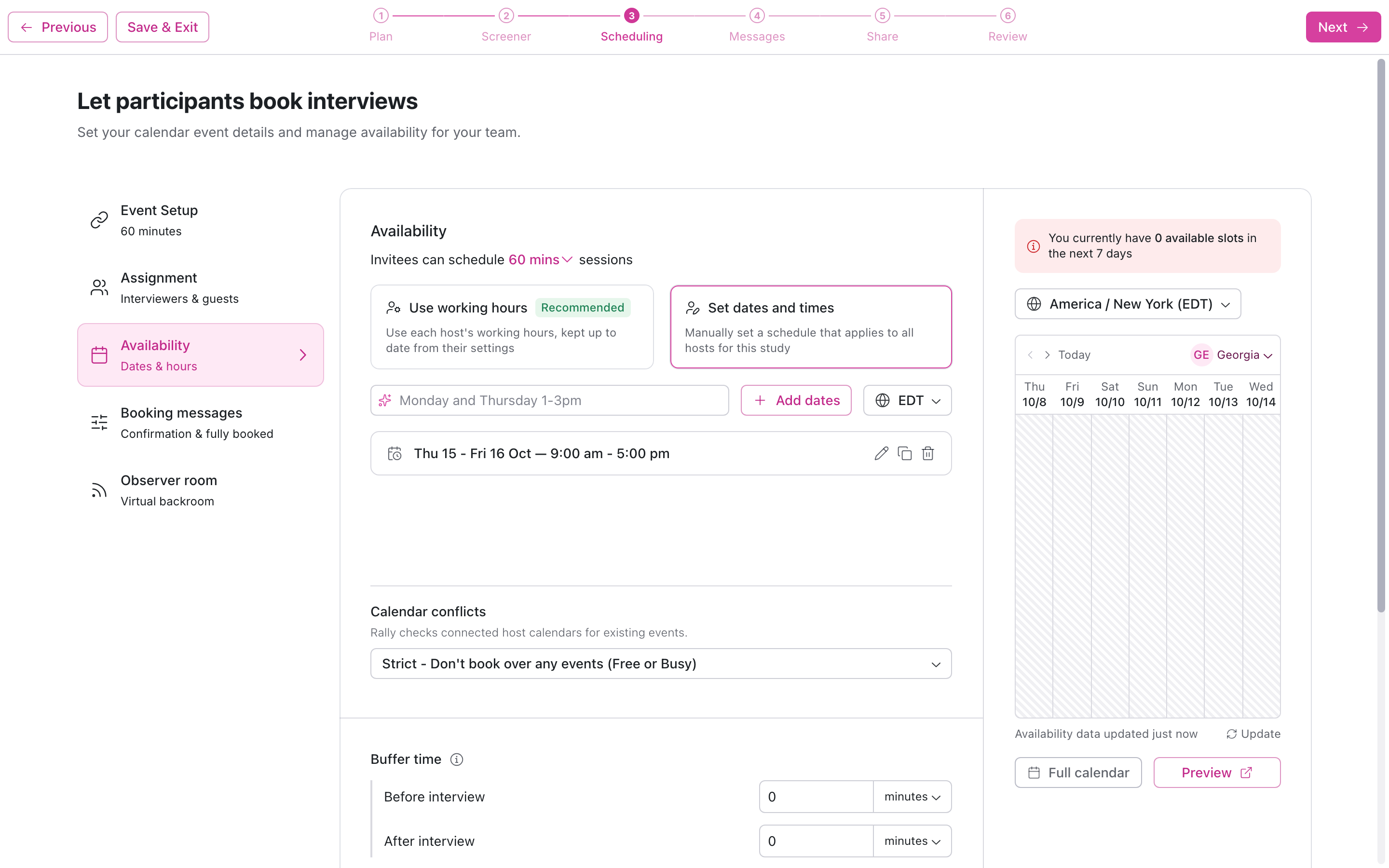
Select Add dates, choose the date(s), add the hours participants can book, and save.
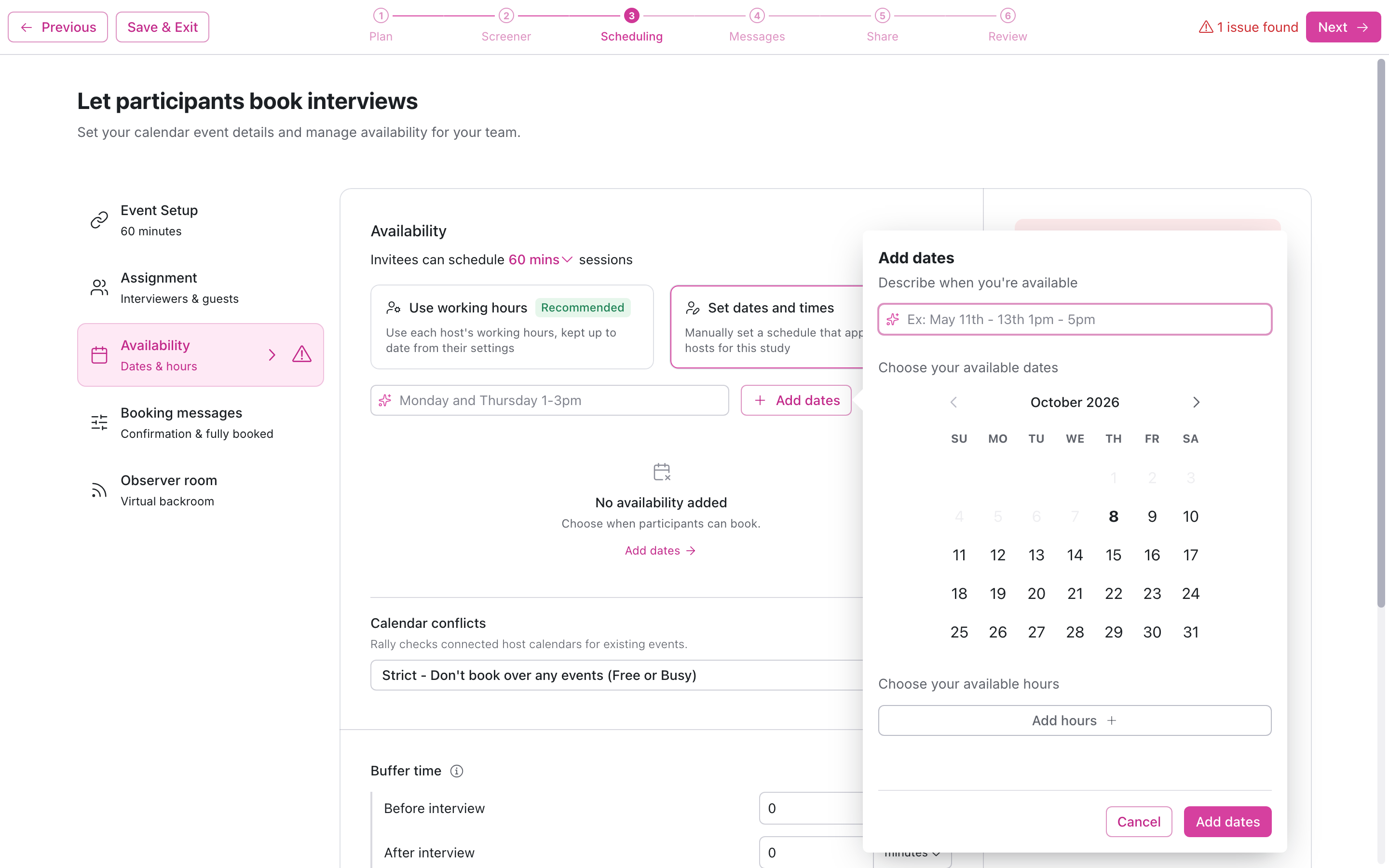
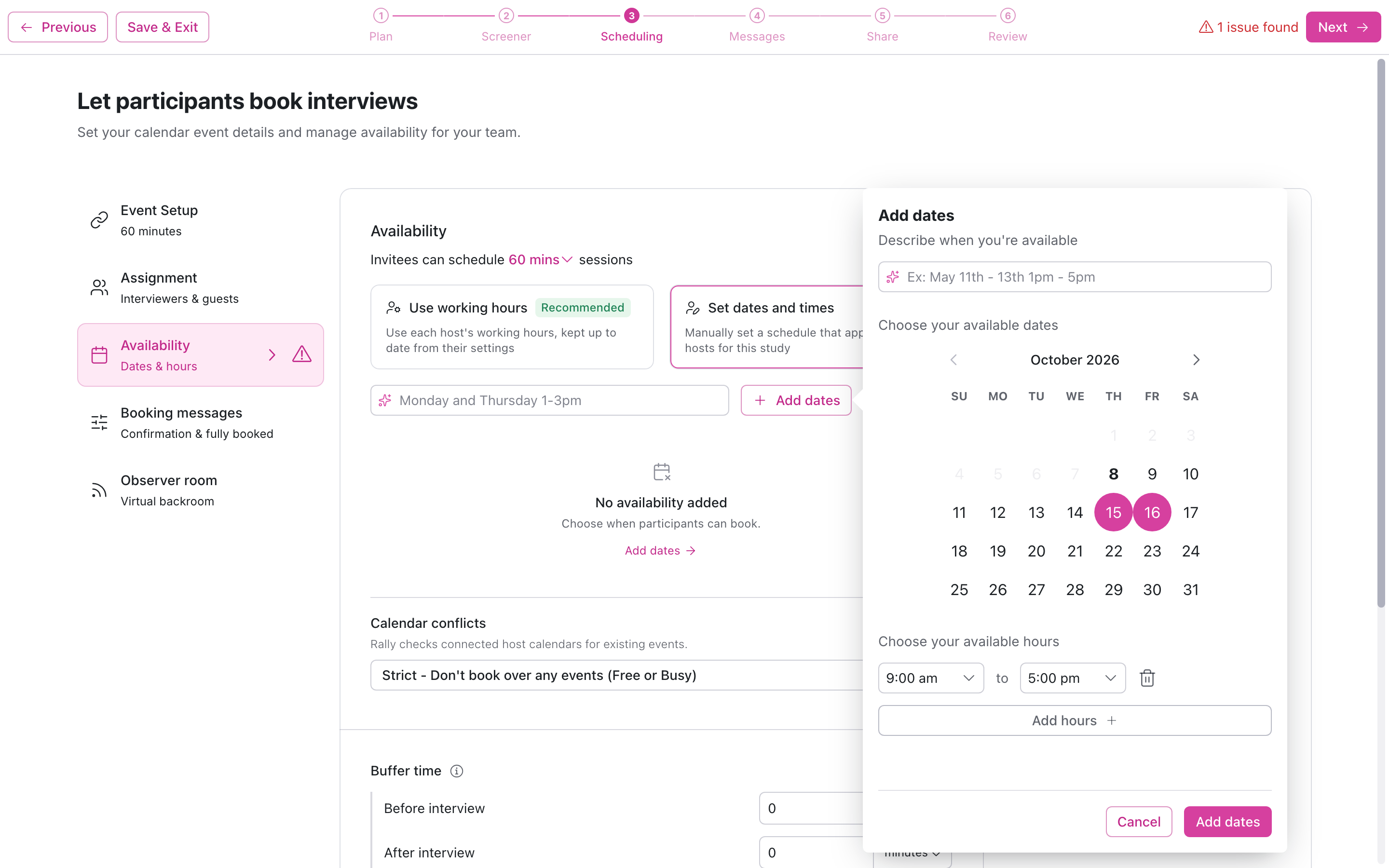
Participants can only book the dates and hours you add here. There's no Not available option, since any date you don't add is already unavailable.
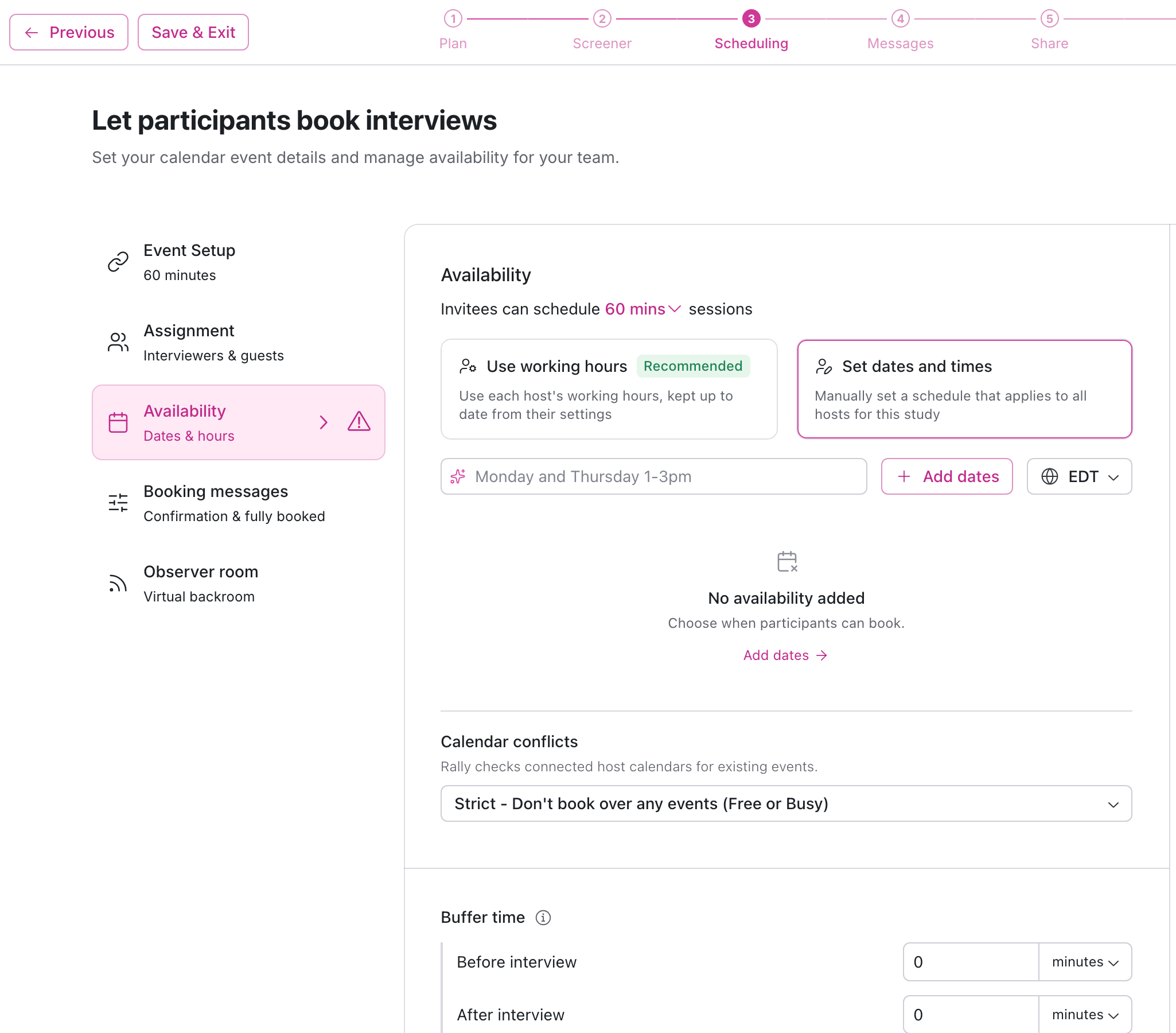
Until you add dates, you'll see No availability added.
Live preview
As you adjust your availability settings, a live calendar preview on the right shows the timeslots available over the next 7 days.
You can adjust the timezone, whose calendar is previewed, and move forward and backward by week.
Slots with a pink box and checkmark are available for booking. Whited-out times are unavailable. Hover over a slot to see its time.
Click Full calendar for a larger, more detailed view, or click Preview to see the scheduler as a participant.
Additional settings
The following settings are always shown below the date range, so you can see everything that affects booking in one place:
Buffer time: Optionally block time for prep and wrap-up. Set Before interview, After interview, or both.
Buffers apply to all calendar events, not just Rally interviews. If Avoid meeting conflicts is set to Off, calendar events are ignored, but buffers around Rally interviews still apply.
Minimum booking notice: How far in advance an interview must be booked, so you aren't surprised by last-minute bookings. Timeslots within this window aren't shown to participants. Defaults to 2 hours.
Time slot intervals: How often timeslots start on the booking page. For example, with 30-minute intervals, slots start at 9:00, 9:30, 10:00, and so on. Smaller intervals give participants more options.
Daily and Weekly interview limits: Cap the number of interviews booked per day or week for this study. Leave blank for no limit.
These limits work together. For example, a daily limit of 1 and a weekly limit of 4 means only 1 interview can be booked each day, until 4 are booked for the week.
Study limits aren't available for Round Robin, but each interviewer's personal limits still apply.
For multi-session studies, each session counts toward the daily and weekly limits, even when it's with the same participant.
Interviewers can also set personal limits across all their studies in Availability. When both apply, the lower limit wins.
Availability for group interview studies
Group interview booking uses custom timeslots.
Click + Add time slot to create a new time for participants to book.
Select your Date, Start Time, Duration, and Limit of participants (can be changed later). Adjust the Location and Interviewer as needed, add Guests if you want, and click Create time slot.
New slots appear under Availability, and will be labeled Draft until you publish the study or your changes.
Click the pencil icon to edit, the trash icon to delete, or the duplicate icon to duplicate the time slot.
After you publish, a slot's start time is locked, but you can still change its duration, participant limit, location, and interviewer. You can delete a published slot only if no one has booked it. You can also delete it from the study overview: go to Time slots, select the three dots (...) next to the slot, then select Delete time slot.
Booking messages
Customize the messages participants see after booking an interview or once the study's interview limit has been reached.
Confirmation page: Edit the message shown once a participant successfully books a time.
Fully booked page: Edit the message shown when the study is closed, paused, or you have no more availability within the date range.
For multi-session studies, the fully booked page is shown based on the number of unique participants, not total sessions booked.
Observer room
Optionally, enable a virtual observer room so stakeholders and teammates can watch a live stream of your interviews without distracting participants. Observer rooms require Zoom, Google Meet, or Microsoft Teams as the Location in Event Setup.
Once scheduled, interviewers will see both the interview event and observer room event on their calendar.
Learn more about Observer Rooms and Observer Room Settings.
FAQ
How do I book an interview manually?
You can manually book interviews on the study overview page to bypass host availability, interview limits, and other scheduling restrictions, or to log past interviews or interviews outside of Rally to ensure a participant's history stays up to date.
Learn more about how to manually book interviews.
Why is the study scheduler showing more or less availability than expected?
You can view availability by navigating to Scheduling for your study and clicking Preview to see the time slots shown to participants. You can also click Full calendar to view a more detailed view of your scheduling calendar.
If you are seeing more or less availability than expected, here's how to troubleshoot:
Check the following on your connected calendar:
Less availability than expected: Full-day events, accepted OOO events from colleagues, and recurring meetings marked tentative or free can all reduce availability.
More availability than expected: Focus time on Google Calendar defaulting to non-Busy status, and OOO time not set to auto-decline meetings could show times as available that you want to block off.
Check the following settings in Rally:
Avoid meeting conflicts determines how Rally considers your existing calendar events when checking your calendar and booking interviews. If you're expecting specific time slots to be available that are not showing up, we suggest checking your conflict settings alongside your calendar.
Overrides in a host's working hours change their hours on specific dates. An Available override replaces their weekly hours on those dates, and a Not available override blocks them. Dates without an override still use weekly hours. For studies set to Set dates and times, only the dates and hours you added can be booked.
Buffer time before & after interviews can help ensure you have breaks between meetings, but will limit available time slots close to existing calendar events.
Minimum booking notice hides time slots that are within this set time range; if you have a 24 hour minimum booking notice, no same day availability will be shown.
Daily and Weekly interview limits, plus each host's personal limits, cap how many interviews can be booked. Once a limit is met, no more time slots show for that day or week.