Standby Booking
Last updated: October 16, 2026
Early Access - Updated Regularly: Standby booking is in early access and is available to select workspaces. This feature is actively evolving, and so is this article. We'll continue updating it throughout early access as new functionality is added.
Standby booking pairs each interview with a backup participant, called a standby, who can take the main participant's place if they cancel or don't show. The main participant is called the primary.
Learn how to use standby booking in Rally, including setting it up, managing standby participants, and running sessions in the waiting room.
With standby booking turned on:
Participants book standby slots from the study's scheduler. Each booked interview opens one standby slot, and no extra invites are needed.
On the day of the session, the primary and standby join a Rally waiting room, and the host chooses who joins the meeting.
Standbys who join the waiting room are paid even if the primary joins and the standby isn't needed. You can pay released standbys a different amount than primaries, or pay everyone the same amount.
Standby booking is available for single-session, 1:1 interview studies using Zoom, Google Meet, or Microsoft Teams.
To see the participant side, from booking a slot to joining a session, see Standby Booking and Waiting Room Experience.
Setting up standby booking
If you want to use standby booking in a study:
Open the study builder and select the Plan step.
Turn on the Standby booking toggle.
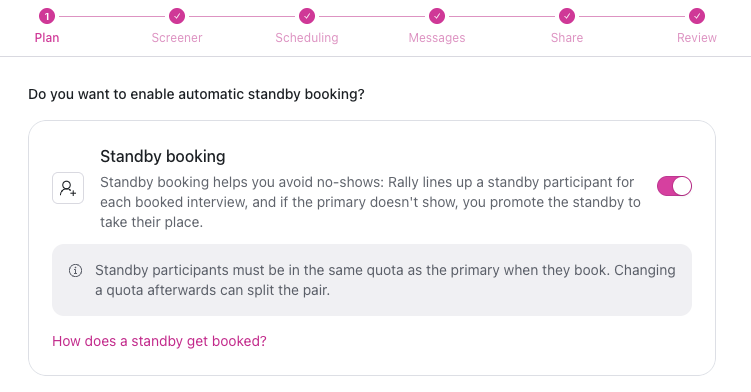
When you turn on standby booking:
Each booked interview opens one standby slot. The number of standbys per interview can't be changed.
All sessions in the study use the waiting room, for both primaries and standbys.
A Standby incentive field appears in the Incentive section of the Plan step if incentives are turned on. For details, see Setting a standby incentive below.
The Standby Moved to Primary email template is added to the Messages step. Add a subject and body to this template before publishing.
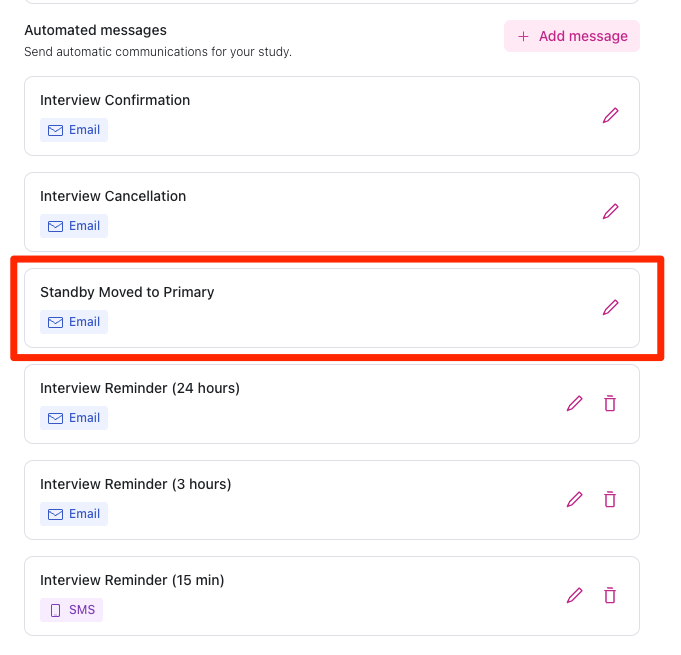
In booking emails, such as confirmations and reminders, the incentive amount token shows each participant their own amount. Released standbys see the standby amount, and primaries and promoted standbys see the primary amount.
Standby booking can't be turned off after a published study has its first booked interview.
Setting a standby incentive
The standby incentive is what a standby receives if they wait in the waiting room and are released because the primary joins. Standbys who are promoted and take the session receive the primary incentive amount instead.
In the Plan step, go to the Incentive section.
Enter an amount in the Standby incentive field. Leave it empty to pay standbys the same amount as primaries.
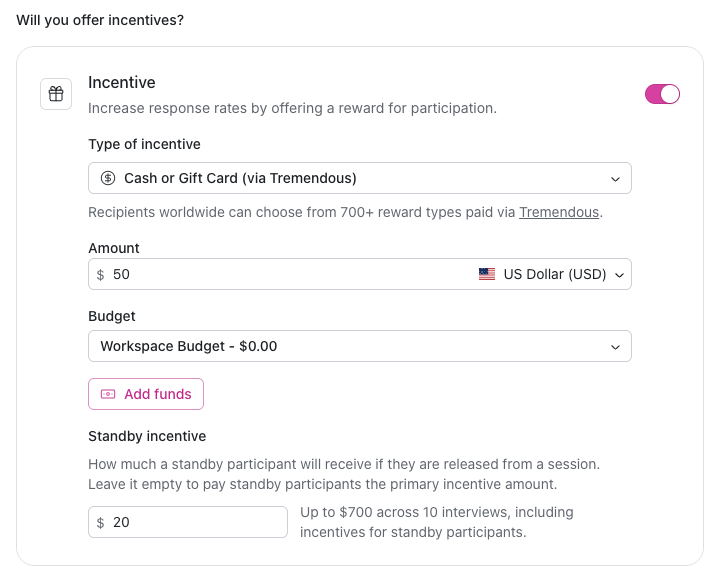
The estimate next to the field shows the most the study can spend, counting both a primary and a standby incentive for every interview in your target. For example, a $50 primary incentive and a $20 standby incentive across 10 interviews shows up to $700.
Standbys see the standby amount when they book a standby slot and again in the waiting room if they're released, so the payment they receive matches what they were told.
Which studies support standby booking?
Standby booking is available for single-session, 1:1 interview studies that use Rally scheduling with the Standard 1:1 scheduling type. It isn't available for:
Group interviews
Multi-session studies
Round robin or Collective scheduling types
Studies scheduled through Calendly
Studies that recruit through external panel recruitment
If standby booking isn't available for your study, the study builder shows which setting to change. Multiple sessions can't be turned on while standby booking is on. If you change a study to one of the setups above after turning on standby booking, turn standby booking off before publishing.
Considerations for quotas
If your study uses quotas, keep the following in mind:
Standbys always match their primary's quota group. Participants only see standby slots for interviews booked by someone in the same quota group.
Only primaries count toward quotas and the interview target. If a standby takes the primary's place, the interview is still counted once.
When a quota or the study target is full and Auto-close quota when full is on, participants in that quota can't book a primary slot but can still book a standby slot. The scheduler shows that only standby slots are available.
Moving a participant to a different quota after they book can separate them from their standby. Rally shows a warning but still allows the change, and quota counts may shift if the standby later takes the primary's place.
Booking and managing standby participants
How participants book standby slots
Standby slots appear on the study's scheduler, below each day's regular times. When a primary slot is booked, its standby slot becomes available to participants in the same quota group. After booking, standbys see a confirmation explaining that they'll wait in the waiting room, the amount they'll receive if they're released, and that they'll receive the full session incentive if they're promoted.
Participants can hold a primary or a standby booking in a study, but not both.
Calendar invites and meeting links
To protect participant privacy, primaries and standbys aren't added to the host's calendar event, where they would see each other's names and email addresses. Instead, each participant gets their own invite with a personal waiting room link. The host's calendar event includes only the host and any guests.
All participant emails and invites link to the waiting room, not directly to the Zoom, Google Meet, or Microsoft Teams meeting. Participants receive the meeting link only after the host admits them.
Filling standby slots
Standbys don't need to be invited separately. Each booked interview opens one standby slot, which any participant with the study's scheduler link and a matching quota group can book. Upcoming interviews that don't have a standby yet show Awaiting standby.
A standby slot reopens if the standby cancels or is canceled, and closes when the session starts.
Rescheduling interviews with a standby
What happens depends on who reschedules the interview:
The primary reschedules: The standby takes over the original time as the new primary, and the original primary moves to their new time. The standby receives the Standby Moved to Primary email.
The host reschedules: The primary and standby move to the new time together, and both receive updated confirmations.
The standby reschedules: Standbys can reschedule from their confirmation page or email. They can pick another standby slot or book an open primary slot. Their original standby slot reopens for someone else, and the primary isn't affected.
You can't reschedule a standby directly from Rally. To move a standby, reschedule the primary's interview and the standby moves with it.
Canceling interviews with a standby
When an interview has a standby, Cancel interview includes three options:
Cancel entire interview: Cancels both participants and removes the calendar event.
Cancel primary participant: The standby becomes the primary for the same time slot and receives the Standby Moved to Primary email.
Cancel standby participant: The primary isn't affected, and the standby slot reopens for someone else to book.
If a primary cancels, the standby automatically becomes the primary. If a standby cancels, the primary isn't affected and the slot reopens.
Standby booking notifications
When a standby books, hosts are notified in Rally and in Slack.
Guests aren't notified about standby bookings.
Slack reminders and observer rooms are tied to the primary booking.
Promotions and releases appear in the interview's activity log. There's no separate notification for them.
Running a session in the waiting room
In studies with standby booking, every session starts in a Rally waiting room, where participants wait until the host admits one of them.
What the waiting room is
Every session in a standby study starts in a waiting room: a Rally page where participants wait until the host lets one of them in. It gives the host the choice between the primary and the standby. Invites and emails link to the waiting room, never to the video meeting itself (Zoom, Google Meet, or Microsoft Teams). A participant only gets the video meeting link when the host admits them.
How a session runs
Each session moves through the following states:
State | Host sees | Participants see |
|---|---|---|
Not started | Countdown and Launch meeting | "You're in the waiting room" or "You're on standby" |
Live | Who's waiting, and Admit / Promote | "The host launched the meeting" |
Admitted | "Waiting for [name] to join" and Undo admission | Chosen participant: "You're in — join now". The other keeps waiting. |
In session | "Session in progress" | Joined participant: Rejoin session, if they close the meeting tab. The other: "You waited — and your time is covered", or "Seems like we missed you" if they'd left the waiting room. |
Closed | "This waiting room is closed" | "This waiting room is closed" |
A waiting room closes after the scheduled end time, or when the booking is canceled.
Getting into the waiting room
Hosts: Select Join meeting on the interview, or open the link in your calendar event. You need to be signed in to Rally to see host controls. If you're signed out, you'll see the guest view. Only the session's host can admit participants.
Guests: Open the link in the calendar event. Signing in to Rally is optional, but signed-in guests also see the guest list and a link to the session in Rally.
Participants: Open the link in their confirmation email or calendar invite. Each participant's link is personal.
If a participant can't find their link, select the copy icon on their card in the waiting room and send it to them.
Always join through the Rally waiting room link in your calendar invite or on the interview card. If you open the meeting directly in Zoom, Google Meet, or Microsoft Teams, participants keep waiting in the Rally waiting room until you admit them there.
What the host sees
As the host, your waiting room shows:
A countdown to the session start.
Launch meeting, available 15 minutes before the session starts, which opens the meeting in a new tab.
A card for each participant, labeled Primary or Standby, showing whether they're In waiting room, Hasn't joined yet, or Left the room.
Your guests and their RSVP status.
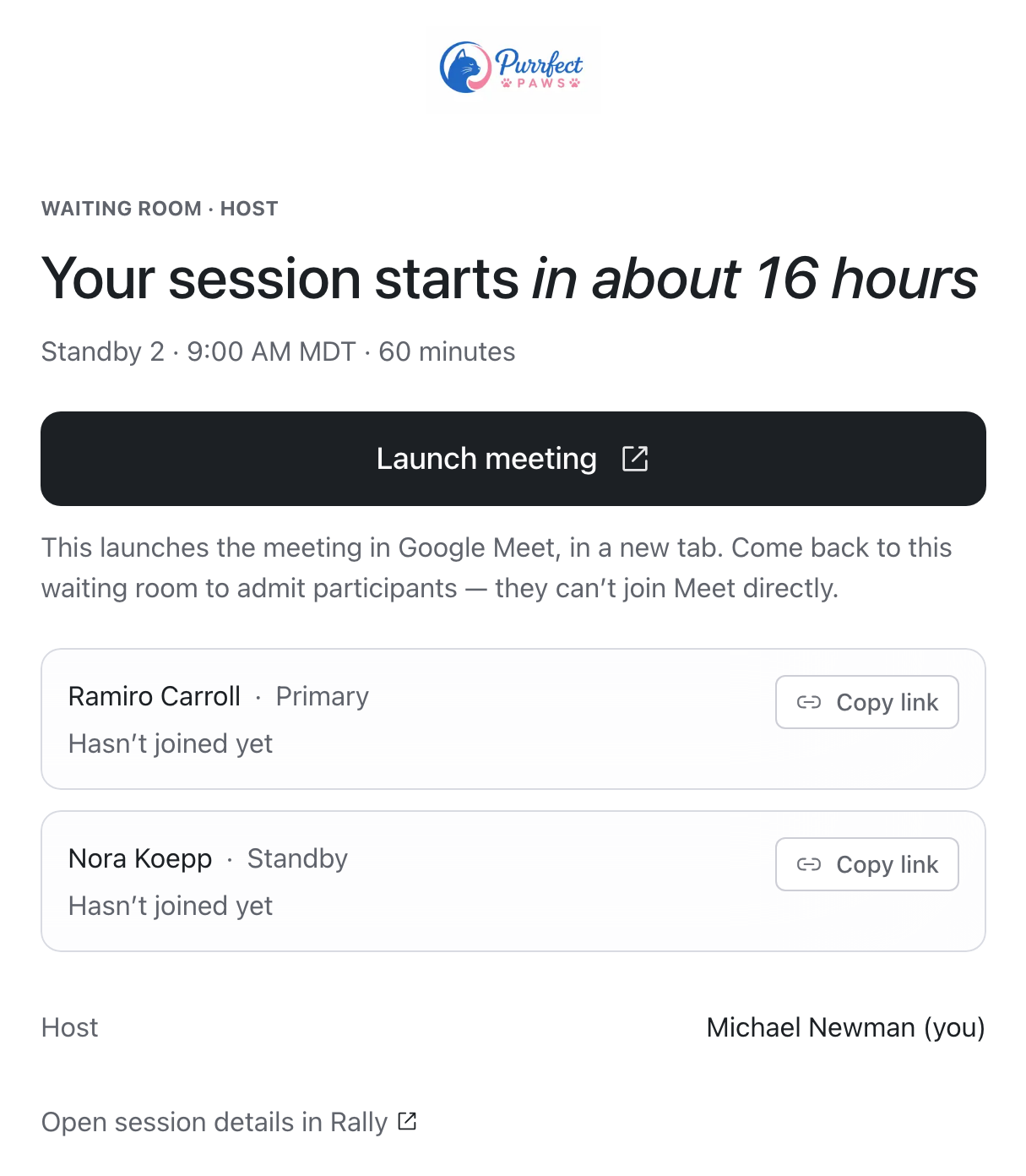
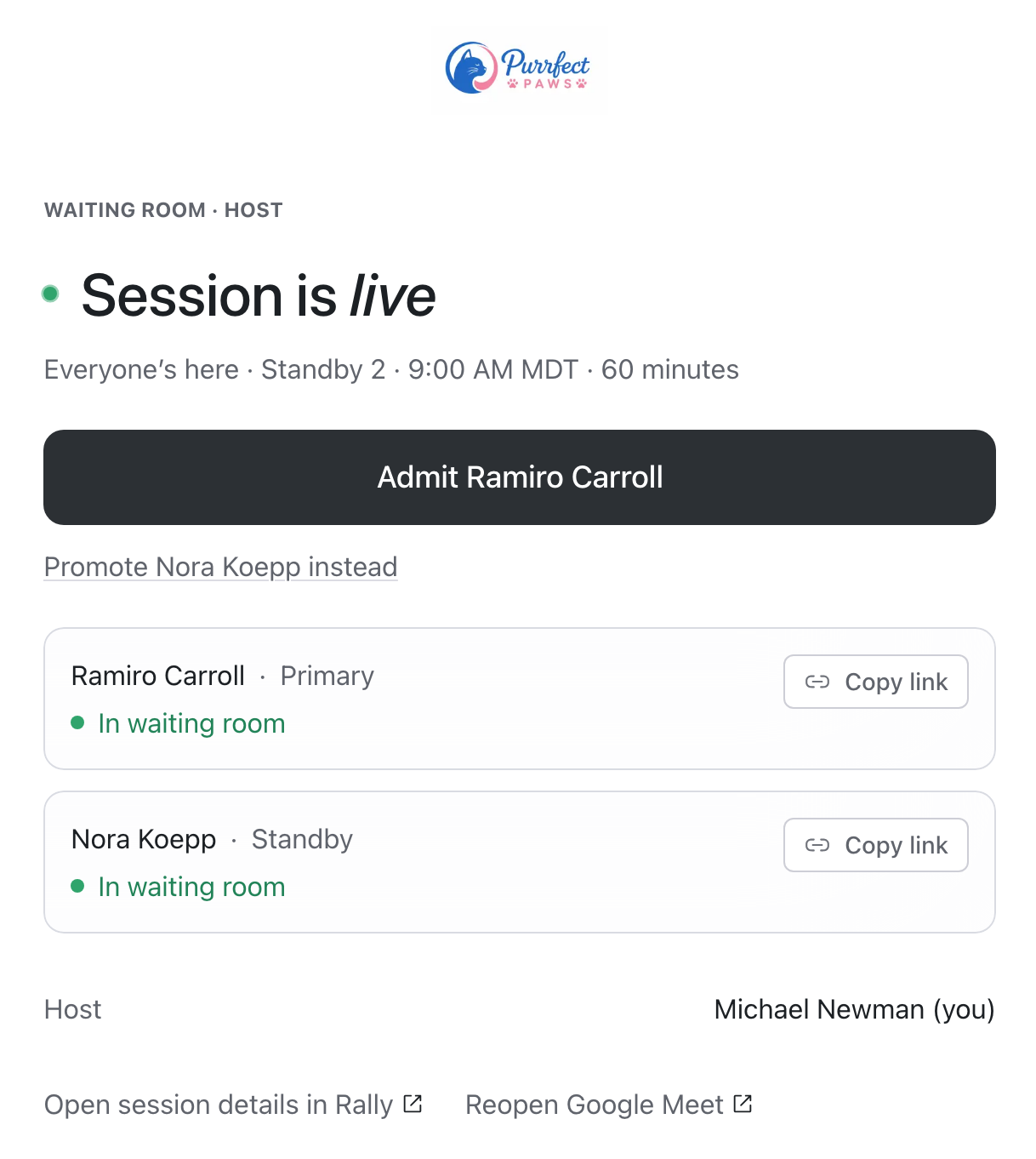
After you select Launch meeting, return to the waiting room tab. Participants can't join the meeting until you admit them.
How to admit a participant
Select Launch meeting.
Return to the waiting room tab and select Admit [primary's name]. To admit the standby instead, select Promote [standby's name] instead.
The participant receives a prompt and selects Join session.
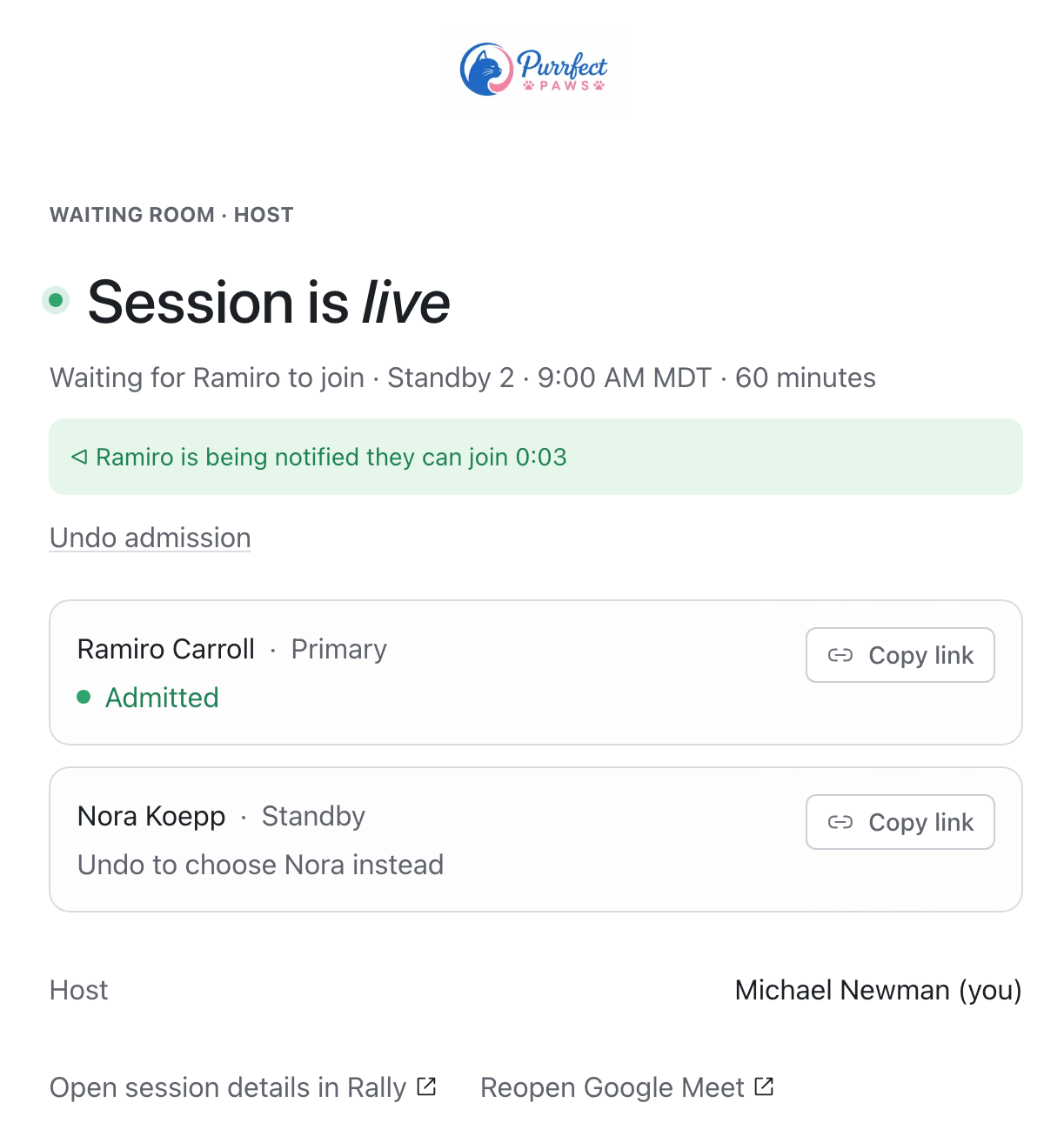
Keep the following in mind:
Only participants who are in the waiting room can be admitted.
To change who joins, select Undo admission before the admitted participant joins. After they join, the choice is final.
If you close the meeting tab, you can reopen the meeting from the waiting room.
When the admitted participant joins, the other participant is released automatically if they're still in the waiting room. You don't need to release them yourself.
If the standby is waiting and the primary isn't, a 5-minute grace period counts down from the session start (or from when you launched the meeting, if earlier). The grace period is a guide only. Nothing happens automatically when it ends, and you decide when to promote the standby.
The waiting room closes at the session's scheduled end time. If you haven't admitted anyone by then, participants can no longer join through the waiting room. A meeting that's already running isn't affected.
What participants see
Participants only see their own status. They don't see the other participant, and they don't get the meeting link until you admit them. Remind participants to keep the waiting room tab open until they're admitted.
For the screens participants see at each stage, see Standby Booking and Waiting Room Experience.
What guests see
Guests see the same participants and statuses as the host, but without host controls. After the host launches the meeting, a Join meeting button appears so guests can observe the session.
Troubleshooting the waiting room
"You don't have access to this waiting room"
➡ Make sure you're using the link from the most recent invite. Hosts and guests should also make sure they're signed in to Rally.
"This page has lost its connection"
➡ Select Reload page. If a participant sees this message, the host won't see them in the waiting room until they reload.
The meeting tab doesn't open
➡ The browser may have blocked the new tab. Select Open the meeting.
Participants don't arrive in the meeting
➡ You may have opened the meeting directly in Zoom, Google Meet, or Microsoft Teams. Return to the waiting room tab and admit the participant.
After the session
After each session, confirm attendance before sending incentives so the right participants are marked and paid.
Rally marks interviews as completed once the scheduled end time passes, even if a participant never joined the waiting room. Confirm attendance for both participants, and mark anyone who didn't show as a no-show, before you send incentives.
Step 1: Confirm attendance and rate participants
For interviews with a standby, Rate and confirm attendance includes both participants. For the primary, confirm whether the session was completed. For the standby, confirm whether they joined the waiting room. You can also rate each participant and add a note.
To update one participant at a time, select Mark as completed or Mark as no show on the interview, then choose the primary, the standby, or both.
Note that marking the primary as a no-show doesn't promote the standby. Promotion only happens in the waiting room, or when the primary is canceled or reschedules.
Step 2: Send incentives
Incentives aren't sent automatically, including for released standbys. For interviews with a standby, Compose incentive email lets you send to both participants, only the primary, or only the standby.
Rally fills in the amount for each participant based on what happened in the session:
Primaries, and standbys who were promoted, receive the primary incentive.
Released standbys receive the standby incentive.
If the study has a standby incentive and you send to both participants, you'll see both amounts and can adjust either one before sending. Each participant is paid their own amount, and the estimated cost shows the breakdown. If you send only to the standby, you'll see one amount, which is the standby amount.
Released standbys show the Released · incentive still due badge until their incentive is sent.
Participation limits and cooldowns
Released standbys don't count as a participation. They don't use up their participation limit, start a participation cooldown, or count as a completed interview in the study.
Invite cooldowns still apply. Standbys who were invited to the study follow the same invite cooldown as other invited participants.
Incentive limits still apply. Paying a released standby counts toward their incentive limit like any other payment.
Promoted standbys count toward participation limits and cooldowns like any other participant.
Reviewing past interviews
On the Past interviews tab, the standby appears under the primary on the same interview card, with one of these badges:
Promoted: The standby was admitted to the session.
Released: The standby waited but wasn't needed.
No showed: The standby didn't join.
After an incentive is sent, the badge changes to Incentive sent or Incentive claimed.
In the People table, the Booking role column shows whether someone is a primary or a standby.