Availability
Last updated: October 15, 2026
Set up your default availability for interviews before building your first study. You can update your availability at any time, including blocking out-of-office days or adjusting specific dates.
You can also edit your working hours from a study's Scheduling tab by selecting Edit settings on your host card, which opens them in a side panel without leaving the study. Changes you save there apply to all your studies that use working hours, not just that one. See Configure interview scheduling.
Your working hours are used for studies set to Use working hours. Studies set to Set dates and times use a schedule set in the study instead.
Set your availability
Navigate to Settings > Availability.
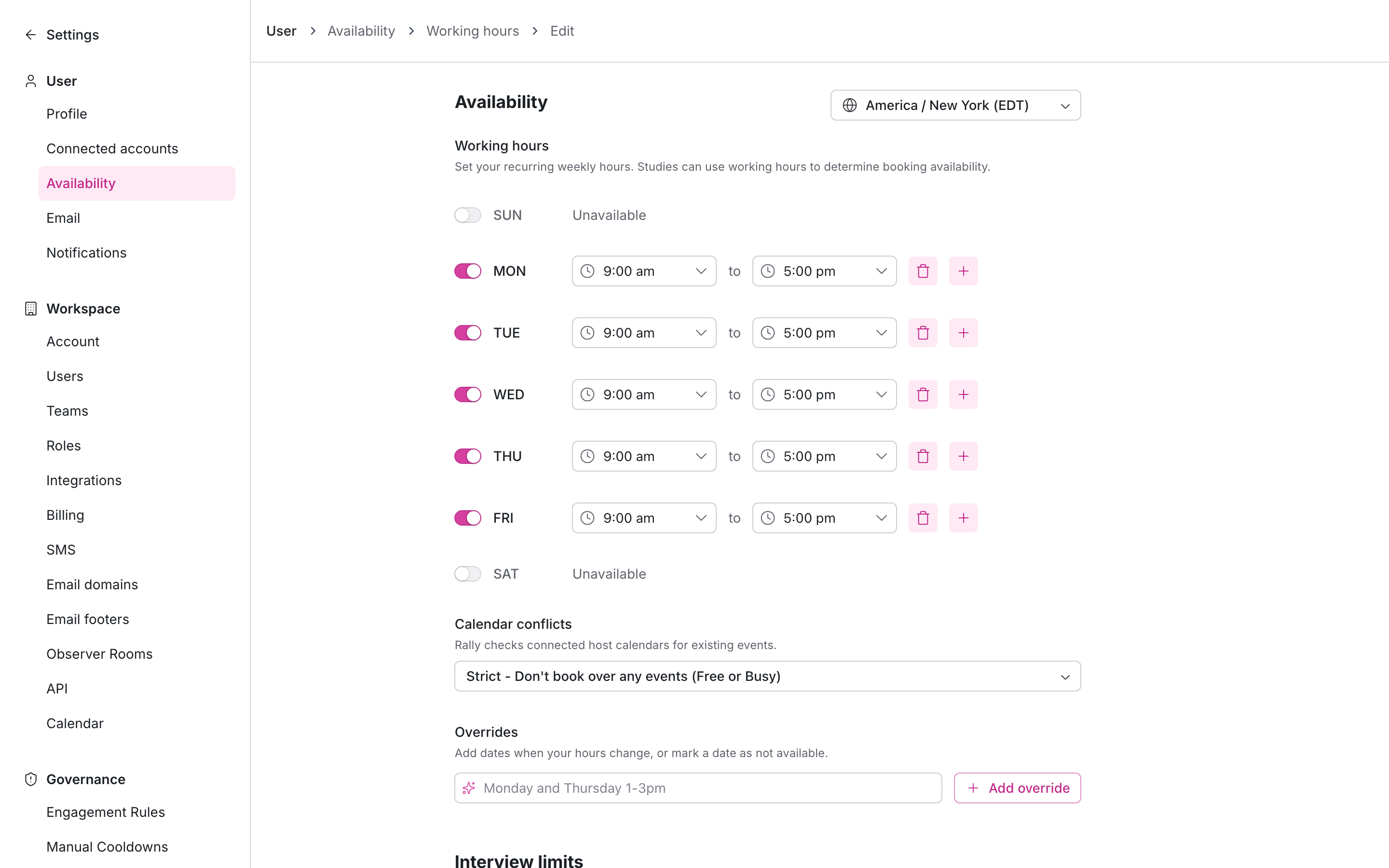
Select the pencil icon on your Working hours to edit.
Select your default Timezone.
Customize your working hours to set interview availability.
Toggle each day on or off.
Set the times you are available for interviews.
Select + to add time blocks for days when you have a break (e.g., lunch or focus time).
Select the trash icon to remove a time block.
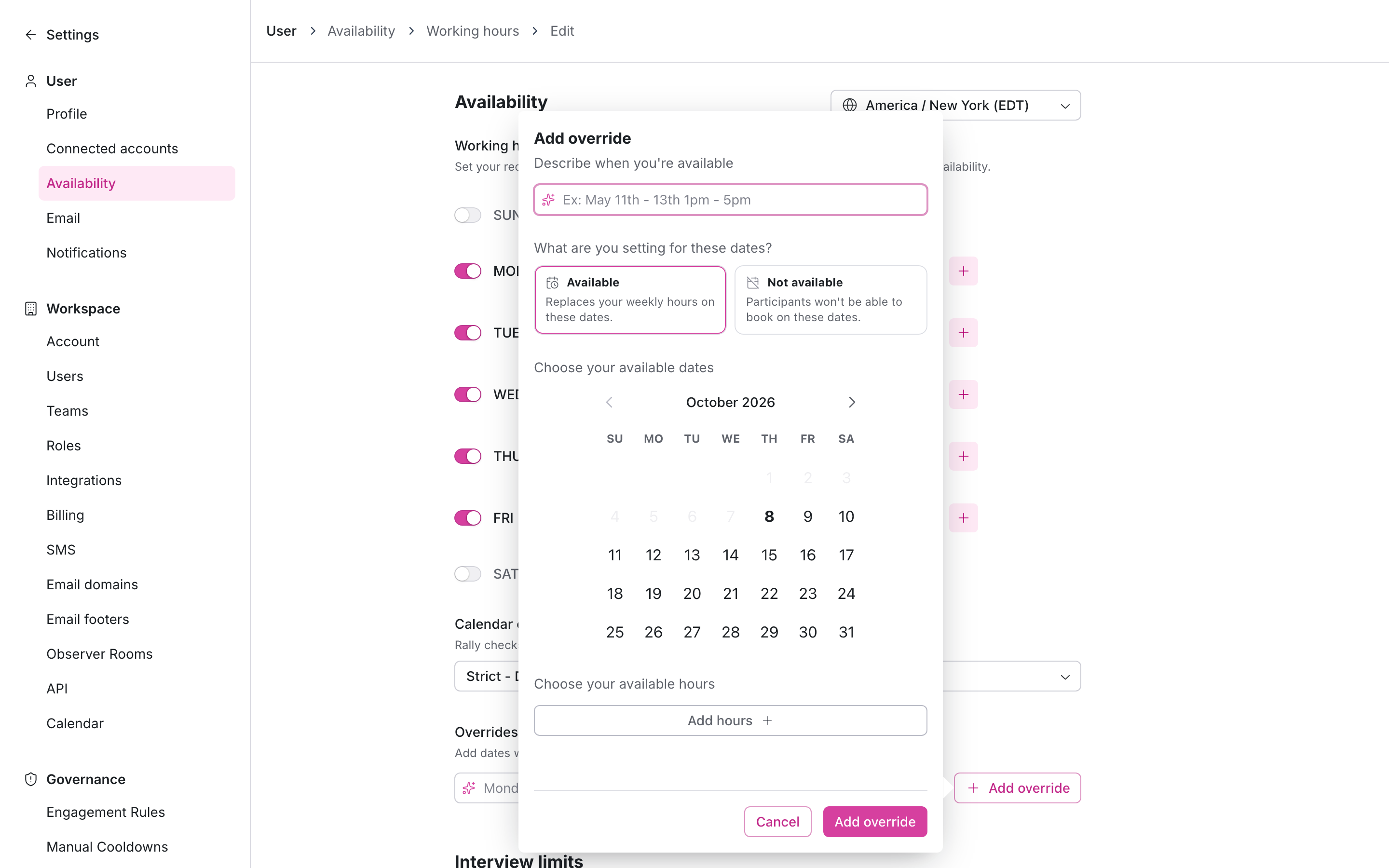
Overrides change your hours on specific dates without changing your weekly schedule. Use them to block out-of-office days or to set different hours on certain dates.
Select Add override.
Under What are you setting for these dates?, choose an option:
Available: Select the date(s), add the hours you're available, then select Add override. These hours replace your weekly hours on those dates only.
Not available: Select the date(s), then select Add override. Participants can't book you on those dates.
Each override shows its dates and what it does. Not available overrides are styled differently from Available ones so you can tell them apart at a glance. If a Not available override covers some or all of an Available override's dates, Rally flags it on the entry, and those dates stay unavailable.
Participants can still book your weekly hours on dates not specified in your overrides.
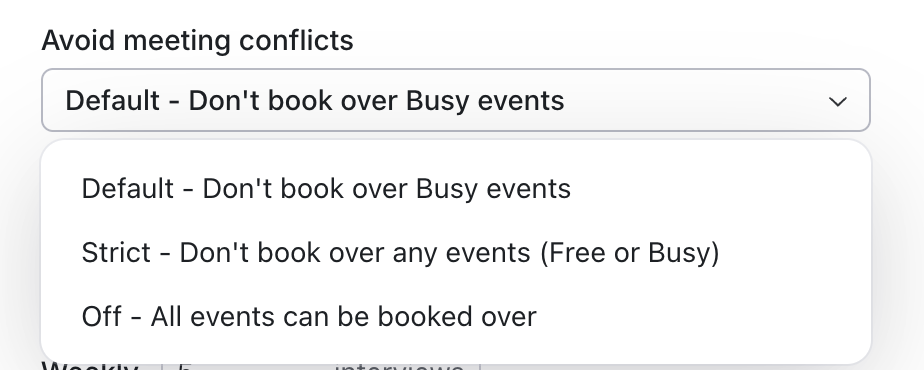
Avoid meeting conflicts controls how Rally handles your existing calendar events when checking availability. This setting doesn't appear if your workspace uses calendarless scheduling. Select from the following options:
Default - Don't book over Busy events: shows tentative and "free" events as available. Note: "Busy" events with tentative or unconfirmed attendance will also show as available.
Strict - Don't book over any events (Free or Busy): shows any event (even tentative) as unavailable.
Off - All events can be booked over: ignores all external calendar events. Rally still won't book over your existing Rally interviews, in any study.
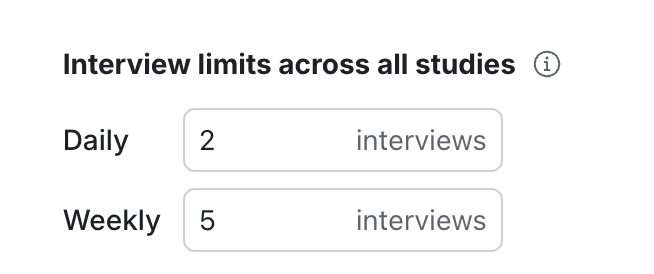
Interview limits across all studies lets you cap how many interviews can be booked for you per day and per week, across all studies in your workspace. Set a Daily limit, a Weekly limit, or both. Leave a field blank for unlimited.
When both a per-study limit and a personal limit are set, the more restrictive applies.
Timeslots where you have hit your cap will not appear as available to participants.
Select Save changes at the top of the page.
Each user sets their own working hours. From a study, people with access can open a host's working hours with Edit settings, and changes apply to every study that uses that host's working hours. To use one schedule for all hosts in a single study, choose Set dates and times in the study instead.
Troubleshoot availability
Fewer timeslots than expected
Check your connected calendar for events that overlap the missing times. Depending on your Avoid meeting conflicts setting, these can block timeslots:
All-day events
Colleagues' out-of-office events you've accepted
Recurring meetings marked tentative or free (blocked under Strict)
Also check these settings:
Interview limits across all studies above, and the study's own Daily and Weekly interview limits. Once a limit is reached, no more timeslots show for that day or week.
The study's Minimum booking notice. Timeslots inside that window are hidden, so a 24-hour notice means no same-day slots.
The study's Buffer time (see below).
A Not available override in your working hours covering those dates.
To see exactly what participants see, open the study's Scheduling tab and select Preview, or Full calendar for a detailed view.
More timeslots than expected
Make sure you've added Not available overrides for out-of-office or unavailable dates, and that Avoid meeting conflicts is set the way you want. Remember that dates without an override still use your weekly hours.
Then review your connected calendar. Events that shouldn't be booked over need to be set to Busy or Automatically decline meetings. For example, in Google Calendar:
Set focus time events to Busy.
Turn on Automatically decline meetings for out-of-office events.
Buffer time
Buffer time gives you breaks between meetings, but limits available timeslots close to existing calendar events. To check buffers, open the study's Scheduling tab and look under Limits > Buffer time, where you can set time before the interview, after it, or both. Buffer time is added before and after any new bookings.
For example, with a 15-minute buffer and a 30-minute interview, you need 60 open minutes to book a slot (15m before, 30m interview, 15m after).
Rally also respects the buffer time around interviews that are already booked, so a new slot can't start right after an interview that has an after-buffer.
Buffers apply to calendar events as well as Rally interviews. When Avoid meeting conflicts is set to Off, calendar events are ignored, but buffers around Rally interviews still apply.
If you're still seeing unexpected timeslots, contact Rally support with the study name and the dates and times you expected to see.