Screener and Survey Responses
Last updated: October 8, 2026
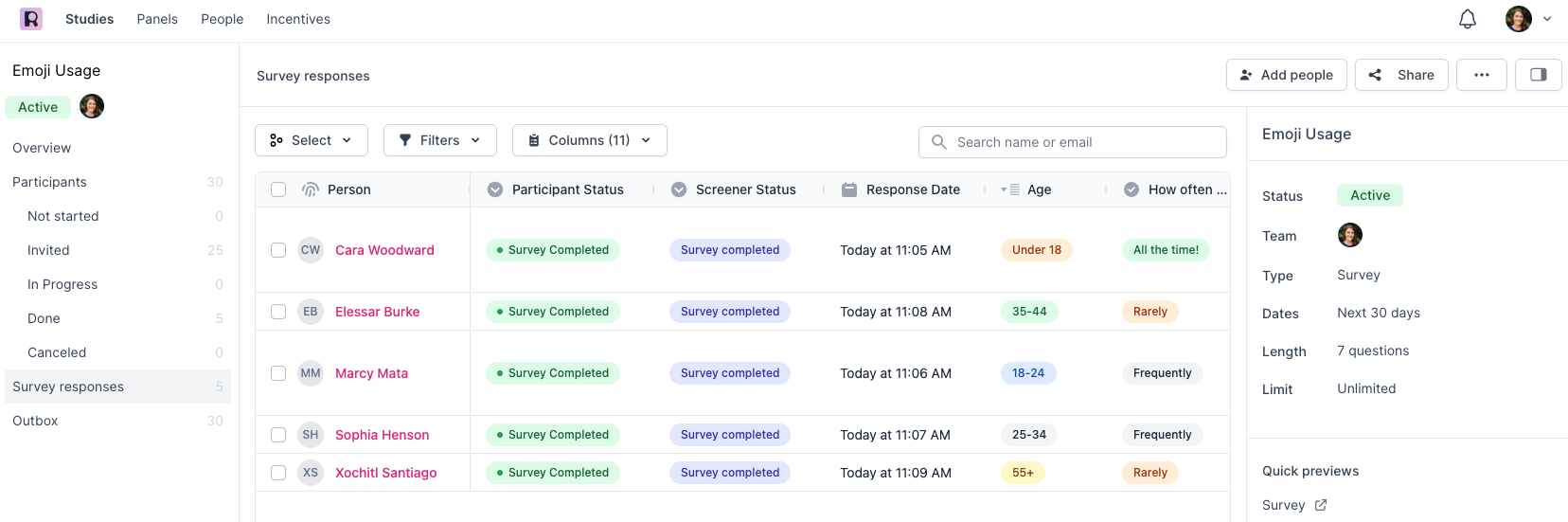
When participants complete a screener or survey, their responses are displayed in the Screener Responses or Survey Responses pages in the study for you to review in Rally. You can also export responses as a CSV download as needed.
Set up Conditional Logic in screeners to auto-qualify or disqualify participants based on their responses, and allow them to proceed to the next step, such as booking an interview or completing an unmoderated test, without manually reviewing responses. If you don't use conditional logic to auto-qualify or disqualify participants, learn how to manually review responses and Qualify Participants to proceed with the next steps.
Screeners cannot be submitted twice by a participant for the same study, to avoid overwriting original responses or attempts to bypass disqualification.
View screener or survey responses
From a specific study overview
Navigate to Studies and select the relevant study to open the Study Overview.
Select Screener Responses or Survey Responses from the sidepanel.
All responses will be displayed in the table by default. Scroll to the right to see all responses to each question side-by-side.
To view responses by participant, hover over a person's name, select the three dots (...), and select View Screener Responses or View Survey Responses to review their responses.
From a person profile
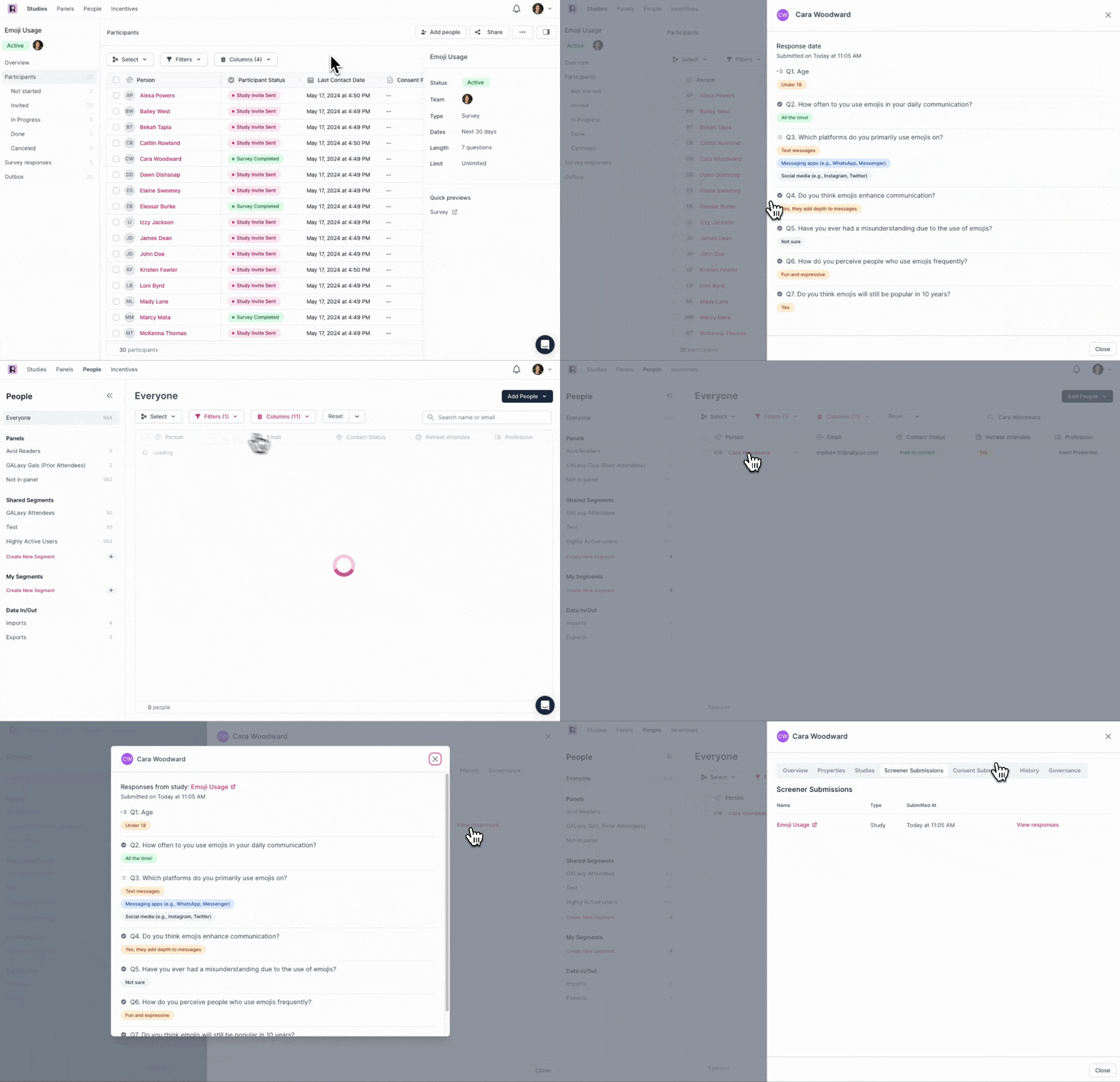
View screener or survey responses for any participant from anywhere their name appears by selecting their name to open their Person Profile.
Select a person by clicking on their name to open their Person Profile.
Select the Screener Submissions tab.
See a historical log of all screeners or surveys this participant has responded to.
Select View Responses next to any submission to view all responses.
From an interview booking
View screener responses for participants when preparing for an interview to review their answers before you begin or after the interview ends.
Within a study, select Interviews from the sidepanel and select any interview status tab, such as Upcoming, Completed, No Showed, or Canceled.
Select the three dots (...) to the right of any interview booking and select View screener responses.
This action is disabled if a participant hasn't submitted screener responses.
Export screener or survey responses
Download screener or survey responses from Rally using the steps below.
Navigate to Studies and select the relevant study to open the Study Overview.
Select Screener Responses or Survey Responses from the sidepanel.
All responses will be displayed in the table by default. Scroll to the right to see all responses to each question side-by-side.
Select the checkboxes next to each person to include in the export, or select the checkbox at the top of the table to select all.
Select the Export button at the top of the table.
In the popup, select Export to begin the CSV file download.
Once the export begins processing, you can close the window and allow it to finish in the background. Once it's ready, you can download it from the same page or from the link in the email confirmation Rally sends you.
Add person profile property data to responses export
Include additional Person Profile data in your responses export by adding columns to the table for relevant profile properties.
You may want to add additional properties to the table before exporting responses to identify who participants are for any cohort analysis, for example, gender or age. This can also help you avoid asking the same questions again if the answers are already in your database.
Every export automatically includes each person's first name, last name, email, and a unique Person ID, regardless of which columns you've added, so you'll always be able to identify who each response belongs to, even for a bare-bones export.
View all exports
You can view all your exports by navigating to People in Rally and selecting Exports from the bottom of the sidepanel.
Learn more about how to export data from different Rally tables, including steps detailing how to upload the CSV file into a new Google Sheets spreadsheet or Microsoft Excel workbook to view or share your data with teammates outside of Rally.