Rally API
Last updated: October 22, 2026
Developers can use the Rally API and webhooks to access and update specific data from your workspace. Review our Rally UXR Developer Docs for complete instructions on each endpoint.
Access the Rally API
To generate an API key or manage webhooks, your role must include the API permission. The Developer role includes it by default, and it can be added to a custom role.
The steps below must be completed by a user whose role includes the API permission. If you don't have it, select Invite Developer on the API settings page to invite one (this requires permission to manage users).
Manage your API key
API keys belong to individual users, not the workspace. Each user can have one active key, and API requests run with that user's permissions. If the user is deactivated or loses the API permission, their key stops working.
In the top left corner of Rally, select your workspace name and select Settings.
From the sidebar, select API.
Select Generate API Key.
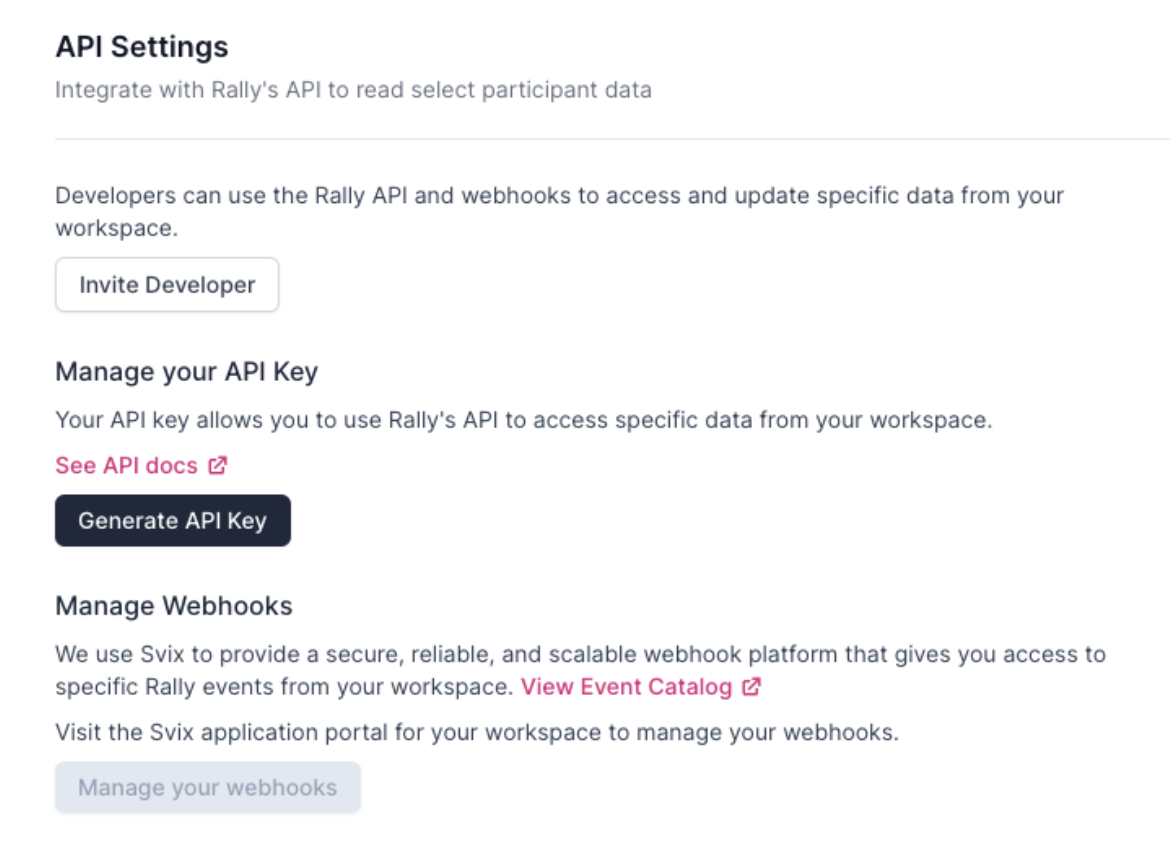
In the popup, select Create new API key.
Select the key to copy it before closing the popup. After you close it, only the first five characters are shown in settings.
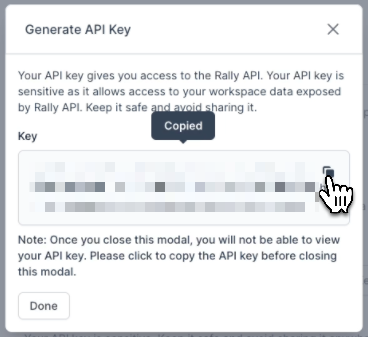
Your API key gives you access to the Rally API. Your API key is sensitive as it allows access to your workspace data exposed by Rally API. Keep it safe and avoid sharing it anywhere public. In the event that your API key is compromised, you can rotate it to generate a new key and deactivate the old one.
Select Done to close the popup after copying the API Key.
Use your API key
Include your key as a Bearer token in the Authorization header (Authorization: Bearer <your key>). Requests are limited to 10 per second; requests over the limit get a 429 response with a Retry-After header. See the Rally developer docs for details.
Rotate API key
You can't view an existing API key again. If you lost your key or it was compromised, select Rotate API Key, then select Create new API key and copy the new key.
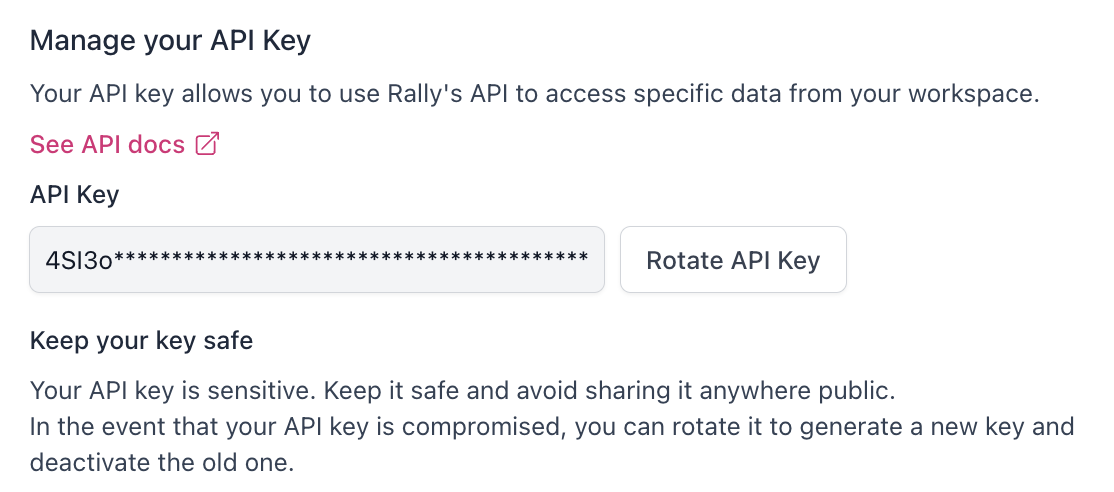
Rotating your API key will generate a new key and invalidate the old one. This action is irreversible.
Manage webhooks
Webhooks send Rally events, such as participant status changes, to your own systems. Rally uses Svix to deliver them. View Event Catalog.
In the top left corner of Rally, select your workspace name and select Settings.
From the sidebar, select Webhooks.
Use the portal on this page to add endpoints, copy signing secrets, view the event catalog, and review deliveries.