Populations
Last updated: October 22, 2026
Populations allow you to group people together for research programs and give certain teams access to certain people by assigning populations to specific teams.
People view
The People view contains cards for each population that show, at a glance, important pieces of information about that population. View what teams have access to each population, plus which populations are exclusive, with tags that display on each population.
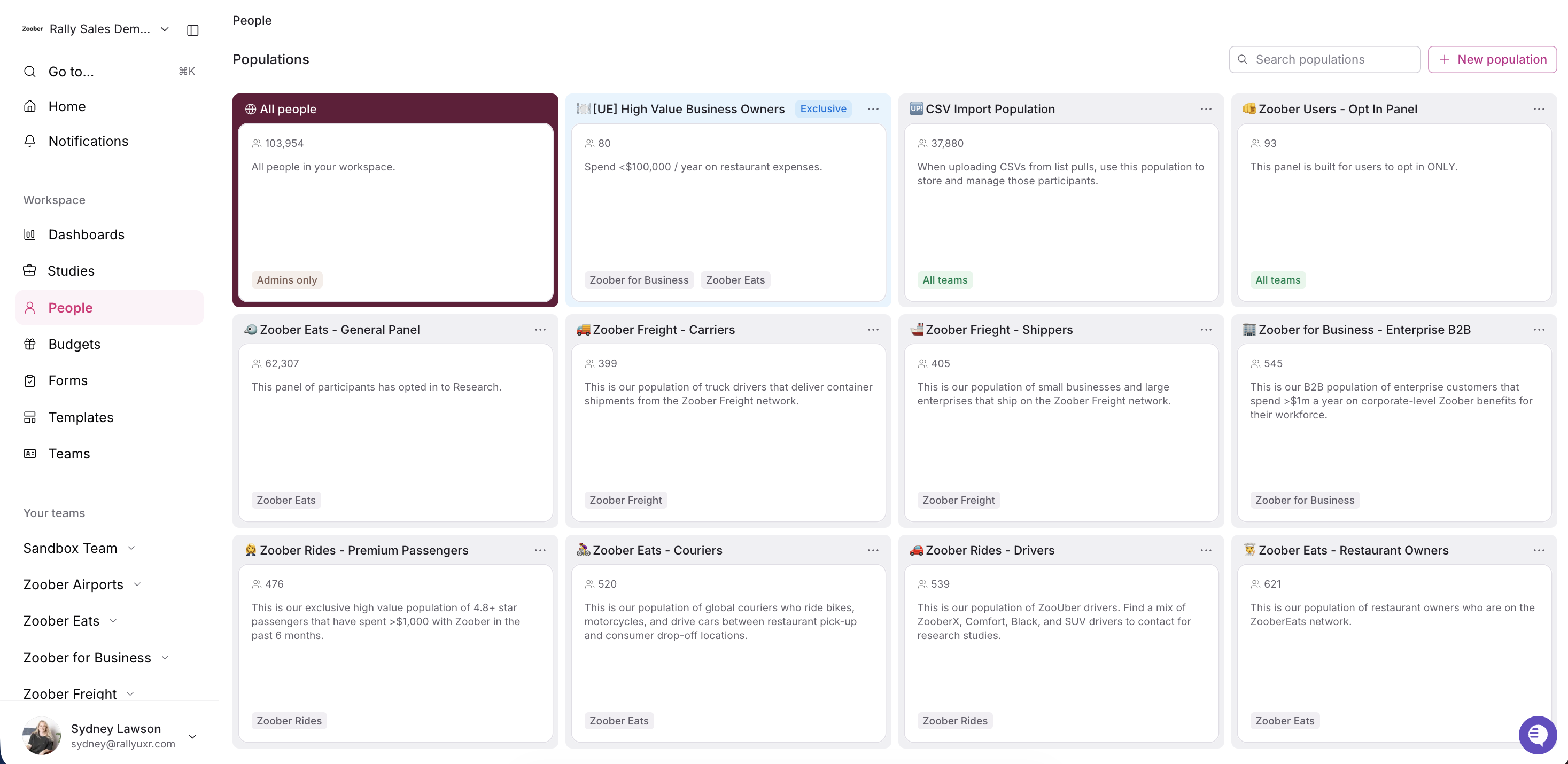
All People
Root level of your workspace that includes all your person records. The All People view contains additional, unique, permissions such as:
“Access All People directory” allows users to view the All People (formerly “Database” view)
Create people in workspace lets users add people directly to your workspace's All People directory, including through CSV imports. To import into a specific population, users also need access to add people to that population.
Population
Bucket people in your workspace into groups. People are added to a population manually, by CSV import, through sign-up forms, or automatically by a Salesforce or Snowflake data sync set to create new people in Rally.
Configure permissions to determine whether the entire workspace has access to a population, or assign access only to specific team(s). Population cards display tags for team access, and will also show Exclusive or Opt-In indicators when those settings are enabled.
Exclusive: When enabled for a population, prevents people in that population from being added to another population. This setting can only be turned on when there are no people in the population.
Opt-in: When enabled, members will be able to self-unsubscribe from the program individually via the participant-facing subscription page. Requires an External name (participant-facing) and an optional External description. See Opt-in programs to learn more.
Delete a population
Deleting a population removes it and unlinks it from any studies, but doesn't delete the people in it. See Create and Modify Populations for steps.
Population overview tab
The population overview tab provides a single home for the key resources and data associated with a given population.
Views | Dynamic lists of participants with a saved filter or set of filters, such as custom attributes, survey results, research engagement history, demographic information, and more. (Ex: Active Customers within Last 30 Days, Accounts Over 100 Employees, US Customers, etc.) |
Lists | Manually updated by adding participants from existing records, manually creating a new person, or via .csv upload. |
Form sign-ups | Lists of people who were recruited through sign-up forms (Ex: 2024 Conference Attendees, Beta Testing Panel, etc.) |
Imports | All historical .csv file imports to this population, including file name, upload status, # of people included, created by (who uploaded it), and imported at (date and time). |
Exports | All historical .csv file exports from any Rally tables within the selected team and population. |
Exploring populations
The People section of the sidebar can be expanded to display all of your populations directly in the left navigation. This lets you see every population at a glance.
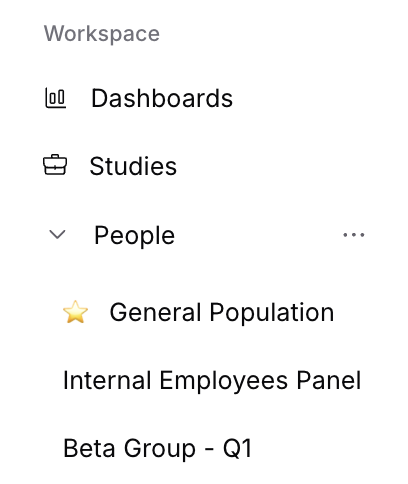
Navigating to your populations
Select a population from the navigation sidebar under the People section, or from within one of your assigned teams.
The population opens on the People tab.
Use the population header to switch between Overview and People. On the People tab, use the Lists and Views dropdowns above the table to open a saved list or view.
Organizing your populations in the sidebar using favorites
Pin up to six favorite populations under People in the sidebar and drag them into your preferred order: hover over People, select the three dots (...), and select Manage favorite populations.
Notes:
Each user is able to set their own preferred order.
Only 6 populations can be favorited at once.
You can favorite a population using the star icon in the population header when viewing a specific population.
