Observer Rooms Settings
Last updated: October 22, 2026
Configure workspace-level settings for Observer Rooms, including who can access recordings, how long they're stored, and whether AI transcription is enabled.
Managing Observer Rooms settings requires the "Modify observer room settings for workspace" permission.
To access Observer Rooms settings:
In the top left corner of Rally, select your workspace name and choose Settings.
From the sidebar, select Observer Rooms.
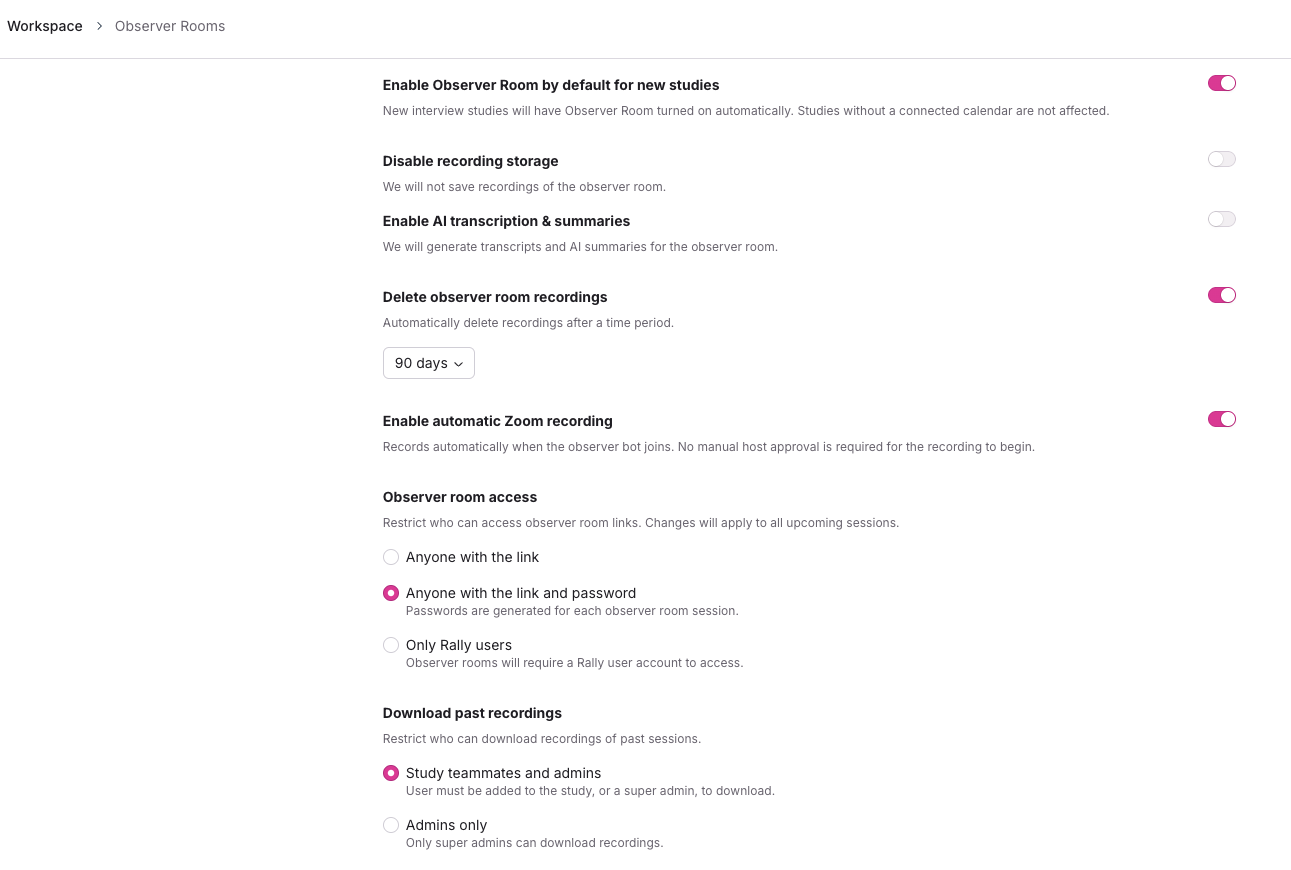
Enable Observer Rooms by default for new studies
When enabled, Observer Rooms are turned on automatically for new interview and group interview studies that have a connected calendar. This setting saves as soon as you toggle it and this is enabled by default on all workspaces.
Disable recording storage
If your team needs to protect participant data, you can disable recording storage entirely. Observer Rooms will still be available for live viewing, but when recording storage is disabled, the AI transcription, auto-delete, and download settings are hidden because they don't apply. The change also applies to sessions that are already scheduled.
Enable AI transcription & summaries
Rally and its sub-processors do not use transcript or summary data to train AI models. See our AI Terms of Service for more details.
Opt in to AI-generated transcripts and summaries by toggling on Enable AI transcription & summaries. Once enabled, the Rally notetaker bot will automatically generate a transcript and summary after each interview, which you can search, scan, and copy from the observer room. This setting is off by default.
AI summaries are only generated for sessions completed after opting in and won't be applied retroactively. Observer Room storage must be enabled for transcripts and summaries to be generated.
Delete observer room recordings
By default, Rally stores all Observer Room data for up to 1 year. Toggle this on to automatically delete recordings after a shorter time period. Select your preferred duration: 7 days, 14 days, 30 days, 60 days, 90 days, 6 months, 9 months, or 1 year. Once deleted, recordings and all associated Observer Room data are permanently removed from Rally and its sub-processors.
After updating any settings (except Enable Observer Rooms by default for new studies, which saves immediately), select Save changes.
Enable automatic Zoom recording
This setting only applies to Zoom meetings and is off by default. When it's off, the Zoom host must approve the bot's recording request, and the bot messages the host if permission is denied. Changes also apply to sessions that are already scheduled.
Observer Room access
Users with permission to modify Observer Room settings can define who can access Observer Room links. Changes to this setting apply to all upcoming sessions.
Anyone with the link (default)
Anyone with the observer room link can access it without entering a password. The link itself contains a protected parameter that prevents unwanted access.
Anyone with the link and password
Observers are prompted to enter a password to access the room. The password can be found in the observer room share sheet in Rally, in calendar invites, and in emails sent to observers. Study owners can view and copy the password in the share sheet. To change it, open the observer room's actions menu and select Update password.
Only Rally users
Only Rally users logged into your workspace can access the observer room. Observers who aren't logged in will be redirected to the Rally login page and brought back to the observer room once signed in.
If you change the observer room password, any previously sent communications containing the old password will not be updated automatically.
Download past recordings
Control who can download past Observer Room recordings.
Study teammates and admins - only study teammates and admins can download recordings.
Admins only - only admins can download recordings.
To download recordings, users must also have the Download observer room recordings permission in their role. Of the default roles, only Admin has it; it can also be added to a custom role.