Snowflake
Last updated: September 17, 2026
Keep your research panel up to date with your most current participant data with Rally's Snowflake integration, which automatically syncs data from Snowflake into Rally every 24 hours.
By configuring sync settings and property mappings, you can tailor the integration to bring in exactly the data your team needs to build targeted segments, recruit the right participants, and launch studies faster.
This integration can also be set up as a two-way sync to share Rally data back to Snowflake automatically. Connect Rally to up to 2 Snowflake tables and optionally set up two-way syncs with specific tables, so data flows exactly where you need it.
How does the Snowflake integration work?
Rally connects to your Snowflake instance using either a Programmatic Access Token (PAT) or Key Pair.
After setting up a connection with Snowflake, you can set configuration settings and create property mappings between Snowflake properties and Rally properties. Each of these properties can be configured per property to either sync data from Rally → Snowflake, from Snowflake → Rally, or use a two-way sync (see below for more details).
Once your Snowflake account has been connected and the integration has been configured, Rally will automatically sync data between Snowflake and Rally every 24 hours. You can pause the automatic syncs, delete the connection, or start a manual sync at any time by going to Integrations within your workspace settings and clicking Manage.
When syncing, Rally uses the Identifier Field of the person to map data between Snowflake and Rally. If a record from Snowflake is not detected in Rally, Rally will either ignore or create a new person in Rally depending on the settings configured during the integration setup or management.
Required user permissions
Before setting up the Snowflake integration, make sure you have the correct permissions in both Rally and Snowflake.
Rally user permissions
Managing this requires the "Modify data integration settings" permission, which is included by default in the Admin, Ops Manager, and Developer/IT roles.
Snowflake user permissions
The Snowflake user running the setup SQL must have the ACCOUNTADMIN role or equivalent privileges to create users, roles, authentication policies, and network policies.
Setting up the Snowflake integration
Step 1: Connect Snowflake to Rally
In Rally, navigate to Settings > Integrations. Find Snowflake in the list of integrations and click Connect. On the Setup Snowflake Connection panel, choose an authentication method:
Personal Access Token (PAT), follow the PAT steps below.
Key Pair authentication, recommended. If you choose Key Pair, generate your key pair using Snowflake's own key pair authentication guide, then enter the following in Rally: Account Identifier, Username, Private Key (and Passphrase, if your key is encrypted), and Role. Once connected, see "Rotate a Key Pair credential" below for how to rotate that credential later without disconnecting.
The remaining setup steps (linking a table, sync configuration, and property mapping) work the same regardless of which authentication method you choose.
Steps for connecting via PAT
Obtain your Account URL and enter it in Rally
This determines the Snowflake account you are connecting to.
SQL to get the Account URL in Snowflake
SELECT CONCAT('https://', t.value:host::varchar) as account_url
FROM TABLE(flatten(input => parse_json(SYSTEM$ALLOWLIST()))) as t
WHERE t.value:type::varchar = 'SNOWFLAKE_DEPLOYMENT';
In Snowflake, create a service user and role for Rally
This creates a dedicated "non-human" user for the sync.
SQL to run in Snowflake
-- Create the Role
CREATE ROLE IF NOT EXISTS RALLY_ROLE;

-- Create the Service User
CREATE OR REPLACE USER RALLY_SYNC_USER
  TYPE = SERVICE
  DEFAULT_ROLE = RALLY_ROLE
  COMMENT = 'Dedicated service user for Rally 2-way sync';

-- Link them
GRANT ROLE RALLY_ROLE TO USER RALLY_SYNC_USER;
In Snowflake, create an authentication policy for the service user
This restricts only the Rally service user to programmatic tokens. Your account and other users are unchanged.
SQL to run in Snowflake
CREATE OR REPLACE AUTHENTICATION POLICY RALLY_PAT_POLICY
  AUTHENTICATION_METHODS = ('PROGRAMMATIC_ACCESS_TOKEN');

ALTER USER RALLY_SYNC_USER SET AUTHENTICATION POLICY RALLY_PAT_POLICY;
Create and assign a network policy
Some Snowflake accounts require a network policy before creating a programmatic access token.
Ensure the following IPs have been whitelisted in your network policy:
44.196.80.52/32
107.21.141.153/32
54.226.107.60/32
98.89.199.176/32
34.204.160.35/32
52.2.175.121/32
SQL to run in Snowflake
CREATE OR REPLACE NETWORK POLICY RALLY_NETWORK_POLICY
  ALLOWED_IP_LIST = ('44.196.80.52/32','107.21.141.153/32','54.226.107.60/32','98.89.199.176/32','34.204.160.35/32','52.2.175.121/32')
  COMMENT = 'Allows Rally to connect for Snowflake sync';

ALTER USER RALLY_SYNC_USER SET NETWORK_POLICY = RALLY_NETWORK_POLICY;
Generate the Programmatic Access Token (PAT)
This generates the "Secret" you will use to connect.
SQL to run in Snowflake
ALTER USER RALLY_SYNC_USER ADD PROGRAMMATIC ACCESS TOKEN RALLY_PAT_TOKEN
  ROLE_RESTRICTION = 'RALLY_ROLE'
  DAYS_TO_EXPIRY = 365;
Enter the Programmatic Access Token (PAT) in Rally
Step 2: Link a Snowflake table
After connecting, follow these steps to link a Snowflake table.
We recommend creating a dedicated table in Snowflake with only the fields relevant to Rally, rather than syncing directly from a primary warehouse table. This simplifies management and reduces risk.
Add Table Information
Provide the following details about your Snowflake table:
Warehouse: Enter the name of your Snowflake warehouse.
Database: Enter the name of your Snowflake database.
Schema: Enter the name of your Snowflake schema.
Table: Enter the name of your Snowflake table.
In Snowflake, run the following SQL to grant access to role RALLY_ROLE
Open your Snowflake console and run the following SQL commands to grant read-only access to your table.
Important: Before running these commands, ensure that the
RALLY_ROLEhas been created in your Snowflake environment.SQL to run in Snowflake
--Grants read_only access to a single table

GRANT USAGE ON WAREHOUSE test_warehouse TO ROLE RALLY_ROLE;
GRANT USAGE ON DATABASE test_db TO ROLE RALLY_ROLE;
GRANT USAGE ON SCHEMA test_db.test_schema TO ROLE RALLY_ROLE;
GRANT SELECT ON TABLE test_db.test_schema.test_table TO ROLE RALLY_ROLE;
Optional: Grant write access to role in Snowflake
If you plan on mapping Rally → Snowflake and/or two-way sync functionality to allow Rally to write data back to your Snowflake table, you'll need to follow these steps.
Run the following additional SQL command in your Snowflake console to grant write access to the
RALLY_ROLE.SQL to run in Snowflake
-- Grant write access to table if Rally to Snowflake sync is needed

GRANT INSERT, UPDATE ON TABLE test_db.test_schema.test_table TO ROLE RALLY_ROLE;
Step 3. Configure the sync
Carefully configure sync preferences to determine how Rally handles records during sync. You can update your sync configuration settings at any time to better fit your needs.
Create new records in Snowflake during sync
Always selected; if a Rally record isn't found in Snowflake using the person's identifier, a new Snowflake record will be created.
Only takes effect if one or more property mappings have sync direction Rally to Snowflake or Two-way.
Delete records in Snowflake during sync
If selected, any Snowflake records that don't exist / have a match in Rally (based on the person's identifier) will be deleted from Snowflake.
If enabled,
Create new people in Rally during syncpreference is disabled as we would delete external records in Snowflake if it does not exist in Rally.
Create new people in Rally during sync
When enabled, Snowflake records that don't already exist in Rally will be created as new participants. Rally uses the Identifier Field to check for existing records.
If enabled, select which Population new participants should be added to.
What should Rally do if a record exists in Rally but is missing in Snowflake?
When a person record exists in Rally but is missing in Snowflake (record was removed or deleted), you can determine what action Rally takes.
Do nothing — Rally takes no action on the missing record.
Opt out missing people in Rally — People missing from Snowflake will be marked as Opted Out in Rally and cannot be contacted.
Delete missing people in Rally — People missing from Snowflake will be completely deleted from Rally, and all their historical data from Rally removed.
The preference to automatically "delete people in Rally if deleted in Snowflake" is hidden by default to avoid active or historical participants accidentally being deleted from Rally. Contact Rally to enable.
Trigger sync whenever a CSV is uploaded to Rally
When enabled, Rally will automatically trigger a sync any time a .csv file is uploaded, so a researcher uploading a list of participants can be sure they get the latest, most complete participant records from Snowflake without waiting for the next scheduled sync.
Contact Rally to get this feature, which can be enabled later.
Step 4. Map fields between Snowflake and Rally
Finally, map Snowflake fields to properties in Rally and select the sync direction.
The Identifier Field is how Rally matches Snowflake records to people in Rally. Only Unique properties (like email address) can be used as an identifier field.
Property mapping
Rally currently supports mapping the following field types from Snowflake:
Snowflake field type | Rally property type |
ARRAY | multi-select* |
checkbox | |
number | |
text; single-select | |
TIMESTAMP_NTZ, TIMESTAMP_TZ, TIMESTAMP_LTZ, TIMESTAMP, DATE | date |
Notes about property mapping
Rally only pulls and maps up to 100 unique options per each multi-select or single-select property from Snowflake.
*ARRAY can only map to multi-select when the type is TEXT or BINARY
Property level sync direction
Rally supports three different sync directions: Snowflake to Rally, Rally to Snowflake, and Two-Way. These sync directions are configured per field/property.
Enabling Rally to sync specific data back to Snowflake allows for research activities conducted in Rally to update your Snowflake database, keeping your organization aligned and ensuring data stays fresh. For example, we suggest syncing properties such as “Last Contact Date”, “Last Interview Date”, “Opted Out” status, or “Incentives Sent".
Snowflake to Rally
This will sync data from Snowflake to Rally using the identifier field to find people in Rally. The sync will use the value from Snowflake to set the value in Rally. If a value for this property already exists in Rally, it will be overwritten by the value in Snowflake. If a value was deleted or removed in Snowflake, it will be removed in Rally.
Rally to Snowflake
This will sync data from Rally to Snowflake using the identifier field to find people in Rally. The sync will use the value from Rally to set the value in Snowflake. If a value for this property already exists in Snowflake, it will be overwritten by the value in Rally. If a value was deleted or removed in Rally, it will be removed in Snowflake.
Two-Way
This will sync data between both Snowflake and Rally using the identifier field to find people in Rally. This will update data in both Snowflake and Rally depending on the most recently updated property. For example: if Two-Way sync was set on the First Name property, when a First Name is updated in Rally, it will be updated in Snowflake on the next sync. Then, if that First Name was later updated within Snowflake, it will be updated in Rally on the next sync. If a value for this property already exists in Rally or Snowflake, it will be overwritten by the most recently updated value for that property. If a value was deleted or removed in Rally or Snowflake, it will be removed in Rally or Snowflake.
Depending on certain property types in Snowflake and Rally, it’s possible only one of these options is available. The restrictions are based on what data can be written to in Snowflake and Rally. For example: in Snowflake, virtual columns cannot be overwritten from Rally. Meaning "Rally to Snowflake" and "Two Way" are not available for this field, only the "Snowflake to Rally" sync direction is.
Managing the Snowflake integration
Managing this requires the "Modify data integration settings" permission, which is included by default in the Admin, Ops Manager, and Developer/IT roles.
In Rally, navigate to Settings > Integrations.
To the right of Snowflake, select Manage.
Select the connection you want to view, edit or manage to open it.
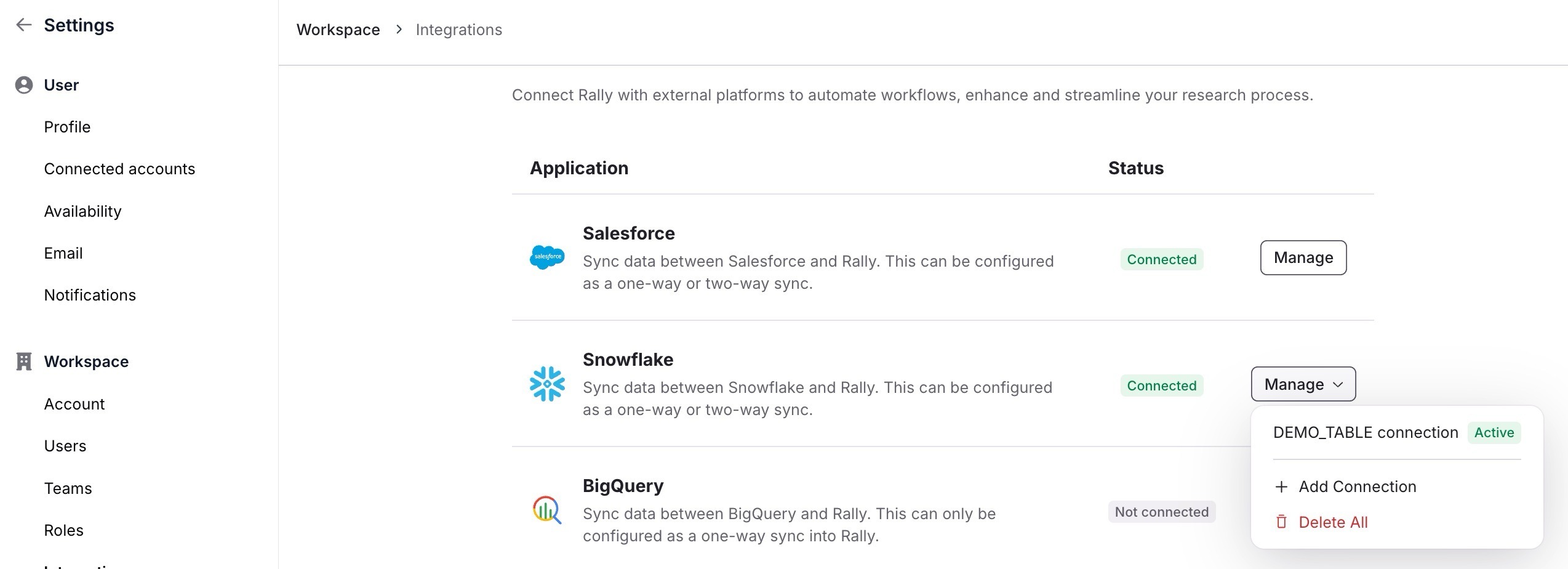
You can use Add Connection to set up a second connection (2 max) or Delete All to fully remove all Snowflake account connections.
Add, update, or remove property mappings, and configure their sync directions and conflict resolution setting as needed. Select + Add property mapping to add a new field mapping, and select the trash icon if you need to delete a property mapping.
Sync history
View a table of all prior syncs to see how many people had data updated during each sync.
The # updated refers only to rows that have changed
A sync occurs when data in Snowflake differs from what’s stored in Rally, and may result in records being created, updated, or deleted.
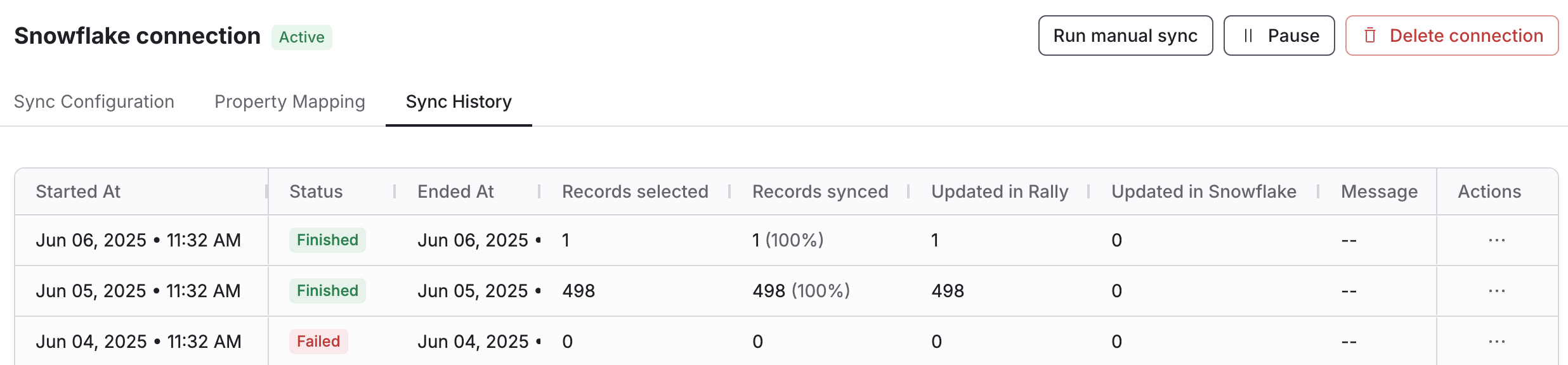
Check the status column to see if daily syncs are successful or not. If syncs are failed or canceled, contact Rally to learn more about why and how to resolve it.
Start or pause syncs
You can click Run manual sync to kick off a new sync immediately, rather than waiting for the next 24hr interval.
Click Pause to pause data from syncing between Rally and Snowflake until you select Resume.
Delete connection
Delete Connection will disconnect Rally and Snowflake, prevent any more syncs from occurring, and remove all property mapping configurations.
Updating an existing Snowflake connection
Switching from OAuth to a Programmatic Access Token (PAT)
In Rally, navigate to Settings > Integrations.
To the right of Snowflake, select Manage.
Choose Programmatic access token from the authentication options.
Follow the Programmatic Access Token (PAT) steps that show within Rally, also detailed in the Setting up the Snowflake connection section above.
Complete the flow to save; your connection will then use the updated token instead of OAuth.
Rotate your Programmatic Access Token
Programmatic Access Tokens expire after 365 days, it is important to rotate it before the expiration date to ensure your Snowflake connection is maintained.
If your token is expiring within the next 30 days, Rally will show a banner on the Integrations page with a link to open the rotate flow.
To rotate your Programmatic Access Token:
In Rally, navigate to Settings > Integrations.
To the right of Snowflake, select Manage.
Select Rotate access token.
In Snowflake, run the SQL shown in the panel to generate a new token.
Paste the new token into Rally and save.
Rotate a Key Pair credential
If your Snowflake connection uses Key Pair authentication instead of a PAT, you can rotate your private key without disconnecting:
In Snowflake, generate a new key pair and update the public key on the service user.
In Rally, go to Settings > Integrations, click Manage next to Snowflake, and select Change connection settings.
This opens the reauthentication wizard with your account details pre-filled. Paste your new private key (and passphrase, if encrypted).
Save. Your property mappings, sync schedule, and other settings are preserved.
Note: If your workspace has multiple Snowflake table connections using the same Key Pair credential, rotating the key through this flow updates the credential for all of them, even though the wizard only asks you to specify one table.