Salesforce
Last updated: September 17, 2026
Keep your research panel up to date with your most current participant data with Rally's Salesforce integration, which automatically syncs data from Salesforce into Rally every 24 hours.
By configuring sync settings and property mappings, you can tailor the integration to bring in exactly the data your team needs to build targeted segments, recruit the right participants, and launch studies faster.
This integration can also be set up as a two-way sync to share Rally data back to Salesforce automatically.
How does the Salesforce integration work?
Rally connects to your Salesforce instance through a standard OAuth connection to an individual user account (see below for permissions needed).
After setting up a connection with Salesforce, you can set configuration settings and create property mappings between Salesforce properties and Rally properties. Each of these properties can be configured per property to either sync data from Rally → Salesforce, from Salesforce → Rally, or use a two-way sync (see below for more details).
Once your Salesforce account has been connected and the integration has been configured, Rally will automatically sync data between Salesforce and Rally every 24 hours. You can pause the automatic syncs, delete the connection, or start a manual sync at any time by going to Integrations within your workspace settings and clicking Manage.
When syncing, Rally uses the email address of the Salesforce Contact or Lead to map data between Salesforce and Rally. If an email address from Salesforce is not detected in Rally, Rally will either ignore or create a new person in Rally depending on the settings configured during the integration setup or management.
Required user permissions
Before setting up the Salesforce integration, make sure you have the correct permissions in both Rally and Salesforce.
Rally user permissions
Managing this requires the "Modify data integration settings" permission, which is included by default in the Admin, Ops Manager, and Developer/IT roles.
Salesforce user permissions
Rally connects to your Salesforce instance through a standard OAuth connection to an individual user account. We recommend using a stand-alone account specifically for Rally (often called a Service Account) so you can see Rally updates in your audit history.
The Rally Service Account will need at least these permissions in order to connect successfully:
"API Enabled" must be checked
"Session Security Level Required at Login" must be "None"
Note: Rally supports Salesforce orgs with Proof Key for Code Exchange (PKCE) enforced globally for OAuth connections. If your org requires PKCE, connecting to Rally works as normal, no additional configuration is needed on your end.
The objects and fields accessible to Rally are all determined by the user account you use when connecting Rally to your Salesforce instance. Rally will have the same access as the user, so if fields are read-only or hidden for that user, they will be to Rally. In general, you should give Rally "Read", "Create", "Edit", and "Delete" access to all the objects you'd like to manage via Rally.
Setting up the Salesforce integration
Step 1. Connect Salesforce to Rally
In Rally, navigate to Settings > Integrations.
To the right of Salesforce, select Connect to log into your Salesforce account.
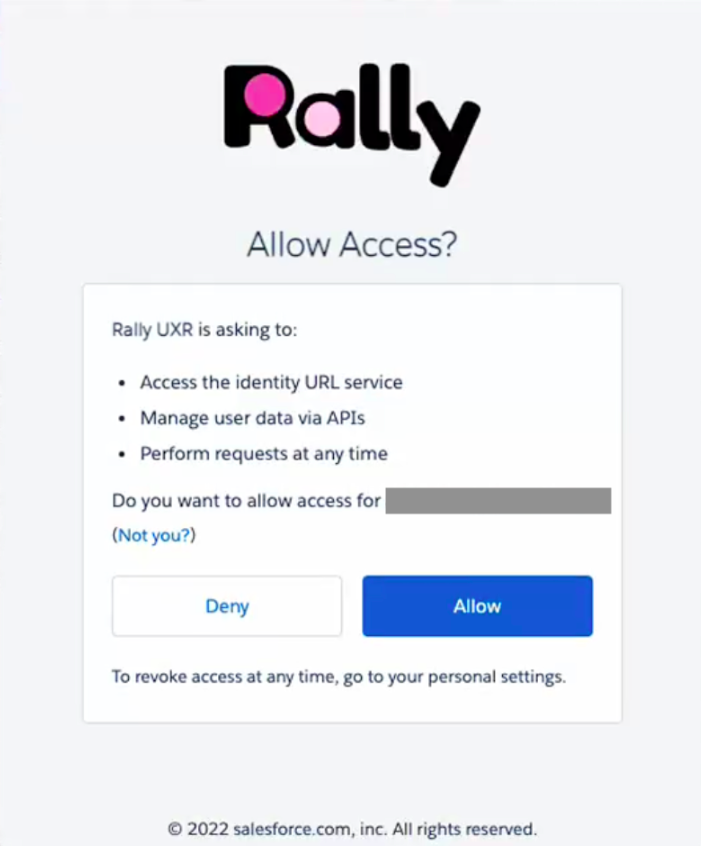
After signing in, you’ll need to approve the requested permissions, listed below.
Select Allow to continue.
Grant Rally the following required permissions by selecting Allow:
Access to identity URL service
Manage user data via APIs
Perform requests at any time
Step 2. Link a Salesforce list
After connecting, you'll need to specify which Salesforce list Rally should sync from.
Record types to sync
You can configure Rally to either sync people to Contacts or Leads. By default, Contacts will be used. You sync data with the Account associated with the Contact. You can select Account properties during the property mapping step that follows (see below).
Alternative custom objects: The recommended way to get fields from other objects in Salesforce is to use a "Calculated Field". Calculated fields let you set fields on Contacts and Accounts from other objects that are related to either a Contact or an Account.
For example, if there was another object called Deal in Salesforce that was related to the Account object, you could use a calculated field to show the Deal Size as a field on the Account, based on the ARR field on a Deal object.
See documentation on calculated fields in Salesforce: https://help.salesforce.com/s/articleView?id=sf.customize_formuladef.htm&type=5
Select list to sync
After selecting which record type, you can select which Salesforce list of Contacts or Leads Rally will sync with. By default, All Contacts are selected. If you have a specific list you want to sync to Rally (i.e. Opted In Participants List), select that list from the dropdown.
Step 3. Configure the sync
Carefully configure sync preferences to determine how Rally handles records during sync. You can update your sync configuration settings at any time to better fit your needs.
Create new people in Rally during sync
When enabled, Salesforce contacts that don't already exist in Rally will be created as new participants. Rally uses the Identifier Field to check for existing records.
If enabled, select which Population new participants should be added to.
What should Rally do if a record exists in Rally but is missing in Salesforce?
When a person record exists in Rally but is missing in Salesforce (record was removed or deleted), you can determine what action Rally takes.
Do nothing — Rally takes no action on the missing record.
Opt out missing people in Rally — People missing from Salesforce will be marked as Opted Out in Rally and cannot be contacted.
Delete missing people in Rally — People missing from Salesforce will be completely deleted from Rally, and all their historical data from Rally removed.
The preference to automatically "delete people in Rally if deleted in Salesforce" is hidden by default to avoid active or historical participants accidentally being deleted from Rally. Contact Rally to enable.
Trigger sync whenever a CSV is uploaded to Rally
When enabled, Rally will automatically trigger a sync any time a .csv file is uploaded, so a researcher uploading a list of participants can be sure they get the latest, most complete participant records from Salesforce without waiting for the next scheduled sync.
Contact Rally to get this feature, which can be enabled later.
Step 4. Map fields between Salesforce and Rally
Finally, map Salesforce fields to properties in Rally and select the sync direction.
The Identifier Field is how Rally matches Salesforce contacts to people in Rally. Only Unique properties (like email address) can be used as an identifier field.
Note: When adding new fields to be synced, we will immediately kick off a sync.
Property mapping
Rally currently supports mapping the following field types from Salesforce:
Salesforce field type | Rally property type |
picklist, reference | single-select* |
multipicklist | multi-select* |
boolean | checkbox |
double/int | number |
string, textarea | text |
data, datetime | date |
Notes about property mapping
Rally only pulls and maps up to 100 unique property options per each multi-select or single-select property from Salesforce.
Rally does not support mapping compound fields (like Billing Address). Instead, map the component fields directly to Rally properties.
Rally supports syncing with Account fields. If a Contact is associated with an Account, you can select any Account field in Salesforce to be mapped to a property in Rally. Account fields sync from Salesforce to Rally only; Rally cannot write back to Account fields.
Property level sync direction
Rally supports three different sync directions: Salesforce to Rally, Rally to Salesforce, and Two-Way. These sync directions are configured per field/property.
Enabling Rally to sync specific data back to Salesforce allows for research activities conducted in Rally to update your Salesforce database, keeping your organization aligned and ensuring data stays fresh. For example, we suggest syncing properties such as “Last Contact Date”, “Last Interview Date”, “Opted Out” status, or “Incentives Sent".
Salesforce to Rally
This will sync data from Salesforce to Rally using the Contact or Lead’s email address to find people in Rally. The sync will use the value from Salesforce to set the value in Rally. If a value for this property already exists in Rally, it will be overwritten by the value in Salesforce. If a value was deleted or removed in Salesforce, it will be removed in Rally.
Rally to Salesforce
This will sync data from Rally to Salesforce using the Contact or Lead’s email address to sync with people in Rally. The sync will use the value from Rally to set the value in Salesforce. If a value for this property already exists in Salesforce, it will be overwritten by the value in Rally. If a value was deleted or removed in Rally, it will be removed in Salesforce.
Two-Way
This will sync data between both Salesforce and Rally using the Contact or Lead’s email address to find people in Rally. This will update data in both Salesforce and Rally depending on the most recently updated property. For example: if Two-Way sync was set on the First Name property, when a First Name is updated in Rally, it will be updated in Salesforce on the next sync. Then, if that First Name was later updated within Salesforce, it will be updated in Rally on the next sync. If a value for this property already exists in Rally or Salesforce, it will be overwritten by the most recently updated value for that property. If a value was deleted or removed in Rally or Salesforce, it will be removed in Rally or Salesforce.
Depending on certain property types in Salesforce and Rally, it’s possible only one of these options is available. The restrictions are based on what data can be written to in Salesforce and Rally. For example: in Salesforce, Account data cannot be overwritten from Rally. Meaning "Rally to Salesforce" and "Two Way" are not available for this field, only the "Salesforce to Rally" sync direction is.
Managing the Salesforce integration
Managing this requires the "Modify data integration settings" permission, which is included by default in the Admin, Ops Manager, and Developer/IT roles.
In Rally, navigate to Settings > Integrations.
To the right of Salesforce, select Manage.
Update your sync configuration settings at any time to better fit your needs.
Add, update, or remove property mappings, and configure their sync directions and conflict resolution setting as needed. Select + Add property mapping to add a new field mapping, and select the trash icon if you need to delete a property mapping.
Sync history
View a table of all prior syncs to see how many people had data updated during each sync.
The # updated refers only to rows that have changed
A sync occurs when data in Salesforce differs from what’s stored in Rally, and may result in records being created, updated, or deleted.
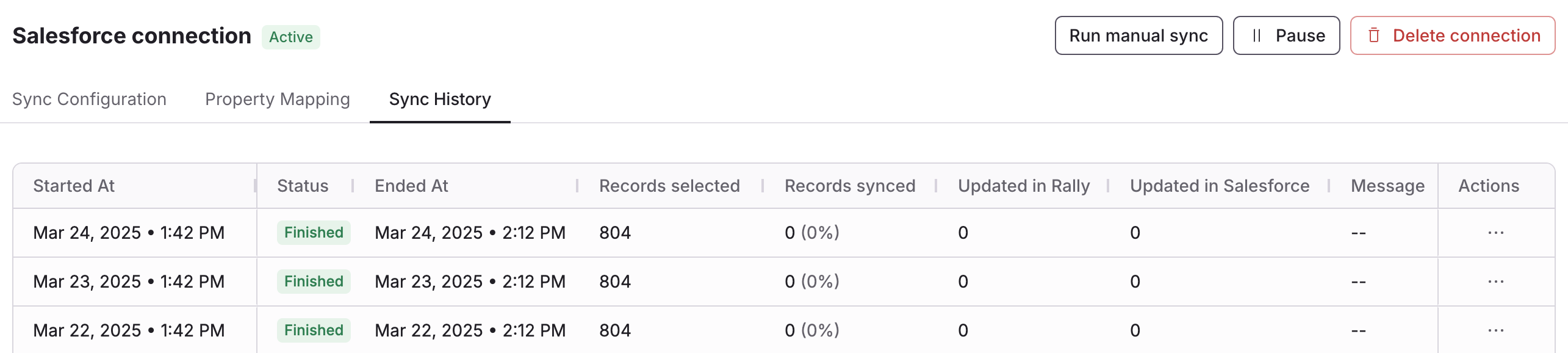
Check the status column to see if daily syncs are successful or not. If syncs are failed or canceled, contact Rally to learn more about why and how to resolve it.
Start or pause syncs
You can click Run manual sync to kick off a new sync immediately, rather than waiting for the next 24hr interval.
Click Pause to pause data from syncing between Rally and Salesforce until you select Resume.
Delete connection
Delete Connection will disconnect Rally and Salesforce, prevent any more syncs from occurring, and remove all property mapping configurations.