Typeform
Last updated: September 17, 2026
While Rally's robust native screener and survey tools are available automatically, connecting your Typeform account to Rally allows your team to utilize different Typeform features and projects together with Rally.
Screeners and surveys
Build your screener or survey in Typeform and recruit participant through Rally studies to leverage more complex questions, map responses, automate and track outreach and participation, and close the loop with an incentive all in one place.
Use hidden fields to pull Rally data into Typeform surveys
Build a study using the Typeform integration and set embedded data hidden fields to:
Do analysis in Typeform on participant data captured and stored in Rally
Set up conditional logic in your Typeform surveys using data pulled from Rally
Use data such as the participant’s name to personalize surveys, or display other important data in Typeform surveys.
How does the Typeform integration work?
This integration is managed by the Rally UXR developer application in Typeform.
Required user permissions
Before setting up the Qualtrics integration, make sure you have the correct Rally user permissions.
Managing this requires the "Modify data integration settings" permission, which is included by default in the Admin, Ops Manager, and Developer/IT roles.
Setting up the Typeform integration
In Rally, navigate to Settings > Integrations.
To the right of Typeform, select Connect.
A popup will appear that may ask you to log into your Typeform account.
Approve the requested permissions by selecting Accept.
Using the Typeform integration in Rally
Now that you've connected your Typeform account to Rally, you're ready to use Typeform surveys in Rally studies.
Only published Typeform surveys will be available to use in Rally.
Use Typeform surveys in Rally studies
In Rally, navigate to the Studies page and create a new study with a screener or survey.
In the Screener or Survey section, select Typeform from the Survey Tool dropdown.
From the Typeform Survey dropdown, select the correct Typeform survey.
Select Preview near the top of the page to preview how the Typeform survey will appear to Participants in Rally. Select View Survey in Typeform to view or edit your Typeform survey.
Optionally, setup hidden fields to pass embedded data from Rally to Typeform.
Finish filling in the rest of your study information.
View Typeform Survey Responses
To view survey responses:
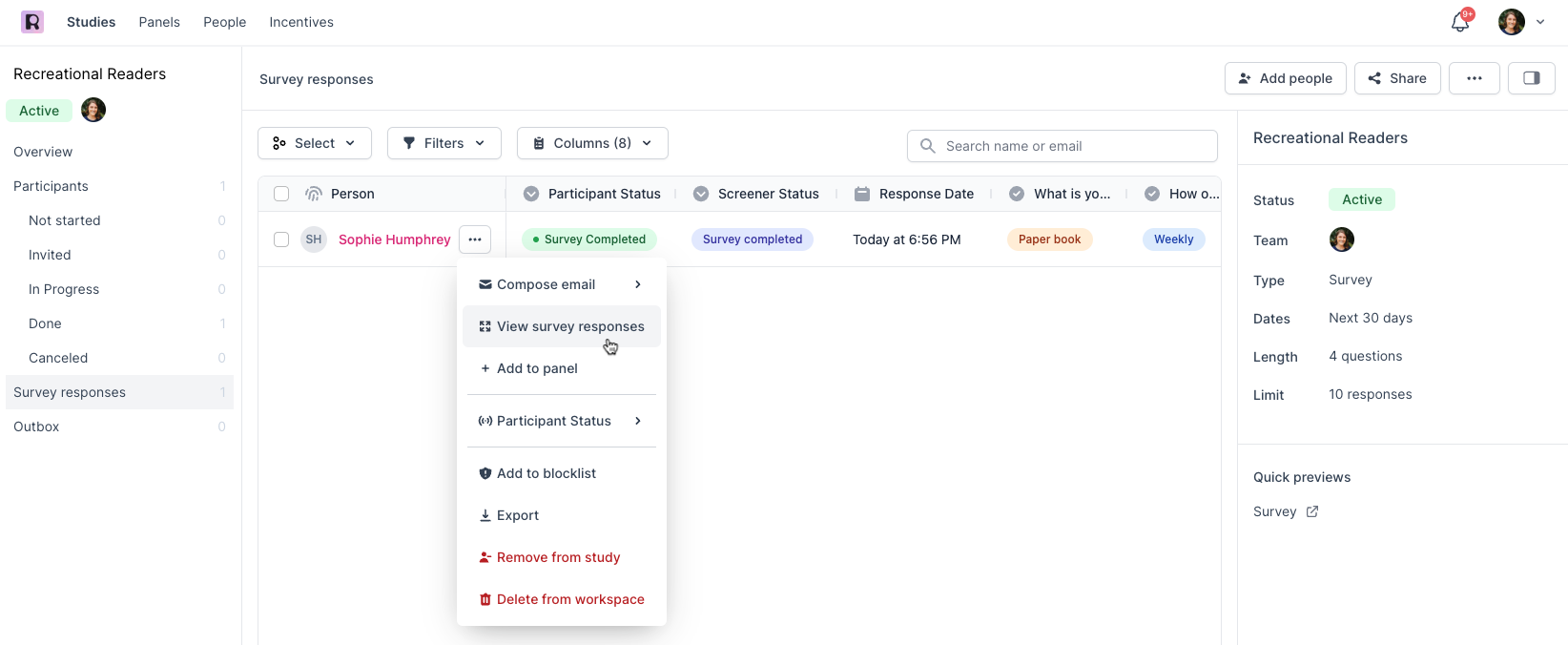
In Rally, navigate to the study and select Screener Responses or Survey Responses from the sidepanel.
Hover over a participant's name to select the three dots and select View Screener Responses or View Survey Responses to view individual participants' responses, or scroll to the right to see all participant responses simultaneously.
Note: Not all Typeform question types are supported in Rally. See the FAQ below for the full list, or open Typeform to view everything.
FAQs
I responded to a Typeform survey using Rally, why is it not showing up in the responses tab?
It may take a few minutes for survey responses to flow from Typeform into Rally. Try refreshing the Screener responses page after a few minutes. If you still cannot see them, please contact us and we will take a look.
Why are some of my Typeform questions not displaying in the responses panel?
Currently, we do not support all Typeform question types in Rally. If any questions are not present in the responses panel, open Typeform to view all.
What Typeform question types are supported in Rally?
Short & Long Text
Number
Multiple Choice
Opinion Scale
Email
Phone Number
Website
Dropdown
Yes/No
Legal
NPS
Rating
Date / Time
What Typeform question types are NOT supported in Rally?
File Upload
Picture Choice
Calendly
Payment
Matrix